Automation that only acts is half-built; automation you can see is trustworthy. A row of small floating buttons on your screen, each showing a live value — battery percentage, free storage, current DNS mode, which profile is active — turns MacroDroid from a black box into an instrument panel. This guide shows how to create a system status dashboard using custom floating buttons in MacroDroid: which values are genuinely available, how often to refresh them without eating the battery you are displaying, and how to keep the overlay helpful instead of one more piece of screen clutter.
The raw material: MacroDroid magic text
Floating buttons in MacroDroid are configured in the app’s Floating Buttons section: each button has an icon or text, a position, and a macro it triggers when tapped. The status trick is that a button’s text can include magic text — bracketed placeholders MacroDroid substitutes with live values. The ones a dashboard actually needs:
| Value | Source in MacroDroid | Refresh behaviour |
|---|---|---|
| Battery level % | Magic text battery level placeholder | Changes slowly; refresh on battery-change trigger |
| Battery temperature | Magic text battery temperature placeholder | Useful during charging/gaming |
| Current profile / mode | Your own string variable (e.g. ui_profile) |
Exact — it changes only when your macros change it |
| Private DNS mode | Shell read of private_dns_mode into a variable |
Read on Wi-Fi change |
| Screen timeout value | Shell read of screen_off_timeout into a variable |
Read on your timeout macros’ events |
| Free storage | Variable updated by your maintenance macro | Weekly value is honest enough |
The design principle hiding in that table: a dashboard should display values your system already knows — variables your other macros maintain — rather than polling the world continuously. Event-driven values are free; polled values cost the resource they measure.
How to read this: the estimate adds a small always-on idle cost for MacroDroid itself (about 0.4% of battery per day) to a per-class daily cost for each trigger type you use, scaled slightly by how many macros you run. These are planning estimates from that transparent model — not measurements from your phone. Use them to compare setups before you build, then confirm against the real numbers under Android Settings → Battery.
System status dashboard with floating buttons in MacroDroid: step by step
- Create the state variables first: global variables for each displayed value (
dash_dns,dash_profile,dash_timeout). Defaults should read sensibly before any macro runs — “DNS: ?” is a fine initial state that tells you the updater has not fired yet. - Create updater macros: wherever another macro changes a state, it also writes the matching dashboard variable in the same action list. Your DNS macros from the private DNS guide set
dash_dnsto “Strict” or “Auto”; your profile macros setdash_profile. One source of truth, zero polling. - Add the floating buttons: one button per value, text like
DNS: {v=dash_dns}using MacroDroid’s variable magic text, small icon, positioned along a screen edge that your apps rarely use for controls (a vertical stack on the right edge, below the top quarter, is the common survivor). - Make buttons dual-purpose: each button’s tap macro can act on the value it displays — tapping the DNS button opens your DNS tile logic or cycles the mode; tapping the profile button switches profiles. A status display that is also the control cannot drift out of sync with reality, because the same macro owns both.
- Grant the overlay permission: floating buttons need “display over other apps”. Grant it to MacroDroid when asked — and note that this is a sensitive permission in general, which is another reason it belongs on an automation app you already trust rather than a novelty widget app.
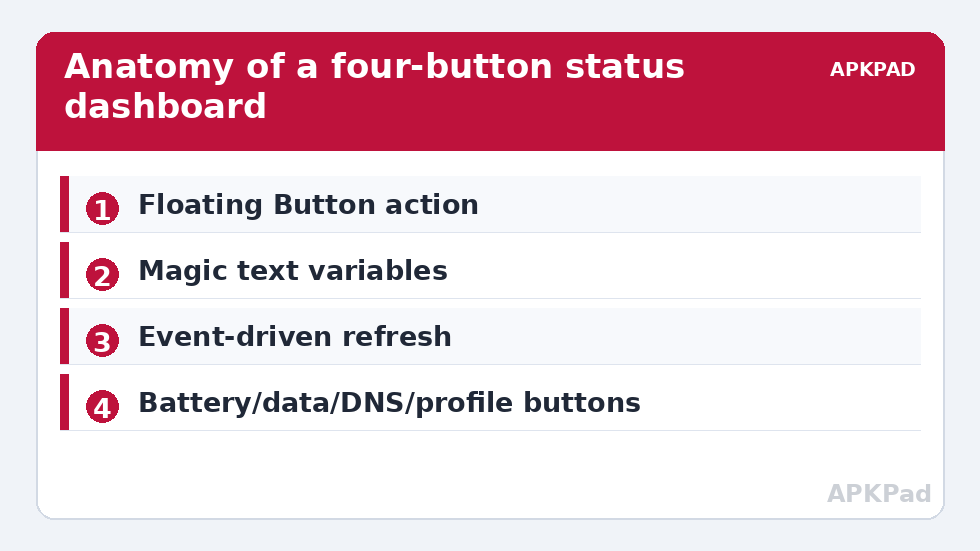
Refresh discipline: the battery maths
The tempting design — a macro that updates every value every 30 seconds — will itself become a top battery consumer, which is a special kind of irony for a battery dashboard. Event-driven updates cost effectively nothing. If you truly need a periodic value (temperature during a gaming session is the classic case), scope the poller: a macro that runs only while a specific app is in the foreground or while charging, with a stop condition, at an interval of minutes rather than seconds. Battery level itself changes slowly and Android broadcasts it; MacroDroid’s battery triggers (level changed, temperature changed) can refresh the relevant button exactly when there is something new to show.
Also respect the screen: floating buttons sit above other apps. Keep them small, semi-transparent if your build allows, and parked where thumbs and app controls are not. A dashboard you keep dismissing because it covers a button is a failed dashboard; two or three honest values beat eight clever ones. For phone-wide toggles that do not need to be visible, prefer Quick Settings tiles and reserve the overlay for glanceable state.
Example dashboard that earns its space
- Button 1:
{battery}°C-aware— shows battery % normally (tap: opens battery settings). - Button 2:
DNS: {v=dash_dns}— tap cycles Strict → Auto → Off with a confirmation toast, updating the variable in the same macro. - Button 3:
Profile: {v=ui_profile}— tap cycles your UI profiles from the system UI guide (Work / Reading / Evening). - Button 4:
TO: {v=dash_timeout}— shows the current screen-timeout tier set by your per-app timeout macros; tap resets to baseline immediately (the panic button for when a restore macro missed).
Every element of that set has caught a real misconfiguration for the people who run it — the DNS button showing “Auto” on café Wi-Fi is worth the whole overlay.
Removing the dashboard
Floating buttons delete in the same screen that created them, and the updater lines inside your other macros can be deleted or simply left (writing a variable nothing displays is harmless). Remove the overlay permission from MacroDroid’s app settings if you retire the feature entirely. As with everything in the system tweaks category: complete removal takes under a minute and leaves no residue.
Layout and ergonomics: field notes
Position is a design decision with a wrong answer. Avoid the top edge — it collides with the status bar and with pull-down gestures — and avoid the exact thumb-rest zones of your launcher, or you will move the dashboard every time you reach for an app. What survives contact with real use: a short vertical stack along the right edge in the upper-middle third for right-handed use (mirror it for left-handed), set to the smallest readable text, and — critically — tested in your three most-used apps, not just on the home screen. Full-screen video and games deserve a constraint: hide or shrink the dashboard while media apps are in the foreground, because a glowing DNS readout across a film is the dashboard failing at its one job, which is to be ignorable until needed. Portrait and landscape disagree about everything above; if you use landscape heavily (tablets, driving), build the position for landscape and accept the compromise in portrait, or gate the dashboard to one orientation entirely.
When not to build a dashboard
Two honest exclusions. First, privacy: a floating readout is visible to anyone holding your phone and appears in screenshots and screen shares. A button announcing your DNS provider and active profile is harmless for most people; if your threat model includes shoulder-surfing or routine screen-sharing with strangers, keep state in the Quick Settings shade instead, where it is one deliberate swipe away rather than always on glass. Second, attention: if you find yourself reading the dashboard for entertainment, it has failed — the correct relationship with an instrument panel is to glance when something feels wrong. Build it, verify it catches one real misconfiguration, then practice ignoring it. The users who keep dashboards for years are the ones who forget they exist between incidents.
Frequently Asked Questions
Do floating buttons drain the battery?
The buttons themselves, negligibly. What drains battery is polling to update them. Build the dashboard on event-driven variable updates — macros write the dashboard variables when they change state — and the cost rounds to zero. Time-scoped polling (only while gaming or charging) is the acceptable exception.
What permission do floating buttons need?
“Display over other apps” (overlay permission), granted to MacroDroid in Android’s special app access settings. It is a sensitive permission generally; it is appropriate here because MacroDroid is your own automation infrastructure, not a third-party widget app.
Can a button show truly live values like CPU load?
Only coarsely, and MacroDroid is not a system monitor. Values it can surface well are battery level and temperature, its own variables, and settings it reads on events. Continuous hardware telemetry belongs to dedicated monitoring tools; a MacroDroid dashboard is for the state of your automations.
My button text does not update. Why?
Usually because nothing wrote the variable — the display is honest, the updater macro did not fire. Check the updater’s trigger (for example, a Wi-Fi change that occurred before MacroDroid started). Add a manual refresh by tapping the button to re-read state while you debug.
How many buttons should a dashboard have?
Two to four. Each must answer a question you actually ask your phone (“is my DNS strict here?”, “which profile is on?”). If a value has not informed a decision in a month, remove that button — screen space is the scarcest resource on the device.