On your home network, your ISP’s resolver is a known quantity. On café, airport, and hotel Wi-Fi, your DNS queries — a neat list of every service your phone talks to — go to whoever runs the hotspot, in cleartext, unless you have done something about it. Private DNS is Android’s built-in answer, and the only annoyance is remembering to switch it. This guide shows how to toggle private DNS servers automatically on public Wi-Fi with MacroDroid: strict encrypted DNS everywhere except the networks you explicitly trust, driven by two settings keys and one well-designed macro pair.
The two keys that control Private DNS
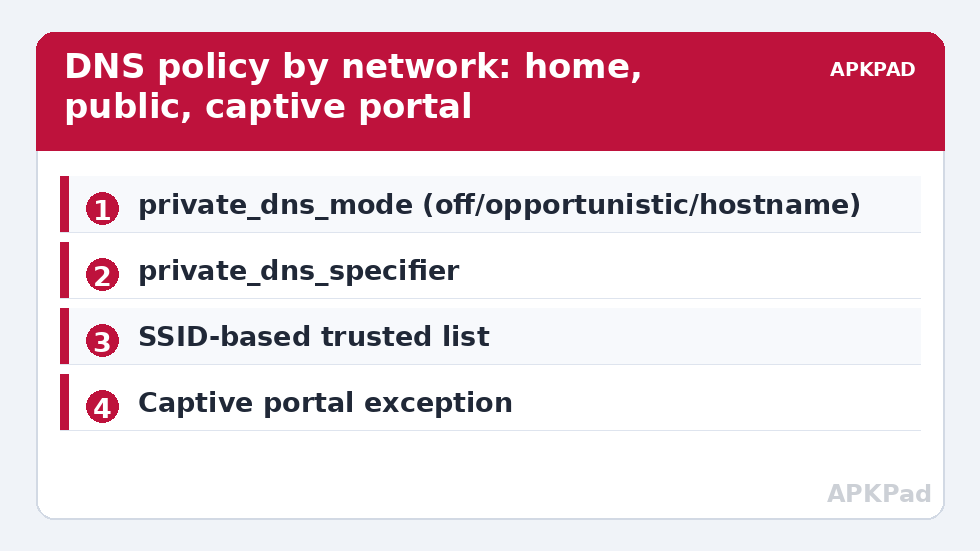
Android’s Private DNS (DNS-over-TLS) is governed by global settings:
| Key | Values | Meaning |
|---|---|---|
private_dns_mode |
off |
Plain DNS from the network — no encryption |
opportunistic |
“Automatic” in Settings: uses encrypted DNS if the network’s resolver supports it, falls back silently | |
hostname |
Strict mode: always use the provider named in the specifier key; no fallback | |
private_dns_specifier |
a hostname, e.g. one.one.one.one, dns.google, or your NextDNS/Control D hostname |
The strict-mode resolver |
The ADB write, for reference:
adb shell settings put global private_dns_mode hostname
adb shell settings put global private_dns_specifier one.one.one.one
Strict mode (“hostname”) is the one that actually protects you on hostile networks, because opportunistic mode quietly falls back to plaintext when the local resolver does not offer TLS — which on public Wi-Fi is most of the time. The cost of strict mode is the captive portal problem, handled below.
Prerequisite: the grant
Writing global keys from MacroDroid requires WRITE_SECURE_SETTINGS, granted once via ADB. The full walkthrough — including how to verify the grant and how to revoke it — is in granting WRITE_SECURE_SETTINGS to MacroDroid. As always with that permission: it is powerful, it belongs only on apps you trust, and every change made with it in this article is reversible by writing the original values back.
How to read this: the estimate adds a small always-on idle cost for MacroDroid itself (about 0.4% of battery per day) to a per-class daily cost for each trigger type you use, scaled slightly by how many macros you run. These are planning estimates from that transparent model — not measurements from your phone. Use them to compare setups before you build, then confirm against the real numbers under Android Settings → Battery.
Toggle private DNS on public Wi-Fi with MacroDroid: design the policy first
Resist building the macro first. Write the policy as a sentence: “Strict private DNS with my chosen provider, everywhere, EXCEPT my home SSID and my office SSID, where opportunistic mode is fine because I run/know those networks.” Your exemptions list should be short and deliberate — every SSID you exempt is a network where your queries are visible to its operator. Note that SSID-based trust has a known weakness: SSIDs are not authenticated. A malicious hotspot can name itself after your home network. The mitigation is partial (your phone also checks the network’s security type and gateway characteristics, but not perfectly), so the truly cautious policy is strict DNS everywhere, accepting the captive-portal dance described next. Choose consciously; both policies are defensible, and the macro supports either.
The macro pair
Macro 1 — “Untrusted network: lock DNS down”
- Trigger: Wi-Fi State Change → Connected. (MacroDroid needs location permission to read SSIDs on modern Android — a platform requirement, not MacroDroid’s choice.)
- Constraint: SSID is NOT in your trusted list. Express this as a constraint comparing the connected SSID against your exempt names.
- Actions: System Setting (Global) →
private_dns_specifier→ your provider hostname (write it every time; harmless if unchanged). System Setting (Global) →private_dns_mode→hostname. - Optional: a brief notification “Private DNS: strict” for the first days while you build confidence in the automation.
Macro 2 — “Trusted network: relax”
- Trigger: Wi-Fi State Change → Connected.
- Constraint: SSID IS in your trusted list.
- Action: System Setting (Global) →
private_dns_mode→opportunistic(oroffif your home setup uses a local resolver you specifically want, such as a Pi-hole — in that case off is the correct choice, because strict mode would bypass your own filtering; the DNS you trust at home is your own).
Add a third tiny macro on Wi-Fi Disconnect that sets strict mode back on, so the phone never sits on mobile data or a forgotten hotspot in relaxed mode by accident. For a manual override, expose the three states on a tile using custom Quick Settings tiles.
The captive portal problem, handled honestly
Strict DNS breaks many hotel and café login pages: the portal intercepts DNS to redirect you to its sign-in page, and strict mode refuses the interception, so the page never loads. This is the number one reason people abandon private DNS, and it has a clean procedure rather than a workaround:
- When a network demands sign-in and the page will not load, open your DNS tile or the Private DNS settings and switch to Off for sixty seconds.
- Complete the portal sign-in.
- Switch back to strict (or just disconnect and reconnect — your Macro 1 fires on connection events and re-applies strict mode automatically; a quick Wi-Fi toggle is the fastest “undo my exception” there is).
That sixty-second window of plaintext DNS on a portal page is a small, conscious trade — infinitely better than running unprotected on every public network forever because the portal case annoyed you once.
Choosing a provider
The specifier is just a hostname; pick on policy, not speed folklore. The large public resolvers (Cloudflare’s one.one.one.one, Google’s dns.google, Quad9’s dns.quad9.net) differ mainly in logging policy and extra features — Quad9 blocks known-malicious domains by default; filtering services like NextDNS or Control D give you a personal hostname with custom blocklists and per-device statistics, which suits the MacroDroid-minded user well. Whichever you choose, verify it resolves before automating: set it manually in Settings → Network → Private DNS for a day first. A typo’d hostname in strict mode means no DNS at all, and the failure looks exactly like “the Wi-Fi is broken”.
Undo: returning to stock behaviour
Disable the macros and set Private DNS back in Settings (Network & internet → Private DNS → Automatic), or from ADB: settings put global private_dns_mode opportunistic. That is Android’s factory posture. Every write the macros made is overwritten by that single value. The rest of this site’s system tweaks observe the same rule — depth of change, shallowness of commitment.
Two confusions to clear: mobile data and VPNs
Private DNS is not a Wi-Fi feature — the same mode applies on mobile data, where it protects your queries from the carrier’s resolver logging in exactly the same way. That is why the third macro in the design re-applies strict mode on Wi-Fi disconnect: your exposure does not end when the hotspot does. If your policy is “strict everywhere except home”, mobile data belongs on the strict side of the line by default.
VPNs outrank all of it. While a VPN is connected, DNS typically travels inside the tunnel to the VPN provider’s resolver, and Private DNS steps aside — a phone can show strict mode configured yet resolve through the VPN, which is correct behaviour, not a leak. The practical corollaries: if you run an always-on VPN, your macro pair matters less (the tunnel is doing this job); if you run a work-profile VPN, it governs only the work profile’s traffic, and your personal-profile DNS still needs this article. And if DNS seems broken with a VPN connected, suspect the VPN’s resolver settings before touching private_dns keys — write down which layer you are debugging, or you will fix the same problem in three places.
Frequently Asked Questions
Why does hotel Wi-Fi stop working with strict private DNS?
Captive portals work by intercepting DNS to redirect you to a login page. Strict mode refuses unauthenticated resolvers, so the interception fails and the page never loads. Switch Private DNS off briefly, sign in, then switch back — or toggle Wi-Fi so your macro re-applies strict mode after login.
Is “Automatic” (opportunistic) mode good enough?
On your own network, yes. On public Wi-Fi, usually not: if the network’s resolver does not offer DNS-over-TLS, opportunistic mode silently falls back to plaintext — exactly the exposure you were trying to avoid. Strict hostname mode is the meaningful protection.
Why does MacroDroid need location permission to read the Wi-Fi name?
Android restricts SSID access behind location permission because a list of nearby networks reveals where you are. MacroDroid cannot work around it; grant location to MacroDroid (while-in-use is enough for connection events on most builds) or the SSID constraints cannot evaluate.
Which private DNS provider should I use?
Pick by policy: Quad9 filters malicious domains by default, Cloudflare and Google run large neutral resolvers, and NextDNS/Control D provide personal hostnames with your own filtering rules and logs. All work as a specifier hostname; test your choice manually for a day before automating it.
How do I turn all of this off?
Disable the macros and set Settings → Network & internet → Private DNS to Automatic, or run adb shell settings put global private_dns_mode opportunistic. That restores Android’s default behaviour completely.