
If you regularly log missed calls texts spreadsheet macrodroid workflows by hand at the end of the day, you already know the failure mode: the important missed call from the morning is buried under delivery notifications by evening, and the note you meant to write never happens. A MacroDroid macro can append each missed call and each important text to a simple file or spreadsheet-ready log at the moment it happens, while the details are still exact.
Set expectations clearly. MacroDroid is excellent at capturing the event, the number, the contact name and the time. Turning that capture into a tidy cloud spreadsheet depends on the method you choose: a local CSV-style file you open later, an HTTP request to a spreadsheet service that supports it, or a file that a sync app carries to your computer. This guide builds the capture properly first, because a perfect sync of badly captured data helps nobody.
How to log missed calls texts spreadsheet macrodroid entries reliably
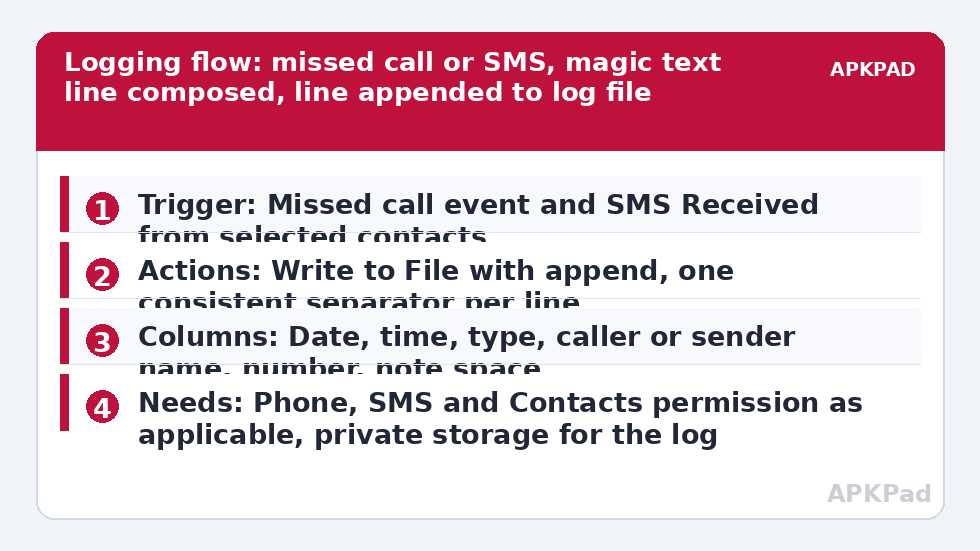
Use two macros that write to the same log format: one triggered by a missed call, one triggered by an incoming SMS from people you care about. Keeping them separate lets you log every missed call but only selected texts, which matters, because logging every message from every app produces a spreadsheet full of one-time codes and marketing noise within a day. Decide the columns before you build anything: date, time, type, name, number and a short note field you can fill in later are enough for almost everyone.
| Column | MacroDroid source |
|---|---|
| Date and time | System time magic text at the moment the trigger fires |
| Type | Fixed text you type yourself: Missed Call or SMS |
| Name and number | Incoming caller or sender magic text from the trigger |
Write each entry as one line with a consistent separator, such as a comma or a semicolon if your contacts’ names contain commas. Consistency is the whole game: a spreadsheet can split a thousand tidy lines in seconds, and can do nothing useful with a hundred creative ones.
How to read this: the estimate adds a small always-on idle cost for MacroDroid itself (about 0.4% of battery per day) to a per-class daily cost for each trigger type you use, scaled slightly by how many macros you run. These are planning estimates from that transparent model — not measurements from your phone. Use them to compare setups before you build, then confirm against the real numbers under Android Settings → Battery.
Build the missed-call logger step by step
- Create a macro with the trigger that matches a missed call event on your device. In MacroDroid this is built around the call-ended or missed-call style triggers your version offers; test which one fires only for unanswered calls, not for calls you rejected deliberately, unless you want rejections logged too.
- Add the action Write to File, or the file action your version provides, and point it at a dedicated log file in a folder you control, for example a MacroDroid Logs folder in internal storage.
- Compose the line using magic text: date, time, the fixed word Missed Call, the caller name, and the caller number, separated consistently. Enable the append option so each event adds a line instead of overwriting the file.
- Add a constraint that the battery or state makes sense if needed, but keep constraints light here. A missed call while you are driving is exactly the entry you most want captured.
- Save, then test by ringing your phone from another handset and letting it ring out. Open the file and confirm the line is complete, readable and correctly separated.
Now build the text logger as a second macro using SMS Received as the trigger, limited to Selected Contacts. Reuse the exact same line format, changing only the fixed type word to SMS and, if you wish, adding a short truncation of the message content. Think hard before logging full message bodies: a spreadsheet of other people’s private texts is a sensitive file, and for most people the sender, time and a note column they complete themselves is the responsible version. Readers who handle messages hands-free may also like auto-reading SMS notifications aloud while driving as a companion, plus announcing incoming callers by name so fewer important calls are missed in the first place.
Getting the log into an actual spreadsheet
The simplest route is manual but honest: once a week, copy the log file to your computer or open it with your spreadsheet app and import it, splitting on your chosen separator. The file is already spreadsheet-shaped, so this takes minutes. The second route is automatic sync: place the log file inside a folder that your existing cloud storage app already syncs, and the latest version appears on your computer without MacroDroid doing any networking at all.
The third route is a direct HTTP request per entry to a web service or spreadsheet endpoint that explicitly supports receiving data that way. Only use this if your chosen service documents it, and test it thoroughly, because a failed request at the moment of a missed call means a lost entry unless you also keep the local file. The robust pattern is both: always append locally, and treat any online copy as a convenience mirror. That mirrors the philosophy in automating cloud photo backups while charging, where MacroDroid schedules and starts a process that another app completes reliably.
Permissions and data care
- Phone and Call Log related access: needed so MacroDroid can detect the missed call and provide caller details. Android will prompt for what the trigger requires.
- SMS permission: needed only for the text logger macro. If you log calls only, do not grant SMS access at all.
- Contacts permission: needed to turn numbers into names in your log lines.
- Storage or file access: needed to append to your log file, scoped to the folder you chose.
Treat the finished log as personal data. It is a record of who contacted you and when, which is exactly why it is useful and exactly why it should not sit in a publicly shared folder or an unprotected spreadsheet link. Keep it in your own account, review it like you would a call history, and delete old exports you no longer need. This logging is for your own phone and your own follow-up list, never for monitoring another person’s device.
Reviewing the log so it changes behaviour
A log you never read is just storage filling up. Once a week, sort it, clear the entries you have handled, and look for patterns: the same supplier calling during your school run, or a family member whose calls you miss every Tuesday meeting. Those patterns connect neatly to auto-rejecting calls during calendar meetings with a polite explanatory text, so regular contacts stop being missed-call statistics. More patterns and call-handling builds live in the Macro Triggers category, linked from the APKPad homepage.
Rotate the file monthly. Append a month and year to the filename, start a fresh file, and archive the old one. Spreadsheets open faster, searches stay quick, and a lost or corrupted file costs you a month of notes rather than a year of them.
Why entries go missing, and the fix that matters most
Missing entries are almost never a spreadsheet problem. They are a capture problem, and the usual culprit is OEM battery management killing MacroDroid in the background. A missed call at 9 a.m. cannot be logged by an app that Samsung, Xiaomi, Oppo or Vivo put to sleep at 8 a.m., and the gap only shows when you compare the log against your phone’s own call history.
Set MacroDroid battery use to Unrestricted in Android Settings, Apps, MacroDroid, Battery, then clear the manufacturer layer too: remove it from Sleeping apps on Samsung, set No restrictions and enable Autostart on Xiaomi, or allow it in your brand’s launch manager. Restart, then run an honest test across a full day, comparing the evening log against the system call log. If an entry is missing after that, check the MacroDroid user log to see whether the trigger fired and a constraint blocked the write, which is a fixable macro issue rather than a sleeping-app issue.
Frequently Asked Questions
Can MacroDroid write directly into Google Sheets or Excel Online?
Not natively with a simple built-in action in the way most people imagine. The reliable methods are appending to a local spreadsheet-ready file and importing or syncing it, or sending an HTTP request to a service endpoint that explicitly documents receiving data that way. Always keep the local file as the master record.
Should I log the full text of every SMS I receive?
For most people, no. Logging the sender, number, date and time gives you a follow-up list without creating a sensitive archive of other people’s private messages. If you do log content, limit it to selected contacts, keep the file in your own private storage, and review it regularly.
Why is a missed call missing from my log?
Most often because OEM battery management killed MacroDroid in the background before the call arrived. Set MacroDroid battery use to Unrestricted, check your manufacturer’s sleeping apps or autostart list, and compare the log with your system call history after a full day of testing.
What separator should I use between columns?
Use a comma only if your contact names never contain commas, otherwise use a semicolon or a tab-style separator consistently. The exact choice matters less than never changing it mid-file, because your spreadsheet import depends on every line following the same pattern.
Does this logging macro need root?
No. Missed-call detection, SMS triggers for your own messages, magic text and appending to a file all work without root. If a specific action prompts for the MacroDroid Helper app on your handset, follow that prompt at that step and test again.