Split-screen is Android’s most underused productivity feature, mostly because opening it takes a fiddly trip through the Recents screen every single time. The pairs you use are always the same — notes beside browser, chat beside calendar, video beside messages — so the ritual is begging to be automated. This guide shows how to automate split-screen multitasking mode for workspace apps with MacroDroid, separating clearly what can be launched automatically on modern Android, what depends on your manufacturer’s skin, and what no macro can promise.
Automate split-screen multitasking mode with MacroDroid: the platform reality
Android never gave ordinary apps a single, stable “put these two apps in split-screen” command that works across versions and brands. What exists is a patchwork:
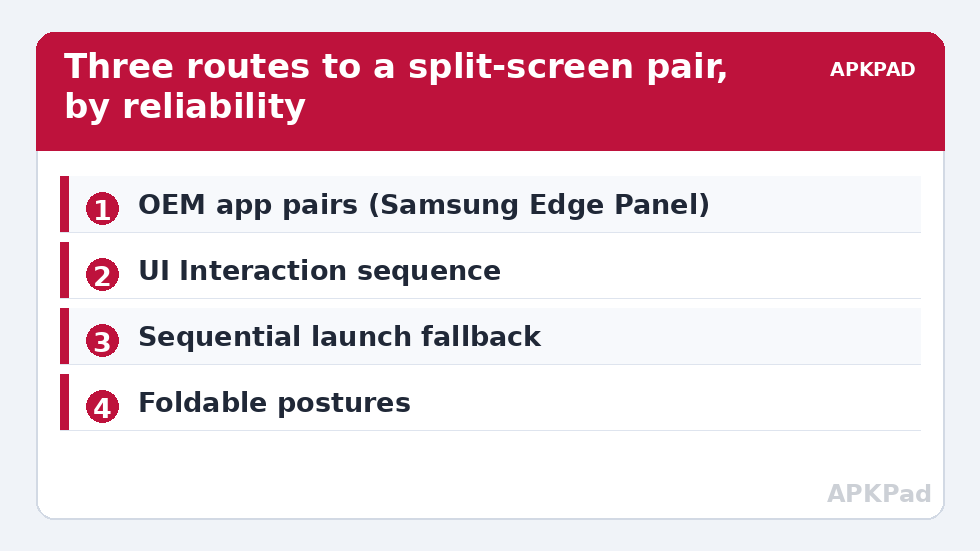
| Method | Reliability | Notes |
|---|---|---|
| OEM app pairs (Samsung App Pair, similar on some skins) | High — on that brand | A saved pair becomes a home-screen shortcut; the most robust route where it exists |
| MacroDroid launches app A, then app B | Medium | Second app simply replaces the first unless split is already active; ordering tricks help on some builds |
| UI Interaction actions (MacroDroid accessibility) | Medium | Can tap through Recents → app icon → “Open in split screen” — works but is screen-dependent |
ADB windowing flags (am start --windowingMode) |
Low and version-dependent | Windowing mode constants changed across releases; a research tool, not a foundation |
| Tasker/AutoInput-style plugins | Medium | Same UI-automation approach with the same fragility |
The honest engineering conclusion: automate the launch sequence and the intent, lean on OEM pair shortcuts where they exist, and treat pure MacroDroid split-launching as best-effort with a UI-automation fallback. Anyone promising silent, universal split-screen from one macro is not telling you about the three phones it failed on.
Route 1: Samsung and OEM app pairs + MacroDroid triggers (recommended)
- On Samsung: open Recents, tap an app’s icon → “Open in split screen view”, choose the second app, then in the divider menu choose “Add app pair to” home screen or Edge panel. Other brands with pair features work similarly.
- You now have a one-tap pair shortcut. MacroDroid’s role is context: use its triggers to prompt or launch at the right moment — for example, a Work Hours trigger that shows a notification with an action button opening the pair shortcut, or a floating button (see the floating dashboard) labelled “Desk Mode”.
- On phones where MacroDroid can launch home-screen shortcuts via its Launch Shortcut action, the trigger can fire the pair directly — test yours; shortcut launching is another brand-dependent capability.
How to read this: the estimate adds a small always-on idle cost for MacroDroid itself (about 0.4% of battery per day) to a per-class daily cost for each trigger type you use, scaled slightly by how many macros you run. These are planning estimates from that transparent model — not measurements from your phone. Use them to compare setups before you build, then confirm against the real numbers under Android Settings → Battery.
Route 2: UI Interaction walk-through (brand-independent, fragile)
MacroDroid’s UI Interaction action (which requires the accessibility service — grant it thoughtfully, as with all powerful permissions) can replay the manual steps:
- Launch the first app normally.
- UI Interaction: open Recents (system navigation action), pause 800 ms.
- Tap the first app’s icon or card label, pause, tap the “Open in split screen” text where your skin shows it.
- From the app list that follows, tap the second app.
Every pause and label in that sequence is a place your specific skin can differ — text differs by language and version, and an OS update can rearrange it. Build it, test it ten times, and put a constraint on the macro so it only attempts the sequence on the home screen or in the first app, never mid-task elsewhere. When it breaks after an update, it breaks visibly and harmlessly: you end up in Recents, not in a corrupted state. Rebuild the taps and move on. For other accessibility-driven techniques, the cautionary tales in fixing UI interaction failures are required reading.
Route 3: Design around it — sequential launches that feel like pairs
Half the value of split-screen pairs is not simultaneity; it is not having to hunt for the second app. A pragmatic pattern that works on every phone:
- App Launched trigger on your primary workspace app (notes) → after a short delay, post a small floating button or notification: “Open Browser alongside?” Tapping it launches the second app; if you are on a skin where launching while split is active adds to the split, you are done in two taps total.
- Time-and-place gating: only offer the pairing on weekday mornings or at your office geofence, so the automation does not nag during leisure use of the same app.
- Large screens change everything: on foldables and tablets, split is a first-class citizen and the OS remembers pairings better; the sequential pattern feels nearly native there. If your workspace is a foldable, invest in Route 1 or 2 — the payoff is daily.
Sensible pairs worth automating
| Pair | Why it works |
|---|---|
| Notes + Browser | Research capture without app-switch amnesia |
| Calendar + Chat | Scheduling conversations where dates are visible |
| Video + Messages | The classic — video shrinks gracefully, chat keeps full width behaviour |
| Maps + Music/Podcast | Driving stack; pair with your car trigger |
| Banking + Calculator/Notes | Short, focused sessions; keep timeouts short here per the per-app timeout guide |
Undo and limits
There is almost nothing to undo: exiting split-screen is the standard divider drag or the Recents gesture, shortcuts delete like any icon, and the macros disable in MacroDroid. The lasting lesson is the limit itself — split-screen launching sits at the edge of what Android exposes to automation, so design for graceful assistance rather than invisible perfection. The rest of the system tweaks category follows the same philosophy: claim exactly what the platform supports, no more.
A short history that explains the patchwork
Multi-window arrived in Android 7 (2016) as split-screen for phones and freeform windows for the adventurous; Samsung had shipped its own multi-window years earlier and kept refining it in parallel, which is why Samsung’s pair features feel a generation ahead. Android 12L (2022) was the first release to treat large screens as a primary target — taskbar, better pair handling, remembered splits — and foldables have been quietly driving the feature ever since. Read today’s landscape through that history: the platform vendor optimises for big glass, the biggest OEM maintains its own mature implementation, and the generic “any two apps, any phone” automation hook that macro users want has simply never been anyone’s priority. Your macros should be built to the reality: excellent on Samsung and on foldables, assisted everywhere else.
If your skin has no pair feature
Pixel owners feel this gap most: stock Android offers split-screen through Recents but no saved pairs. Your realistic stack is Route 2 (the UI Interaction walk-through, rebuilt after major updates) for your one or two most-used pairs, plus Route 3’s sequential-launch prompts for everything else. Two mitigations soften the absence. First, Android’s Recents remembers your recent split combinations informally — after you split a pair once, re-entering split with the same first app often surfaces the partner prominently, so the manual path is shorter than it first appears. Second, app pinning plus fast app switching (the gesture-bar flick between recent apps) replicates perhaps seventy percent of a pair’s value with zero automation: pin the primary app, flick to the secondary and back. It is not split-screen, but for glance-and-return work — checking a message against a document — it is often what you actually needed. Choose the technique by the task, not by loyalty to a feature name.
Frequently Asked Questions
Can MacroDroid put two apps in split-screen with one action?
There is no universal MacroDroid action for it, because Android exposes no stable cross-brand API for it. The reliable routes are OEM app-pair shortcuts (triggered or surfaced by MacroDroid) and UI Interaction sequences that replay the Recents-screen steps — the latter works but is skin-dependent.
What is the most reliable method overall?
On Samsung and other skins with saved app pairs: create the pair once as a shortcut, then let MacroDroid surface or launch that shortcut at the right context (time, place, or a floating button). The OS does the split; the automation does the timing.
Why does my UI Interaction sequence break after updates?
Because it depends on the Recents screen’s layout and labels, which skins change between versions. Rebuild the tap steps after major updates, keep pauses generous, and constrain the macro so a failed attempt strands you harmlessly in Recents.
Does split-screen automation work on foldables and tablets?
Better than on phones. Large-screen devices treat split and paired apps as primary workflows, remember pairings more reliably, and their skins expose stronger pair features — Routes 1 and 2 both become more dependable.
Can I use ADB windowing flags instead?
You can experiment with am start --windowingMode, but the constants and behaviour have shifted across Android versions and it is not a stable foundation for a daily automation. Treat it as a research curiosity, not the plan.