Your MacroDroid setup is months of accumulated decisions — the car macro, the profile your household depends on, fixes whose reasons you have forgotten because they simply work. Losing it to a dead phone or a botched update loses that history, and rebuilding from memory never quite reproduces it. MacroDroid has a good manual export; the problem is human — manual backups happen roughly never. This guide closes the series with automatic macrodroid config backup: a scheduled export to storage you control, verified, dated, and sensibly retained.
What automatic macrodroid config backup should actually contain
MacroDroid’s export produces a configuration file (historically a .mdr export) containing your macros, categories, variables, action blocks and app-level settings — the working substance of your setup. Understand its boundaries before relying on it. The export does not back up: permissions Android granted to MacroDroid or its Helper (grants such as WRITE_SECURE_SETTINGS must be re-applied on a new phone, using the same ADB steps you used originally), files your macros reference (a log folder, a sound file, an archive directory), other apps’ data, or any cloud account state. A complete personal recovery plan is therefore layered: the config export from this guide, a note — even a photograph — of the external files and special permissions your setup depends on, and credentials stored in your password manager rather than in a macro variable. Readers of the startup-routines guide in this category will recognise the philosophy: automated ADB command execution at startup verifies and repairs a running setup; this guide preserves the setup itself, off the device, against the day the device is the problem.
One privacy warning belongs near the top. An export can contain sensitive material in plain form: phone numbers, message templates, location names, webhook URLs, occasionally tokens someone unwisely hard-coded into a macro. Treat the file as sensitive: storage you control, ideally encrypted — never a public link — and move any embedded secret into your password manager instead.
How to read this: the estimate adds a small always-on idle cost for MacroDroid itself (about 0.4% of battery per day) to a per-class daily cost for each trigger type you use, scaled slightly by how many macros you run. These are planning estimates from that transparent model — not measurements from your phone. Use them to compare setups before you build, then confirm against the real numbers under Android Settings → Battery.
What triggers the export: intent versus automation
MacroDroid’s export is traditionally a manual action in its settings, and depending on version it may also keep a limited internal backup history on the device. Two implications follow. First, check your version’s built-in options: if it already exports to a folder on a schedule, your macro’s job reduces to copying that export off the device and keeping a longer history. Second, where no native schedule exists, semi-automate the export step and fully automate everything after it — dating, copying, retaining, verifying, logging. A UI-driven export is fragile; the verification stage below exists so fragility is detected, not discovered during a crisis.
Permissions
The copy-and-retain stages need storage access for MacroDroid (and its Helper where it performs file work), including “all files access” on builds that demand it for non-media folders. No ADB grant is required for file copying. If your destination is a home server or NAS, a sync tool performs the upload leg; MacroDroid’s responsibility ends at a verified local copy in the watched folder. Keep the division clean — one tool exports, one tool syncs.
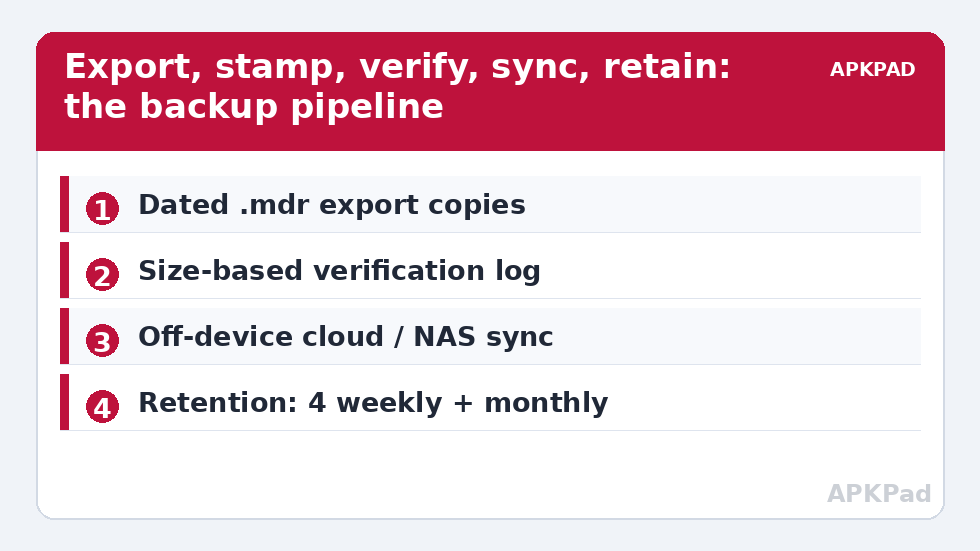
Step by step: the backup pipeline
- Stage 1 — Export: produce the export — your version’s native scheduled export to a known folder if available, otherwise a weekly macro that performs or opens the export via the mechanism your build supports. Name the staging folder plainly, e.g.
Documents/MacroDroidBackup/staging. - Stage 2 — Stamp and copy: a file routine copies the newest export into
Documents/MacroDroidBackup/renamed with the date, e.g.macrodroid-2026-10-17.mdr. Dated names, not “backup-final-v2”, are what make retention and restoration unambiguous six months later. - Stage 3 — Verify: check the copied file exists and its size is plausible (non-zero, and in the same broad range as last week’s export; a 4 KB file when history says 800 KB is a failed export wearing a success costume). Log the size and date to a backup log file. If verification fails, notify prominently the next morning — a silent failed backup is worse than none, because it manufactures confidence.
- Stage 4 — Sync off-device: your cloud or NAS sync tool uploads the backup folder. Confirm the first sync by seeing the dated file from another device. A backup that lives only on the phone it protects is a copy, not a backup.
- Stage 5 — Retain: keep the last 4 weekly backups plus one monthly snapshot kept indefinitely (or for a year). Retention is a small scheduled deletion of your own backup files past the policy — applying the same caution as the screenshot cleanup discipline, but simpler, because these filenames are dated and unambiguous.
- Schedule: weekly suits most setups; move to twice-weekly during periods when you are actively building new macros — backup frequency should track rate of change, not the calendar alone. The Sunday maintenance slot shared with scheduled cache clearing is a natural home for the log review.
The restore drill (do it once, on purpose)
An untested backup is a hypothesis. Once, on a quiet afternoon, prove the pipeline end to end:
- Export a fresh manual copy and stash it separately (your parachute for the drill itself).
- Import last week’s automatic backup into MacroDroid (on a spare device or emulator if you have one; otherwise on your phone, with the parachute in hand).
- Walk your five most important macros: triggers, variables, referenced files. Note what did not come back and write it into a restore note saved beside the backups.
- Re-import the parachute copy to return to your current setup.
Thirty minutes, once, converts restore day from improvisation into following your own note. The power-user reference in the ADB commands cheat sheet belongs in that restore note too, because re-applying the WRITE_SECURE_SETTINGS grant is step one on any new phone — keep the commands with the backup, not in your memory.
Retention and storage, sized
| Setup size | Typical export | 4 weekly + 12 monthly copies ≈ |
|---|---|---|
| Light (10–30 macros) | 100–400 KB | Under 7 MB |
| Medium (50–100 macros, variables) | 400 KB – 2 MB | 8–32 MB |
| Heavy (100+ macros, action blocks, large variables) | 2–10 MB | 32–160 MB |
Even the heavy row is cheap storage — no excuse for a single copy, which fails exactly when copy and phone share a fate: theft, water, a corrupted sync. Dated copies off-device, plus a monthly snapshot, is right-sized paranoia. Browse the wider toolkit from the System Tweaks index or the APKPAD homepage.
Troubleshooting
- The log says success but the file is tiny or missing: the export stage failed silently — most often the UI-driven path was interrupted (screen state, an app update moving a button). Switch the staging check to size-based verification as above; it already caught the failure, which is what it is for. Move to the native scheduled export if your version now offers one.
- Backups stopped after an Android update: storage permissions were re-scoped. Re-grant file access to both folders, then run the pipeline manually once while watching it.
- The sync folder uploads everything except the newest file: the sync tool’s schedule, battery rules, or extension filter excludes it. Whitelist the folder, exempt the sync app from battery optimisation, and confirm from another device.
- Import on the new phone shows macros but they fail: expected gaps — re-grant WRITE_SECURE_SETTINGS and other permissions, re-place referenced files, and re-check Helper pairing. Your restore note should list each; if it does not, update it now, while the fixes are fresh.
- My export contains a hard-coded secret: rotate the secret, edit the macro, delete the old backups, and export fresh. Deleting without rotating assumes no copy ever synced — rotate first.
Undo / retiring the routine
Disable the schedule macros and the sync watch. Decide deliberately about the retained backups: keeping the latest monthly snapshot costs almost nothing; deleting everything is legitimate if you are leaving MacroDroid. Nothing in the pipeline altered the live configuration — it only copied it.
Frequently Asked Questions
What does a MacroDroid configuration backup actually contain?
Your macros, categories, variables, action blocks and app settings — the working substance of your setup. It does not contain Android permissions granted to MacroDroid or its Helper, files your macros reference, or other apps’ data, which is why this guide pairs the export with a written restore note covering grants and files.
How often should the backup run?
Weekly suits a stable setup. Back up more often while you are actively building or changing macros, because frequency should track how much you would lose, not the calendar. Keep the last four weekly copies plus a monthly snapshot.
Is the backup file safe to store in the cloud?
Only in storage you control and trust, ideally encrypted. An export can contain phone numbers, message templates, location names and any secrets unwisely hard-coded into macros, in readable form. Review macros for embedded secrets, move them to a password manager, and never share a backup through a public link.
How do I know the automatic backup actually worked?
Do not trust the schedule — verify. The pipeline in this guide checks the copied file exists and that its size is plausible against previous exports, then logs the result and alerts you on failure. Test the whole thing with a deliberate restore drill once, so restore day is a procedure, not an improvisation.
What will I still need to redo after restoring on a new phone?
Re-apply the ADB permissions such as WRITE_SECURE_SETTINGS, re-grant MacroDroid and Helper their Android permissions, replace any external files your macros use (sounds, logs, templates), and re-check connected accounts. Keep a restore note listing these beside your backups, based on your one-time restore drill.