When a macro calls an external plugin and nothing happens, you have to troubleshoot tasker plugin integration macrodroid failures as a chain, not as a single fault. MacroDroid sends an intent, the plugin receives it, the plugin does its own work under its own permissions, and then it may return a result. A break at any link looks identical from the macro list: the macro ran, the action silently did nothing.
Start by proving which link failed. Open MacroDroid, tap System Log, and run the macro with Test Action. Note the exact timestamp, whether you see “Plugin action invoked”, and whether any error, timeout, or “plugin not responding” line follows. That log line splits the problem in half first.
Symptom Map: What the Failure Looks Like
| Symptom | Most likely break point |
|---|---|
| Plugin does not appear in the action list | Plugin not installed, not enabled, or incompatible with your Android version |
| Plugin appears but configuration screen never opens | Plugin crashed on launch, or its own activity was blocked by battery restrictions |
| Configuration opens, macro tests fine, real trigger fails | Background restriction on MacroDroid or the plugin, or doze delaying delivery |
| Action runs but returns empty variables | Plugin did not grant result data, variable name mismatch, or plugin needs its own foreground step |
| Everything worked until an update | Permission revoked by the update, plugin API changed, or helper version mismatch |
If the plugin is missing from the list entirely, do not debug the macro at all. MacroDroid can only list plugins that correctly declare the Tasker plugin protocol. A companion app that works inside its own interface but never declares that protocol will never appear, and no MacroDroid setting changes that.
Troubleshoot Tasker Plugin Integration MacroDroid Failures by Cause
Work this cause tree in order. Each step is cheaper and safer than the next, and skipping ahead usually hides the real cause.
- Plugin permission revoked. The plugin is a separate app with separate permissions. A plugin that sets files, reads location, or controls Wi-Fi needs that permission in its own settings, not in MacroDroid’s.
- OEM battery kill. Xiaomi, Samsung, and Oppo systems can stop a plugin’s background service. The intent arrives at a dead process and is dropped without an error you can see in MacroDroid.
- Doze and app standby. With the screen off for an hour, Android may defer the plugin call until the next maintenance window, so the action looks lost when it is only late.
- Android-version behaviour change. Android 12 restricted background starts, Android 13 added per-app notification controls, and Android 14 and 15 tightened foreground service and exact timing rules. Plugins written for older targets often fail only on newer phones.
- MacroDroid setting. A disabled plugin integration, a wrong variable name, or a constraint on the macro itself can block the call before it ever leaves MacroDroid.
Step 1: Isolate the Plugin Outside MacroDroid
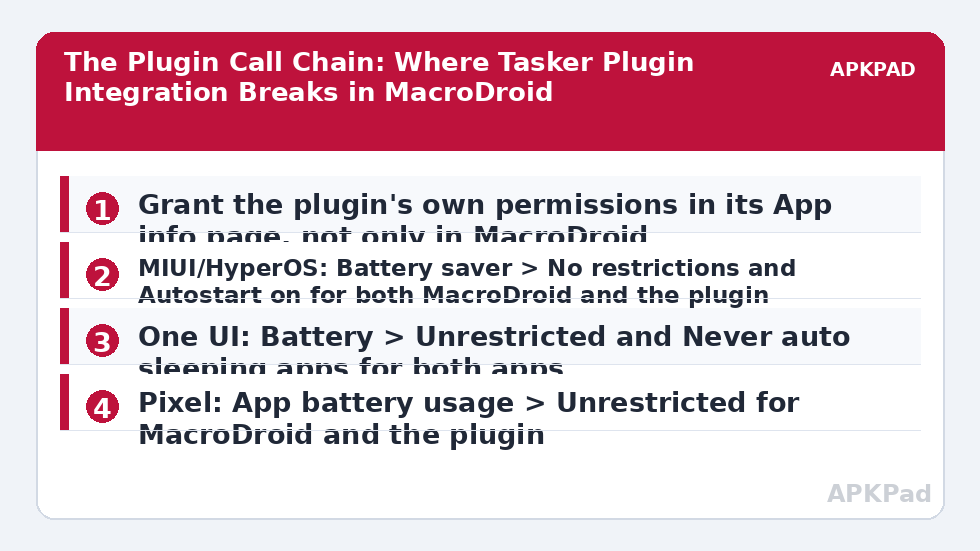
Open the plugin app directly and run its core function there. If it cannot do its job inside its own interface, MacroDroid cannot fix it. Clear that first: update the plugin from the Play Store, open it once after any update so it can re-register, and grant any permission banner it shows on first launch. Then return to MacroDroid, delete the old plugin action from the macro, and add it fresh. Re-adding matters because a saved action can hold configuration data in a format the updated plugin no longer reads.
Step 2: Grant Permissions in Both Apps
Check permissions twice, once per app. In MacroDroid, confirm the permissions shown under the macro’s action are granted. Then open the plugin’s own App info page and grant the same class of permission there. For location-based plugins, choose “Allow all the time” for both apps, because “Allow only while in use” fails the moment the screen turns off. For file plugins, confirm All files access or the specific folder grant still exists, since system updates commonly reset scoped storage grants.
Step 3: Remove Battery Restrictions From Both Apps
Exempting only MacroDroid is the most common half-fix. The plugin needs the same treatment:
- MIUI / HyperOS: Settings > Apps > Manage apps > [Plugin] > Battery saver > No restrictions. Repeat for MacroDroid, then enable Autostart for both.
- One UI (Samsung): Settings > Apps > [Plugin] > Battery > Unrestricted. Also check Settings > Battery > Background usage limits > Never auto sleeping apps, and add both apps there.
- ColorOS (Oppo / Realme / OnePlus): Settings > Apps > App management > [Plugin] > Battery usage > Allow background activity and Allow auto launch.
- Pixel: Settings > Apps > See all apps > [Plugin] > App battery usage > Unrestricted. Repeat for MacroDroid.
Related background failures are covered in fixing MacroDroid not working in the background on OEM skins, and timing-only failures are covered in delayed trigger execution in deep sleep and doze. Those are different faults, so use them only if your plugin works with the screen on and fails with it off.
Step 4: Fix Variable and Result Mismatches
If the action runs but the macro behaves as if nothing returned, inspect names character by character. MacroDroid variables are case-sensitive when a plugin writes a value and a later constraint reads it. Rename the output variable to a short lowercase name with no spaces, reconfigure the plugin action to write to that name, and add a temporary Popup Message action showing the variable value immediately after the plugin step. If the popup shows the value, the integration works and your later constraint or comparison is at fault. If it shows empty, the plugin is not returning data — check whether the plugin requires its configuration screen to be completed and saved, not just opened and backed out of.
How to read this: the estimate adds a small always-on idle cost for MacroDroid itself (about 0.4% of battery per day) to a per-class daily cost for each trigger type you use, scaled slightly by how many macros you run. These are planning estimates from that transparent model — not measurements from your phone. Use them to compare setups before you build, then confirm against the real numbers under Android Settings → Battery.
Verification: Prove the Call Completes
- Create a test macro with a Manual / Widget button trigger and only two actions: the plugin action, then a Popup Message showing the returned variable or a fixed “plugin done” text.
- Turn the screen off for two minutes, unlock, and note the time.
- Run the test from the widget, then open MacroDroid > System Log and find that timestamp.
- Confirm you see the trigger firing, the plugin action invoked, and no timeout line. Then test again with your real trigger, such as time or Wi-Fi, because a manual test does not prove background delivery.
Only move the plugin action back into your production macro after both the manual and the real-trigger tests pass.
When This Fix Will Not Work
Be honest about the limits. If the plugin developer has not updated the app for current Android background rules, no battery setting restores a service the system is designed to stop. If the plugin was removed from the Play Store and no longer launches on Android 14 or 15, MacroDroid cannot work around that. And if the plugin needs a permission Android no longer grants to normal apps, such as unrestricted background location without the special setting screen, you must grant it through that screen or choose a different plugin. In those cases the reliable fix is replacing the plugin with a native MacroDroid action, a Webhook / HTTP action, or the MacroDroid helper file route where that applies. Browse the wider Fixes & Errors category before rebuilding a macro around a plugin that is no longer maintained.
Frequently Asked Questions
Why does the plugin work when I test the action but fail on a real trigger?
Testing runs in the foreground, where battery and background rules barely apply. A real trigger usually fires with the screen off, so the plugin process may be killed, dozed, or blocked from starting. Exempt both MacroDroid and the plugin from battery optimisation, then retest using the real trigger and check the System Log timestamp.
Why did my plugin disappear from the MacroDroid action list?
MacroDroid lists only apps that declare the Tasker plugin protocol and are currently installed and enabled. An update, a disabled app state, or a plugin that dropped protocol support in a new version can remove it. Reinstall or update the plugin from the Play Store, open it once, then restart MacroDroid and check the list again.
Do I need to grant permissions to the plugin as well as MacroDroid?
Yes. They are separate apps with separate permission records. MacroDroid holding a location, file, or notification permission does not pass that permission to the plugin. Grant the relevant permission inside the plugin’s own App info page, using “Allow all the time” where the task must run with the screen off.
Why are the variables returned by the plugin always empty?
The usual causes are a variable name mismatch, a plugin configuration that was opened but never saved, or a plugin that returns results only when its own step completes successfully. Use a short lowercase variable name, reconfigure and save the action, and add a temporary popup immediately after the plugin step to see what is actually returned.
Can I fix a plugin that has not been updated for Android 14 or 15?
Not reliably from MacroDroid settings. You can remove battery restrictions and re-grant permissions, but if the plugin uses background behaviour that newer Android versions block by design, it will keep failing. Replace that step with a native MacroDroid action or a different, maintained plugin.