Switching your phone between a work face and an evening face usually means digging through three settings screens to change the font size, icon shape, and display density. MacroDroid can compress that ritual into one trigger, because most of those visual switches are just values in Android’s settings database. This guide shows how to automate system UI settings — fonts and icon styles included — with MacroDroid’s System Setting action, what genuinely works on each brand of phone, and where the honest limits are.
The mechanism: settings keys are the control panel
Every visual preference Android exposes is stored as a key-value pair. Three namespaces matter here:
| Namespace | Example keys | Writable by |
|---|---|---|
| system | font_scale, screen_brightness |
MacroDroid with normal permissions for many keys |
| secure | accessibility_display_daltonizer, icon shape keys on some OEMs |
Requires the ADB WRITE_SECURE_SETTINGS grant |
| global | policy_control, animator scales in secure on some builds |
Requires the ADB grant |
MacroDroid’s System Setting action writes a value to a key you specify. If you have not done it yet, the one-time setup in our guide to granting WRITE_SECURE_SETTINGS via ADB is the prerequisite for the secure and global keys below. Always note the original value of any key before changing it — the undo path for every tweak in this article is “write the original value back”.
Automate system UI settings: fonts, icon styles and the font scale win
Font size is the safest and most portable UI automation on Android because it lives in a standard system key:
settings put system font_scale 1.15
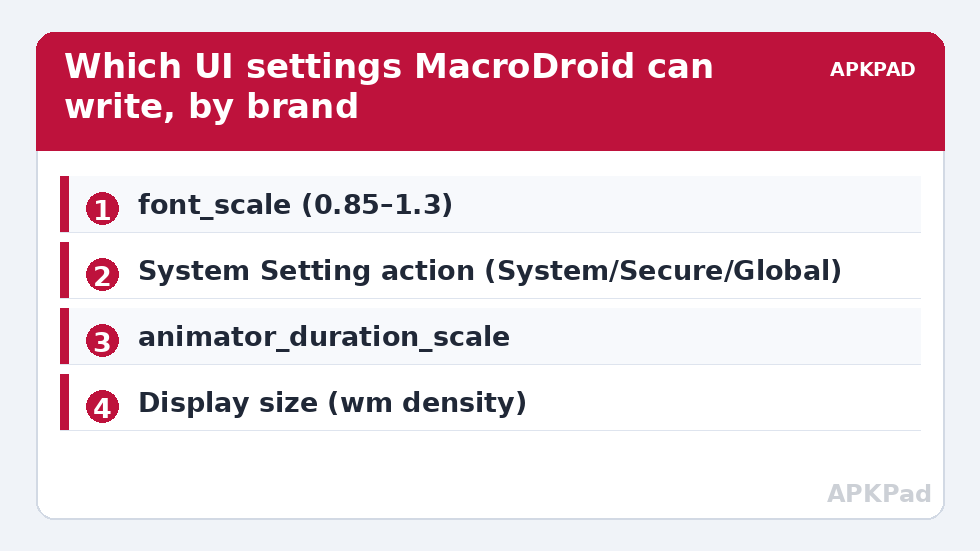
In MacroDroid, add a System Setting action, choose the System category, enter key font_scale, and set a float value: 0.85 is Small, 1.0 is Default, 1.15 and 1.3 step up from there. Pair it with triggers that match your day:
- Work profile: Calendar event or time trigger at 09:00 → font_scale 0.9, so dense email and documents fit more per screen.
- Reading mode: App Launched trigger for your reader or browser → font_scale 1.2, restored by the App Closed trigger.
- Evening comfort: Sunset or 21:00 trigger → font_scale 1.15 plus a brightness adjustment, as covered in time-based brightness calibration.
Some apps cache the font scale and only pick up the change when restarted. If a target app ignores the new value, add a brief wait and reopen the app in the same macro.
How to read this: the estimate adds a small always-on idle cost for MacroDroid itself (about 0.4% of battery per day) to a per-class daily cost for each trigger type you use, scaled slightly by how many macros you run. These are planning estimates from that transparent model — not measurements from your phone. Use them to compare setups before you build, then confirm against the real numbers under Android Settings → Battery.
Icon styles and shapes: where OEM reality intrudes
Icon shape is not standardised the way font scale is, and pretending otherwise produces macros that do nothing. What is actually available depends on the launcher and skin:
| Platform | How icon shape/style is controlled | MacroDroid route |
|---|---|---|
| Pixel (stock Android) | Wallpaper & style app; icon shape and themed icons are launcher-side | Not a settings key MacroDroid can write; automate the surrounding values (font, density) instead |
| Samsung One UI | Theme Park / Good Lock modules and Galaxy Themes | MacroDroid can launch the relevant app or shortcut at a trigger, but cannot rewrite the theme itself |
| Xiaomi MIUI / HyperOS | Themes app applies icon packs system-wide | Same as Samsung: trigger a shortcut, not a silent swap |
| Custom icon packs in third-party launchers | Managed inside the launcher’s own settings | Use the launcher’s shortcut or intent actions where offered |
The honest pattern: automate what is a genuine settings key (font scale, display density on some builds, dark mode scheduling, animation scales), and for theme-level changes, have the macro open the theming app at the right moment rather than claiming a silent swap that the platform does not permit.
Dark mode and animation scales: two more real keys
Dark mode scheduling is exposed on most builds through the secure key ui_night_mode (0 = auto, 1 = off, 2 = on) on many OEM skins, though stock Android routes it through the UiModeManager service instead — test on your device and keep a fallback. Window animation scales live in global keys window_animation_scale, transition_animation_scale, and animator_duration_scale. Setting all three to 0.5 makes any phone feel noticeably snappier; a “focus mode” macro that sets them to 0 removes animation entirely. All three revert by writing 1.0 back.
Building a complete “evening face” macro
- Trigger: Time trigger at 20:30, or a Geofence entry trigger for your home.
- Actions: System Setting → font_scale 1.15; System Setting → window_animation_scale 0.5 (and its two siblings); Dark Mode action → On; Brightness action → 35%.
- Constraints: add a constraint so it only runs when not already applied — store a MacroDroid string variable
ui_profile = eveningand require it to differ before running. - Morning counterpart: a second macro that writes every original value back at 07:00. Never ship a profile macro without its mirror.
For a visual control surface instead of pure automation, the same variables can drive the buttons described in building a floating-button status dashboard, so you can tap to switch profiles on demand. Browse the rest of this system tweaks category for the individual pieces.
Undoing any UI change from this article
Every change here is a settings value, so every change is reversible by writing back the value you recorded: font_scale back to 1.0, animation scales back to 1.0, dark mode back to your previous mode. If you lose track of an original value, the defaults listed above are the factory values on the vast majority of devices. Nothing in this article requires a factory reset, ever.
Display density: the powerful one to handle carefully
Font scale changes text; display density changes everything — how much content fits anywhere on screen. Density is adjusted from ADB with adb shell wm density 440 and restored with adb shell wm density reset. Some builds also expose a display_density_forced key, but the wm command is the reliable route, and it is an ADB-side change rather than something to flip casually from a macro several times a day. Used once, deliberately, it is excellent: a slightly lower density on a large phone gives a “small tablet” information layout that pairs beautifully with a 0.9 font scale in a work profile. Used carelessly, it produces overlapping UI in apps that assumed standard densities. The rules: change it in small steps (20–40 units), restart the launcher afterwards, live with it for a full day before judging, and keep the reset command in the same note as the change. Your phone’s stock density can be read any time with adb shell wm density — the “Physical density” line is the factory value, whatever you have overridden since.
Capturing current values so profiles can round-trip
The difference between a toy profile and a dependable one is whether “off” means “the values I actually had”. Build that in: before a profile macro writes anything, have a Shell Script action read the live values — settings get system font_scale, settings get global window_animation_scale and siblings — into variables. The restore macro then writes the captured variables rather than constants. This survives you changing your defaults by hand, survives OS updates that shift defaults, and makes every profile in this article safe to lend to another MacroDroid user whose baseline differs from yours. It is five extra actions once, and it is the pattern used by every serious profile setup in this category.
Frequently Asked Questions
Why does my icon-shape macro do nothing?
Because on most phones icon shape is controlled by the launcher or an OEM theme app, not by a settings key MacroDroid can write. The article’s table shows which parts are genuinely automatable on your platform; for theme-level changes, have the macro open the theming app instead.
Do I need the ADB grant for font changes?
Usually not. The font_scale key is in the system namespace and MacroDroid can write it with its standard permissions on most devices. The ADB WRITE_SECURE_SETTINGS grant is needed for secure and global keys such as private DNS or policy_control.
What font_scale values should I use?
1.0 is the Android default. 0.85 matches the “Small” display size step, 1.15 and 1.3 are progressively larger. Stay between 0.8 and 1.3; extreme values break layouts in apps that were not designed for them.
Will changing animation scales save battery?
Marginally at best — the real benefit is perceived speed, because screens respond and settle faster. Battery claims for animation tweaks are mostly folklore; the meaningful savings come from radios, sync, and screen brightness.
How do I find the original value of a key before changing it?
Read it first with ADB: run adb shell settings get system font_scale (substituting your key and namespace) and note the result. In MacroDroid you can also read a setting into a variable with the System Setting read option before overwriting it.