The fastest macro is the one you can reach with a single swipe. MacroDroid can publish its own tiles into Android’s Quick Settings panel, turning any automation into a button that sits next to Wi-Fi and Bluetooth. This guide shows how to create custom Quick Settings tiles on Android using MacroDroid, how to make a tile toggle state instead of just firing once, and how to clear tiles out again when a project ends.
Create custom Quick Settings tiles: how MacroDroid tiles work
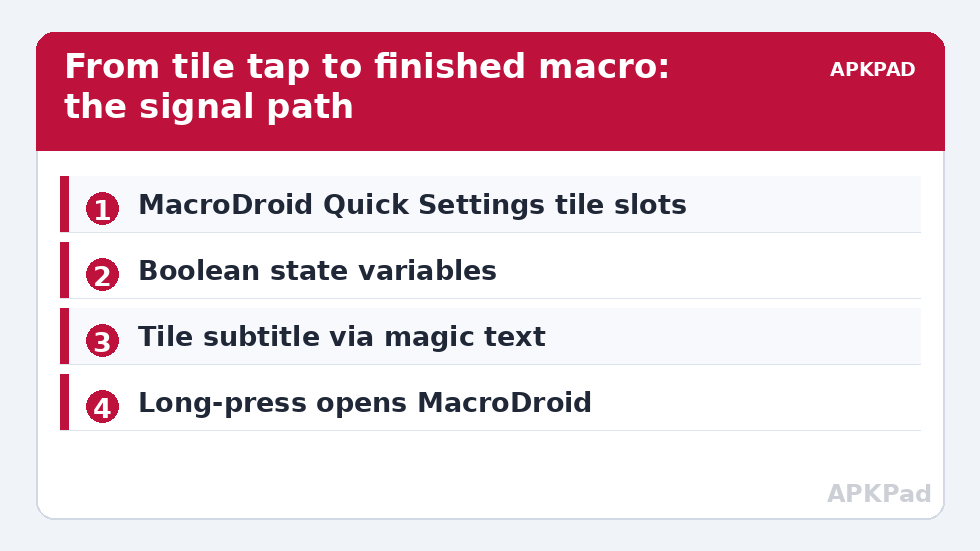
Android lets apps declare tile services that the system surfaces in the Quick Settings shade. MacroDroid registers a set of generic tiles whose behaviour you define: each tile is bound to a macro, so tapping the tile runs the macro. A long-press typically opens MacroDroid. Before a tile can be used you must add it to your active shade — pull the shade fully down, tap the pencil/edit icon, and drag the MacroDroid tiles from the inactive area into place.
In MacroDroid, tiles are configured from the app’s own settings and tile configuration screens (the exact menu wording varies slightly between versions): you choose which macro each tile triggers, its label, and its icon from MacroDroid’s built-in set. Plan your set before you start dragging tiles around:
| Tile idea | Macro behind it | Type |
|---|---|---|
| Focus Mode | Sets animation scales to 0, enables Do Not Disturb, restores on second tap | Toggle |
| Immersive | Writes/clears policy_control — see immersive mode via ADB |
Toggle |
| Private DNS | Switches private_dns_mode — see automatic private DNS toggling |
Toggle |
| Log & Vibrate | Writes a timestamped line to a log file | One-shot |
| Car Mode | Runs your full driving profile macro | One-shot |
Step-by-step: your first tile
- Build and test the macro that the tile will run. A tile that launches a broken macro is worse than no tile.
- Open MacroDroid’s tile configuration and assign the macro to a tile slot; set a short label (two words reads best in the shade) and a recognisable icon.
- Open the Quick Settings edit screen on the phone and drag the new MacroDroid tile into your active tiles.
- Swipe down and tap the tile. The macro fires immediately.
How to read this: the estimate adds a small always-on idle cost for MacroDroid itself (about 0.4% of battery per day) to a per-class daily cost for each trigger type you use, scaled slightly by how many macros you run. These are planning estimates from that transparent model — not measurements from your phone. Use them to compare setups before you build, then confirm against the real numbers under Android Settings → Battery.
Making a tile behave like a real toggle
Stock tiles show state — Wi-Fi is highlighted when on. A MacroDroid tile can approximate this with a boolean variable:
- Create a MacroDroid boolean variable, e.g.
focus_mode, default false. - The tile’s macro starts with an If clause: if
focus_modeis false → run the “apply” actions, then setfocus_modeto true. Else → run the “restore” actions, set it to false. - Optionally change the tile’s appearance using MacroDroid’s tile state options where your version offers them, so the label reflects the current state (for example “Focus: On”).
The variable is the single source of truth. If you also toggle the same feature from another macro, have that macro update the same variable, or the tile’s idea of the state will drift from reality.
Android 13 and later: the placement prompt
On Android 13+, apps can ask the system to prompt the user to add a tile, instead of the user hunting through the edit screen. MacroDroid versions that use this API surface the request the first time you configure a tile — accept it and the tile lands in the shade directly. On Samsung devices the edit screen is reached through the shade’s menu button rather than a pencil icon; the drag-to-add step itself is the same.
One limitation applies everywhere: tiles run their macro in the background context. Anything the macro does that requires an unlocked screen or a visible UI — opening an app’s interface, for example — will wait or fail while the phone is locked. Design tile macros to be background-safe: settings writes, toggles, logging, and notifications all work fine from the lock screen.
Organising a grown-up tile set
Once you pass four or five tiles, discipline matters more than features:
- Reserve the first row for toggles you touch daily; one-shot project tiles belong on the second shade page.
- Name by outcome, not mechanism: “Focus”, “DNS”, “Immersive” — not “Macro 12”.
- Pair every apply tile with its undo in the same macro via the toggle pattern, instead of separate apply/remove tiles that double the clutter.
- Audit monthly: if a tile has not been tapped in a month, remove it from the shade (the macro can stay in MacroDroid, parked).
Tiles also pair well with the on-screen controls in the floating button dashboard guide: tiles for phone-wide toggles, floating buttons for glanceable status. Both live under the wider system tweaks umbrella on this site.
Removing tiles and undoing changes
Nothing here is permanent. To remove a tile from the shade, open the Quick Settings edit screen and drag it back to the inactive area. To retire it entirely, unassign the macro in MacroDroid’s tile configuration. The macros themselves are untouched by either step, and any settings a tile macro changed are reversed by running that macro’s restore branch — one more reason to build the toggle pattern from day one rather than bolting it on later.
Power-user patterns: tiles that coordinate
Once individual tiles work, the set can start behaving like a system. Three patterns repay the effort:
- Interlocked modes: your Car Mode tile sets the
in_carvariable (the same state used by the car launcher macros), and your Focus tile’s constraint refuses to run whilein_caris true — because focus settings have no business overriding a driving profile. Shared variables turn a pile of tiles into a state machine with rules. - The reset tile: one tile whose only job is restoration — it runs the restore branch of every profile (default DNS, default timeout, animations at 1.0, immersive cleared) and sets every state variable to its neutral value. However tangled a day of experimenting gets, one tap returns a known phone. Build it before you need it.
- Label as log: after a tile macro runs, have it write its tile’s subtitle or your notification text with the time of last activation. When a setting is mysteriously wrong at 18:00, “DNS tile, fired 17:42” is the clue that solves it.
Troubleshooting a tile that does nothing
Work the chain in order, because the break is always at exactly one link. (1) Is the macro itself enabled and does it run when triggered manually inside MacroDroid? (2) Is the tile still assigned to that macro in the tile configuration — assignments can be lost when MacroDroid’s data is restored from a backup? (3) Is MacroDroid itself alive — if the whole app is being battery-managed into a coma, tiles die with it; the exemptions in the OEM power management guide are the cure. (4) Does the macro’s work require an unlocked screen while you are testing from the lock screen? Unlock and retry before concluding anything. Four checks, in that order, resolve effectively every dead tile ever reported.
Frequently Asked Questions
How many MacroDroid tiles can I add?
MacroDroid offers several configurable tile slots (the exact number has grown across versions). In practice, more than six custom tiles makes the shade slower to scan than the automation saves — keep the set small and purposeful.
My tile is missing from the edit screen. Why?
The tile must be assigned to a macro in MacroDroid’s tile configuration first; unassigned slots do not appear in the system’s tile list. Also check you are looking in the full edit view — some skins hide inactive tiles behind an “Add tiles” section.
Can a tile show live information like battery percentage?
Only coarsely. A tile’s label is essentially static text you control at macro run time; it is not a live-updating widget. For glanceable live values, floating buttons with magic text are the better tool.
Do tiles work when the phone is locked?
The macro fires, but Android restricts background activity from the lock screen. Settings writes and toggles work; launching visible app interfaces generally waits until unlock. Design tile macros accordingly.
What happens to my tiles after a MacroDroid update?
Tile assignments are stored in MacroDroid’s configuration and normally survive updates. If a tile ever disappears from the shade after an update or restore, re-add it from the edit screen — the underlying macro is still there.