
Account sync is a drip-feed of tiny wake-ups: mail checking, contacts reconciling, calendars polling, each on its own timer, all day. Smart sync routines sync every 2 hours through MacroDroid replace that drip with a single scheduled window — sync wakes, everything refreshes at once, sync sleeps again. The saving for a typical multi-account user is modest but real (often 1–3% of a day’s battery), and the cost is equally real: your email can be up to two hours old. This guide builds the routine with the exceptions that make it livable.
What “Sync” Covers — and What It Does Not
The master sync toggle governs Android’s account framework: Gmail, Google Calendar/Contacts, and third-party accounts that plug into the same system (some mail, note and task apps). It does not govern chat apps — WhatsApp, Telegram and friends receive through persistent push connections and ignore the sync toggle entirely — nor does it stop apps with their own background engines (most social apps) from doing as they please. Set expectations accordingly: this routine disciplines the well-behaved half of your phone. The badly behaved half is handled by restriction, as covered in our honest look at killing background apps.
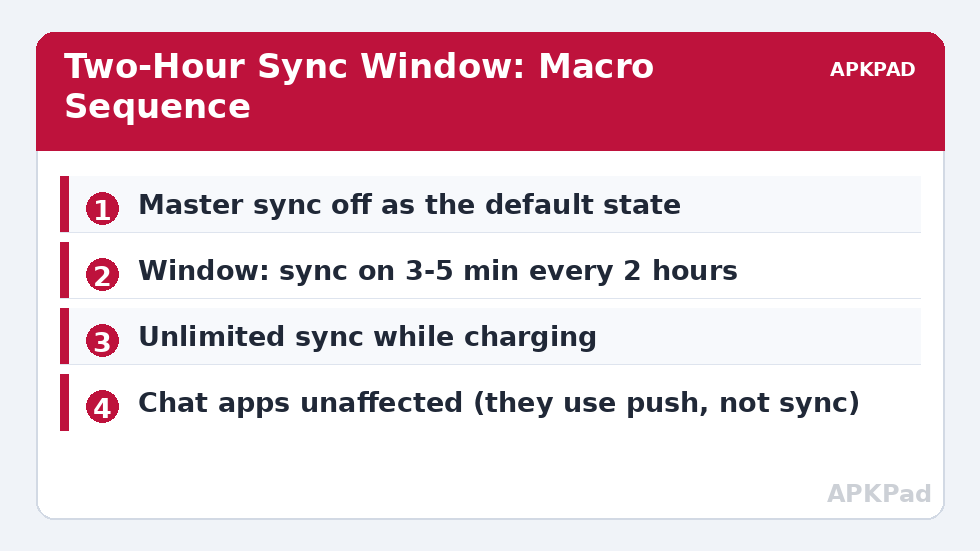
The Window Macro Pair
| Element | Configuration |
|---|---|
| Default state | Auto Sync OFF (set once; the routine maintains it) |
| Trigger | Time trigger every 2 hours (use MacroDroid’s interval/repeating trigger or a set of fixed times matching your day) |
| Actions | Auto Sync ON → Wait 4 minutes → Auto Sync OFF |
| Constraints | Skip the window entirely if battery below 15% (the emergency profile owns that territory); no constraint on network — a window on mobile data is short enough to be cheap |
Four minutes is generous for accounts on a decent connection and short enough to bound the cost on a bad one. If your photo backup is account-based and you shoot hundreds of photos, exclude photos from daytime windows and let the charging rule below handle them at night — large uploads are the one sync payload where “short window” thinking breaks.
How to read this: the estimate adds a small always-on idle cost for MacroDroid itself (about 0.4% of battery per day) to a per-class daily cost for each trigger type you use, scaled slightly by how many macros you run. These are planning estimates from that transparent model — not measurements from your phone. Use them to compare setups before you build, then confirm against the real numbers under Android Settings → Battery.
The Two Rules That Make It Livable
Charging means unlimited. A second macro — Power Connected → Auto Sync ON; Power Disconnected → Auto Sync OFF — turns plugged-in time into catch-up time. Energy is free at the wall; freshness should be too. This single rule removes most of the routine’s downside, because phones spend hours charging daily. A manual “Sync Now” button. Add a MacroDroid widget button (or a quick-settings style floating button) that runs one window on demand. Waiting for an important email? Tap, wait thirty seconds, done. Without an escape hatch, users disable the whole routine the first time it inconveniences them — the same lesson as the restore macro in the idle drain routine.
Choosing Your Interval Honestly
Two hours is a starting point, not a commandment. A freelancer whose email is their business should run 30-minute windows or exempt mail entirely. A user whose accounts are a calendar and a rarely-read mailbox can run four-hour windows. The right interval is “the longest delay you never notice”. Also consider aligning windows with your day: a window at wake-up, lunch, and evening covers many people with only three windows — fewer wake-ups than a strict two-hour metronome that fires at 3 a.m. The battery hacks principle applies throughout: match the machinery to your actual life, not to a round number.
Per-Service Tuning: Not All Sync Is Equal
The master toggle is blunt, so spend a settings session sharpening what it controls. In Settings → Accounts, open each account and look at its individual sync switches. Contacts and calendar are kilobyte-class — sync them every window without a thought. Mail is small but frequent — the window pattern suits it perfectly. Photos and drive files are the heavy class: a weekend of shooting can be gigabytes, and letting them into every daytime window turns a battery routine into a data-plan incident; restrict those services to the charging rule (or disable their auto-sync entirely and back up deliberately, which many photographers prefer). Notes, tasks and password managers sit in between — small payloads, high freshness value — and are the strongest argument for a 60–90 minute interval rather than two hours if your life runs on them. The routine’s real product is not the two-hour number; it is the moment you looked at each service and chose, which is why this article’s interval is a default and not a doctrine.
When Sync Windows Go Wrong
Three failure stories recur. The meeting that moved: a calendar change made on a colleague’s side thirty minutes ago has not synced when you leave — mitigate with a pre-departure “Sync Now” habit, or a window aligned to your typical leaving time. The verification code: email-delivered login codes arriving up to a window late is the single most common reason people abandon sync schedules; the manual sync button exists precisely for this — tap it when you request a code and the code lands in seconds. The silent stall: an account in an error state (expired password) makes the window macro look functional while nothing syncs; check the Accounts screen monthly for error badges, the same maintenance rhythm the benchmark guide builds for everything in this system. None of these are arguments against windows — they are the known price list, and knowing prices in advance is what separates a routine from a surprise.
Sync Windows and Your Data Plan
The battery framing dominates this topic, but the same windows quietly govern mobile data consumption, and for capped plans the second effect can matter more. An always-on account stack syncs whenever it pleases — including over mobile data in the background, including the large attachment someone mailed you at noon. Windows bound that behaviour in time; adding a network constraint (full windows on any network, but the photo/drive services only inside charging windows at home) bounds it in place as well. Roaming is the sharp case: a holiday phone syncing a week’s photos over roaming data is a billing story told in support forums for a decade. A travel variant of this routine — windows only on Wi-Fi, interval stretched to four hours, charging rule unchanged — takes two minutes to build before a trip and belongs in the same pre-travel checklist as the offline maps. Battery tools that also save money and embarrassment earn their complexity honestly.
Frequently Asked Questions
Will my WhatsApp and Telegram messages be delayed by this?
No. Chat apps do not use the account-sync framework; they maintain their own push connections and are untouched by the sync toggle. Only account-based services — mail, calendar, contacts, and apps that sync through Android accounts — follow the window.
How much battery does a two-hour sync rhythm save?
For a user with several active accounts, typically 1–3% per day, occasionally more on phones where an account was syncing pathologically often. It is a real but modest win — worth having, not worth restructuring your life around.
My calendar reminders — will they still fire on time?
Yes. Reminders are stored locally once the event has synced; the alert fires from the local database regardless of sync state. Only brand-new events created elsewhere can be late to appear, by up to one window.
Can I exempt one important account from the schedule?
The master toggle is all-or-nothing at the MacroDroid level. Per-account control lives in Settings → Accounts, where you can leave the important account’s sync enabled while the routine governs the rest — the master toggle must stay on for that account to sync, which changes the design; most users instead shorten the window interval.
Does the sync window waste data on mobile networks?
Very little for mail/calendar/contacts — kilobytes to a few megabytes. Photo and drive backups are the exception; restrict those to the charging rule or to Wi-Fi with a network-type constraint on their window.


