
Idle drain is the battery you lose while the phone sits in your pocket doing nothing you asked for. A well-built macrodroid battery saver routine idle drain targets exactly that waste: radios left searching, accounts syncing every few minutes, and sensors polling in the background. On most phones a realistic outcome is idle drain dropping from roughly 1.5–3% per hour to somewhere near 0.5–1.2% per hour — a worthwhile gain, but anyone promising to halve your total battery use with one macro is selling something. Screen-on time dominates most people’s consumption, and no automation changes physics.
Where Idle Drain Actually Comes From
Before building anything, understand the four main idle costs. First, the cellular radio: in weak signal areas the modem repeatedly boosts power and re-registers, and this alone can dwarf everything else. Second, Wi-Fi scanning and poor roaming decisions. Third, account sync — email, photos, social apps waking the device on their own schedules. Fourth, wake-locks held by apps and, ironically, by badly designed macros themselves. Your routine should address the first three and scrupulously avoid becoming the fourth. If your drain is caused by one rogue app, fix that app; a routine is for the normal background hum, not for masking a broken app.
The routine below is built as a pair of macros: one that arms the saver when the screen turns off, and one that restores everything when you unlock. Pairing them matters — a saver that never cleanly restores itself trains you to disable it within a week.
The Core Routine: Screen-Off Saver and Wake Restore
| Element | Screen-Off Saver | Wake Restore |
|---|---|---|
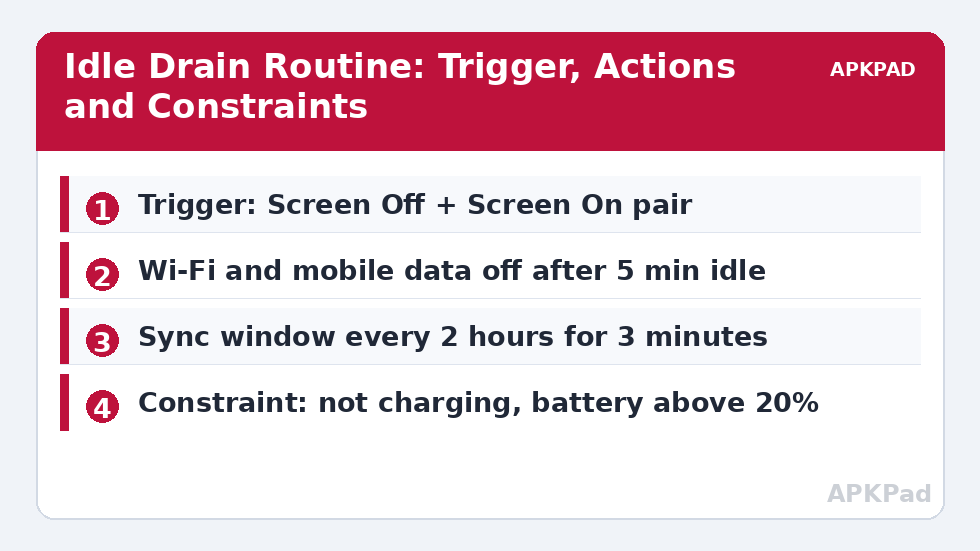
| Trigger | Screen Off, then Wait 5 minutes and confirm screen still off | Screen Unlocked |
| Actions | Wi-Fi Off (if not connected to a trusted network), Mobile Data Off, Auto Sync Off, Bluetooth Off if nothing connected | Wi-Fi On, Mobile Data On, Auto Sync On, run one manual sync pass |
| Constraints | Not charging; battery above 20%; not in a call; hotspot off | None — restore must always run |
The five-minute delay is deliberate. You turn your screen off dozens of times a day for a few seconds — checking a notification, glancing at the time. Toggling radios on every brief screen-off costs more in reconnection work than it saves. The “wait, then re-check” pattern is the single most valuable habit in battery automation. MacroDroid’s Wait action plus a constraint on screen state gives you that behaviour without any scripting.
Permissions you will need: MacroDroid requires its standard accessibility and notification access for reliable trigger detection, and toggling mobile data on most modern Android versions requires either the MacroDroid Helper app, WRITE_SECURE_SETTINGS granted over ADB, or root. Without one of those, the data toggle action silently fails on many devices — test it once with the screen on before trusting the routine. Wi-Fi toggling has the same caveat on Android 10 and later for some OEM builds.
How to read this: the estimate adds a small always-on idle cost for MacroDroid itself (about 0.4% of battery per day) to a per-class daily cost for each trigger type you use, scaled slightly by how many macros you run. These are planning estimates from that transparent model — not measurements from your phone. Use them to compare setups before you build, then confirm against the real numbers under Android Settings → Battery.
Adding a Sync Window Instead of Permanent Sync
Turning sync off entirely saves the most and annoys the most: messages and mail arrive only when you pick the phone up. A better compromise is a scheduled sync window — a third, time-based macro that enables sync for three minutes every two hours, then disables it again. Email that is at most two hours old is fine for most people; chat apps use their own push channels and are unaffected by the account-sync toggle anyway, which surprises many users. This pattern is covered in depth in our guide to smart sync routines, and it pairs naturally with the screen-off logic here.
What to Leave Alone
Three things this routine deliberately does not do. It does not kill apps — force-closing apps triggers cold relaunches that cost more energy than the app idling in cached RAM, a trade-off examined honestly in our look at auto-killing background apps. It does not disable location entirely, because theft protection and any location triggers you rely on would break; instead, handle GPS per-app as described in disabling GPS for non-navigation apps. And it does not touch Doze — Android’s built-in idle system is already good, and fighting it with keep-awake tricks is how macros become the drain.
Measuring Whether It Worked
Run the routine for three full days before judging it. Note your overnight drain percentage (charge to the same level, leave the phone unplugged for the same hours, compare). Overnight is the cleanest test because screen-on time is zero and the comparison is honest. If overnight drain does not improve by at least a third, your drain was never radio/sync-driven — check per-app battery stats for a single dominant offender instead of stacking more macros.
Adapting the Routine to Your Signal and Your Life
The template above assumes a generic phone in a generic home. Two adaptations matter more than any other. First, signal: if your home has strong coverage, the cellular modem is already polite and the data toggle buys little — drop it and keep the Wi-Fi and sync actions only, which reduces the macro’s side-effects to near zero. If your home is a dead zone where the phone hunts between towers, invert the emphasis: the data toggle is your biggest single win, and you can justify pairing it with the stronger medicine of the nightly airplane schedule on the nights nobody needs to reach you. Second, routine shape: shift workers should anchor the saver to screen state only (as built), never to clock times, because your “night” moves; parents of young children often exempt the baby-monitor and messaging apps by simply leaving mobile data on and toggling only Wi-Fi — a deliberate, documented compromise rather than a failure of discipline.
One more adaptation that separates keepers from abandoned setups: a weekly review habit. Once a week, open MacroDroid’s log, confirm the saver fired and restored as expected, and glance at your overnight drain figure. Setups decay silently — an OS update changes a permission, a new app joins the sync pile — and five minutes of weekly attention is what keeps a routine honest for years instead of weeks. The full set of companion routines lives in the battery hacks collection, where this idle routine is the foundation the others stand on.
Failure Modes Worth Knowing in Advance
The saver fires but nothing changes. Almost always a permission: the radio actions need the Helper, an ADB grant, or root, and fail quietly without one. Verify each action manually with the screen on before blaming the trigger. The restore does not run after a reboot. If the phone restarts overnight (updates do this), the pending restore triggers may be missed; add a Boot Completed trigger variant of the restore macro so the phone always wakes to a known-good state. Messages arrive in a flood at unlock. That is the design working, not failing — but if the flood includes time-critical alerts (a courier at the gate), exempt that channel by leaving mobile data on and accepting the smaller saving. A routine tuned to your exceptions survives; a routine at war with your life gets deleted.
Frequently Asked Questions
How much battery can this routine realistically save?
On a phone idling at 2% per hour, expect roughly 0.7–1.2% per hour afterwards — over an 8-hour night that is the difference between losing 16% and losing about 7%. Across a full day the gain is smaller in percentage terms because screen-on use dominates.
Will turning off mobile data with the screen off delay my messages?
Chat apps that use Firebase push will be delayed while data is off. That is the genuine cost of the saving. The sync window reduces staleness for email and accounts, but if instant messaging matters, keep mobile data on and only toggle Wi-Fi and sync.
Why does the mobile data action fail on my phone?
On most Android 10+ devices MacroDroid needs the Helper app, an ADB-granted WRITE_SECURE_SETTINGS permission, or root to toggle mobile data and Wi-Fi reliably. Without one of these, the action fails silently on many OEM builds.
Does this routine conflict with Android Doze?
No. It changes radio and sync states; Doze continues to manage app wake-ups underneath. Problems only start if you add keep-awake actions or very frequent time triggers, which this routine avoids.
Should the saver run while the phone is charging?
No — the charging constraint excludes that case. While charging, you want full sync and backups to run. Saving battery that is being replenished is pointless and only delays your cloud backups.


