
This is the article where we talk you out of the obvious version of the idea. Learning to auto kill background apps macrodroid-style feels powerful — a macro that sweeps the phone clean every hour — but on modern Android it usually makes battery life worse, not better. This guide explains the mechanism, identifies the narrow cases where killing genuinely helps, and shows the configuration that targets those cases without the self-inflicted damage.
Why Killing Apps Costs Energy
Android keeps recently used apps in cached RAM deliberately. A cached app consumes no CPU and effectively no power — RAM does not need “emptying” to save battery; powered RAM uses the same energy full or empty. When you force-kill a cached app, the next launch is a cold start: the CPU ramps to high frequency, storage is read, libraries are loaded, and the app rebuilds its state from scratch. That cold start costs measurably more energy than resuming from cache. Kill an app you open ten times a day, ten times a day, and you have built a machine for converting battery into heat. This is why every “RAM cleaner” era ended with the platform itself recommending against them.
The Cases Where Killing Is Correct
Three genuine cases exist. The runaway app: a crashed sync loop, a stuck upload, an app holding a partial wake-lock for hours — visible in battery stats as an app whose background time dwarfs its screen time. Killing that instance ends the fault. The known leaker: a specific app version with a documented background bug, until it is updated. The one-shot heavy app: a game or editor you use weekly that spawns a persistent service; killing it after each session removes a resident service you genuinely never need between sessions. Notice the pattern: specific apps, specific evidence, not a schedule aimed at everything.
| Situation | Right Tool | Why |
|---|---|---|
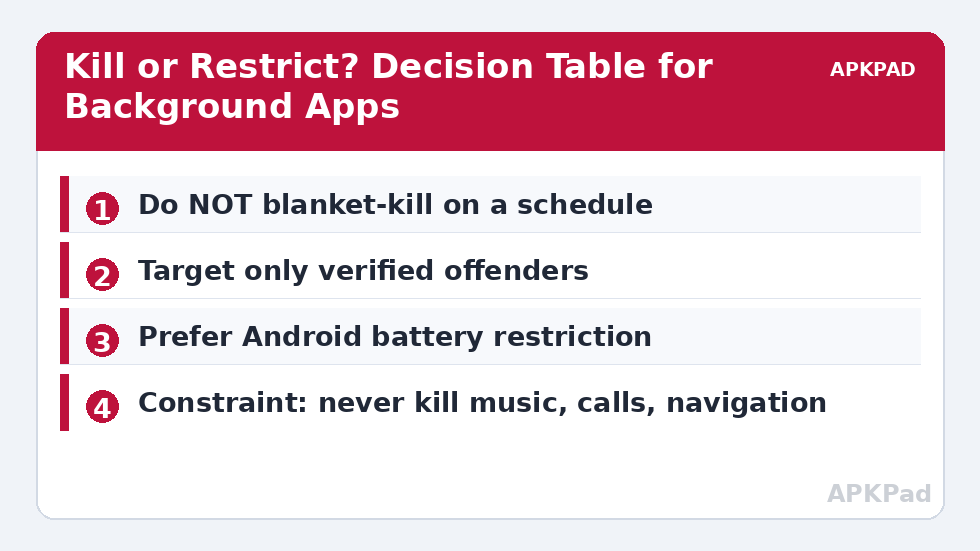
| App cached in RAM, behaving normally | Leave it alone | Cached state costs ~nothing; relaunch costs real energy |
| App with excessive background battery use | Settings → Battery → Restrict for that app | Android enforces it continuously without relaunch storms |
| App actively stuck / wake-locked now | MacroDroid Kill Application action (one-off or on a symptom trigger) | Ends the current fault immediately |
| Heavy app with resident service, used rarely | Kill on app-closed trigger for that package only | Removes a service you never use between sessions |
How to read this: the estimate adds a small always-on idle cost for MacroDroid itself (about 0.4% of battery per day) to a per-class daily cost for each trigger type you use, scaled slightly by how many macros you run. These are planning estimates from that transparent model — not measurements from your phone. Use them to compare setups before you build, then confirm against the real numbers under Android Settings → Battery.
Building the Narrow Version
If you have identified a true offender, build it like this: Trigger — Application Closed for that single package (or a symptom trigger such as battery temperature rising, covered in our thermal protection macros). Action — Kill Application for that package. Constraints — not currently in a call, not navigating, screen state as appropriate. The Kill Application action on modern Android typically needs root, or the MacroDroid Helper with ADB-granted permissions for the weaker “kill background processes” behaviour — and that distinction matters: without root, Android only allows killing background processes of an app, not force-stopping it, and many apps simply restart their service. Test your target and read the result honestly; if the app resurrects within a minute, killing is theatre and restriction is the answer.
The Better Default: Restriction and Sleep
Android already ships the tool people actually want. Per-app battery restriction (Settings → Apps → Special app access, or long-press → App info → Battery → Restricted) prevents an app from running in the background at all, enforced by the system, with none of the relaunch penalty for apps you do open — because restricted apps you open still work in the foreground. Adaptive Battery applies milder versions automatically. MacroDroid’s role in a sane setup is the exceptions: ending an active fault, and handling the rare resident-service app. Everything else in the battery hacks arsenal — radio control, sync windows, the idle drain routine — saves more, more safely, than the kill sweep ever will.
The History That Explains the Myth
The app-killing habit is a fossil. On early Android (and on desktop operating systems before it), resident programs genuinely competed for scarce RAM and CPU, and killing them genuinely helped. Task-killer apps were rational in 2011. The platform then spent a decade absorbing the lesson: memory management moved into the kernel (low-memory killer, cached process tiers), idle management arrived (Doze, app standby buckets), and the system’s own stats made offenders visible. Users’ habits, and an entire genre of booster apps monetising those habits, did not update at the same speed. Understanding this history matters practically: advice about killing apps is not wrong-from-stupid, it is right-about-a-phone-that-no-longer-exists — which is why it sounds so confident and performs so badly. When a tutorial promises dramatic gains from a kill sweep, ask which Android version its screenshots show.
A Decision Procedure You Can Run in Ten Minutes
Open Settings → Battery → Battery usage and sort by background activity. For each of your top five background consumers, ask three questions. Do I open this app daily? (If yes, killing it is a relaunch tax — leave it.) Is its background time wildly larger than its foreground time? (If yes, it is a restriction candidate.) Did its consumption spike recently — after an update, a login, a trip? (Spikes are usually faults: clear its cache, check for a stuck sync, and only then consider a targeted kill macro as a temporary splint until the developer fixes it.) Write the answers down; repeat monthly. What survives this procedure as a genuine kill candidate is rare, specific, and usually temporary — and that is precisely the point. Permanent machinery deserves permanent evidence, a standard the rest of the battery hacks collection is held to as well, from the idle routine down.
What About “Optimiser” and Cleaner Apps, Then?
Readers arriving here often have a cleaner app installed alongside MacroDroid, and the two philosophies collide: the cleaner kills on a schedule and reports theatrical numbers (“1.2 GB freed!”, a figure about RAM, which as established costs nothing to occupy), while this article argues the killing itself is the cost. Running both is the worst configuration — MacroDroid’s careful constraints cannot protect apps from a second agent sweeping them hourly, and the cleaner’s relaunch storms will be attributed by your battery stats to the apps themselves, hiding the true author. The recommendation is unambiguous: uninstall the schedule-killing cleaner, keep any of its genuinely useful parts (storage analysis, duplicate finders — file tools, not process tools), and let Android’s restriction system plus your audited exceptions do the process management. If the cleaner’s widget is your emotional support button, replace it with a MacroDroid widget that runs the ten-minute audit from this article’s decision procedure — a button that opens battery usage instead of pretending to fix it.
Frequently Asked Questions
Does killing all apps every hour save battery?
No — on modern Android it usually costs battery. Force-killed apps relaunch cold, which spikes CPU and storage activity. The apps sitting cached in RAM were consuming essentially nothing.
Why does MacroDroid’s kill action not fully stop some apps?
Without root, Android permits killing an app’s background processes but not a true force-stop, and apps with foreground services or alarms can restart themselves. For persistent offenders, system-level battery restriction is more effective.
How do I find which app is actually draining my battery?
Settings → Battery → Battery usage, sorted by background time. Look for an app whose background consumption is wildly disproportionate to how you use it — that is a kill/restrict candidate. One evening of a stuck app is a fluke; a pattern over days is evidence.
Is there any app category I should never auto-kill?
Yes: your launcher, messaging and calling apps, music players in use, navigation during trips, alarm clocks, and anything whose notifications you depend on. Killing these breaks function first and saves nothing measurable.
What about Greenify-style hibernation?
Hibernation tools made sense on older Android versions with weak idle management. Current Android Doze and app standby buckets do the same job inside the system. Duplicating them with a third-party killer mostly adds wake-ups, not savings.


