The macro is simple — toggle Wi-Fi, set a system value, control a media session — but it fails with a helper error, or MacroDroid tells you the helper is out of date, missing, or the wrong version. To fix macrodroid helper file version mismatch problems properly, you first need to understand what the helper is: a separate companion app that performs actions Android no longer lets a normal Play Store app perform directly.
MacroDroid’s main app and its helper must be a compatible pair. Update one without the other, restore the helper from an old backup, or install a helper meant for a different MacroDroid release, and the pair stop trusting each other. The symptom looks alarming, but the cause tree is short and the fix is almost always a clean, matched reinstall — from the right source.
Safety First: Where the Helper Must Come From
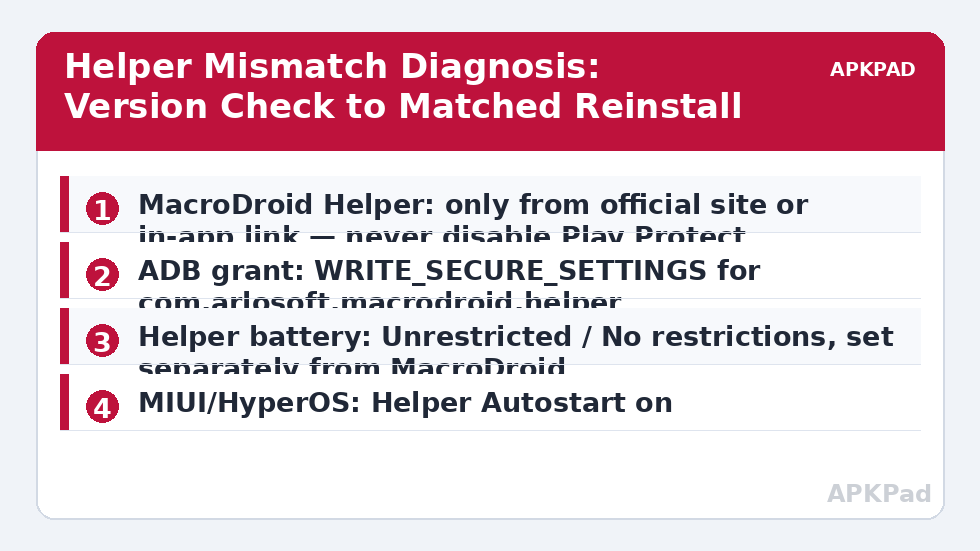
Only ever obtain the MacroDroid Helper file from MacroDroid’s official channels — the developer’s official site or the link provided inside the MacroDroid app itself. That rule has no exceptions, and it matters more here than in any other fix in this series, for a simple reason: the helper is powerful by design. It holds sensitive grants such as WRITE_SECURE_SETTINGS and works alongside accessibility and notification access. A tampered helper would be an ideal place to hide malicious code.
So, explicitly:
- Do not download “fixed,” “patched,” “premium unlocked,” or modded helper APKs from third-party APK sites, file hosts, video descriptions, or forum attachments. You cannot verify what was changed inside them.
- Do not disable Google Play Protect to install a helper. If Play Protect is warning you, that is information, not an obstacle. The official helper installed through the official route does not require you to switch off the protection that guards every other install on your phone.
- Do not grant an unknown helper accessibility, notification access, or device-admin rights because a download page told you to. Check the source first; grant permissions second.
If you already installed a helper from somewhere else, treat this article as a clean-up as well as a fix: uninstall that helper, restart the phone, and reinstall only through the official channel described below.
Confirm the Mismatch Before Reinstalling
Open MacroDroid and note its version under Settings > About, or from Settings > Apps > MacroDroid on the phone. Then check the helper: Settings > Apps > see all apps > MacroDroid Helper, and note its version too. Write both numbers down. A mismatch report right after a MacroDroid update usually means the helper simply was not updated alongside it — the most benign cause on this list.
| Symptom | Likely cause | First response |
|---|---|---|
| “Helper out of date” after a MacroDroid update | Main app updated, helper did not | Update the helper from the official in-app link |
| “Helper not installed” although it is listed in Apps | Corrupt install or OEM app freezer disabled it | Check it is not disabled or frozen, then clean reinstall |
| Helper actions fail silently, no version warning | Helper lost its ADB grant or battery exemption | Re-grant and re-exempt the helper itself |
| Mismatch returns after every reboot | Backup/restore tool or OEM cleaner restoring an old helper | Exclude the helper from restore and cleaner tools |
Also check whether the helper has been disabled rather than removed. On One UI, look under Settings > Apps > MacroDroid Helper and confirm the button says Disable, not Enable — if it offers Enable, the app is currently disabled. On MIUI / HyperOS, check Settings > Apps > Manage apps > MacroDroid Helper, and also any app-freeze or “hidden apps” feature. A frozen helper looks identical to a missing one from MacroDroid’s point of view.
How to read this: the estimate adds a small always-on idle cost for MacroDroid itself (about 0.4% of battery per day) to a per-class daily cost for each trigger type you use, scaled slightly by how many macros you run. These are planning estimates from that transparent model — not measurements from your phone. Use them to compare setups before you build, then confirm against the real numbers under Android Settings → Battery.
How to Fix Macrodroid Helper File Version Mismatch, Step by Step
- Export your macros first. Use MacroDroid’s export/backup option and keep the file outside the app. A helper reinstall should not touch your macros, but no repair should ever start without a backup.
- Uninstall the existing helper only. Settings > Apps > MacroDroid Helper > Uninstall. Leave the main MacroDroid app and its data alone.
- Restart the phone. This clears a stale registration that can survive an uninstall on some OEM skins, particularly MIUI and ColorOS.
- Install the current helper through the official route. Open MacroDroid, attempt the action that needs the helper, and follow the prompt the app itself gives you, or use the helper link inside MacroDroid’s settings. That route always points to the version matched to your installed MacroDroid release.
- Allow the install when Android asks. Installing an app distributed outside the Play Store requires you to allow installs for the browser or file manager you used, just for that install. Turn that allowance off again afterwards.
- Re-grant the helper’s permissions. A fresh helper has none of the old grants. Re-run the ADB grant the helper needs:
adb shell pm grant com.arlosoft.macrodroid.helper android.permission.WRITE_SECURE_SETTINGS— and re-check any accessibility or notification access the helper relied on, following the same care described in our guide to accessibility services turning themselves off. - Exempt the helper from battery killing — separately from the main app. This is the step most people miss. The helper is its own app, so it needs its own exemption: Pixel — Settings > Apps > MacroDroid Helper > Battery > Unrestricted. One UI — add it to Never sleeping apps under Settings > Battery > Background usage limits. MIUI / HyperOS — Settings > Apps > MacroDroid Helper > Battery saver > No restrictions, plus Autostart on. ColorOS — Settings > Apps > MacroDroid Helper > Battery > Allow background activity.
Verification: Prove the Helper Pair Works
Do not declare victory on the version warning disappearing. Test the actual capability:
- Build a test macro with a manual trigger and one helper-dependent action — a Wi-Fi toggle or a Secure system setting change are good choices.
- Run it and confirm the real-world result changed: the Wi-Fi state actually flipped, the setting value actually moved.
- Open MacroDroid’s System Log and confirm the action completed at your test timestamp with no helper error.
- Reboot, wait two minutes, and run the test again. A helper that works before a reboot but not after is being frozen, battery-killed, or restored over — return to the table above rather than reinstalling a third time.
If notification-related actions are part of the same macro, separate the faults: a helper fix will not restore a revoked notification access grant. That diagnosis lives in our guide to notification access permissions being revoked, and the underlying grant process is covered in fixing ADB permission grants that reset.
When This Fix Won’t Work
On a work-managed device, your employer’s policy may block installing any app from outside the Play Store, which blocks the official helper route too — that is an IT-policy conversation, not a MacroDroid fault. On hardened ROMs, some helper capabilities are deliberately restricted. And if you are running a very old Android version or a beta OS build, a matched helper may still misbehave until the OS or the app catches up; in that case, keep your macros exported, use the in-app route only, and wait for the matched release rather than experimenting with helper files of unknown origin.
Browse the rest of the Fixes & Errors category for the related permission and background-execution diagnoses that often appear alongside a helper fault.
Frequently Asked Questions
Why does the version mismatch keep coming back after I update the helper?
Usually because something restores an old copy: a backup app restoring app data overnight, an OEM cleaner rolling back the install, or automatic updates updating the main app without the helper. Exclude the helper from restore and cleaner tools, and after every MacroDroid update, open a helper action once to trigger the official update prompt.
Is it safe to download a fixed helper APK from an APK site?
No. The helper holds powerful grants such as WRITE_SECURE_SETTINGS and works beside accessibility and notification access, which makes a tampered copy especially dangerous. Only use MacroDroid’s official channels — the developer’s official site or the in-app link — and never disable Play Protect to install a helper from anywhere else.
Do I need to exempt the helper from battery optimisation separately?
Yes. The helper is a separate app from MacroDroid, so exemptions, autostart switches, and never-sleeping lists applied to the main app do not cover it. Set the helper to Unrestricted on Pixel, No restrictions with Autostart on MIUI and HyperOS, and Never sleeping on Samsung One UI.
Will reinstalling the helper delete my macros?
Your macros live in the main MacroDroid app, so uninstalling only the helper should leave them untouched. Export a backup before you start anyway, store it outside MacroDroid, and verify one test macro after the reinstall before assuming everything is intact.
Why does MacroDroid say the helper is not installed when it appears in my app list?
Most often the helper is disabled or frozen by an OEM app freezer, or its install is corrupt. Check that it is enabled under Settings > Apps, look for freeze or hidden-app features on MIUI and One UI, and if it is enabled and still not recognised, uninstall it, restart, and reinstall through the official in-app route.