
The export file is right there in your Downloads. MacroDroid on the new phone either refuses it outright, imports it and produces macros with their actions missing, or claims success while half the list never appears. To fix export import errors macrodroid files suffer between versions, work out which of three different failures you have — a damaged file, a version mismatch, or a partial conversion — because the remedy for each is different and the remedy for the wrong one can overwrite a recoverable situation with a hollow one.
Start by protecting the evidence. Make a copy of the export file exactly as it is, under a new name, before any further import attempts: repeated imports into a live setup can layer partial results over each other until nobody can say what is original. Then gather two facts — the MacroDroid version that wrote the export and the version doing the importing — from the app info on each device if you still have both, or from the export’s filename and your records if you were wise enough to include them. Most import stories are explained by those two numbers alone, and the rest are explained by how the file travelled: a file that passed through a messaging app, a dodgy cable, or a cloud sync that was still uploading may simply not be whole.
Three Failures Wearing One Error Message
Separate these before you retry anything. Each leaves a different trace in what the importing app manages to show you.
- Version gap too wide: an export written by a much older MacroDroid meets a current app — or the reverse — and structures the importer does not recognise are rejected or dropped.
- File damaged in transit: the .mdr file was truncated by an interrupted copy, altered by an intermediate app, or is a partially synced cloud placeholder rather than the real bytes.
- Partial conversion: the import succeeds overall, but macros using features that changed between versions arrive with actions missing, renamed, or reset to defaults.
- Wrong file entirely: an old export, a single-macro export mistaken for a full backup, or a file from a different automation app with a similar name.
- Storage or permission friction on the new device: the importer cannot read the location the file sits in, so a healthy file presents as a corrupt one.
Fix Export Import Errors Between Versions, in Safe Order
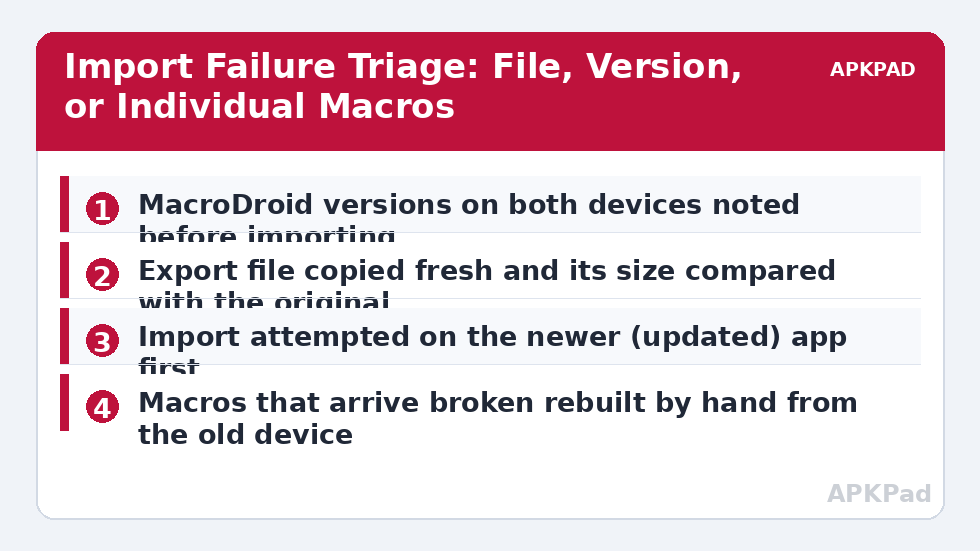
The order matters more than any single step: file integrity first, version alignment second, and hand-rebuilding only for the macros that genuinely fail to convert.
Step 1: Prove the File Is Whole and Really the File
Compare the export’s size on the new device against the original on the old device or in its cloud copy; a mismatch means the journey damaged it, so copy it again by the most direct route available — USB to a computer and back, or a fresh cloud download — and try the untouched copy. Confirm the file is a full export and not a single-macro share by its size and by what the import preview or result shows. Move the file into a plain local folder such as Downloads before importing, so a cloud placeholder or an odd permission on a synced folder cannot masquerade as corruption. If the source device still exists, take a brand-new export as well; a fresh file from the source beats forensic work on a suspect copy, exactly as in the corrupted macro files recovery guide.
- File size on the new device matches the original.
- Fresh copy taken by a direct route if the sizes disagreed.
- File stored in a plain local folder before importing.
How to read this: the estimate adds a small always-on idle cost for MacroDroid itself (about 0.4% of battery per day) to a per-class daily cost for each trigger type you use, scaled slightly by how many macros you run. These are planning estimates from that transparent model — not measurements from your phone. Use them to compare setups before you build, then confirm against the real numbers under Android Settings → Battery.
Step 2: Align the Versions Before Importing
Update MacroDroid on the importing device to the latest version available to it; importers are generally built to read older exports, so newest-into-newest is the safest direction. Avoid the reverse wherever you can: a newer export into an older app is the combination most likely to drop content silently. If the old device is still available and its MacroDroid is very old, update it there first and take a fresh export from the updated app, then import that — this converts the file at the source, where the original macros still exist to be checked. After the import, compare macro counts between devices before enabling anything, and spot-check your three most important macros action by action. Macros that depend on the helper app deserve a special check, since the helper version mismatch problem is at its most likely right after a version jump like this one.
- Importing app updated to its latest version before the import.
- Where possible, exporting app updated and a fresh export taken.
- Macro counts compared and key macros spot-checked after import.
Step 3: Rebuild Only the Macros That Failed Conversion
Some macros will still arrive damaged when a feature genuinely changed between versions. Contain the damage: keep the partially imported set disabled, list the macros whose actions are missing or obviously reset, and rebuild just those by hand with the old phone open beside you as the reference, trigger by trigger and action by action. Resist the temptation to re-import repeatedly over the top — each attempt risks overwriting a macro you have already repaired. This is also the pattern the migration guide recommends for device-specific triggers, and the sibling article on restoring macros after switching phones puts this step in its full sequence alongside permissions and re-learning.
- Damaged macros listed; imported set kept disabled until checked.
- Broken macros rebuilt by hand from the old device as reference.
- No repeated imports over macros already repaired.
Verify the Fix: Counts, Spot Checks, and One Live Day
Verification has three layers. Counts first: the number of macros, and for your important macros the number of triggers and actions, should match the old device — a silent shortfall here is how partial conversions hide. Spot checks second: open your most complex macro and read every action, because a converted macro that looks right in the list can still carry a reset value inside. A live day third: run the imported set through a normal day and read the evening System Log for errors naming actions that did not survive. Only when all three layers pass should the new import become your working set — at which point, take a fresh dated export from it immediately, so your known-good file describes the current version’s format. More recovery patterns are collected on the APKPad homepage and in the Fixes & Errors index.
When This Fix Won’t Work
A file that was truncated at the source — exported from a phone that crashed mid-save, or the only copy of which passed through a failing storage card — may contain macros that no version can read, and the honest recovery is the next-oldest export or a rebuild. Exports from unofficial or modified MacroDroid builds carry no promise of importing into the official app, which is one more reason the official build matters. Extremely old exports spanning many major versions may convert so partially that rebuilding the important macros by hand is genuinely faster than triage. And an import cannot restore what an export never contained: permissions, learned trigger data, and live variable values live outside the file, so a perfect import still leaves the permission and re-learning work that the migration guide describes.
Frequently Asked Questions
Why does my export fail to import on the newer phone?
Usually a version or file problem: the export was written by a much older or a much newer MacroDroid than the importing app expects, or the file was truncated or modified on its journey between devices. Note both versions, copy the file again by a direct route, and try the import with the importing app fully updated first.
Can I import an export from a newer MacroDroid into an older one?
Forward compatibility is not guaranteed: a newer export can contain actions and structures the older app does not understand, and the import may fail or silently drop pieces. Update the importing app to at least the exporting version wherever possible rather than forcing a downgrade import.
The import worked but some macros are empty or missing actions. What happened?
That is partial conversion: the file imported, but specific macros used features the importing version handles differently, so parts were dropped. Do not build on a hollow restore. Identify the damaged macros by comparing counts and spot-checking actions, then rebuild those few by hand with the old device or a readable export as the reference.
Is it safe to import macro files shared by other users online?
Treat any imported macro as code you are choosing to run: it can contain HTTP requests, messages, and file actions. Import shared macros one at a time, read every trigger and action before enabling, and never import a bundle blindly. A macro file from a stranger deserves the same suspicion as an app from a stranger.
How do I stop export and import problems next time I switch phones?
Export regularly, name files with the date and the app version, keep one copy off the phone, and before a migration update MacroDroid on the old phone first so the export is written by a current version. That routine turns a future import into the boring step it should be.


