The macro worked at midnight, the phone rebooted for an update at 03:00, and by morning every action that needed an elevated permission was failing silently. If you need to fix adb grant permissions reset reboot behaviour, start by separating two things that get blamed as one bug: permissions granted through ADB that the system was never designed to persist, and ordinary runtime permissions that a reboot should never remove.
MacroDroid can use capabilities Android does not offer through a normal toggle, including writing secure settings and toggling some radios. Whether an ADB grant for one survives a reboot depends on which permission it is and what your manufacturer changed, not on MacroDroid itself.
Which Grants Survive a Reboot, and Which Often Do Not
- Normal runtime permissions — location, notifications, storage, microphone: these are stored by Android and should persist across reboots. If they vanish, suspect permission auto-reset, an OEM cleaner, or a system update, not the reboot alone.
- ADB-granted permissions such as WRITE_SECURE_SETTINGS: on many stock builds this grant persists until the app is uninstalled, the data is cleared, or an OTA changes the permission state. On some OEM builds it is dropped more aggressively.
- Accessibility and notification listener access: these are special-access listings, not ADB grants. If they disappear after reboot, that is a different fault, covered in the guide to the accessibility service turning off automatically.
- Device-owner or helper-based states: these can be invalidated by a helper version mismatch or by the helper being battery-killed before it can restore state at boot.
Write down exactly which action fails after the reboot before re-granting anything. “MacroDroid lost permissions” is not a diagnosis. “System Setting action fails with a permission denied entry in the System Log” is one, and it points to a single grant.
Confirm the Loss in the System Log First
Reboot the phone deliberately, do not open MacroDroid manually first if you can avoid it, and let a simple scheduled macro attempt to run. Then open MacroDroid > System Log and look for the failure entry after the reboot time. Note the exact action and error wording. Compare it with the separate guide on the system setting modification denied error if the log names a secure setting, because a denied setting and a lost grant produce different log lines and different fixes.
Also check Settings > Apps > MacroDroid > Permissions at that moment. If a normal permission shows as denied after reboot, record it: re-granting from ADB will not fix a runtime permission that your OEM keeps revoking.
Fix ADB Grant Permissions Reset Reboot Losses, Safest First
Step 1: Re-grant once, cleanly, and record the command
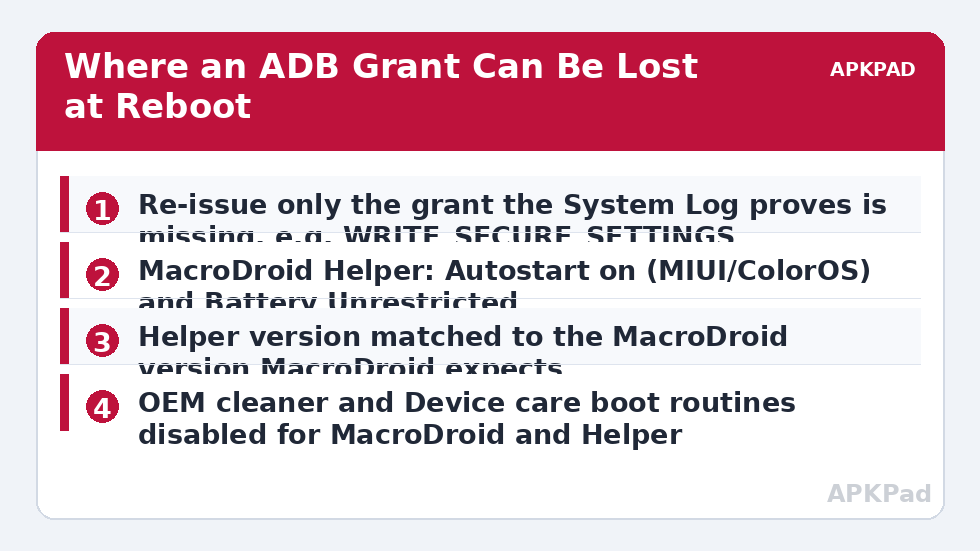
Connect the phone to a computer with USB debugging enabled in Developer options, or use the wireless debugging route your Android version offers, and re-issue only the grant for the capability that the log proved is missing. For a secure-settings capability that is normally the WRITE_SECURE_SETTINGS grant for MacroDroid’s package. Run the command once, disconnect, and test the failing action immediately while the phone stays on. If it does not work even before a reboot, the problem is not persistence; stop and debug the grant itself, the cable or wireless pairing, and whether USB debugging was revoked.
Step 2: Stop the boot-time killer from removing the helper
If the grant works until reboot and the MacroDroid Helper is involved, the helper must survive boot. Apply the same OEM treatment used for background kills. On MIUI and HyperOS: Settings > Apps > Manage apps > MacroDroid Helper > Autostart on, and Battery saver set to No restrictions, then do the same for MacroDroid itself. On Samsung One UI: Settings > Apps > Helper > Battery > Unrestricted, and add both apps under Settings > Battery > Background usage limits > Never sleeping apps. On ColorOS: Settings > Apps > App management > Helper > Battery usage > Allow background activity and Allow auto launch. On Pixel: Settings > Apps > Helper > App battery usage > Unrestricted. A helper killed at boot cannot re-apply or validate anything, and the failure then masquerades as a lost grant.
Step 3: Check for a helper version mismatch
After a MacroDroid update, an older helper build can fail its handshake and the elevated actions stop, reboot or no reboot. Compare the helper version shown in MacroDroid’s helper status with the version MacroDroid expects, and update the helper only from the official source MacroDroid itself directs you to. The dedicated guide on the helper file version mismatch walks through the version check in detail. Never download a helper or a patched MacroDroid APK from a file-sharing site; that is not a fix, it is a new risk.
Step 4: Remove the triggers that fake a reboot loss
Some OEM cleaner routines run at boot and reset app states. Check the Security app on MIUI and HyperOS, Phone Manager on ColorOS, and Device care automation on Samsung, and disable any automatic clean that targets MacroDroid or its helper.
How to read this: the estimate adds a small always-on idle cost for MacroDroid itself (about 0.4% of battery per day) to a per-class daily cost for each trigger type you use, scaled slightly by how many macros you run. These are planning estimates from that transparent model — not measurements from your phone. Use them to compare setups before you build, then confirm against the real numbers under Android Settings → Battery.
A Practical Workaround If Your Build Genuinely Drops the Grant
A small number of OEM builds do drop certain ADB grants on every reboot, and no settings menu changes that. The honest workaround is procedural, not magical: keep the exact grant command saved in a note on your computer, re-apply it after a reboot, and reduce how much your macros depend on that capability. Move work that needs the elevated permission into fewer macros, and give those macros a graceful failure path, for example a condition that checks whether the action is available and otherwise logs a message and notifies you instead of failing silently or looping.
Inside MacroDroid you can also build a boot check: use a Device Boot trigger with an action that attempts a harmless version of the elevated action and writes the result to the System Log or shows a notification if it fails. That turns a silent morning failure into an immediate, visible prompt to re-grant.
For the full index of related permission and trigger faults, see the Fixes & Errors section before you consider anything more drastic.
Verify Across Two Reboots, Not One
Verification here has a specific shape. First, confirm the elevated action works before any reboot. Second, reboot, wait two full minutes without opening MacroDroid, trigger the action from a scheduled test macro, and read the System Log entry. Third, reboot again and repeat. One successful reboot proves little, because some OEM routines only run their cleanup on alternate boots or after an update-style reboot. Two clean passes, with correct timestamps in the log, is reasonable evidence the persistence problem is actually solved rather than postponed.
When This Fix Won’t Work
If your phone is managed by an employer profile, an MDM policy can revoke developer options, USB debugging authorisation or the grants themselves at every sync, and no local setting overrides that. If Developer options keep turning off or the USB debugging authorisation is revoked on each reboot, that is a firmware or policy behaviour to raise with the manufacturer or administrator. And if the action fails even immediately after a fresh, correctly issued grant with the phone still on, persistence is not your fault at all; the grant, the helper version or the Android version’s support for that action is where the answer lies.
Frequently Asked Questions
Why do my ADB grants disappear after every reboot?
On most stock Android builds a grant such as WRITE_SECURE_SETTINGS persists, so repeated loss usually points to an OEM cleaner or battery routine resetting the app or its helper at boot, a helper version mismatch, or a management policy. Work through the log first, protect the helper with autostart and unrestricted battery settings, and only conclude your build drops the grant after two controlled reboot tests.
Is it safe to re-grant permissions with ADB?
Re-granting a specific permission to the official MacroDroid app from your own computer is the documented setup route for certain advanced actions. Keep USB debugging under your control, revoke the computer’s authorisation when you are done if you do not use it regularly, and never grant permissions to an unfamiliar app or install a modified MacroDroid build from a third party.
Can a macro re-grant its own permissions after a reboot?
No, not the ADB-level grants. A macro runs inside MacroDroid’s existing permission state, so it cannot elevate itself. What a boot-triggered macro can do is test whether an elevated action works and notify you or log the failure, so you know to re-apply the grant from a computer instead of discovering it hours later.
Does clearing MacroDroid’s data affect ADB grants?
Yes, it can. Clearing app data, uninstalling and reinstalling the app, or switching the app to a different user or profile can remove grants and special-access states tied to that installation. After any of those actions, expect to re-check permissions, re-grant the ADB capability, and re-confirm accessibility and notification access.
Why did this only start after an Android update?
Major updates can reset permission states, tighten background rules, and change how a manufacturer treats ADB grants. Treat the first setup after a major update as a fresh verification: re-check the grant, the helper version, autostart and battery settings, then run the two-reboot test before assuming a new permanent bug.