Your macro runs, the trigger fires on time, and then nothing changes — brightness stays put, timeout stays at thirty seconds, or airplane mode never toggles. MacroDroid’s System Log shows a permission failure instead of a completed action. Learning how to fix system setting modification denied error messages starts with one distinction: Android protects three different settings namespaces, and each one fails for a different reason.
System, Secure, and Global settings are not interchangeable. Ordinary apps can change some System values, such as brightness, after a prompt. Secure and Global values — screen timeout behaviour on some builds, accessibility-related toggles, location modes, and many OEM extras — require the special WRITE_SECURE_SETTINGS grant, which cannot be given from a normal permission screen. On custom ROMs a second layer appears: privacy guards, per-app toggles, and SELinux policies can block a write even after that grant exists.
Read the Log Before You Change Anything
Open MacroDroid, tap the menu, open System Log, and re-run the failing macro once. Note the exact action name, the timestamp, and the wording of the failure. “Permission denied,” “requires WRITE_SECURE_SETTINGS,” and a silent failure with no error are three different faults.
Next, identify which setting your action touches:
| Action example | Namespace | Usual requirement |
|---|---|---|
| Brightness, volume level, screen rotation lock | System | Modify system settings toggle allowed for MacroDroid |
| Screen timeout on some OEM builds, input methods, accessibility shortcuts | Secure | WRITE_SECURE_SETTINGS via ADB or root |
| Airplane mode, location mode, developer-style toggles | Global | WRITE_SECURE_SETTINGS, sometimes root on custom ROMs |
| Vendor features such as MIUI reading mode or One UI routines values | OEM namespace | Vendor permission plus the grant above |
If the same macro worked last month, ask what changed in between: a ROM update, a MacroDroid update, a restore from backup, or a switch from a stock build to a custom build. Restores and major updates are the two most common moments when the secure-settings grant disappears without any visible warning.
How to Fix System Setting Modification Denied Error, Safest First
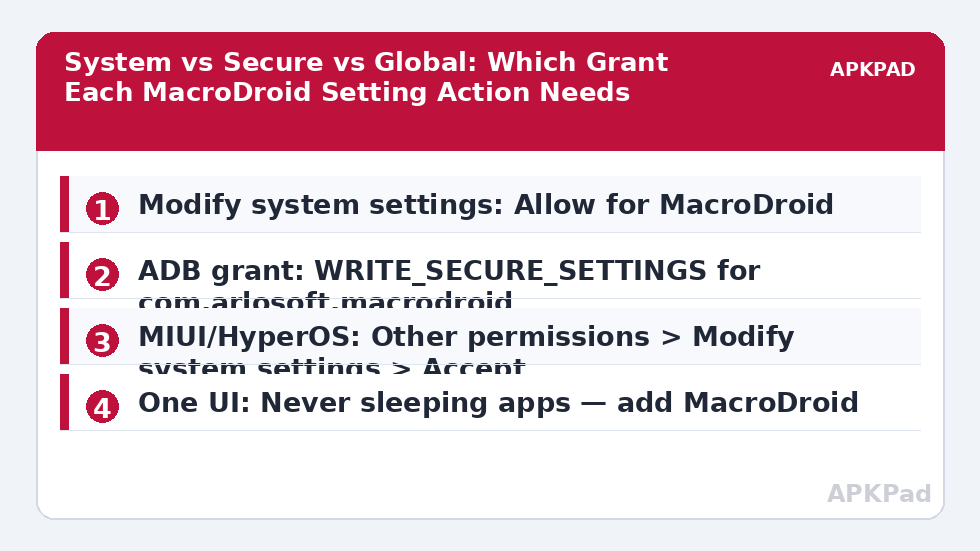
Step 1: Allow the ordinary modify-settings toggle
This is the only fix that needs no computer and no root, so always try it first.
- Pixel and stock Android: Settings > Apps > MacroDroid > Advanced > Modify system settings > Allow permission.
- Samsung One UI: Settings > Apps > MacroDroid > three-dot menu or Advanced > Appear on top / Modify system settings > set to Allowed.
- MIUI / HyperOS: Settings > Apps > Manage apps > MacroDroid > Other permissions > Modify system settings > Accept.
- ColorOS / Realme UI: Settings > Apps > MacroDroid > Modify system settings > Allow.
Retest one simple action, such as brightness, before retesting the whole macro. If brightness now works but your original action still fails, the ordinary toggle was never the blocker — move to the secure-settings grant.
Step 2: Re-grant WRITE_SECURE_SETTINGS with ADB
Connect the phone by USB with USB debugging enabled in Developer options, then run this single command from a computer:
adb shell pm grant com.arlosoft.macrodroid android.permission.WRITE_SECURE_SETTINGS
The command returns silently when it succeeds. No reboot is needed. This grant survives normal app use but can be lost after a factory reset, a clean ROM flash, uninstalling and reinstalling MacroDroid, or some major OTA updates. Our companion guide to fixing ADB grants that reset after a reboot explains how to check whether the grant is still present before you re-run it.
How to read this: the estimate adds a small always-on idle cost for MacroDroid itself (about 0.4% of battery per day) to a per-class daily cost for each trigger type you use, scaled slightly by how many macros you run. These are planning estimates from that transparent model — not measurements from your phone. Use them to compare setups before you build, then confirm against the real numbers under Android Settings → Battery.
Step 3: Check the custom ROM layer
Custom ROMs add controls that stock Android does not have, and they are the usual reason a correct ADB grant still fails:
- LineageOS: Settings > Privacy > Trust or Privacy Guard on older builds — confirm MacroDroid is not set to a restricted profile, and check Settings > Apps > MacroDroid > Modify system settings again after each OTA, as Lineage updates can reset advanced toggles.
- GrapheneOS: There is no global “allow everything” switch by design. Check the per-app exploit-protection and permission settings, and accept that some Secure writes are intentionally limited on hardened builds.
- crDroid, Evolution X and similar feature ROMs: Look under Settings > Privacy and any ROM-specific “App lock / permission” hub. A per-app “restrict background and settings” profile applied to save battery can silently block writes.
- Rooted builds with Magisk: If you use a module that freezes or hibernates apps, whitelist MacroDroid. A hibernated app can receive its trigger and still fail at the write step.
Also check SELinux status under Settings > About phone. Builds switched from Enforcing to Permissive, or the reverse after an update, change which writes succeed. Do not change SELinux mode to fix a macro — that weakens device security for every app. Work within the ROM’s permission controls instead.
Verification: Prove the Write Actually Happened
A macro completing without an error message is not proof. Verify in two places:
- Create a test macro with a simple manual trigger, such as the MacroDroid widget or a floating button, and one action only: set brightness to a visibly different level or change screen timeout to two minutes.
- Run it, then open Android Settings and confirm the value itself changed. A timeout that still reads thirty seconds means the write failed, whatever the macro reported.
- Return to MacroDroid’s System Log. You want the action entry with no permission error at the same timestamp as your test.
- Reboot once and repeat the test. A fix that survives a reboot is real; a fix that vanishes points back to a resetting grant or an OEM toggle being re-applied.
If reboots keep undoing your work, read the related guide on battery optimisation exclusions resetting after an update — the same update behaviour often clears both settings together, and fixing them in one session saves repeated setup.
OEM-Specific Traps Worth Knowing
MIUI and HyperOS sometimes show the modify-settings toggle as allowed while a second control under Settings > Privacy protection > Special permissions still blocks the app. Check both places before assuming the ADB grant failed. One UI can put MacroDroid into a sleeping-apps list after a Device Care clean-up, which delays the action until it looks like a denial; exclude it under Settings > Battery > Background usage limits > Never sleeping apps. ColorOS may require the “Allow modifying system settings” switch to be toggled off and on again after an app update before it takes effect.
For the wider picture — triggers, constraints, and actions failing together — the Fixes & Errors category collects every diagnosis in this series, and the complete troubleshooting guide for MacroDroid triggers gives you an order to work through them in.
When This Fix Won’t Work
Some settings cannot be written by any non-system app on modern Android, no matter which grant you apply. Examples include certain Global values reserved for privileged system apps, carrier-locked network toggles, and work-profile settings controlled by your employer’s device policy. On a managed or work device, the honest answer is to move that step out of the macro: trigger a notification or a shortcut screen instead of attempting the write. On GrapheneOS and other hardened builds, a blocked write may be a deliberate security decision, not a bug — respect it rather than hunting for a workaround that undermines the ROM you chose.
If every System action still fails, suspect a corrupted install: back up your macros, reinstall, re-grant, and test one macro before restoring everything.
Frequently Asked Questions
Why did my system setting actions stop working after a ROM update?
Major ROM and OTA updates commonly revoke the WRITE_SECURE_SETTINGS grant and reset advanced app toggles such as Modify system settings. Re-apply the ADB grant, re-check the toggle for your OEM skin, then reboot and retest with a single brightness action before restoring your full macros.
Is WRITE_SECURE_SETTINGS safe to grant to MacroDroid?
It is a powerful permission that lets the app change protected Secure and Global settings, which is exactly what these actions need. Grant it only via ADB to the official MacroDroid app, understand that it persists until revoked, and remove it any time with an ADB revoke command if you stop using those actions.
Do I need root to fix a system setting modification denied error?
No. Most cases are solved by the Modify system settings toggle plus the ADB grant, neither of which needs root. Root only becomes relevant on certain custom ROMs where a specific Global value is reserved, and even then a workaround trigger or notification is usually the safer design.
Why does brightness work but screen timeout still fail?
Because they live in different namespaces. Brightness is a System setting controlled by the ordinary toggle, while timeout on many OEM builds is a Secure setting that needs the ADB grant. One action succeeding proves your macro and trigger are fine; it does not prove the second permission exists.
Can I check whether the ADB grant is still active without a computer?
Not reliably from the phone alone. The practical on-device test is functional: run a single Secure-setting action and read MacroDroid’s System Log. If it reports the permission as missing, reconnect to a computer and re-run the grant command, which is harmless to repeat.