A macro that reads, clears, or replies to notifications stops working and MacroDroid flags that notification access is gone. To fix notification access permissions revoked error reports, first establish whether access was switched off by you, by an Android update, by the permission auto-reset system, or by your phone maker quietly re-applying restrictions after MacroDroid sat unused — because each cause needs a different repair, and re-toggling the permission alone fixes only one of them.
Read the Symptom Precisely
Notification access failures have three distinct shapes, and they are easy to confuse. Shape one: Notification Received triggers never fire at all, for any app. Shape two: triggers fire for some apps but the macro cannot read the notification text, so constraints on content never match. Shape three: triggers fire, text reads correctly, but actions fail — the notification will not clear, the reply will not send, or the button press errors in the log. Shape one is almost always the access toggle itself. Shape two is usually a per-app or work-profile boundary. Shape three is often the target app changing its notification format, not a permission problem at all.
Before touching settings, capture evidence. Trigger a notification you control — send yourself a message — note the time, then open MacroDroid’s System Log. If the log shows nothing for that notification, access or the listener service is down. If the log shows the trigger with empty text fields, the listener is alive but content is blocked. That single observation halves the cause tree below.
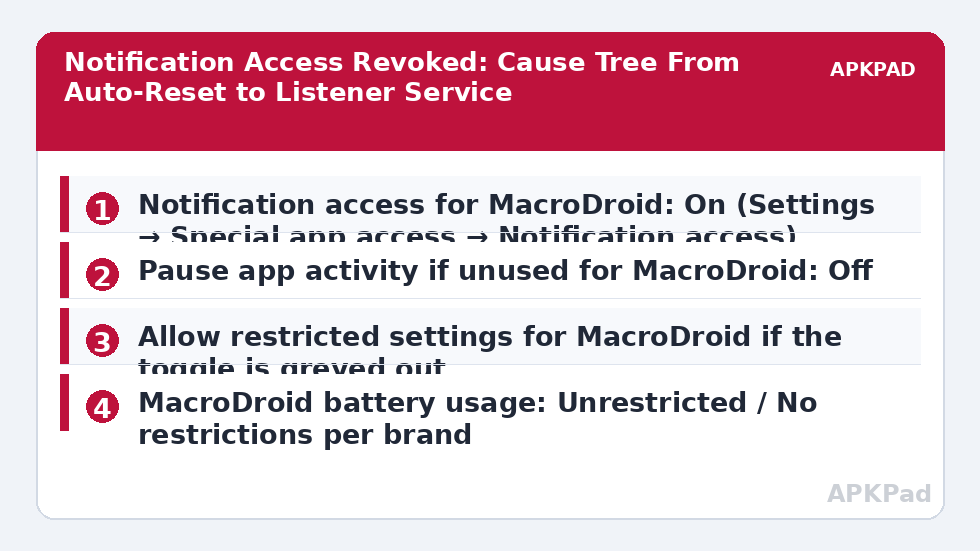
Ordered Cause Tree
- Auto-reset of unused app permissions: Android 11 and later revokes sensitive permissions, and can disable notification access pathways, for apps the system decides are unused. MacroDroid used only through automatic macros can look “unused” to this logic.
- OEM permission re-application: MIUI/HyperOS, ColorOS, and One UI updates sometimes re-run their own permission managers and switch off access that stock Android would leave alone.
- Restricted settings block after install method change: If MacroDroid was reinstalled or restored from backup, Android 13+ may show the notification access toggle greyed out until restricted settings are allowed for the app.
- Listener service killed, toggle still on: The switch looks enabled, but the NotificationListenerService is not bound because the OEM battery manager froze MacroDroid — the same failure family as MacroDroid not working in the background on OEM phones.
- Notification access never granted to begin with: Common after setting up a new phone from a backup: macros restore, permissions do not.
Fix Notification Access Permissions Revoked Error, Safest First
Step 1: Re-grant Notification Access in the Correct Screen
Notification access is not in the normal app permissions list. Use the dedicated screen for your brand:
| Brand | Path to notification access | Notes |
|---|---|---|
| Pixel (stock Android) | Settings → Notifications → Device & app notifications, or Settings → Apps → Special app access → Notification access → MacroDroid | Toggle MacroDroid on and confirm the warning dialog |
| Samsung One UI | Settings → Notifications → Advanced settings → Notification access, or search Settings for “Notification access” → MacroDroid | One UI also requires MacroDroid excluded under Battery → Background usage limits → Never sleeping apps, or the listener gets frozen again |
| Xiaomi MIUI / HyperOS | Settings → Privacy protection → Special permissions → Notification access → MacroDroid | Also set Settings → Battery → MacroDroid → No restrictions, and lock MacroDroid in the Recents screen |
| Oppo / Realme ColorOS | Settings → Privacy → Permission manager → Special app access → Notification access → MacroDroid | Also allow background activity under App management → MacroDroid → Battery usage |
After toggling access off and back on once — not just confirming it shows on — the listener service rebinds. Many “revoked” reports end here, because the toggle state and the service state had drifted apart.
Step 2: Stop It Being Revoked Again
Open Settings → Apps → MacroDroid → Permissions and look for the auto-reset control, labelled “Pause app activity if unused” on Pixel, or under “Remove permissions if app is unused.” Turn that pausing off for MacroDroid. Then apply the battery exemption for your brand from the table above. This step is the actual long-term fix; skipping it is why the error returns every few weeks for so many users. The same exemption protects against the separate problem covered in our guide to the battery optimisation exclusion resetting after an update.
Step 3: Clear the Restricted Settings Block, If the Toggle Is Greyed Out
If the notification access switch will not move, go to Settings → Apps → MacroDroid, tap the three-dot menu in the top corner, and choose Allow restricted settings. Authenticate, then return to the notification access screen and grant it. This block appears when an app was installed outside the normal installer flow or restored in a way Android treats cautiously; allowing restricted settings for an app you trust and installed deliberately is the intended remedy — it is not a security bypass.
Step 4: Check the Per-App and Profile Boundaries
If access is granted and some apps still produce empty notification text, inspect the failing app rather than MacroDroid. Notifications marked as sensitive or private on the lock screen can hide content from listeners until unlock. Work profile notifications are separated, and MacroDroid installed in the personal profile cannot read them. Banking and chat apps that post silent or minimal notifications give listeners almost nothing to read; that is their design, and the repair is to trigger on the notification’s presence and fixed fields rather than its body text. Notification-dependent macros also interact with the accessibility service when they press notification buttons, so confirm that service is healthy before blaming notification access for a failed button press.
How to read this: the estimate adds a small always-on idle cost for MacroDroid itself (about 0.4% of battery per day) to a per-class daily cost for each trigger type you use, scaled slightly by how many macros you run. These are planning estimates from that transparent model — not measurements from your phone. Use them to compare setups before you build, then confirm against the real numbers under Android Settings → Battery.
Verification: Prove the Listener Hears Again
Create a test macro with a Notification Received trigger set to any app you can trigger on demand, and a single harmless action such as Vibrate or Write to User Log. Send yourself a notification from that app and confirm the action runs. Then open MacroDroid’s System Log and verify the entry shows the notification’s app, title, and text populated — not just the trigger name. Finally, reboot the phone and repeat the test once. A repair that survives a reboot is real; a listener that only works until the next restart means the battery exemption in Step 2 is still missing. You will find this and related repairs collected in our Fixes & Errors category.
When This Fix Won’t Work
If your device is managed by an employer, notification access can be blocked by device policy no matter what the settings screens show, and only the administrator can change that. Some apps deliberately post notifications with no readable content, and no permission restores text that was never included. And on heavily modified vendor builds, a major OS update can revoke access again by design — in that case the honest fix is a short post-update routine: re-check notification access and battery exemption after every system update, before your macros start failing silently.
Frequently Asked Questions
Why does MacroDroid keep losing notification access?
Usually because Android’s unused-app permission reset or your phone maker’s battery manager is switching it off in the background. Grant notification access again, turn off “pause app activity if unused” for MacroDroid, and set its battery use to unrestricted. Without those last two steps, the revocation normally returns.
Where is notification access in Android settings?
It lives under special app access, not the normal permissions list. On most phones go to Settings, search for “Notification access”, and toggle MacroDroid on. On Pixel it is under Apps → Special app access; on MIUI it sits under Privacy protection → Special permissions; One UI places it under Notifications → Advanced settings.
The notification access toggle is greyed out. How do I enable it?
Open Settings → Apps → MacroDroid, tap the three-dot menu, and choose Allow restricted settings. After authenticating, return to the notification access screen and the toggle should work. Android applies this block when an app’s install history makes it treat the app cautiously.
MacroDroid has notification access but cannot read notification text. Why?
The listener is working but the content is hidden. Common causes are notifications set to hide sensitive content, work profile notifications that a personal-profile install cannot read, and apps that post minimal notifications with no body text. Trigger on the app and title fields instead of the hidden body.
Do I need notification access for every notification macro?
You need it for macros that trigger on notifications, read their content, clear them, or press their buttons. Macros that only post MacroDroid’s own notifications use the standard notification permission instead. Granting access you do not use adds exposure without benefit, so check your macro list first.