The phone died mid-edit, froze during a force shutdown, or ran out of battery while MacroDroid was saving — and now a macro is missing, a category opens empty, or the app crashes on launch. Learning to restore corrupted macro files macrodroid crash damage has caused is mostly about order of operations: protect whatever still exists first, then recover from the newest good copy, then rebuild only what is truly lost.
Resist the first instinct, which is to clear app data or reinstall. Both can destroy the very files — including MacroDroid’s own automatic backup — that give you your best chance of recovery. Treat the phone like a drive after a crash: read from it, copy from it, write to it as little as possible until your macros are safe somewhere else.
What Actually Got Corrupted?
MacroDroid stores your macros in its app data, and keeps an automatic backup file that many users never notice until they need it. A force shutdown interrupts a write, and an interrupted write can leave a file truncated — valid at the start, broken at the end. That produces three recognisable symptom patterns:
- MacroDroid opens, some macros missing or empty: the main data file took damage but the app can still start. Best case — recovery odds are high.
- MacroDroid crashes immediately on launch: the file is damaged in a way the parser cannot survive. Recovery shifts to the automatic backup and any exports you made.
- App opens, everything gone, as if newly installed: the data file was replaced or the app data was cleared — possibly by an OEM cleaner. Check for backups before assuming total loss.
Note which pattern you have, because the routes below diverge. Also note what the crash interrupted — a save, a restore, or an OS update — because the damage differs. Restart once, normally, before doing anything else.
Step 1: Preserve Everything, Touch Nothing
- If MacroDroid opens at all, use its export option immediately and save a full backup to a folder outside MacroDroid, then copy that file off the phone — email it to yourself, copy it to a computer, or put it in cloud storage you control.
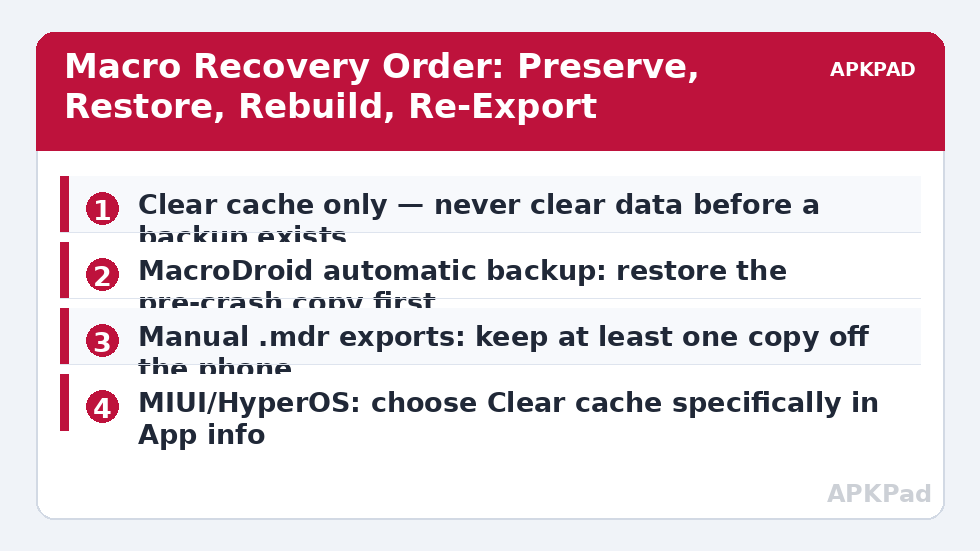
- If MacroDroid will not open, do not clear data and do not uninstall. Connect the phone to a computer and copy anything MacroDroid-related you can reach from shared storage, including any .mdr export files in Downloads or Documents.
- Search your shared storage for earlier exports. Many users have an old .mdr file from a previous phone migration or a guide they followed months ago. An old export is not a failure — it is a floor you can rebuild from.
- Check whether your backup app, OEM cloud backup, or Google backup ran recently. Note its date; you will decide later whether restoring it is worth overwriting the current state.
One caution: do not run storage “cleaner” tools at this stage. On MIUI / HyperOS and ColorOS especially, cleaner features cheerfully delete unfamiliar files, and your exports and backups qualify as unfamiliar. The whole Fixes & Errors category assumes your files survive the diagnosis — keep it that way.
How to read this: the estimate adds a small always-on idle cost for MacroDroid itself (about 0.4% of battery per day) to a per-class daily cost for each trigger type you use, scaled slightly by how many macros you run. These are planning estimates from that transparent model — not measurements from your phone. Use them to compare setups before you build, then confirm against the real numbers under Android Settings → Battery.
Restore Corrupted Macro Files Macrodroid Crash Recovery: Use the Built-In Backup
MacroDroid keeps an automatic backup of your configuration, and its restore route is the safest recovery because it understands its own file format and version. Look in MacroDroid’s settings for the backup and restore options and check whether an automatic backup with a sensible date — before the crash, not after — is available.
Import in this order of preference:
- The automatic backup from immediately before the crash.
- Your most recent manual export, if it is newer than the automatic backup.
- Any older export, accepting that recent edits will need re-doing.
After importing, do not immediately re-enable everything. Open three or four macros you recognise and confirm they contain their triggers, actions, and constraints — an import that restores macro names with empty action lists has only half-worked, usually because the source file itself was the truncated one. If that happens, try the next-oldest source rather than rebuilding on top of a hollow restore.
Step 3: When the App Crashes on Launch
If MacroDroid cannot stay open long enough to reach its restore option, work from Android’s side:
- Clear cache only — never data. Settings > Apps > MacroDroid > Storage > Clear cache. Cache is disposable; data is your macros. On One UI this is under Settings > Apps > MacroDroid > Storage. On MIUI / HyperOS, long-press the app icon > App info > Clear data opens a menu where you must choose Clear cache specifically.
- Try a normal launch. If it opens, go straight to Step 2 and restore from the automatic backup.
- If it still crashes, and your macros are already exported or confirmed backed up, then — and only then — consider a reinstall: uninstall, restart the phone, reinstall MacroDroid from the Play Store, and import your export. Every permission and ADB grant will need re-applying afterwards, which is tedious but routine; our guide to MacroDroid not working in the background on OEM skins covers the battery and autostart settings to redo.
Do not use a third-party “repair” tool on MacroDroid’s data files, and do not hand-edit the raw macro data expecting a text fix. The files are structured data; a well-meant edit can convert a partially recoverable file into an unrecoverable one. Recovery means importing a good copy through the app, not surgery on a bad one.
Step 4: Rebuild the Gaps and Verify Honestly
Whatever route you took, assume some loss and audit for it:
- Count your macros and compare against what you remember having, category by category.
- Open any macro that was being edited at the moment of the crash and rebuild it from scratch rather than trusting a half-saved version. A macro with a missing constraint can behave worse than no macro at all — see troubleshooting macro loops and overheating for what an unconstrained trigger loop does to a phone.
- Re-test each restored macro with its real trigger, and check MacroDroid’s System Log for a clean run. Restored triggers that depend on location, Wi-Fi state, or time may need their underlying permissions re-granted before they fire.
- Re-export a fresh, known-good backup immediately and label it with today’s date.
Prevention That Actually Prevents
Recovery is a lottery; prevention is a habit. Export your macros on a schedule — after any editing session that matters — and keep at least one copy off the phone. If your phone freezes, wait before holding the power button: a macro file mid-save is exactly the write you do not want to interrupt. The complete troubleshooting guide puts this recovery flow alongside the other major failure modes, in the order to work through them.
When This Fix Won’t Work
If the only copy of your macros was in app data, the app data is gone, and no automatic backup, export, or cloud copy exists, the macros are not recoverable — no tool can reconstruct structured data that no longer exists anywhere. What you can recover is knowledge: your System Log history, your memory of what each macro did, and any screenshots or shared macro files you sent to anyone. Rebuild the two or three macros you actually rely on first, verify each one, and set up scheduled exports the same day, while the lesson is still fresh.
Frequently Asked Questions
Should I clear MacroDroid’s app data if it crashes on launch?
Not first. Clearing data can delete the automatic backup you need for recovery. Clear cache only, try launching again, and restore from the automatic backup or an export. Treat clearing data or reinstalling as the last step, only after a usable backup exists somewhere outside the app.
Where do I find MacroDroid backups and exports on my phone?
Manual exports are saved where you chose at export time, commonly in Downloads or Documents as .mdr files, and can be copied over USB. MacroDroid also keeps an automatic backup accessible through its own settings backup and restore options, which is the first source to try after a crash.
Can I repair a corrupted macro file by editing it manually?
It is not recommended. The data is structured, and a manual edit can make a partially recoverable file completely unreadable. Recovery works by importing a good copy — the automatic backup, a manual export, or a cloud backup — through MacroDroid itself, then rebuilding any macro that was mid-edit from scratch.
My import restored macro names but the actions are empty. What happened?
The source file was probably the truncated one written during the crash, so the restore only recovered part of each record. Do not build on that hollow restore. Import the next-oldest backup or export instead, verify that triggers, actions, and constraints are present, and only then re-enable your macros.
How do I stop a crash from costing me my macros again?
Export after every meaningful editing session, keep one copy off the phone, and include the export folder in any scheduled backup. Avoid force shutdowns during saves where possible, and after any recovery, immediately export a fresh dated backup so your newest known-good copy is never the damaged one.