This complete troubleshooting guide macrodroid triggers workflow exists for one situation: a macro fails and you do not yet know which part failed. Use this complete troubleshooting guide macrodroid triggers method before changing settings, because random toggling destroys evidence. A MacroDroid macro is three separate systems — a trigger that detects something, actions that do something, and constraints that decide whether it is allowed to — and each system fails in its own way, with its own log signature.
Your job in the first ten minutes is classification, not repair. Once you know whether you have a trigger problem, an action problem, or a constraint problem, the deep-dive guides linked throughout this page will take you the rest of the way.
The Master Workflow at a Glance
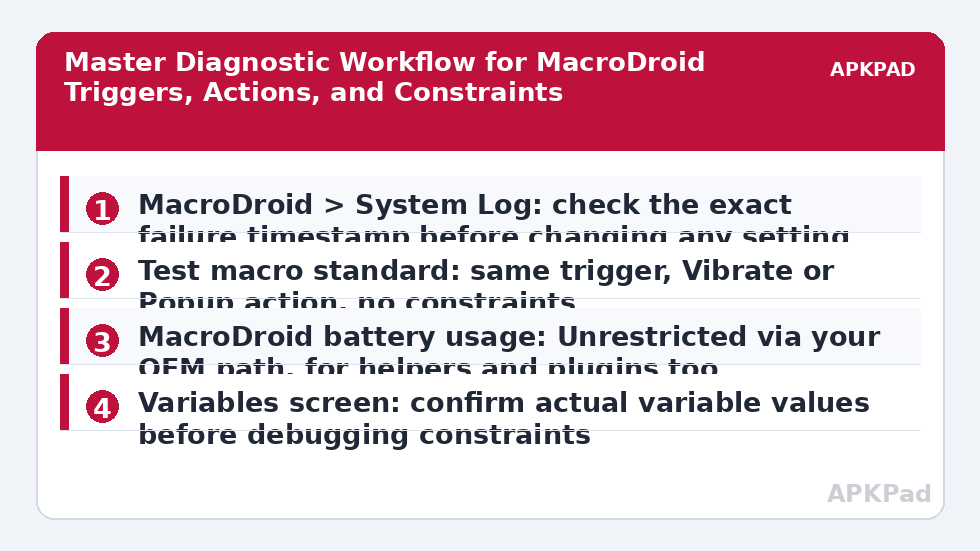
- Reproduce the failure once, on purpose, and note the exact time.
- Read MacroDroid > System Log at that timestamp before changing anything.
- Isolate: test trigger alone, actions alone, constraints removed.
- Match the isolated failure to one of the five root-cause families below.
- Apply the safest fix for that family, then verify with the real trigger, screen off, after a wait.
| System Log shows | Classification | Go to |
|---|---|---|
| No entry at the expected time | Trigger never fired | Trigger deep-dives below |
| Trigger fired, macro blocked by constraint | Constraint problem | Constraint isolation in Step 3 |
| Trigger fired, action error or timeout | Action / permission problem | Action deep-dives below |
| Trigger fired late, in a burst | Doze / battery delay | Battery family |
| Macro fired repeatedly in seconds | Loop / retrigger problem | Loop guide below |
Complete Troubleshooting Guide MacroDroid Triggers: Isolate Each Part
Step 1: Isolate the Trigger
Build a throwaway test macro: keep only the suspect trigger, set the action to Vibrate or Popup Message, and delete every constraint. If the test macro fires, the trigger is healthy and your original macro’s actions or constraints are at fault. If it does not fire, you have a genuine trigger problem. Work the trigger-specific guides: location triggers not firing on Android 14 and 15, cell tower triggers not updating without GPS, delayed trigger execution in deep sleep and doze mode, and the floating button overlay disappearing in fullscreen apps. For variables, add a popup that prints the variable value at trigger time — a trigger that fires with an empty or stale variable looks broken when the detection itself worked.
Step 2: Isolate the Actions
Now keep the actions and change the trigger to a Manual / Widget button. Run it with the screen on. If an action fails here, in the foreground, the fault is in that action’s permission or configuration, not in background behaviour. Common action-side deep-dives: volume control actions failing on MIUI and ColorOS, Wi-Fi toggle actions blocked since Android 10, system setting modification denied errors, UI interaction failure on the lock screen, and Bluetooth tethering automation failures. Test actions one at a time with Test Action, and put a Wait and a popup between suspect steps so you can see exactly where the sequence stops.
Step 3: Isolate the Constraints and Variables
Re-add constraints to the working test macro one at a time, testing after each. Constraints fail quietly: the System Log usually records that the macro was invoked but blocked, which many people misread as a trigger failure. Check variable-based constraints especially carefully. Confirm the variable’s actual current value in MacroDroid’s Variables screen, check comparisons for text versus number mismatches, and look for a variable that is set by another macro which itself is failing. If a macro runs endlessly once triggered, stop and follow troubleshooting macro loops and CPU overheating before it drains the phone, and if SMS steps misbehave on a two-SIM phone, see auto-reply SMS failing on dual SIM.
The Five Root-Cause Families
Almost every isolated failure lands in one of these families. Identify the family from evidence, then use its safest-first fix order.
- Permission revoked. Check MacroDroid’s permission screens and special access first: notification access revoked, the accessibility service turning itself off, and ADB grants resetting after reboot or reinstall.
- OEM battery kill. The process dies between triggers. The full treatment is MacroDroid not working in the background on OEM skins.
- Doze and deep sleep. Work arrives late rather than never, in maintenance windows.
- Android-version behaviour change. A macro unchanged for a year breaks on a new version because the platform rules moved.
- MacroDroid setting or file. A disabled trigger, a wrong mode, a helper mismatch — see helper file version mismatch — or damaged data, covered by restoring corrupted macro files after a crash.
The Battery Settings to Check in Every Family
Whatever the family, confirm this baseline once, using your brand’s path, and for any helper or plugin app as well as MacroDroid:
- MIUI / HyperOS: Settings > Apps > Manage apps > MacroDroid > Battery saver > No restrictions, plus Autostart on.
- One UI: Settings > Apps > MacroDroid > Battery > Unrestricted, and MacroDroid under Never auto sleeping apps.
- ColorOS: Settings > Apps > App management > MacroDroid > Battery usage > Allow background activity and Allow auto launch.
- Pixel: Settings > Apps > MacroDroid > App battery usage > Unrestricted.
If those settings keep undoing themselves after updates, that specific fault has its own guide: battery optimisation exclusion resetting after app updates. Plugin steps add one more layer, covered by troubleshooting Tasker plugin integration in MacroDroid. All of these sit together in the Fixes & Errors category for browsing by symptom.
How to read this: the estimate adds a small always-on idle cost for MacroDroid itself (about 0.4% of battery per day) to a per-class daily cost for each trigger type you use, scaled slightly by how many macros you run. These are planning estimates from that transparent model — not measurements from your phone. Use them to compare setups before you build, then confirm against the real numbers under Android Settings → Battery.
Verification: Prove It With the Real Trigger
- Restore the macro to its real trigger, real actions, and real constraints — the exact configuration that failed.
- Note the time, lock the phone, and leave it untouched for the trigger’s natural interval. Do not open MacroDroid to “help” it.
- After the event, check the result first (notification, file, variable, device state), then open System Log and match the timestamp.
- Confirm the log shows trigger fired, no constraint block, actions completed, and the timestamp is on time rather than at unlock.
- Repeat once after a reboot. Passing twice — idle and post-reboot — is the standard that separates a fix from a coincidence.
When This Workflow Will Not Find a Fix
Honesty matters here. This workflow classifies faults that live in triggers, actions, constraints, permissions, and power management. It cannot restore a capability Android has removed by design, make an unmaintained plugin compatible with a new version, or override an employer’s device policy on a managed phone. It also cannot help if the failure is in the other device or service — a router, a carrier, a Bluetooth client — which is why the workflow starts with reproducing the process manually where another device is involved. When isolation proves the macro is correct and the platform blocks the step, the answer is a different method for that step, not more toggling.
Frequently Asked Questions
Where should I start when a macro fails and I have no idea why?
Reproduce the failure once and note the time, then read MacroDroid’s System Log at that timestamp before changing any setting. No log entry means the trigger never fired. A trigger entry with a blocked note means a constraint stopped it. A trigger entry with an action error means the action or its permission is at fault. That single reading classifies most failures.
How do I tell a trigger problem from a constraint problem?
Build a test macro with the same trigger, a simple Vibrate or Popup action, and no constraints. If it fires, the trigger works and a constraint or action in the original macro is responsible. If it does not fire, debug the trigger itself. Then re-add constraints one at a time, testing after each, until the failure returns.
Why does my macro work when I test it but fail on its own?
Testing runs in the foreground with the phone awake, which bypasses the conditions that break real macros: doze, OEM battery killing, revoked background permissions, and screen-off restrictions. Always verify a fix using the real trigger with the screen off and a waiting period, and confirm the timestamp in the System Log.
What are the five root-cause families I should check?
Permission revoked, OEM battery kill, doze and deep sleep delay, Android-version behaviour changes, and MacroDroid’s own settings or files. Work them in that order because the earlier families are more common and safer to fix, and use the System Log evidence to pick the family rather than guessing.
When is a macro failure not fixable with settings?
When isolation proves the macro is configured correctly but the platform blocks the step by design — a removed Android capability, a secure screen that rejects overlays and taps, a carrier that does not allow tethering, or a managed work device policy. In those cases, replace that step with a different trigger or action method instead of changing more settings.