Every Android power user eventually meets the same ghost: macros that run perfectly while you watch, and silently stop at 2 a.m. The culprit is rarely MacroDroid. It is the manufacturer’s power management — MIUI, One UI, ColorOS and their cousins run aggressive background policies that sit on top of Android’s own Doze, and they do not care about your automations. This guide shows how to override OEM power management policies using shell scripts and ADB commands: what the standard Android layer lets you exempt, what each OEM adds beyond shell reach, and how to verify the exemption actually held. The framing matters: these are ADB shell commands and MacroDroid shell actions operating inside their real sandbox limits — powerful, but not magic.
Layer one: Android’s own controls (fully shell-addressable)
Stock Android power management has two relevant mechanisms, and both accept shell commands.
Deviceidle whitelist (battery optimisation exemption)
adb shell dumpsys deviceidle whitelist +com.arlosoft.macrodroid
adb shell dumpsys deviceidle whitelist +com.arlosoft.macrodroid.helper
The + adds, - removes. Verify with adb shell dumpsys deviceidle whitelist and look for both packages in the output. This is the command-line twin of Settings → Battery → Unrestricted, and it is the single most important exemption for any automation app.
AppOps background-run operations
adb shell cmd appops set com.arlosoft.macrodroid RUN_ANY_IN_BACKGROUND allow
adb shell cmd appops set com.arlosoft.macrodroid RUN_IN_BACKGROUND allow
These tell the app-ops layer not to throttle MacroDroid’s background execution. Complement them with standby bucket status where your build supports it: adb shell am set-standby-bucket com.arlosoft.macrodroid active places the app in the active bucket, the least restricted tier.
All of the above are standard, documented shell operations. They persist across reboots, they are readable back for verification, and they reverse by removing the whitelist entry or setting the op back to its default. Apply them to MacroDroid and the Helper — the Helper executes much of the work and is the package that actually gets killed in most failure reports. If you have not yet laid the foundation, the WRITE_SECURE_SETTINGS grant guide explains the permission model these commands live in.
How to read this: the estimate adds a small always-on idle cost for MacroDroid itself (about 0.4% of battery per day) to a per-class daily cost for each trigger type you use, scaled slightly by how many macros you run. These are planning estimates from that transparent model — not measurements from your phone. Use them to compare setups before you build, then confirm against the real numbers under Android Settings → Battery.
Layer two: what the OEMs add — and the honest limits
| OEM skin | Extra mechanism | Shell can set it? | What actually works |
|---|---|---|---|
| Xiaomi MIUI / HyperOS | “Autostart” permission + per-app battery saver modes (No restrictions) | Autostart: no standard shell route | Enable Autostart in the app’s MIUI info page; set battery to “No restrictions”; then apply Layer one |
| Samsung One UI | Device care sleeping-apps lists; “Adaptive battery” | Sleeping lists: no | Add MacroDroid + Helper to “Never sleeping apps”; set battery usage to Unrestricted; Layer one still applies |
| Oppo / Realme ColorOS | Startup manager + battery optimisation per app | No standard route | Allow auto-launch in app settings; battery → Unrestricted; Layer one |
| Vivo / iQOO | High background power consumption whitelist | No | Enable “High background power” for both packages in battery settings |
| Pixel / near-stock | Nothing significant beyond stock | — | Layer one alone usually suffices |
Read the table’s middle column carefully, because it corrects a decade of forum folklore: the famous OEM toggles are stored in vendor-private components, and there is no standard settings put key or cmd invocation that flips MIUI Autostart or Samsung’s sleeping list from a shell. Scripts claiming otherwise are either using root, using device-owner privileges, or quietly not working. The professional answer is a hybrid: shell for the standard Android layer (scriptable, verifiable, repeatable on every new phone), and a five-minute manual pass through the OEM’s own screens for its private layer — which is why the companion fixes like the background-kill fix and the resetting-exclusion fix exist in this site’s fixes category.
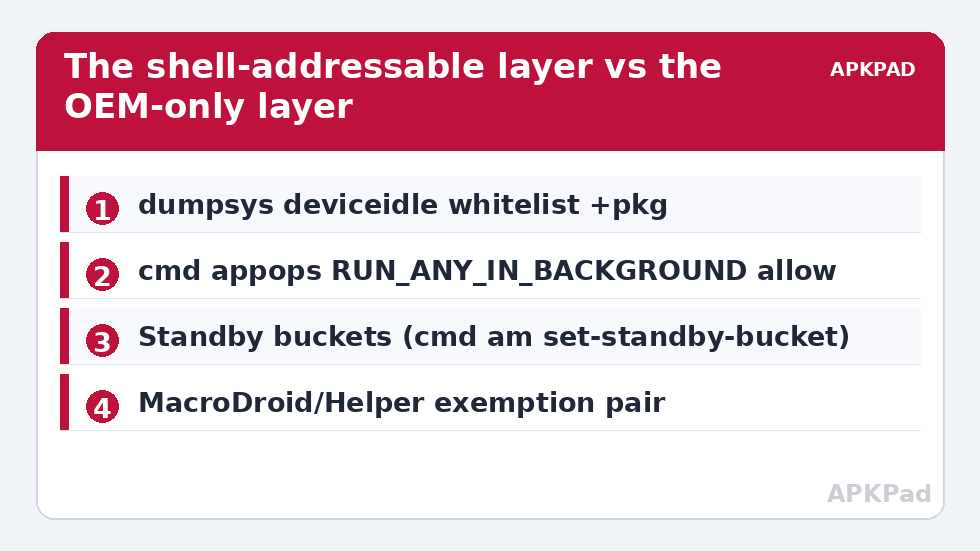
Override OEM power management with shell scripts: one file, every new phone
Consolidate Layer one into a small shell script you run from a computer whenever you set up a device (run it with the phone connected and authorised):
- Line 1–2: the two
dumpsys deviceidle whitelist +commands (app + Helper). - Line 3–4: the two
cmd appops set ... allowcommands for both packages (four lines if you cover both ops × both packages). - Line 5:
am set-standby-bucketfor both packages, tolerant of failure on builds that lack it. - Final line:
dumpsys deviceidle whitelistprinted back, so the run ends with its own proof.
From inside MacroDroid, the same commands can run in a Shell Script action through the Helper — with the sandbox caveat printed in every article of this series: the on-device shell holds only the privileges granted to the Helper, and some dumpsys/cmd operations accept only the true shell user. If a command returns a security error on-device but works from the PC, believe it — that command belongs to the PC script, not the boot macro. Scheduling the verification half (read the whitelist, log whether your packages are present) at startup follows the pattern in automated ADB execution at startup, turning silent OEM resets into logged events.
Verification protocol (do not skip)
- Run the script; confirm both packages in the whitelist output.
- Reboot the phone. Re-read the whitelist — exemptions must survive.
- Leave MacroDroid untouched for 24 hours with a trivial hourly macro (append a timestamp line to a file). Gaps in the log are your OEM layer talking; fix that layer in its settings screens.
- After any major OS update, repeat from step 1. Updates are when exclusions quietly reset — the known behaviour tracked in the fixes category.
Undo
Complete and symmetrical: dumpsys deviceidle whitelist -<package> removes the exemption, AppOps return to default by setting the op to default (or via the app’s battery settings screen), and the OEM-side toggles flip back in their own menus. You are restoring stock power policy, nothing more exotic — the phone simply goes back to treating MacroDroid like any other app, with all the 2 a.m. consequences that implies. Browse the full system tweaks category for the surrounding toolkit.
The escalation ladder when exemptions still fail
Work it in order; each rung assumes the previous one held. Rung 1 — the other permissions: background death is sometimes permission death in disguise — check that MacroDroid’s Notification Access and Accessibility Service are still enabled, because OEM “optimisers” and OS updates revoke or disable both, and a macro whose trigger service is off looks exactly like a killed app. Rung 2 — the Helper specifically: confirm the Helper is installed, current, and itself whitelisted; a stale Helper after a MacroDroid update is a classic silent failure (the version-mismatch pattern gets its own article in the fixes category for a reason). Rung 3 — vendor guardian apps: some skins ship a separate “battery guardian” or “phone manager” with its own sleeping list, distinct from the main battery settings; finding and exempting within it has resurrected more automations than any shell command. Rung 4 — accept and route around: a small number of devices — heavily locked carrier builds, some entry-level skins — will keep killing background apps regardless. On such a phone, the professional move is architectural: move time-critical automations to triggers the OS cannot sleep through (alarms, calendar, charging and connection events) and accept that free-running background work is unreliable. Knowing which phone you own is not defeat; it is diagnosis.
Frequently Asked Questions
Can a shell script disable MIUI’s or Samsung’s battery killer completely?
No. The standard Android layer (deviceidle whitelist, AppOps background ops, standby bucket) is fully shell-addressable, but the headline OEM mechanisms — MIUI Autostart, Samsung’s sleeping-apps list, ColorOS auto-launch — live in vendor-private components with no standard shell command. The working solution is hybrid: script the Android layer, set the OEM toggles in their own settings screens.
Which packages need the exemptions?
Both com.arlosoft.macrodroid and com.arlosoft.macrodroid.helper. The Helper performs much of the execution; exempting only the main app is the most common reason “the fix didn’t work”.
How do I verify the exemptions survived a reboot?
Run adb shell dumpsys deviceidle whitelist and confirm both packages are listed, then let a simple hourly logging macro run for a day — an unbroken timestamp log is real-world proof no layer is killing the app.
Why does a command work from my PC but fail inside MacroDroid?
Because the on-device Helper shell holds only the privileges granted to it, while the PC’s ADB shell runs as the shell user. Some dumpsys and cmd operations accept only the shell user. Keep those commands in the PC setup script and use MacroDroid for verification and logging.
How do I undo the exemptions?
Remove the whitelist entries with dumpsys deviceidle whitelist -<package>, set the AppOps back to default, and return the OEM battery settings to their standard mode. The phone then manages MacroDroid exactly like a stock install.