A phone at the edge of coverage is not resting — it is repeatedly raising transmit power, re-registering with the network and scanning for a better tower. Building macrodroid radio rules poor signal battery drain routines means spotting that struggle early and giving the phone a cheaper job to do. The honest goal is not a fixed number of hours gained. As a typical estimate, taming a genuinely weak-signal location can save a few percent across an evening or overnight period, and sometimes more in a real dead zone, but it varies by device, carrier, band and how far you are from the tower.
Understanding macrodroid radio rules poor signal battery drain before you automate it
Start with evidence, not with toggles. For two or three ordinary days, note where the drain happens: a particular room, a train route, a workplace basement, or a rural home. Android’s battery screen will not name signal as a culprit directly, so correlate the steep parts of the battery graph with where the phone was. MacroDroid can help you collect that evidence: a simple logging macro that writes the time and current signal level to the user log whenever the band changes gives you a map instead of a guess. That audit-first habit is the same discipline behind our guide to cell tower versus GPS triggers, where the cheapest location method is chosen only after you know the job it has to do.
One warning before you build anything: signal problems sometimes belong to the carrier or the building, not the phone. A failing tower, a metal-roofed warehouse or a new construction site next door can create a drain no macro can cure. The rules below reduce how hard the phone works against a bad situation; they do not create coverage where none exists.
How to read this: the estimate adds a small always-on idle cost for MacroDroid itself (about 0.4% of battery per day) to a per-class daily cost for each trigger type you use, scaled slightly by how many macros you run. These are planning estimates from that transparent model — not measurements from your phone. Use them to compare setups before you build, then confirm against the real numbers under Android Settings → Battery.
Step by step: a weak-signal logging macro
- Open MacroDroid and create a new macro named Log Weak Signal.
- Add a signal strength trigger if your build exposes one, or use a repeating check gated to waking hours if it does not. Keep any interval long — checking every few seconds would cause the drain you are trying to study.
- Add an action to write a user log entry with the time, signal level and whether Wi-Fi is connected.
- Add a constraint so the log macro does not run while the phone is charging, because plugged-in drain does not matter in the same way.
- Run it for at least two full days that include your suspected problem location, then read the log in the evening.
You are looking for sustained weak periods, not single dips. A lift shaft, a tunnel and a concrete stairwell all produce brief drops that need no response. A home office that sits in the weakest band from 18:00 to midnight is a real target.
The main rule: prefer Wi-Fi and stop the data hunt
| Situation | Rule | Why |
|---|---|---|
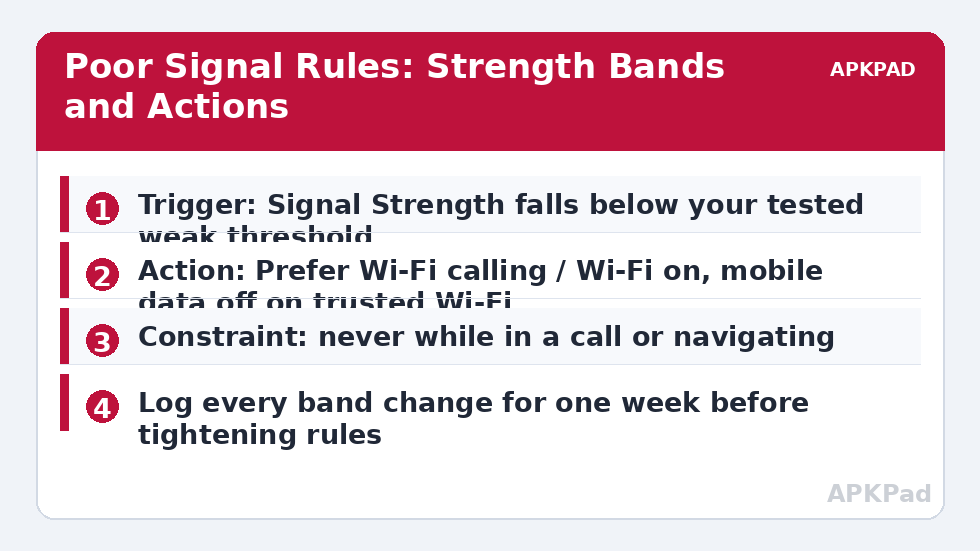
| Weak mobile signal, trusted Wi-Fi available | Wi-Fi on, Wi-Fi calling preferred if your carrier offers it, mobile data off | The phone stops shouting at a distant tower for data it can fetch locally |
| Weak signal, no Wi-Fi | Leave voice alone; reduce sync and background data instead | Calls and SMS still need the modem; data restraint is the safe lever |
| Signal recovers for several minutes | Restore mobile data and normal sync | A saver that never restores itself gets disabled within a week |
| In a call or navigating | Do nothing | Never trade safety or an active call for a battery estimate |
Build the acting macro as a pair. The entry macro fires when weak signal has persisted — use a wait of several minutes and then re-check the signal constraint before acting, so a passing dip does nothing. The exit macro fires when signal returns to a normal band or when you leave the problem location, and it restores data and sync cleanly. This wait-then-recheck pattern is the foundation of the idle drain routine as well, and it is what separates a keeper setup from a flapping nuisance.
Choosing thresholds without copying someone else’s numbers
Do not copy a threshold from a forum post for a different phone on a different network. Instead, read your own log: find the level your phone reports in a room where battery life feels normal, and the level it reports in the problem room, and place your weak threshold between them. Leave a gap between the entry and exit thresholds — engineers call this hysteresis — so the phone is not toggling rules every time the reading crosses a single line by one step. If MacroDroid on your build only reports broad bands rather than fine numbers, use the bands; broad and stable beats precise and jittery for this job. Recheck your thresholds after a carrier change, a house move or a major Android update, because all three can shift what normal looks like.
Permissions, limits and OEM differences
Radio actions are among the most restricted in Android. Toggling mobile data, and on many builds Wi-Fi, may need the MacroDroid Helper app, an ADB grant of WRITE_SECURE_SETTINGS, or root, and some OEM builds block one route while allowing another. Signal readings themselves also vary: some manufacturers smooth or delay the reported level, which is another reason to use sustained periods rather than instant reactions. Wi-Fi calling is a carrier feature, not a MacroDroid feature; if your plan does not include it, the prefer-Wi-Fi rule still helps data but calls will stay on the mobile network. Finally, dual SIM phones complicate signal rules because each SIM has its own strength and its own drain — if that is your setup, read our companion guide to scheduling the second SIM before layering rules for both lines. More routines like this one live in the battery hacks collection on APKPad.
Troubleshooting: when the rules flap or fail
The macro toggles data repeatedly in the evening. Your thresholds are too close together or your re-check wait is too short. Widen the gap, lengthen the wait, and add a cooldown variable that blocks re-entry for at least half an hour after the rule last ran. The data toggle does nothing. That is almost always a permission problem rather than a trigger problem — run the action alone from the macro editor with the screen on and watch the status bar. Calls sound worse after your changes. Remove any step that touches voice-related settings, keep only the data and sync steps, and retest; battery rules should never be allowed to degrade the phone’s basic job of being a phone.
A one-week rollout plan that keeps trust in the rules
Roll these rules out in stages rather than all at once. In week one, run only the logging macro and change nothing; a baseline you trust is worth more than a quick win you cannot prove. In week two, enable only the prefer-Wi-Fi behaviour at your main problem location, leaving sync and network-mode preferences untouched. In week three, add one further step — the sync restraint or the gentler network preference — and compare the same evenings across the three weeks. Staging feels slow, but it prevents the classic failure where four changes land together, something feels wrong, and the whole system is deleted in frustration. It also gives family members who share the location a voice: if a partner’s calls or messages feel different in week two, you will know exactly which single change to reconsider. Keep a one-line note per stage in the macro description. Three weeks from now, that note is the difference between a system you understand and a pile of toggles you are afraid to touch.
Frequently Asked Questions
How much battery does poor signal really waste?
It varies widely by device and distance from the tower, but as a typical estimate a phone struggling at the edge of coverage can use noticeably more standby power than the same phone with a strong signal — sometimes several percent extra overnight. Treat any single figure as a range for your handset, not a promise.
Will turning mobile data off in weak signal stop my calls?
No, if you only toggle mobile data. Voice calls and SMS use the voice side of the connection. Do not toggle airplane mode in these rules unless you fully accept missed calls, and never add a call-blocking action to a signal macro.
Why does the signal trigger fire over and over at home?
Signal strength naturally wobbles around any threshold, especially indoors. Add a wait-and-recheck step and a cooldown variable so the macro acts once per sustained weak period instead of reacting to every brief dip.
Do I need extra permissions for radio toggles?
Often, yes. On many Android 10 and later builds, toggling mobile data or Wi-Fi reliably needs the MacroDroid Helper app, WRITE_SECURE_SETTINGS granted via ADB, or root. Test each action once with the screen on before you trust the schedule.
Should I force 4G instead of 5G in weak areas?
Sometimes. In marginal 5G coverage some phones work harder holding the connection, and preferring 4G can help as a typical estimate, but the setting name and availability vary a lot by OEM and carrier. Change one thing at a time and compare two similar nights.