Creating a panic button location share macrodroid widget gives you and your family a calm, rehearsed answer to a frightening moment: one large tap on your own home screen sends your current location to the family members you chose in advance, with a clear help message, without unlocking menus, finding contacts or typing while your hands shake. It is a personal-safety tool for your own phone, set up with your family’s full knowledge and consent.
Frame it honestly from the start. This widget is a convenience layer, not an emergency service. If someone is in immediate danger, calling your local emergency number remains the right first action wherever that is possible. What the widget adds is speed and location: it reaches family fast, with a map-ready location, in situations such as feeling unsafe walking home, a car breakdown in an unfamiliar place, a medical episode where speaking is hard, or a teenager wanting a discreet, agreed way to ask a parent to come.
Designing a panic button location share macrodroid widget your family trusts
Trust is the feature. Every person receiving these alerts should know the widget exists, know what message they will receive, and have agreed to be on the list. Every person carrying a phone with the widget, especially a younger family member, must know it is theirs to use, that a genuine press is never punished, and how a false alarm is cancelled with a follow-up message. Build those agreements before you build the macro, because a safety tool your family argues about will not be used when it matters.
| Part | MacroDroid setting |
|---|---|
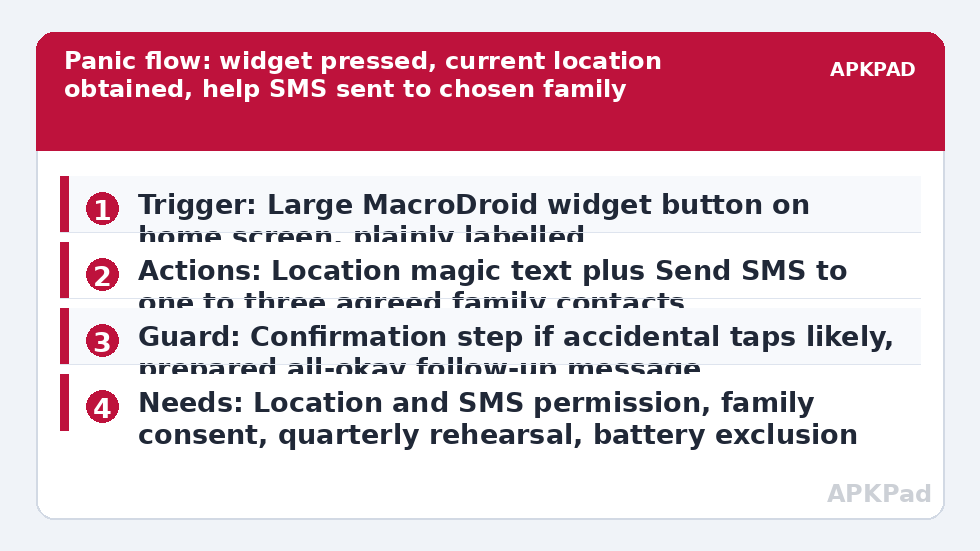
| Trigger | MacroDroid widget button on the home screen, large and clearly labelled, or a shortcut you choose |
| Actions | Get or attach current location, Send SMS to your chosen family contacts with help wording and location |
| Guard | A short confirmation or press pattern if accidental taps are likely, balanced against speed in a real event |
Keep recipients few and real: one to three family members who actually keep their phones audible and have agreed to respond. A panic alert sent to nine people is usually answered by nobody, because everyone assumes someone else is closer. Name who calls emergency services if the message suggests immediate danger, and rehearse that understanding out loud once, calmly, on an ordinary day.
How to read this: the estimate adds a small always-on idle cost for MacroDroid itself (about 0.4% of battery per day) to a per-class daily cost for each trigger type you use, scaled slightly by how many macros you run. These are planning estimates from that transparent model — not measurements from your phone. Use them to compare setups before you build, then confirm against the real numbers under Android Settings → Battery.
Build the location-sharing widget step by step
- Create a macro and choose a widget or shortcut trigger you can place as a large, unmistakable button on the home screen. Label it plainly, for example Send Help Location, so there is no doubt in the moment.
- Add the location element using the location actions and magic text your MacroDroid version provides, so the outgoing message includes your current coordinates or a maps-friendly location string at the moment of the press. Test what the received location actually looks like on a family phone.
- Add Send SMS actions to your chosen family contacts, one action per recipient if your setup requires it. Write the message in clear, non-dramatic wording that states it is an automated help alert from you, includes the location, and asks the recipient to call you or come, as your family agreed.
- Decide your accidental-press guard. If the phone lives in a child’s bag, add a simple confirmation step or require the dedicated widget screen rather than a lock-screen shortcut. If the user has limited mobility or the threat is time-critical, favour the fastest single tap and handle rare accidents with a follow-up All okay, pressed by mistake message, which you should also prepare.
- Save the macro, place the widget prominently, and run a full family rehearsal on a calm day: press it, confirm every recipient receives the message, check the location opens sensibly in a maps app, and time how long the whole thing takes.
Related consent-first builds reinforce the same pattern: automated low-battery alert messages to family shows an agreed alert from the owner’s own phone, and triggering an emergency alarm siren with a secret SMS covers the audible, find-my-person side of family safety. Used together thoughtfully, they form a small, rehearsed safety kit rather than three gadgets. The daily commute cousin is commute mode that auto-texts your ETA, which keeps family informed on ordinary days so the rare urgent message stands out.
Permissions this safety macro needs
- Location permission, set so MacroDroid can obtain a current location at press time. A one-time or while-in-use grant may slow the first fix; discuss the background option honestly during setup and grant what the family member is comfortable with.
- SMS permission: required to send the help texts from the user’s own number to the chosen recipients.
- Contacts permission: needed if recipients are picked from the address book inside the actions.
- Mobile signal: SMS needs a cellular connection to send. In areas with data but poor cellular coverage, test whether your family’s arrangement needs a messaging-app fallback agreed in advance.
Location accuracy varies. A fresh outdoor fix can be accurate to a few metres, while an indoor press, a basement car park or a phone that has been conserving power may report a location that is streets-level rather than pinpoint. Your message wording should invite a call back for exact details where safe, and your rehearsal should include one indoor test so nobody in the family believes the dot on the map is more precise than it is. Android version and OEM differences affect how quickly a cold location fix arrives, which is another reason the rehearsal matters more than the specification sheet.
Consent, children and the rules that keep this kind
This widget belongs on a phone with its owner’s informed agreement, full stop. Installing location-sharing automation on another adult’s phone without their knowledge is not safety, and it is not what this guide is for. For children, set it up together, in language they understand, and make clear the button is for them to use, never a covert tracking tool for a parent to trigger remotely. This macro sends location only when the carrier presses it. If your family wants continuous location sharing, use the transparent, mutual sharing built into your maps or family-safety app, where everyone can see who sees what, and pause it.
Never use this pattern for bulk messaging, for monitoring employees, or for checking up on a partner. Those uses corrode the trust that makes a family safety tool work at all. Keep the recipient list, the wording and the rehearsal inside the family, review them every few months as numbers and circumstances change, and find the broader pattern library in the Macro Triggers category via the APKPad homepage.
Why the alert sometimes fails, and the fix that matters most
Test failures usually trace to three fixable causes. First, location permission set too narrowly, so the message sends with a stale or missing location. Second, SMS permission or a messaging default changed by an update. Third, and most common over months, OEM battery management killing MacroDroid in the background, so the widget press wakes a frozen app that acts late or not at all. A safety macro that fails silently is worse than no macro, because it replaces a phone call that would have happened.
Set MacroDroid battery use to Unrestricted in Android Settings, Apps, MacroDroid, Battery, and clear the manufacturer layer: remove MacroDroid from Sleeping apps on Samsung, set No restrictions and enable Autostart on Xiaomi, or allow background launch in your brand’s manager. Then rehearse quarterly, after phone updates, after number changes and after anyone gets a new handset, running the full press-to-receipt test each time. If a rehearsal fails, treat the widget as out of service, tell the family, fix it the same day, and rely on ordinary calls until the retest passes.
Frequently Asked Questions
Should this widget replace calling emergency services?
No. If someone is in immediate danger and can call, the local emergency number is the right first action. This widget alerts your chosen family members with your location, which helps them respond, come to you, or call services on your behalf when you cannot speak or dial easily. It is a complement, rehearsed in advance, not a substitute.
Is it okay to put this on my child’s or partner’s phone without telling them?
No. Set it up together with the phone’s owner, whatever their age, in language they understand. They choose to carry it, they know who receives the alert, and they can ask for it to be changed or removed. Location sharing without the owner’s knowledge is not a safety feature.
How accurate will the location in the message be?
It depends on the moment: a fresh outdoor fix is usually precise, while indoor, underground or low-power situations can give a much rougher position. Rehearse indoors and outdoors so your family knows the range, keep the wording inviting a call back for exact details, and never treat the map dot as exact in a fast-moving situation.
What happens if I press the widget by accident?
Send the follow-up message you prepared during setup, saying it was an accidental press and you are okay, and call your main recipient if they may already be travelling. If accidents happen often, add a confirmation step to the widget and accept the slightly slower press as the price of reliability.
How often should we test the panic button?
Rehearse at least every few months, and after phone updates, number changes, new handsets or any change to the recipient list. Each test should confirm the message arrives, the location opens usefully, and MacroDroid is still excluded from battery optimisation on the sender’s phone.