Photos are easiest to lose on the days you take the most of them. The reliable fix is a routine to automate cloud photo backup charging macrodroid style: when the phone is plugged in at night, on Wi-Fi, with enough battery, MacroDroid nudges your chosen backup method to run, instead of you remembering to open an app while travelling or after a family event. Charging is the right signal, because a phone on a charger can upload without the battery anxiety that makes people postpone backups.
How to automate cloud photo backup charging macrodroid routines safely
Be clear about what MacroDroid does here. MacroDroid is the scheduler and the condition checker, not the cloud storage itself. Your photos still go to the service you already use, such as Google Photos, OneDrive, Dropbox, or a folder-sync tool you trust, using that service’s own upload mechanism. MacroDroid’s job is to launch the backup app in the right conditions, or, for a folder-based service, to use Upload File or an HTTP GET request only where your service explicitly supports that method and you have configured it securely. Do not invent a direct upload to a service that does not document one.
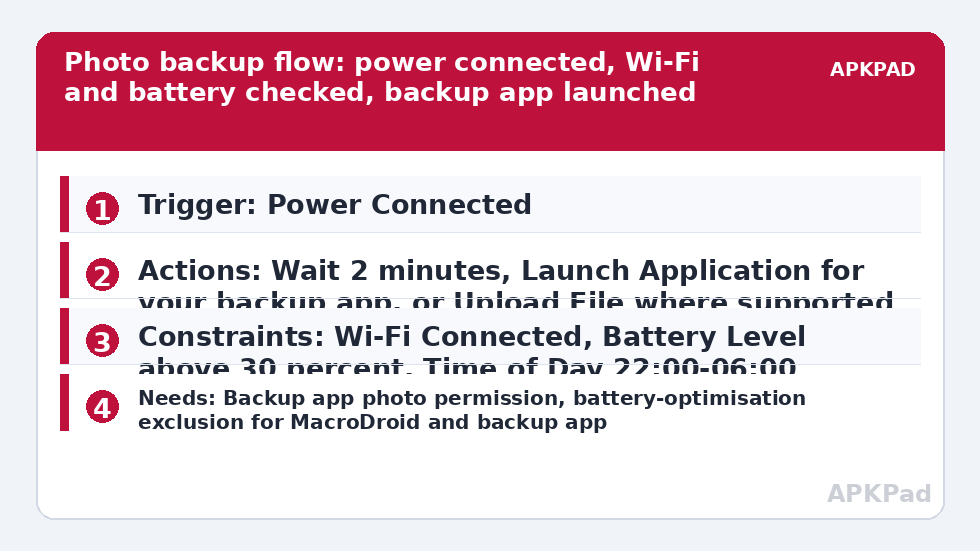
| Part | MacroDroid setting |
|---|---|
| Trigger | Power Connected (charger connected) |
| Actions | Wait Before Next Action, Launch Application for your backup app, or Upload File / HTTP GET where your chosen service supports it |
| Constraints | Wi-Fi Connected, Battery Level above 30 percent, and Time of Day night window such as 22:00 to 06:00 |
The constraints are the whole design. Power Connected alone would fire every time you top up in a car or borrow a charger at work, on mobile data, in the middle of the day. Adding Wi-Fi Connected and a night window turns a trigger-happy macro into a calm nightly routine.
How to read this: the estimate adds a small always-on idle cost for MacroDroid itself (about 0.4% of battery per day) to a per-class daily cost for each trigger type you use, scaled slightly by how many macros you run. These are planning estimates from that transparent model — not measurements from your phone. Use them to compare setups before you build, then confirm against the real numbers under Android Settings → Battery.
Choose your backup path before you build
Path one, the simplest and recommended for most readers, is launching the backup app. If Google Photos or OneDrive is already signed in, set to back up over Wi-Fi, and working when you open it manually, MacroDroid simply opens it while charging so its own background upload can proceed in the foreground for a while. Confirm in that app that backup is complete before you rely on the routine.
Path two is folder sync. If you use an app that watches a camera folder and syncs it to your own server or cloud folder, MacroDroid launches that sync app or triggers its sync shortcut in the same charging and Wi-Fi conditions. Path three, Upload File or HTTP GET, suits technical users with a service or home server that provides a documented upload endpoint or webhook. If you use HTTP GET to ping a sync endpoint, keep any token out of screenshots and shared macro exports, treat it like a password, and prefer your service’s signed or authenticated method. If none of that sounds familiar, stay on path one. It is not a lesser choice.
- First make the backup work manually. Open your backup app, confirm the account, confirm the camera folder is selected, and upload a test photo over Wi-Fi.
- Create the MacroDroid macro. Add trigger Power Connected. Choose Any charger type, or Wired if you want to exclude slow wireless pads during the day.
- Add constraints Wi-Fi Connected, Battery Level greater than 30 percent, and Time of Day for your night window.
- Add action Wait Before Next Action for two minutes, so a brief plug-in to check something does not start the routine, then add Launch Application for your backup app.
- Optionally add a notification or Speak Text confirmation if MacroDroid offers it in your action list, so you can see in the morning that the routine ran. Keep it quiet at night if the phone is in a bedroom.
Permissions and settings to check
- Storage or media permission: MacroDroid only needs file access if you use Upload File directly. For the Launch Application path, the backup app needs its own Photos and videos permission, granted inside that app’s setup.
- Wi-Fi and network state access is handled by MacroDroid’s normal permissions for the Wi-Fi Connected constraint.
- Battery optimisation exclusions apply twice: MacroDroid must be allowed to run in the background, and your backup app must also be allowed, otherwise the system may stop its upload after MacroDroid launches it.
- No root or device admin is needed for the launch path. If an Upload File or system action on your device prompts for the MacroDroid Helper app or an ADB grant, follow that prompt at that specific step.
Check your backup app’s own mobile-data setting. The MacroDroid constraint checks that Wi-Fi is connected when the macro starts, but a long upload that continues after Wi-Fi drops could switch to mobile data inside the backup app if that app allows it. Set the backup app itself to Wi-Fi only if you want a strict guarantee.
Related charging and place patterns
This macro belongs to a family of charging-aware routines in the Macro Triggers category. If a cable fails overnight you may also want the alert covered in charging stopped voice alerts, so a disconnected charger is announced rather than discovered with a dead phone in the morning. Place interacts too: some users add a home Wi-Fi network name constraint so the backup only runs on their own network, a refinement also used in the Wi-Fi auto toggle by cell tower routine.
The failure that cancels the whole routine
The number one reason this macro fails is OEM battery management killing MacroDroid in the background. At night, when the phone has been still and unused for hours, aggressive doze and manufacturer sleeping rules are at their strongest. The charger connects, and a sleeping MacroDroid never reacts, or the backup app it launches is killed minutes into the upload.
Exclude MacroDroid from battery optimisation. In Android Settings, Apps, MacroDroid, Battery, choose Unrestricted. Then apply the OEM layer as well: Samsung users remove MacroDroid and the backup app from Sleeping apps and Deep sleeping apps, Xiaomi users set both to No restrictions and enable Autostart for MacroDroid, and other brands should allow background launch for both apps. Restart the phone, plug it in that night as normal, and in the morning check both the MacroDroid log and the backup app’s own backup status screen. The log proves the macro fired; only the backup app can prove the photos actually arrived.
If the macro fires but uploads stall, look at Wi-Fi sleep behaviour, router band steering, and whether the camera folder changed after a camera app update. Take three test photos, run the nightly routine early as a manual test by plugging in inside your time window, and confirm those exact three photos appear in the cloud from another device or a browser. That end-to-end check, done once, is worth more than a week of assuming.
How often, how much, and what to prune
Nightly is right for most people. If you shoot video heavily, a single night’s upload can be large, so keep the phone on its charger and on Wi-Fi until the backup app reports completion, rather than unplugging early for a morning alarm across the room. Consider a second charger by the bed if alarms and charging compete. Once a month, open the cloud library and confirm recent photos are there, check storage quota warnings, and delete local copies only through the backup app’s own free-up-space feature if you use it, never by bulk-deleting the camera folder by hand before you have verified the cloud copies open correctly.
Finally, export your MacroDroid configuration or keep a note of this macro’s trigger, actions, and constraints somewhere other than the phone. If you replace the handset, rebuilding from a short note takes minutes, and re-testing the manual backup first, as in step one, prevents the classic new-phone mistake of automating a backup that was never signed in.
Frequently Asked Questions
Does MacroDroid upload my photos itself?
Usually MacroDroid schedules and launches your chosen backup app, which does the uploading with your account. MacroDroid also has Upload File and HTTP GET actions for services that support them, but do not use those unless your service documents that method.
Why add a Wi-Fi constraint if my backup app is set to Wi-Fi only?
Both layers help. The MacroDroid Wi-Fi Connected constraint stops the routine starting on mobile data, and the backup app’s own Wi-Fi only setting governs what happens if Wi-Fi drops during a long upload.
Will this work if I charge during the day in my car?
Not with the night Time of Day and Wi-Fi Connected constraints in place, which is deliberate. Car charging will not meet the home Wi-Fi and night window conditions, so the backup routine will wait for the evening.
What should I check if the morning shows no backup happened?
First check OEM battery management for both MacroDroid and your backup app, setting them to Unrestricted or No restrictions. Then check the MacroDroid log to see whether Power Connected fired and whether a constraint blocked the macro.
Do I need root for this backup macro?
No. The Launch Application path works without root, device admin, or the Helper app in normal cases. Only follow a Helper or ADB prompt if MacroDroid shows it for a specific action you chose.