You copy a one-time banking code, a password you are moving into a manager, a private address, or a recovery phrase. You paste it where it belongs — and then it just sits there, in the clipboard, readable by the keyboard and by anything that can legitimately peek at the clipboard on your build of Android, until something else overwrites it. Hours later it may still be there. This guide shows how to auto clear clipboard privacy macrodroid users can actually rely on: a timed wipe after you copy sensitive text, a manual one-tap wipe for everything else, and — just as important — the safeguards that stop the safety feature itself from destroying text you meant to keep.
How auto clear clipboard privacy macrodroid automation should be designed
Design decision first, because everything else follows from it: do not clear the clipboard after every copy. A blanket ten-second wipe sounds secure and is genuinely miserable in daily use — you copy an address to paste into two apps, copy a paragraph while comparing documents, copy a tracking number you will need again in a minute, and the automation keeps eating your work. Clipboard loss is data loss, just small-scale and frequent. The good design is narrower: clear quickly after text that looks sensitive, offer an instant manual clear for everything else, and never clear silently while you might still be mid-paste. This article builds exactly that, with a confirmation safeguard you can relax later once you trust your own patterns.
Android context matters too. Since Android 10, background apps generally cannot read the clipboard, and later versions warn about reads and confirm copies visually. Those protections reduce, but do not eliminate, the exposure: a copied secret still lives on the clipboard itself, in keyboard clipboard histories, in clipboard-sync features, and on the next paste if you paste into the wrong field. Clearing promptly shrinks the window — it does not need to be instant to be worthwhile.
How to read this: the estimate adds a small always-on idle cost for MacroDroid itself (about 0.4% of battery per day) to a per-class daily cost for each trigger type you use, scaled slightly by how many macros you run. These are planning estimates from that transparent model — not measurements from your phone. Use them to compare setups before you build, then confirm against the real numbers under Android Settings → Battery.
Permissions: what a clipboard macro actually needs
Clearing the clipboard is, mechanically, simple: write empty text (or a harmless space) to it. MacroDroid can do this without the ADB grant — this is one of the gentler tweaks in the System Tweaks catalogue, and you can compare its permissions with heavier ones in the guide to automating app permission revocation for inactive tools. Two surrounding features do need permissions. Reading what was copied, to decide whether it looks sensitive, depends on your Android version and MacroDroid’s current clipboard trigger behaviour; some builds restrict background clipboard reads, which is itself a privacy protection. Treat pattern detection as best-effort, not guaranteed. And if you use the manual-clear tile or floating button described below, the tile needs no extra permission, while a floating button needs the “Display over other apps” overlay permission.
A crucial second store: keyboard clipboard history. Clearing the Android clipboard does not necessarily erase a clip your keyboard app saved into its own history, or one you pinned. So hygiene has two parts: the macro clears the system clipboard, and you periodically clear the keyboard’s history in its own settings — and never pin a secret. No macro here can reach inside another app’s private history store.
Build 1: the timed wipe for sensitive-looking text
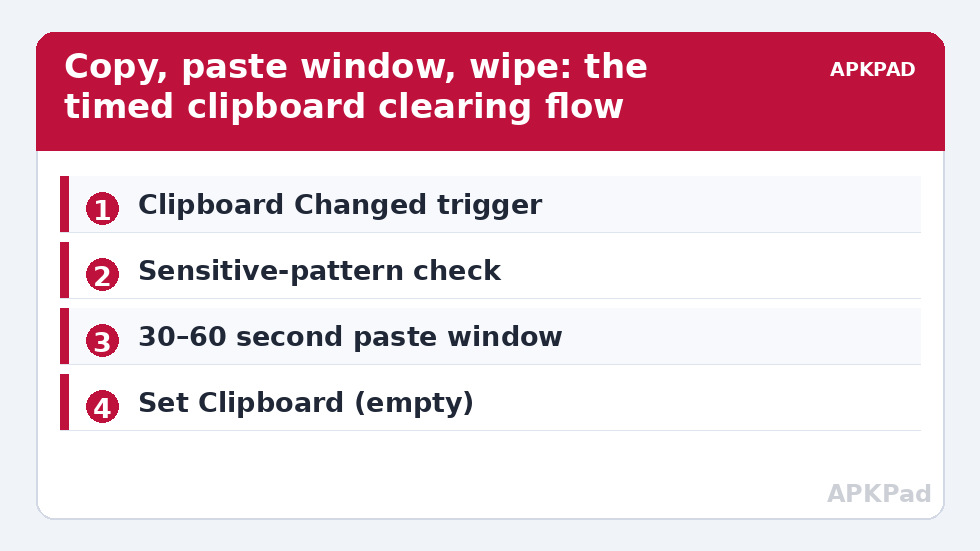
- Create a new macro and look for MacroDroid’s clipboard-change trigger on your build (“Clipboard Changed”, under the Sensors/Device Events areas in recent versions). If your Android version blocks the content read, the trigger may fire without usable text — in that case skip to Build 2 and rely on the manual pattern.
- Add a condition checking the content against cautious patterns: long digit strings, the words “code”, “OTP”, “password”, “recovery”, or text copied from your password manager or banking app. False positives are acceptable — they only clear early.
- Add a Wait Before Next of 30 to 60 seconds. This delay is your paste window: time to complete the paste, and to repeat it once if the first attempt fails, before the wipe lands.
- Optional safeguard for the first fortnight: show a notification “Clipboard will clear in 30 seconds — tap to cancel” wired to cancel the pending wipe. Once you see how rarely you cancel, you may retire it.
- Add the clear action: Set Clipboard to an empty string, or to a single neutral word you choose. Follow it with a second identical clear a few seconds later if your keyboard tends to re-store the previous clip.
- Test with harmless text that matches your pattern — a random 16-digit number you invented — before testing with anything real.
Build 2: the manual one-tap wipe (the one you will use most)
A tile that clears instantly covers every case the pattern filter misses. Set one up using the techniques in custom Quick Settings tiles: a two-action macro — Set Clipboard (empty), then an on-screen message “Clipboard cleared”, so the action is visible rather than silent. Use it after pasting anything sensitive the pattern missed. Pair the habit, when lending your phone, with the sibling guide to a guest mode that hides private apps — clipboard wiped, apps hidden, phone handed over calmly. These privacy routines are also collected from the APKPAD homepage.
What “sensitive” detection gets wrong
| Case | Risk | Mitigation in this design |
|---|---|---|
| You copy a code and the app needs it twice | Timed wipe lands between the two pastes; you must fetch the code again | 60-second window, cancel notification during the trial period |
| You copy a long normal paragraph | Digit-heavy text (dates, totals) can false-positive and clear early | Keep patterns strict; manual re-copy is a minor cost |
| Your manager app blocks clipboard reads | Pattern never matches, so no auto-wipe | Manual tile wipe becomes the primary habit for that app |
| Keyboard history retains the clip | System clipboard is empty, history is not | Never pin secrets; clear keyboard history in its own settings |
Notice the asymmetry: every failure mode of the narrow design costs inconvenience, while never clearing at all costs exposure of a real secret. That is why a conservative filter plus a manual tile beats both extremes.
Daily-use rules worth adopting alongside the macro
- Paste secrets promptly. The safest clipboard is an empty one, and the delay you control (pasting immediately) matters more than the delay the macro controls.
- After pasting a password anywhere, copy something harmless — a space, the word “done” — even before the timed wipe would fire. It costs one second.
- Turn off clipboard sync in your keyboard and browser if you do not use it. A cleared phone clipboard means little if the clip synced to a desktop.
- Review keyboard clipboard history weekly and clear it — the same housekeeping slot as the scheduled cache clearing for storage-hungry apps in this batch.
Troubleshooting
- The clipboard trigger never fires: your Android version or OEM skin is restricting background clipboard events. This is a deliberate platform protection that has tightened across versions; the manual tile build is the reliable fallback on such builds, and no setting in MacroDroid can override the OS here.
- The wipe happens, but the keyboard still offers the clip: that is keyboard history, a separate store. Clear it in the keyboard app; check for a “pin” you may have set accidentally.
- Text I need keeps vanishing: lengthen the wait to 90 seconds, narrow the patterns, and re-enable the cancel notification. A privacy tool you disable in frustration protects nothing.
- MacroDroid says the clipboard action needs attention after an update: permission and clipboard behaviour genuinely change between Android releases. Re-test the trigger and action after major updates with invented text, never with a live secret.
Undo and restore normal behaviour
Disable the timed-wipe macro and remove the tile assignment. Nothing else on the phone was changed: clearing a clipboard writes a value, it does not alter system state, so stopping the automation returns you to completely stock clipboard behaviour instantly.
Frequently Asked Questions
Does clearing the clipboard also erase my keyboard’s clipboard history?
No. Keyboard apps keep their own history and pinned clips separately. Clearing the Android clipboard empties the current clip; you must clear the keyboard’s history inside the keyboard’s own settings, and never pin a secret in the first place.
Why not clear the clipboard after every copy, just to be safe?
Because that destroys text you still need — addresses pasted into two apps, paragraphs copied while editing, codes an app asks for twice. Constant clearing is data loss in small doses. Clearing quickly after sensitive-looking text, plus a manual one-tap wipe, captures the privacy benefit without the daily friction.
Can MacroDroid always read what I copied to check if it is sensitive?
Not always. Android has progressively restricted background clipboard access, and behaviour differs between versions and manufacturers. Pattern detection is best-effort; on restrictive builds the timed trigger may not see the content, and the manual clear tile is the dependable option.
How long should the delay before clearing be?
Thirty to sixty seconds suits most people: long enough to paste, and to paste again if the first attempt fails, short enough that a copied code or password does not linger for hours. Lengthen it if you find the wipe interrupting legitimate double-pastes.
Is a cleared clipboard enough to protect a copied password?
It is a meaningful reduction in exposure, not a guarantee. Also disable clipboard sync if you do not use it, paste promptly, and prefer your password manager’s autofill over copy-and-paste wherever the manager offers it, so secrets never touch the clipboard at all.