Learning to announce caller name aloud macrodroid style solves a small problem that turns up all day: your phone rings in another room, in your pocket, or while your hands are wet, and you have no idea whether it is worth moving for. With a simple MacroDroid macro, the phone speaks the caller’s name out loud as it rings, so you can decide in two seconds whether to answer, let it ring, or call back later.
This works best for people you actually know. Contacts saved with clear names announce cleanly, while withheld numbers, spam calls and one-off delivery drivers will be announced as an unknown number or read out digit by digit, depending on your settings. Keep the volume sensible, limit the announcement to when it helps, and this becomes one of the most practical accessibility-style automations you can build without root.
How to announce caller name aloud macrodroid macros that stay useful
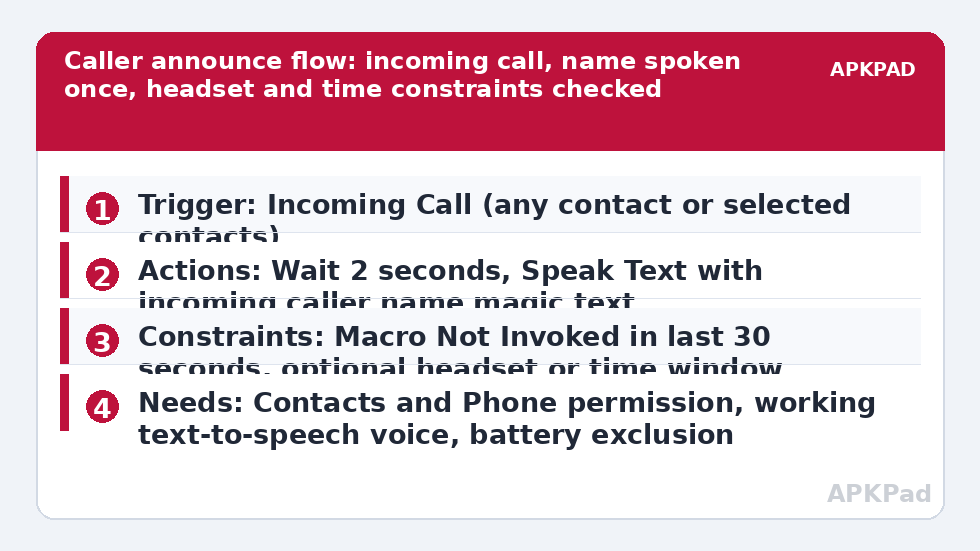
The core build is short: an Incoming Call trigger, a Speak Text action that uses the caller’s name or number as magic text, and a constraint that stops the announcement repeating endlessly while the phone keeps ringing. The refinement is in the details. You want the name spoken once or twice, clearly, through the speaker or your headset, without shouting over a meeting or waking the house at night.
| Part | MacroDroid setting |
|---|---|
| Trigger | Incoming Call, any contact or selected contacts |
| Actions | Speak Text using the incoming caller name magic text, with a short wait before speaking |
| Constraints | Optional headset state, time of day, and Macro Not Invoked cooldown so it speaks once per call |
Name the macro clearly, for example Speak Caller Name, so the MacroDroid log makes sense when you test it later. If you already use the guide to auto-read SMS notifications aloud while driving, this is the voice equivalent for calls, and the two macros pair well on a driving profile.
How to read this: the estimate adds a small always-on idle cost for MacroDroid itself (about 0.4% of battery per day) to a per-class daily cost for each trigger type you use, scaled slightly by how many macros you run. These are planning estimates from that transparent model — not measurements from your phone. Use them to compare setups before you build, then confirm against the real numbers under Android Settings → Battery.
Build the announcement step by step
- Open MacroDroid, tap Add Macro, and add the trigger Incoming Call. Choose Any Contact for a first test, or Selected Contacts if you only want family and close colleagues announced.
- Add an action Wait Before Next Action of about two seconds. This gives the ringtone a moment to start and stops the voice talking over the very first ring, which most people find startling.
- Add the action Speak Text. Tap the magic text button inside the action and insert the incoming call name variable, so the spoken sentence becomes something like: Incoming call from, followed by the name. Write the sentence naturally, because the text-to-speech engine will read exactly what you type.
- Add a second Speak Text only if you want the name repeated once. Two announcements are usually enough. Three or more becomes annoying in a quiet office and gives callers the impression nobody is coming.
- Add the constraint Macro Not Invoked in the last thirty seconds, or use the macro option that prevents re-running while it is already running, so a long ring does not produce a loop of announcements.
- Save the macro and test it by calling your phone from a second handset or asking a family member to ring you. Listen for timing, volume and pronunciation before you change anything else.
Test names that matter. A contact saved as Mum announces perfectly. A contact saved with a nickname, initials or an emoji may be spoken oddly or skipped by the speech engine. If an important name is mispronounced, the simplest fix is often editing how the contact name is written, or adding a phonetic first name in the contact card if your contacts app supports it, rather than complicating the macro.
Choose where the voice should play
Decide the audio route before you fine-tune anything else. Through the phone speaker, the announcement helps when the phone is across the room, but it also tells everyone nearby who is calling you. Through wired or Bluetooth headphones, only you hear it, which is far better in public, on a train, or in an open-plan office. MacroDroid constraints can check whether headphones are connected, so many users build two versions: a speaker version that only runs at home, and a headset version that runs anywhere.
At home, a location or home Wi-Fi constraint keeps the speaker announcement from firing at work. Our guide to geofenced location triggers for smart home routines explains that place logic in detail if you want the announcement tied to being at home rather than to a headset. Whichever route you pick, keep the spoken volume linked to a level you have actually tested in that room, not the maximum the slider allows.
Permissions and privacy notes
- Contacts permission: MacroDroid needs it to resolve a number to a saved name. Without it, you will only hear numbers read out.
- Phone permission: needed for the Incoming Call trigger to fire reliably on modern Android versions.
- Text-to-speech engine: your phone needs a working speech engine installed and a voice downloaded for your language. Test it in Android accessibility or text-to-speech settings if Speak Text stays silent.
- Notification Access is not needed for this macro unless you build a notification-based variant instead of using the call trigger.
Privacy deserves a sentence of its own. Announcing a caller by name out loud discloses information to anyone in earshot. That is harmless on your own sofa and careless in a hospital waiting room. Use the headset or time constraints honestly, and if you share the phone with children, make sure the announcement will not reveal callers you would rather keep private. This is a personal convenience macro for your own handset only.
Keeping it quiet at the wrong moments
Add a Time of Day constraint if you do not want announcements overnight, or pair the macro with the routine in our time-based Do Not Disturb routines guide so night hours stay silent. A common refinement is a weekday-only speaker announcement for people who work from home, with the headset version left unrestricted. The wider Macro Triggers collection on the APKPad homepage shows how these small call macros combine into a full daily profile without conflicts.
If you want the opposite behaviour when you are busy, the companion build in building a sunrise wake-up routine is unrelated to calls, but the next article in this set, logging missed calls and texts to a spreadsheet, picks up exactly where this one ends: what happens to the calls you decided not to answer.
Why announcements stop, and the fix that matters most
The number one reason this macro fails is OEM battery management killing MacroDroid in the background. Samsung, Xiaomi, Oppo, Vivo and similar manufacturers put apps to sleep aggressively, and a sleeping MacroDroid never sees the Incoming Call event in time to speak. The macro tests perfectly from inside the app and then does nothing for a real call after the phone has sat locked for an hour.
Fix it directly. Open Android Settings, Apps, MacroDroid, Battery, and set it to Unrestricted. Then check your manufacturer’s own list: remove MacroDroid from Sleeping apps and Deep sleeping apps on Samsung, set No restrictions and enable Autostart on Xiaomi, or allow background launch in your brand’s manager. Restart the phone, wait with it locked, and test with a real incoming call. Also confirm the speech volume is not muted and that Do Not Disturb is not blocking the audio stream you chose, because those two settings imitate a dead macro very convincingly.
Frequently Asked Questions
Will MacroDroid announce callers who are not in my contacts?
Yes, if you allow it, but there is no saved name to speak, so MacroDroid will read the number or say unknown caller depending on your Speak Text wording and what Android provides. Most people restrict this macro to contacts, or add wording that makes an unknown number announcement sound deliberate rather than confusing.
Can the announcement play only through my headphones?
Yes. Add a constraint that headphones or a Bluetooth audio device must be connected, or build a separate copy of the macro with that constraint for use away from home. Test with the exact earbuds or headset you use daily, because Bluetooth routing settles a second or two after the call starts.
Why does the phone speak the name three or four times?
Usually because the macro re-runs while the phone is still ringing and there is no cooldown. Add a Macro Not Invoked constraint for about thirty seconds, or enable the option that stops the macro running again while it is already active, then test with a long ring.
Does this macro need root or the Helper app?
Normally no. Incoming Call, Speak Text and the constraints in this guide work without root. If your handset prompts for the MacroDroid Helper app for a specific action, follow MacroDroid’s own prompt at that step and test again.
What should I check first if the macro goes silent?
Check OEM battery management first. Set MacroDroid battery use to Unrestricted, check your manufacturer’s sleeping apps or autostart list, then confirm Contacts and Phone permissions are still granted and your text-to-speech voice is working with a simple test sentence.