“Can I just check one thing on your phone?” It is the most ordinary request in the world, and it can still make your stomach tighten — not because you distrust the person, but because your phone is not a public object. It holds your messages, your banking, your photos, your half-finished notes. Android’s built-in Guest user would solve this properly, but switching users is slow, some manufacturers hide it, and handing over your own profile with private apps merely hidden is what most people actually need in the moment. This guide builds a guest mode hide apps macrodroid routine: one deliberate tap before you hand the phone over, private apps out of sight, notifications quieted, and everything restored just as deliberately when the phone comes back.
What guest mode hide apps macrodroid routines can honestly promise
Set the expectation precisely: this is a privacy screen, not a security boundary. Hiding removes casual visibility — icon gone, drawer entry gone, an honest borrower never stumbles into your banking app. It encrypts nothing and does not stop a determined person: the apps still exist in Settings → Apps. For lending to a friend, child or colleague for a few minutes, casual-visibility protection is proportionate and useful. For anything stronger, use Android’s real Guest user or a work profile, and accept their heavier switching cost.
Mechanically, “hiding” depends on your launcher. Many launchers offer a Hide Apps list the launcher simply does not draw, but MacroDroid usually cannot rewrite another launcher’s private list directly. What it can do is orchestrate everything around the hiding: switch to a prepared guest home setup where supported, quiet notifications, lock chosen apps, set a short screen timeout, and time-limit the session. Expect to assemble guest mode from two or three pieces rather than one magic action.
How to read this: the estimate adds a small always-on idle cost for MacroDroid itself (about 0.4% of battery per day) to a per-class daily cost for each trigger type you use, scaled slightly by how many macros you run. These are planning estimates from that transparent model — not measurements from your phone. Use them to compare setups before you build, then confirm against the real numbers under Android Settings → Battery.
Plan your guest mode on paper first
- List what must disappear: banking, payments, messaging, email, photos, password manager, work and health apps. Write it down; memory under social pressure is unreliable.
- List what a guest needs: browser, maps, camera, phone, and the specific app you are lending for. Boring and functional.
- Decide how guest mode is entered: a Quick Settings tile or a long-press on a floating button — something you can invoke in two seconds, without opening MacroDroid and hunting. The tile techniques from creating custom Quick Settings tiles are ideal.
- Decide how it ends: manually by you (best), with a 15-minute timeout as a safety net — never just by hoping.
- Check overlaps: app lock plus hiding is complementary, not redundant.
Permissions and building blocks
Most of this build needs no exotic permission: DND/Notification Access if you silence alerts, overlay permission for a floating-button entry point, and accessibility or usage access for app-lock features depending on version. The same privacy stance as automating app permission revocation for inactive tools applies — fewer standing permissions, calmer profile to lend. One warning: do not install a stranger’s “hide apps” tool demanding device-admin or accessibility to protect your privacy; the risk is worse than the problem.
Build the “guest mode on” macro
- Trigger: your chosen tile, floating button, or a MacroDroid widget — a deliberate manual invocation. Never automate entry by triggers like “screen unlocked”, which will fire at the worst moments.
- Action 1: set variable
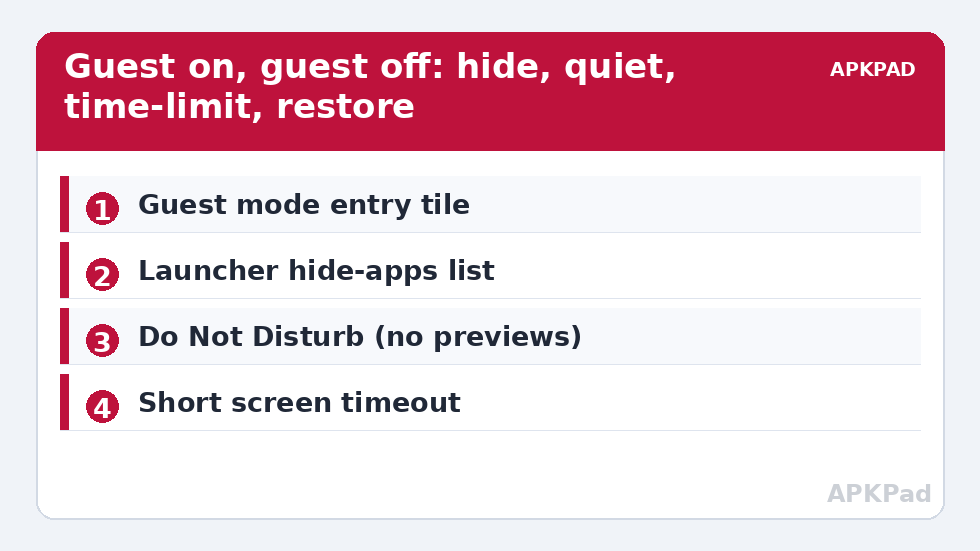
guest_mode= true, and store the current values of anything you are about to change (screen timeout, sound profile, brightness if you touch it). - Action 2: hide the private set using your launcher’s mechanism — for launchers with an automatable hide list, apply it; for launchers with profiles or a “guest/second” home layout, switch to the prepared guest layout; where neither exists, at minimum move to a guest home page and remove shortcuts (manual prep, described below).
- Action 3: silence the personal layer: enable Do Not Disturb or a profile suppressing message previews, so a text does not announce itself mid-lend.
- Action 4: set a short screen timeout (30 seconds is good) — the reasoning mirrors the per-app approach in the timeout guide: a borrowed phone left face-up on a café table locks itself quickly.
- Action 5: start the safety-net timer: if
guest_modeis still true after 15 minutes, show a prominent “Guest mode still on” prompt — nagging you, not silently restoring access in a borrower’s hands. - Action 6: confirm with a discreet on-screen message, “Guest mode on”, visible to you before you hand the phone over.
Prep work that makes the macro real (one-time, ten minutes)
If your launcher cannot be told to hide apps, do the hiding structurally once: a minimalist guest home screen (browser, maps, camera, phone), private apps kept in the drawer behind the launcher’s manual hide list, applied via a checklist the entry macro displays. That is lower-tech than full automation — and an honest checklist beats a fragile pseudo-automation you trust wrongly. Pixel launcher users historically get no hide feature at all, which is why the app-lock and notification layers here are not garnish. Before lending, also do the two-second clipboard wipe from automating clipboard clearing for privacy, and pair the loan with the posture in automatically disabling USB debugging on unplug — a tidy, closed phone is the right thing to hand anyone.
Build the “guest mode off” macro
- Trigger: a different tile or button, ideally placed somewhere a casual borrower would not poke — and note honestly that this is obscurity, not authentication. If your app-lock tool can gate the exit behind your PIN or fingerprint, use that; an exit anyone can tap is the weak point of every hide-based guest mode.
- Actions: reverse the entry list in order — restore home layout/hide list, restore sound profile and notification behaviour, restore screen timeout from the saved variable, clear
guest_mode. - Verify step: after restoring, open the app drawer yourself and confirm the private apps are visible again to you, and send yourself a test notification to confirm previews are back to your normal setting.
Reach this whole routine, and its siblings, any time from the System Tweaks index or the APKPAD homepage if you are rebuilding on a new phone.
A realistic capability table
| Launcher situation | Hiding strength | What carries the load |
|---|---|---|
| Launcher with automatable hide list | Good casual privacy | Macro applies the hide list directly |
| Launcher with manual hide list | Good, with a checklist step | Macro displays the checklist; you apply it |
| No hide feature (e.g. stock Pixel) | Limited | App lock + DND + guest home screen do the work |
| Built-in Android Guest user available | Strongest separation | Use the Guest user instead; slowest to enter |
Troubleshooting
- A hidden app still appears in Search: some launchers index hidden apps in search results even while hiding their icons. Test search explicitly during setup, and rely on app lock for anything that still surfaces.
- Notifications from private apps still pop up: the DND/profile step is misconfigured, or the app is on a DND exemption list you set long ago. Review exemptions; guest mode should suppress previews even where it allows the app itself.
- Guest mode was left on for hours: the nag failed or was dismissed. Shorten the interval, make the prompt louder, and add an exit check to your evening routine.
- Restore forgot my original timeout: you changed the baseline manually while guest mode was on, so the saved variable is stale. The exit macro restores what was true at entry; re-set your preference afterwards.
- After a launcher or Android update, behaviour shifted: hide lists and profile features do change between versions. Re-run the entry macro and audit the drawer, search and notifications as if setting up fresh.
Undo
Run the exit macro, verify the drawer, then delete both macros and any guest home screen you created. Guest mode in this design changes presentation and profiles, never data — removal returns the phone to exactly its previous state.
Frequently Asked Questions
Does hiding apps actually protect them from the person borrowing my phone?
It protects against casual discovery, which is the realistic lending risk: the icons and drawer entries disappear, so an honest borrower never stumbles into your private apps. It is not a security boundary — the apps still exist in Settings and a knowledgeable person could find them. For strong separation, use Android’s Guest user instead.
Why should guest mode be entered manually instead of automatically?
Because lending is a deliberate social act with a clear start, and automatic triggers would fire in contexts you never intended. A two-second tile tap before you hand the phone over gives you certainty about which state the phone is in at the moment it leaves your hand.
What should guest mode change besides hiding apps?
Suppress personal notification previews so messages do not appear mid-lend, shorten the screen timeout so an idle borrowed phone locks quickly, and start a safety-net reminder so the mode is not left on for hours after the phone comes back.
My launcher has no hide-apps feature. Is guest mode still possible?
Yes, in a reduced form: a clean guest home screen, app locks on the private apps, Do Not Disturb to hide notification content, and a short timeout. Pixel’s stock launcher is the common example. It is less tidy than a real hide list, so weigh it against using the built-in Guest user.
How should guest mode be turned off safely?
Manually, by you, ideally gated by the PIN or fingerprint check of your app-lock tool so a borrower cannot simply tap the exit. The exit macro should restore everything saved at entry — layout, sound profile and screen timeout — and you should verify the app drawer yourself afterwards.