To hide the navigation bar system-wide used to mean root, Xposed, or a sketchy “immersive mode” app from the Play Store. On modern Android you can enable immersive mode with a single settings value — and MacroDroid can toggle it automatically when your games, reader, or video apps open. This guide covers the ADB command that controls system-wide immersive mode, the per-app variant, the MacroDroid macro that applies it on demand, and the exact command that puts everything back.
The one value that runs the whole feature
Immersive mode is governed by a global settings key called policy_control. Write it once with ADB and Android’s window manager obeys it immediately, no reboot required:
adb shell settings put global policy_control immersive.navigation=*
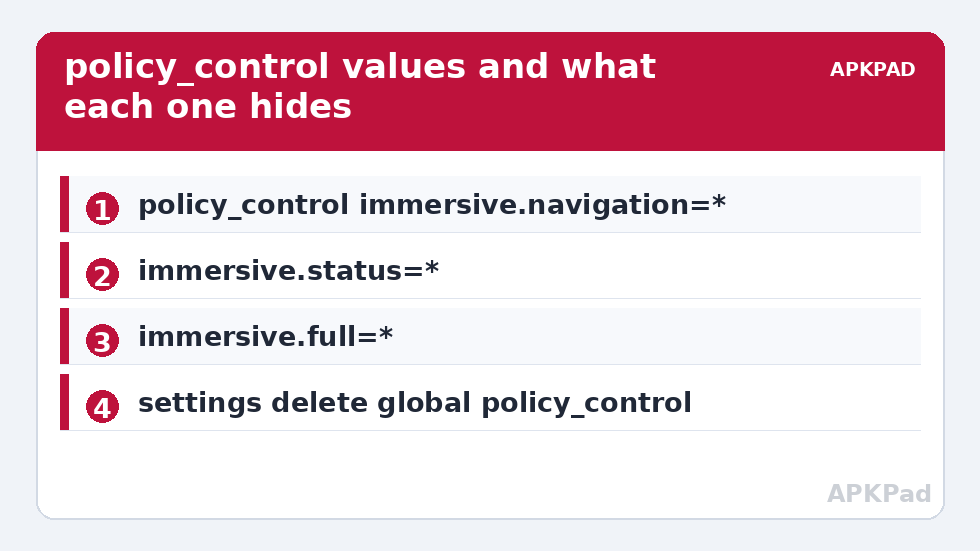
The value after the equals sign is a package filter. The asterisk means “every app”. Related values:
| Command value | Effect |
|---|---|
immersive.navigation=* |
Hides the navigation bar everywhere; status bar stays |
immersive.status=* |
Hides only the status bar |
immersive.full=* |
Hides both bars — true full screen |
immersive.navigation=com.google.android.youtube,org.telegram.messenger |
Navigation bar hidden only in the listed apps |
The per-app list is usually the smarter choice. A system-wide hide sounds clean until a banking app or a settings screen behaves oddly without visible navigation; a targeted list gives games and media apps the full screen while the rest of the phone stays normal. While the bars are hidden, swipe from the edge of the screen to reveal them temporarily — that gesture is built into Android and always available.
Prerequisites and a word about trust
Writing policy_control from inside MacroDroid requires the ADB WRITE_SECURE_SETTINGS grant, because the key lives in the global namespace. If you have not applied it yet, follow the steps in granting WRITE_SECURE_SETTINGS to MacroDroid first. That grant is powerful — it lets an app rewrite sensitive system values — so it belongs only on apps you trust, and MacroDroid’s whole purpose is executing automations you wrote. Alternatively, you can set policy_control once from a computer with the ADB command above and skip the grant entirely if you never need the phone to toggle it by itself.
How to read this: the estimate adds a small always-on idle cost for MacroDroid itself (about 0.4% of battery per day) to a per-class daily cost for each trigger type you use, scaled slightly by how many macros you run. These are planning estimates from that transparent model — not measurements from your phone. Use them to compare setups before you build, then confirm against the real numbers under Android Settings → Battery.
Enable immersive mode to hide the navigation bar (ADB + MacroDroid)
Static full-time immersive mode is a blunt instrument. The better pattern is contextual:
- Trigger: Application Launched → choose your game, e-reader, or video player.
- Action: System Setting → category Global → key
policy_control→ valueimmersive.full=*. (MacroDroid also offers a dedicated Immersive Mode action on some builds, which writes the same underlying value.) - Second macro: Application Closed for the same apps → System Setting →
policy_control→ your normal value (empty/null, or your per-app list). - Safety net: add a third macro on a Floating Button or Quick Settings tile that always restores the default, for the day an app crashes mid-session and the “closed” trigger never fires. Our custom Quick Settings tiles guide shows how to build that panic button.
What changes on Android 11 and later
Google has been steering developers toward gesture navigation and edge-to-edge apps, and two behaviours matter here. First, with gesture navigation enabled there is no persistent bar to hide in many apps — the gain from immersive mode shrinks mostly to the status bar. Second, Android 14 and 15 push apps to draw behind the system bars by default, so some modern apps already occupy the full screen and policy_control adds nothing. Neither fact breaks the method; both just mean you should target the apps that still show chrome — older games are the biggest winners.
A related trap: Samsung’s One UI and some other skins expose their own “navigation bar” settings that can fight the policy value. If the bar reappears after a few minutes on a Galaxy device, check that One UI’s own hide/show setting is not rewriting the value, and prefer the per-app list form.
Undo: restoring the navigation bar completely
Reversible-first applies here as everywhere on this site. To remove immersive mode entirely, clear the key:
adb shell settings put global policy_control null
Or delete the key outright with adb shell settings delete global policy_control. Inside MacroDroid, write the same key with an empty value. If the bar still misbehaves after clearing, a reboot forces the window manager to rebuild its policy from scratch — with the key gone, the reboot always returns you to stock behaviour. More combinations of this pattern appear across the system tweaks category, including devices where you want the opposite: forcing controls back on for accessibility.
Common problems
- Keyboard sits oddly or leaves a gap: some keyboards reserve space for the hidden bar. Switching the macro to
immersive.statusonly, for typing-heavy apps, avoids it. - The value resets after an OS update: major updates occasionally clear policy_control. Re-run the ADB command or re-fire the macro; the grant itself usually survives.
- One app ignores the setting: a handful of apps draw their own fake navigation UI. That is the app’s own layout, not Android’s bar, and no system value can remove it.
Living with hidden bars: three habits worth forming
First, remember that the status bar carries information you glance at unconsciously — battery, signal, the clock. Hide it full-time and you will feel oddly uninformed within a day. This is the practical argument for immersive.navigation as the default and immersive.full reserved for media and games: navigation chrome is expendable, status information mostly is not. If you do run full immersive, a glanceable replacement helps — the battery and status readouts described in the floating dashboard guide exist partly for this.
Second, teach yourself the reveal swipe as a reflex before you need it in a hurry — an incoming call or a doorbell notification is the wrong moment to discover you cannot find the controls. Third, be deliberate about navigation and maps apps: turn-by-turn directions benefit from a persistent status bar (arrival time, connectivity), and most navigation apps manage their own fullscreen behaviour intelligently. Leave them off your immersive list even if they initially look cleaner without bars; within one drive you will understand why.
More failure modes, decoded
- Screenshots and recordings look different from the live screen: captures reflect the app’s window, and some apps render their content edge-to-edge only on the physical display path. A bar appearing in a screenshot that you cannot see live is the app’s own layout, not policy failure.
- The keyboard covers the input field in one app: certain apps compute their layout assuming a visible navigation bar. Per-app exclusion (removing that package from your immersive list, or from the “*” scope by listing only your chosen apps) is the fix — this is the strongest argument for the explicit-list form over the wildcard.
- Immersive applies but one edge still shows a thin line: that is the gesture-navigation handle area on many skins, not the old bar. It belongs to the gesture system and is governed by the skin’s gesture settings, not by policy_control.
Frequently Asked Questions
Does immersive mode work with gesture navigation?
Yes, but the benefit is smaller. With gesture navigation there is no persistent button bar; immersive mode then mainly hides the status bar and the gesture pill in apps that still display them.
How do I get the bars back temporarily while immersive mode is on?
Swipe inward from the edge where the bar normally sits (bottom for navigation, top for status). Android shows the bars for a few seconds, then hides them again. This is built into the OS and cannot be disabled by the policy value.
Is the policy_control method safe?
Yes. It is a documented settings value used by device-management software, not a hack. It changes window display policy only, touches no system files, and is undone completely by clearing the key.
Why does my navigation bar come back after a while?
Usually an OEM skin rewriting the value, or a “closed app” macro that reset it. Check your restore macro’s triggers first, then look for a conflicting setting in the manufacturer’s navigation options.
Can MacroDroid toggle this without the ADB grant?
Not the global policy_control key — writing it requires WRITE_SECURE_SETTINGS. Without the grant, set the value once from a computer over ADB, or use an app-specific fullscreen option inside the target app itself if it offers one.