Some apps waste your screen: a banking app shows three transactions at a time, a recipe app hides the method behind endless scrolling. Others go the opposite way — tiny text, cramped tap targets. Android’s display size applies one density everywhere, all day. This guide shows how to change screen density dpi per app macrodroid style: apply a smaller or larger density when a chosen app opens, then restore your normal value when you leave it.
What change screen density dpi per app macrodroid automation can and cannot do
First, an honest limit. Android has no true per-app density setting on an unrooted phone: density is a device-wide display property. What MacroDroid can do, reliably, is switch that device-wide value on app launch and switch it back on app close. With one app open at a time, the effect feels per-app; to the system, it is a timed swap. That distinction explains why two apps in split-screen cannot hold two different densities at once.
Three density routes exist — the Display size slider’s preset steps, the exact ADB command wm density, and settings keys some builds expose. This guide uses the approach MacroDroid can repeat automatically, after a one-time permission grant, and records your original value before touching anything.
How to read this: the estimate adds a small always-on idle cost for MacroDroid itself (about 0.4% of battery per day) to a per-class daily cost for each trigger type you use, scaled slightly by how many macros you run. These are planning estimates from that transparent model — not measurements from your phone. Use them to compare setups before you build, then confirm against the real numbers under Android Settings → Battery.
Before you start: record your stock density
Never change a value you cannot restore. Check your current density first:
- Connect the phone to a computer with ADB, or open a terminal app if you already use one.
- Run
adb shell wm density. The phone reports a physical density (the panel’s native value) and, if one has been set, an override density. If no override is listed, you are running at the physical value. - Write the numbers down outside the phone — a note, a photo of the screen, anything that survives experimentation.
- Also note your Display size slider position in Settings. If you later want a complete undo, returning that slider to the same position restores the factory behaviour.
If you have never used ADB with MacroDroid before, start with the foundation guide to grant ADB WRITE_SECURE_SETTINGS to MacroDroid. That one-time grant is what lets the System Setting and shell actions in this article write the values they need. Without it, the macros below will fire correctly and change nothing — the most frustrating failure mode in this whole category.
Permissions and safety limits for density changes
Density changes need the WRITE_SECURE_SETTINGS grant for MacroDroid and, where shell actions execute them, for the Helper as well. Keep experiments inside a sane band — roughly 70 to 130 percent of your physical density. Extremely low values can push dialogs off-screen; extremely high values can make tap targets overlap. If a value ever makes the phone awkward, adb shell wm density reset from a computer restores the physical density immediately.
Behaviour varies by Android version and manufacturer: some builds apply a new density instantly, others require the app to be relaunched, and a few briefly redraw the system UI. None of that indicates damage — but test a new density manually once before automating it.
Step by step: the apply-on-launch macro
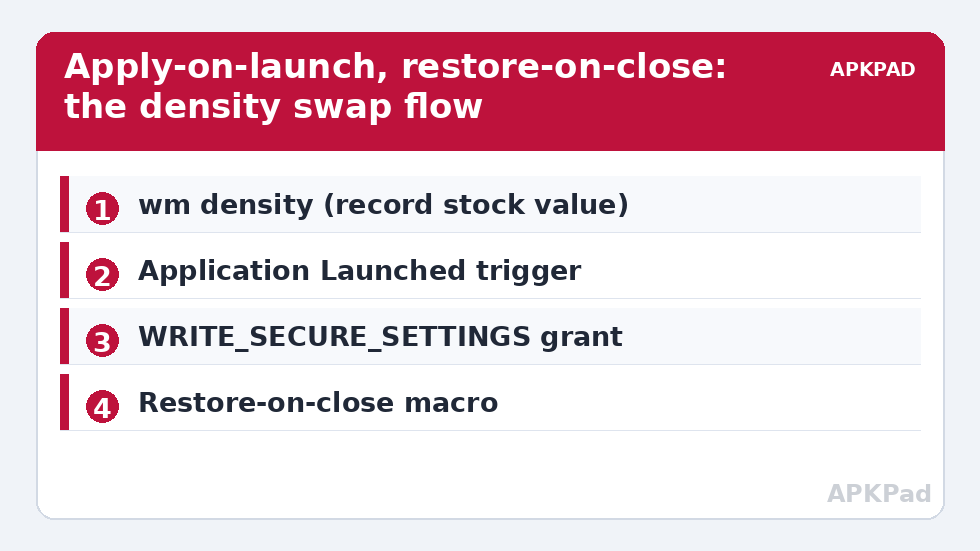
Build the “enter” macro first. Worked example: you want a document viewer at a smaller density, so more of the page fits, while everything else stays normal.
- In MacroDroid, create a new macro and add the Application Launched trigger. Select your target app — one app per macro at first, so faults are easy to trace.
- Add a constraint only if you need one — for example, screen unlocked and not in a call.
- Add a Set Variable action saving
density_applied_forwith the target app’s name; the restore macro will check it before changing anything back. - Add the density action. On builds where MacroDroid’s System Setting action exposes the display density or display-size key you verified manually, write your tested target value. On builds where it does not, use the Helper shell action to run
wm density 360, substituting your own tested number — never a number copied from another phone model. - Add a short Wait Before Next of one or two seconds, then, optionally, relaunch or bring forward the target app if your build needs the app restarted to pick up the new density.
- Save the macro with a plain name such as “Docs — smaller density in”.
Step by step: the restore-on-close macro
The restore macro is not an optional extra. A density change without a restore is how phones end up stuck in a layout the owner never chose for general use.
- Create a second macro with the Application Closed trigger for the same target app.
- Add a constraint checking your
density_applied_forvariable still matches this app. This stops the restore macro undoing a manual density change you made for a different reason. - Add the restore action: write back your recorded stock density, or run
wm density resetif your stock state had no override. Reset is cleaner where it matches, returning the device to “no override” rather than a hard-coded number. - Clear the
density_applied_forvariable.
Related UI automation, including font scale and animation settings that pair well with density, is covered in the guide to automating system UI settings, fonts and icon styles. If density alone does not solve a cramped app, the usual winning combination is a modest density reduction plus a small font-scale reduction, both restored on exit.
Choosing sensible target values
| Goal | Starting point | Warning sign you went too far |
|---|---|---|
| Fit more content in a reader or viewer | Physical density minus 10–15% | Body text needs zooming on every page |
| Larger targets for a parent or child | Physical density plus 10% | Dialog buttons clipped at screen edges |
| Tablet-like layout in a browser | Test in 20 dpi steps downward | Sites switch layouts mid-scroll or menus overlap |
| Game HUD inspection | Change only while testing, then restore | Touch points no longer match what you see |
Move in small steps. A 40 dpi change is already visible; a 100 dpi leap can flip an app between phone and tablet layouts — occasionally delightful, occasionally broken. When an app offers its own text-size setting, prefer it and skip the swap: per-app density is for apps that give you no such control.
A gentler companion: reading and one-handed use
Density is only one “make this app fit me” tool here. For eye strain rather than layout, the reading mode that combines monochrome and warm light changes comfort without touching layout; for reach, one-handed mode shrinks the interactive area instead. Pick per problem — density for layout, warmth for comfort, one-handed for reach — rather than stacking all three. This automation sits in APKPAD’s System Tweaks category, and the homepage calculator helps you sanity-check related values first.
Troubleshooting
- The app opens at the old density, then redraws: normal on many builds — the app launched before the write completed. Add the short wait and put the density action first.
- Nothing changes at all: the grant is missing or was lost after an update or reinstall. Re-check it with the dumpsys method in the grant guide before rebuilding the macro.
- The launcher looks wrong after closing the app: the restore macro did not fire — often because the app was killed rather than closed, so no close event appeared. Add a safety net: a Home-screen or screen-off trigger that restores stock density if the marker variable is still set.
- A system update changed the behaviour: skins do change how overrides are honoured. Re-test the manual command after major updates before blaming the macro.
- Split-screen shows one density for both apps: expected. Density is device-wide; see the limit explained at the top of this guide.
Undo everything
Disable or delete the two macros, then run adb shell wm density reset or return the Display size slider to its recorded position. There is no residue: density overrides are a preference value, not a modification to system files, and removing the override restores factory rendering completely.
Frequently Asked Questions
Can MacroDroid really set a different DPI for each app?
Not in the literal system sense. Android applies density device-wide. MacroDroid switches the device density when your chosen app opens and restores it when the app closes, which feels per-app in normal one-app-at-a-time use, but split-screen apps share the current value.
Do I need root to change screen density?
No. Changing density with wm density or the display settings does not need root. Automating the change from MacroDroid needs the one-time ADB WRITE_SECURE_SETTINGS grant for the settings and shell actions, which is narrower than root and fully revocable.
What density value should I start with?
Start within 10 to 15 percent of your recorded physical density and move in small steps of about 20 dpi. A modest reduction fits noticeably more content; extreme values break layouts, clip dialogs, and can make touch targets unreliable.
Why does my phone flicker or redraw when the density changes?
Android redraws windows when the display configuration changes, and some OEM builds restart parts of the system UI. A brief flicker during the swap is expected behaviour, not damage. If an app must be relaunched to pick up the new value, add a wait and a relaunch step to the macro.
How do I restore my original density if a macro misbehaves?
Connect to a computer and run adb shell wm density reset, which clears any override and returns the physical density. You can also disable the macros and return Settings → Display → Display size to the position you recorded before starting.