Most “reading modes” do half the job. A warm filter alone still leaves a busy, colourful interface competing for your attention; grayscale alone can feel cold and clinical at midnight. The combination is what actually settles the eyes and the mind: colour removed so nothing shouts, warmth added so the remaining light feels like paper under a lamp instead of a monitor in a dark room. This guide builds a reading mode monochrome warm light macrodroid setup that applies both changes together when you open your reading apps, holds them only while you read, and hands you back your normal, vivid phone the moment you close the book.
How a reading mode monochrome warm light macrodroid setup is put together
Two separate Android mechanisms are involved, and keeping them distinct explains both the build and its limits. Monochrome comes from colour correction: Android’s accessibility settings include a grayscale correction mode, stored in secure settings keys such as accessibility_display_daltonizer_enabled and accessibility_display_daltonizer (the value for grayscale is commonly 0). Writing those keys is a settings job. Warmth, in this design, comes from the system’s Night Light feature, whose strength most builds store as night_display_activated and an intensity or colour-temperature value. Night Light is a display comfort filter, not an app — which is why it combines so cleanly with grayscale: one removes colour information, the other tints what light remains.
Both mechanisms live in the secure settings namespace — which dictates the prerequisite below, and explains why a neat macro on a phone without the grant does nothing, silently.
How to read this: the estimate adds a small always-on idle cost for MacroDroid itself (about 0.4% of battery per day) to a per-class daily cost for each trigger type you use, scaled slightly by how many macros you run. These are planning estimates from that transparent model — not measurements from your phone. Use them to compare setups before you build, then confirm against the real numbers under Android Settings → Battery.
Permissions first: the one-time ADB grant, again
Writing secure settings keys from MacroDroid requires WRITE_SECURE_SETTINGS, granted once from a computer. The full, careful walkthrough — commands for both MacroDroid and its Helper, verification, and the revoke command — is the guide to granting ADB WRITE_SECURE_SETTINGS to MacroDroid. Do that first if you have not already. A few builds also expose Night Light scheduling inside MacroDroid’s own actions or via the Helper shell; whichever route you end up using per control, test that control manually once (see below) before automating it. Android versions and OEM skins move these keys around more than most: Samsung’s Eye comfort shield, Xiaomi’s Reading mode and Pixel’s Night Light are cousins, not twins, and an OEM’s own reading mode may fight a macro that toggles underlying keys. If your phone has a native reading mode you like, an equally valid design is a macro that simply opens that settings page or toggles the OEM feature via its Quick Settings tile — less elegant, more compatible. Choose after testing, not before.
Step 1: test both halves manually
- Enable grayscale manually: Settings → Accessibility → Colour correction (or Vision enhancements on Samsung) → Grayscale. Open your reading app. Confirm the whole system, including the app, renders in monochrome.
- With grayscale still on, enable Night Light / Eye comfort shield and set its intensity to a clearly warm level. Read two pages. This combined state is the target your macro must reproduce; if you dislike it now, you will dislike it automated.
- Turn both off and confirm normal colour returns instantly and completely. Any half-stuck state at this manual stage will be ten times more annoying when a macro causes it at midnight.
- From ADB, note the exact keys your build changes, if you are comfortable inspecting them: toggling each feature while watching
settings list securedifferences is the power-user method, and this category’s system UI settings guide explains the read-before-you-write discipline that makes such inspection safe.
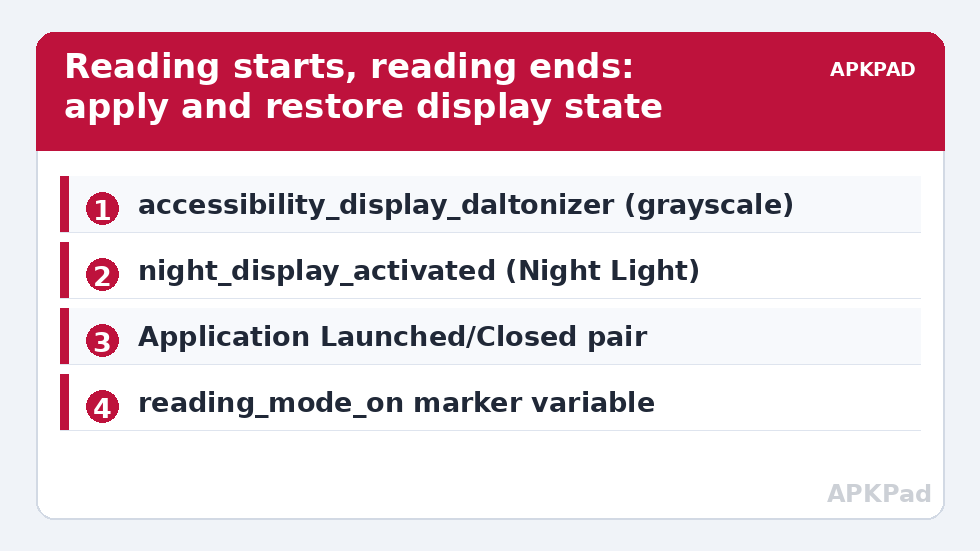
Step 2: build the “reading starts” macro
- Trigger: Application Launched — select your reading apps (your e-book reader, your long-form news app, your RSS reader). Multiple apps in one macro is correct here, because the desired state is identical for all of them.
- Constraint: none at first. Add context later only if you find the mode triggering somewhere it should not.
- Action 1: Set a boolean variable,
reading_mode_on, to true. The exit macro will check it. - Action 2: System Setting (Secure) — write the grayscale keys to the enabled values you verified in Step 1.
- Action 3: enable Night Light at your tested intensity, using the action or key that worked manually on your build.
- Optional Action 4: lower brightness to a comfortable fixed level or apply a small reduction. Reading mode pairs naturally with the time-based approaches in the brightness scheduling guide, but keep the first version simple.
- Optional Action 5: enable Do Not Disturb or a “reading” sound profile. Colour is not the only interruption; it is merely the loudest visual one.
Step 3: build the “reading ends” macro
- Trigger: Application Closed for the same app list.
- Constraint:
reading_mode_onis true, and — this is the refinement that prevents flicker when you hop between two reading apps — no other reading app is currently in the foreground if your MacroDroid version offers that check. A simpler robust substitute is a 20-second delayed restore that a re-entry cancels. - Actions: write the grayscale keys back to disabled, restore Night Light to its previous state (ideally a saved variable rather than a hard “off”, so an evening reader who normally runs Night Light on a schedule is not stripped of it), and clear
reading_mode_on.
For switching between full visual profiles rather than a single reading state, the techniques in this batch on changing screen density per app follow the same launch/close, save/restore pattern. And for small-phone reach while reading one-handed on a train, automatically enabling one-handed mode in specific apps complements this mode without touching colour at all. You can browse the whole family from the System Tweaks category or start from the APKPAD homepage.
Tuning the combination: a practical table
| Reading context | Grayscale | Night Light intensity | Notes |
|---|---|---|---|
| Daytime long-form reading | On | Low or off | Colour removal does the work; warmth is unnecessary in daylight |
| Evening reading indoors | On | Medium | The classic combination this guide is named for |
| Reading in bed, lights off | On | High, plus low brightness | Watch total brightness more than tint; dark room, dim screen |
| Reference reading (manuals, docs) | Off | Medium | Diagrams often encode meaning in colour — see the honesty note below |
The last row matters. Grayscale is a genuine loss of information in apps where colour carries meaning: charts, maps, photo essays, children’s books, any interface where red means “error” and green means “fine”. Build the reading list from apps whose content is overwhelmingly text, and leave reference and media apps out of it. A mode that helps novels and hinders manuals is a good mode with a correct scope, not a failed one.
Troubleshooting
- Only one half applies: the two mechanisms use different keys or actions, and one route is blocked on your build — commonly an OEM skin intercepting Night Light. Test each action alone in a throwaway macro to isolate which half fails.
- Colour stays off after closing the reader: the exit macro’s constraint failed or the app was killed rather than closed. Add the safety pattern used elsewhere in this batch: a screen-off or Home trigger that restores normal display state if
reading_mode_onis somehow still true. - Mode flickers when switching apps: add the delayed-restore-with-cancel pattern from Step 3. Instant restore plus instant re-apply reads as a fault; a 20-second grace reads as polish.
- Settings changed after an Android update: key names and OEM behaviour around colour correction genuinely change between versions. Re-run the manual test from Step 1 after major updates and re-record the values.
- Screenshots come out grey: expected while the mode is on — colour correction is applied at display level on many builds, and on some it is captured. If you need a colour screenshot mid-read, exit the mode first.
Undo
Disable both macros, turn off grayscale in Accessibility settings, and return Night Light to your preferred schedule or off. Both mechanisms are ordinary settings, so stock behaviour returns immediately and completely, with nothing left behind for future updates to trip over.
Frequently Asked Questions
Why combine monochrome and Night Light instead of using just one?
They do different jobs. Grayscale removes colour, which is what makes interfaces visually loud and distracting. Night Light warms the remaining light, which is what makes a screen feel harsh in a dark room. Together they produce the calm, paper-like result neither achieves alone.
Do I need the ADB grant for this reading mode?
Usually, yes. Grayscale colour correction and Night Light state live in the secure settings namespace, so MacroDroid needs the one-time WRITE_SECURE_SETTINGS grant to write them. On some builds an OEM reading-mode toggle or tile offers a grant-free route — test what your phone exposes.
Will grayscale affect photos, maps and diagrams while I read?
Yes, system-wide, for as long as the mode is on. That is why the macro’s app list should contain text-first reading apps only. Colour carries meaning in charts, maps and status indicators, and those apps should stay outside the mode.
How do I stop the mode flickering when I switch between two reading apps?
Delay the restore. Make the exit macro wait about 20 seconds before restoring colour, and let the entry macro cancel that pending restore when any reading app comes to the foreground. Quick hops then keep the mode, while a real exit still restores normal colour.
What should the exit macro restore Night Light to?
To whatever it was before reading started, not simply to off. Save Night Light’s prior state in a variable in the entry macro and write that value back on exit, so an evening schedule you already rely on is not destroyed by your reading session.