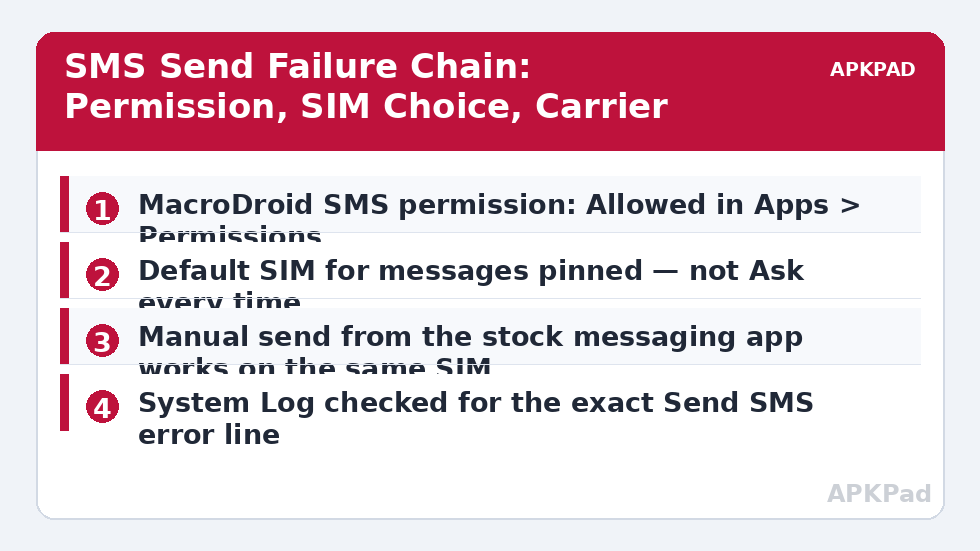
The macro fires on time, the actions run in order, and the contact never receives the text. Learning to fix send sms action failing macrodroid errors starts with accepting that “the action ran” and “the message was sent” are different claims, separated by a permission check, a SIM choice, and a carrier. A permission error in the log is the most informative of the failures because Android refused the send outright — but the same empty result can come from a SIM that cannot send, so work the chain in order rather than re-granting the same permission five times.
Reproduce it with the smallest possible test. Build a one-action macro triggered manually: Send SMS to your own number with a distinctive word in the body. Run it, then open the System Log and read the exact line for that minute. A permission or security error tells you Android blocked the call. No error but no message suggests the send left the app and died at the SIM or carrier stage. Also send the same text manually from your stock messaging app — if that fails too, MacroDroid is innocent and you have just saved yourself an afternoon. Note whether your phone is dual SIM; on those devices the SIM question below is the most common cause, as the dual SIM auto-reply guide covers in depth.
Causes of a Failing Send, Most Common First
Each cause below produces a slightly different fingerprint in the log or the messaging app. Match yours before changing settings.
- SMS permission revoked or auto-reset: Android’s unused-app routine or an update removed the SMS permission, so every send is refused with a security error until it is granted again.
- No usable default SIM: on dual-SIM phones the message default is set to Ask every time, or points at a SIM with no outgoing service, so an unattended send has nowhere to go.
- The chosen SIM cannot send: a data-only SIM, a barred work line, or an empty prepaid balance accepts the request pattern but never delivers.
- A macro-level mistake: the number is stored in a variable that is empty at run time, the action points at the wrong contact field, or a constraint silently skips the action while the rest of the macro runs.
- Carrier or spam filtering: repeated identical automated texts can be quarantined, so early tests arrive and later ones vanish even though nothing on the phone changed.
Fix Send SMS Action Failing Errors Step by Step
Work down this list and retest with your one-action macro after each step. The moment a test text arrives on your own phone, stop — you have found the layer that was broken.
Step 1: Re-Grant and Protect the SMS Permission
Open Settings, find MacroDroid under Apps, open Permissions, and confirm SMS is set to Allow. If it already shows Allow but sends still fail with a permission error, toggle it to Don’t allow, back out, return, and set Allow again — this re-registers the grant on builds where the recorded state and the real state have drifted apart. While you are on that app page, open the unused-app or pause-activity setting and turn pausing off for MacroDroid, because that routine is what quietly removes permissions from an app you rarely open directly. Permission losses that return after every reboot have their own pattern, covered in the ADB grants resetting after reboot guide, and are worth ruling out if this is the third time you have granted SMS access this month.
- Settings > Apps > MacroDroid > Permissions: SMS set to Allow.
- If already allowed, toggle it off and on once to refresh the grant.
- Pause app activity if unused: Off for MacroDroid.
- Retest with the one-action macro and read the fresh System Log line.
How to read this: the estimate adds a small always-on idle cost for MacroDroid itself (about 0.4% of battery per day) to a per-class daily cost for each trigger type you use, scaled slightly by how many macros you run. These are planning estimates from that transparent model — not measurements from your phone. Use them to compare setups before you build, then confirm against the real numbers under Android Settings → Battery.
Step 2: Pin the SIM the Action Sends From
On a dual-SIM phone, open your SIM settings and set the default for messages to a specific named SIM instead of Ask every time, then open the Send SMS action itself and select that same SIM explicitly where the action offers a choice. Do not leave either layer on automatic for an unattended macro: automatic is a question, and a question at 3 a.m. is a failed send. If your automation must reply on the SIM that received a message, build and test each SIM path separately, because each is a separate account with its own failure modes.
- Default SIM for messages: one named SIM, not Ask every time.
- Send SMS action: same SIM selected explicitly in the action.
- Manual send from the stock app on that SIM succeeds.
- Macro test send arrives on your own phone.
Step 3: Check the Number the Macro Actually Uses
If sends to a typed number work but the real macro fails, the fault is in your data, not the phone. Log the contents of the number variable to the System Log immediately before the Send SMS action and read what is really there: an empty variable, a number with a country code your carrier rejects in that format, or a contact name instead of digits all fail differently. Fix the source — the trigger or action that fills the variable — rather than adding retries around a send that can never succeed.
- Add a temporary Log action showing the recipient variable before the send.
- Run the real trigger and compare the logged number with the intended one.
- Correct the variable’s source, then remove the temporary log line.
Verify the Fix: A Delivery You Can Point At
A verified fix means a message you can see. Run the one-action test macro, confirm the text appears in your messaging app’s sent conversation, and confirm it arrives on the receiving phone — your own second phone, or the same phone if you sent to yourself. Then run the real macro through its real trigger once, because a macro can pass the manual test and still fail on its trigger path if a constraint or variable differs there. Finally, repeat the test the next day: permission auto-reset and overnight battery routines are exactly the sort of thing that passes an afternoon test and fails by morning. The APKPad homepage and the Fixes & Errors index link the related permission guides, and the sibling article on webhook and HTTP actions failing covers the same read-the-log discipline for network actions.
When This Fix Won’t Work
Some failures live entirely off the phone. A carrier that has barred outgoing SMS on the line, a ported number still settling, or a network-side spam block on repeated identical texts will defeat every phone setting, and the honest test — a manual send from the stock app — will fail in the same way. RCS adds another wrinkle: MacroDroid sends through the standard SMS path, so a conversation that lives in RCS may behave differently from a plain SMS thread. Work and school managed devices can also block SMS permissions by policy. In those cases the fix is with the carrier, the plan, or the administrator — not another reinstall.
Frequently Asked Questions
Why does Send SMS fail with a permission error after an Android update?
Major updates can revoke or reset the SMS permission, apply permission auto-reset to an app whose interface is rarely opened, or reset the default message SIM. Re-check the SMS permission in MacroDroid’s app permissions, confirm the default SIM for messages is pinned, and run one manual test send before editing the macro.
Does MacroDroid need to be my default SMS app to send a text?
No. Sending through the Send SMS action uses the SMS permission and the system telephony service, not the default SMS app role. The default messaging app matters for reading and managing conversations. If a guide tells you to change your default SMS app just to make an automated send work, treat that advice with suspicion.
Why does the macro work on my personal SIM but fail on my work SIM?
Each SIM is effectively a separate sending account with its own service state. The work SIM may have outgoing SMS barred by the plan, no credit, or a carrier profile that blocks short automated sends. Test a manual send from the stock app on that exact SIM; if the manual send fails too, the problem is the line, not MacroDroid.
Can MacroDroid tell me whether the SMS was actually delivered?
MacroDroid can confirm the send request was accepted and log failures it is told about, but true delivery depends on the carrier and the recipient’s phone. For important automations, check the sent conversation in your messaging app after a test, and where available rely on delivery reports there rather than assuming the action succeeding means the message arrived.
Will clearing MacroDroid’s data fix a persistent SMS permission error?
Do not start there. Clearing data can remove permissions, special-access states, and your macro data context, and it forces a full re-setup. Work through the permission toggle, the default SIM, and a manual send first. Only reinstall or clear data as a last resort, after exporting a backup of your macros.