Here is a premise worth correcting before building anything: on a modern Android phone, “system logs” are not quietly eating your storage. The log buffers live in memory, are capped at a few megabytes, and vanish on reboot. Any guide promising gigabytes back from log cleaning is selling you a placebo — but the maintenance instinct behind the search is sound, because real, reclaimable space does exist nearby, and an automated MacroDroid routine can schedule the genuine version of this chore. This article separates the myth from the mechanics, then builds the maintenance macro that actually frees memory and storage.
Automated system log cleaning with MacroDroid: what “logs” really are
| Thing people call a log | Reality | Actionable? |
|---|---|---|
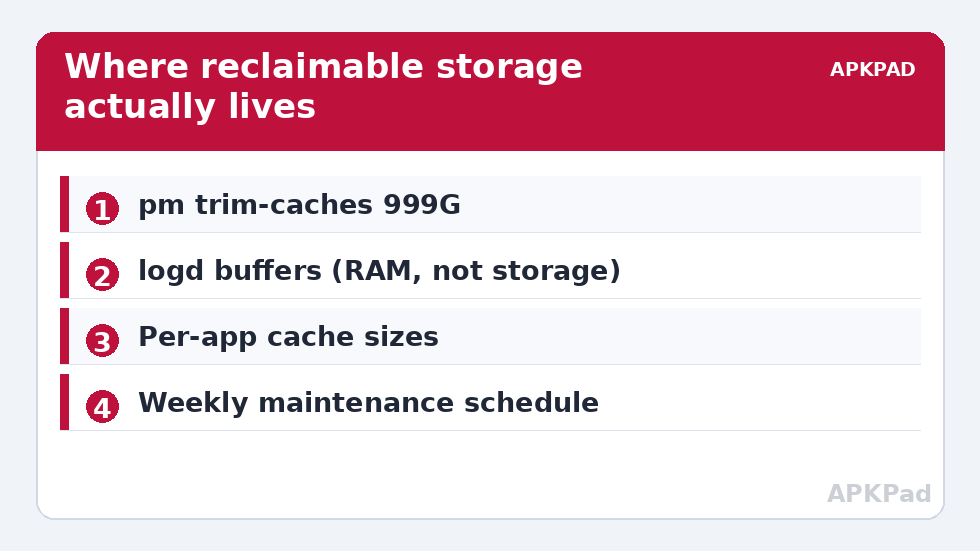
| Logcat buffers | Ring buffers in RAM (typically a few MB total), cleared on reboot | logcat -c clears them; frees RAM momentarily, zero storage |
| Dropbox / tombstones (crash records) | Small system-managed files under /data/system and /data/tombstones | System-managed; root needed for tombstones; sizes are minor |
| App cache | Per-app temporary data in /data/data/<app>/cache — this is the real pile, often gigabytes across apps | Yes — see pm trim-caches below |
| App-specific log files | Some apps (messengers, browsers, automation apps) write text logs to shared storage | Yes — deletable files in folders you can reach |
| MacroDroid’s own logs | User log and system log inside MacroDroid grow with heavy macro use | Yes — clear from within MacroDroid, or cap in settings |
So the honest title of the useful routine is not “log cleaning” but cache and clutter maintenance. The distinction matters for expectations: a healthy target is a few hundred megabytes to a few gigabytes of cache on a well-used phone, reclaimed without touching a single photo, download, or app datum.
The one genuinely powerful command: pm trim-caches
Android’s package manager can ask every app to trim its cache, the same mechanism the Storage settings use:
adb shell pm trim-caches 999G
The size argument means “trim until this much free space exists” — an absurdly large number simply means “trim everything trimmable”. Two honest caveats. First, it requires shell-level privilege: from a computer’s ADB it works directly; from MacroDroid it runs through the Helper with the ADB grant applied (see the grant guide) — and on some builds the command is restricted to the shell user, in which case the PC route or your scheduled reminder is the fallback. Second, cache exists to be useful: trimming it means apps re-download or rebuild it, so a first launch after trimming is slightly slower and briefly uses data. Weekly is a sane cadence; daily is superstition.
For the logcat buffer itself, if you genuinely want it cleared (useful before capturing a clean diagnostic log, which is the legitimate reason): adb shell logcat -c. In MacroDroid, the equivalent “fresh start” is clearing its own logs from the app’s log screens before a debugging session.
How to read this: the estimate adds a small always-on idle cost for MacroDroid itself (about 0.4% of battery per day) to a per-class daily cost for each trigger type you use, scaled slightly by how many macros you run. These are planning estimates from that transparent model — not measurements from your phone. Use them to compare setups before you build, then confirm against the real numbers under Android Settings → Battery.
Building the weekly maintenance macro
- Trigger: Day/Time — Sunday 03:30, while the phone is idle and charging for most people.
- Constraint: Battery above 40% or charging, so maintenance never competes with a dying phone.
- Action 1 — trim caches: Shell Script action →
pm trim-caches 999Gvia the Helper; capture success/failure into a variable rather than assuming. - Action 2 — clear known clutter folders: Delete File actions for specific, named locations you have inspected yourself: leftover export folders, your automation log archives older than your retention choice (use MacroDroid’s file date conditions where available, or a rotating single log file so size self-limits).
- Action 3 — report: read free space before and after using MacroDroid’s storage magic text/variables and append one line to a maintenance log: date, before, after, reclaimed. If the reclaimed number is ever suspiciously huge, something other than cache got deleted — investigate once, early, rather than at month six.
- Constraint for shared folders: never point a delete action at a broad pattern (an entire Downloads folder, a wildcard extension) in an unattended macro. Named, narrow targets only.
Pair this with the boot-time checks in automated ADB execution at startup and you have the skeleton of a self-maintaining phone: verify at boot, clean weekly, log both.
What not to automate, and why
- Clearing app data (as opposed to cache) logs you out, deletes offline content, and destroys local-only data. No unattended macro should ever do it; that is a deliberate, per-app, human decision.
- “RAM cleaner” loops: force-stopping apps on a timer to make a memory graph look emptier increases battery drain — Android reloads them, and cold starts cost more than warm residence. Android’s own memory management is not the enemy.
- Deleting .thumbnails or media caches: they regenerate, sometimes larger during rebuild, and the gallery stutters for days. The net present value is negative.
- Anything under /data that needs root to reach: if a “cleaning” step requires root, it is not maintenance, it is surgery — out of scope for a scheduled macro by definition.
Calibrating expectations
On a phone with 128 GB of storage and a year of use, a first trim-caches run commonly frees somewhere between several hundred megabytes and a few gigabytes, dominated by browsers, social apps, and streaming caches. Subsequent weekly runs free far less — which is success, not failure: the pile is no longer accumulating. If storage pressure is your actual problem, the ranking of fixes is: streaming app downloads, camera and messenger media, then cache. This macro handles the third item and keeps it handled. The first two need a human with opinions about their own photos, and this site’s system tweaks category will keep sending you back to that truth.
Undo and safety
Cache trimming needs no undo — caches are disposable by design and rebuild themselves. The deletable-folder actions are the only destructive element, and they are safe precisely because you named each folder yourself after inspecting it; if in doubt, change a delete into a move-to-archive for the first month and review before the real version. Disable the macro and the entire routine stops, leaving nothing behind but smaller caches.
Before scheduling anything: find your actual pile
Spend five minutes on reconnaissance so the routine is sized to your phone rather than to a generic one. Open Settings → Storage and read the category breakdown; then open your two or three heaviest apps (browser, main social app, main messenger) and check their cache figures in App info → Storage. On most phones the ranking surprises: a browser cache in the gigabytes, a messenger’s media cache rivalling it, and everything else in the tens of megabytes. Two conclusions follow. First, pm trim-caches is aimed at exactly the right target — it clears across all apps at once, so the ranking does not change the command, only your expectations of its first run. Second, if one app’s data (not cache) dwarfs everything — downloaded offline video and music are the usual suspects — no maintenance macro is the answer; that is a content decision inside that app’s own download settings. Do this audit once, note the top three cache holders in your maintenance log, and repeat it quarterly. Storage creep has a source, and the audit is how you keep knowing its name.
Frequently Asked Questions
How much storage will log cleaning actually free?
From logs themselves: essentially nothing — logcat buffers live in RAM and are only a few megabytes. The real reclaimable space is app cache, which pm trim-caches clears; expect hundreds of megabytes to a few gigabytes on a well-used phone, far less on subsequent runs.
Is pm trim-caches safe?
Yes. It is the same cache-trimming mechanism Android’s own storage tools use. Apps keep their data, logins, and downloads; they simply rebuild temporary files as needed. The only cost is slightly slower first launches and some re-downloaded thumbnails or feeds.
Can MacroDroid run trim-caches without a PC?
Through the Helper with the ADB grant applied, on most builds yes. Some builds restrict the command to the shell user; on those, run it occasionally from a computer, or let the macro remind you instead of executing.
Why not clear caches every day for maximum space?
Because the cache refills with the same content, daily trimming mostly buys re-downloads: more data use, more battery, slower first launches. Weekly captures nearly all the benefit. Space reclaimed per run shrinking over time means the routine is working.
Should the macro delete files from shared storage?
Only narrow, named folders you have personally inspected — old export or log folders are typical. Never broad patterns or whole directories in an unattended macro, and prefer moving to an archive folder for the first month if you are unsure.