Your phone is in your pocket, the power has just gone out, and fumbling for a small on-screen torch tile is the last thing you want to do. A well-tuned shake phone gesture flashlight trigger macrodroid macro solves that exact moment: you shake the handset, the LED comes on, and you shake it again to switch it off. It sounds trivial, and the basic macro is indeed only a handful of blocks, but making it reliable — without it firing in your bag, draining the battery, or failing because the phone killed MacroDroid overnight — is where the real work lies. This guide builds the simple version first, then hardens it.
Before you start, check two things. First, your phone actually has a rear LED that MacroDroid can control as a torch; most do, but a few budget models expose it only through the camera app. Second, decide whether you want a toggle, where one shake turns the torch on and the next turns it off, or a timed torch that switches itself off after a minute. The toggle is more useful in a blackout. The timed version is safer if you worry about accidental activation in a pocket. The build below uses a toggle, with an optional auto-off described later.
How a shake phone gesture flashlight trigger macrodroid macro works
MacroDroid listens to the accelerometer through its Shake Device trigger. When the movement pattern crosses the sensitivity you set, the macro runs. The trigger itself does not need root, device admin, or the MacroDroid Helper app on most modern phones, because toggling the torch is a normal system capability. What it does need is MacroDroid to still be alive in the background when you shake. A gesture trigger is only as good as the process listening for it, so background survival matters more here than for, say, a time-based macro that the system can wake up for.
| Component | MacroDroid setting |
|---|---|
| Trigger | Shake Device |
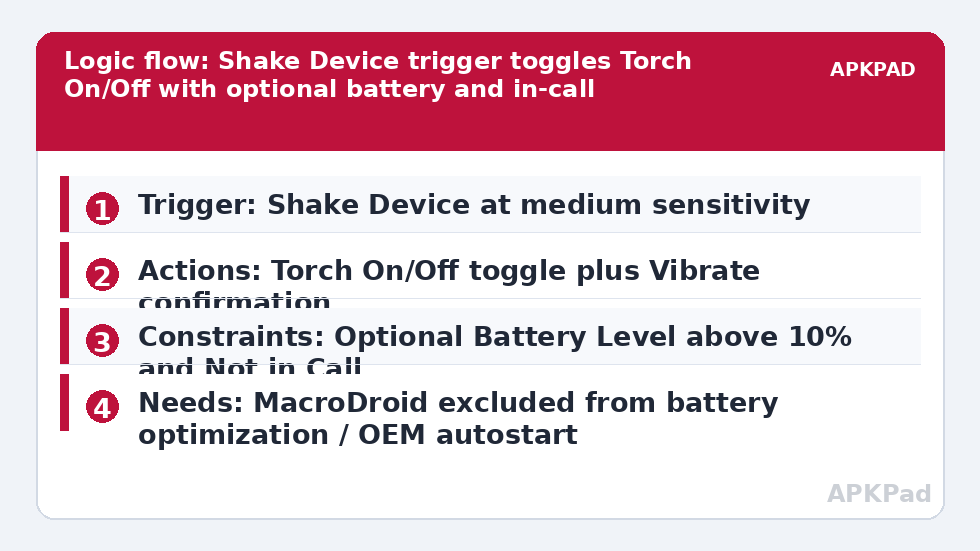
| Actions | Torch On/Off (toggle); optional Vibrate action as confirmation; optional Wait Before Next Action followed by Torch Off for a timed variant |
| Constraints | Optional: Screen Off only, or Battery Level above 10%; optional: Not in Call |
That table is the whole logic. Everything else in this article is tuning: how hard the shake needs to be, how you know it worked in the dark, and how you stop it triggering when you are running for a bus.
How to read this: the estimate adds a small always-on idle cost for MacroDroid itself (about 0.4% of battery per day) to a per-class daily cost for each trigger type you use, scaled slightly by how many macros you run. These are planning estimates from that transparent model — not measurements from your phone. Use them to compare setups before you build, then confirm against the real numbers under Android Settings → Battery.
Permissions and setup you cannot skip
Open MacroDroid and grant the permissions it requests on first launch, particularly notification access for its persistent notification and the camera-related permission some Android versions associate with torch control. The persistent notification is not decoration. On Android, a foreground-service style notification is part of how MacroDroid stays resident so it can keep listening to the accelerometer. If you hide or block that notification aggressively, some OEM builds will treat the app as idle and stop it sooner.
Then deal with the single biggest cause of failure for this and almost every other always-listening macro. The number one reason it fails is OEM battery management killing MacroDroid in the background. Samsung, Xiaomi, Oppo, Vivo, OnePlus and others all add their own aggressive app-killing layer on top of stock Android. The fix is to exclude MacroDroid from battery optimization in Settings, usually under Apps, MacroDroid, Battery, set to Unrestricted, and then also enable MacroDroid in your OEM autostart settings where that separate toggle exists, such as on Xiaomi and Oppo devices. Do both, restart the phone once, and test the shake the next morning, not just five minutes after building the macro. Many failed gesture macros work perfectly in the evening and are dead by breakfast.
Building the macro step by step
- In MacroDroid, tap Add Macro and add the trigger Shake Device.
- Leave sensitivity at the middle setting for your first test. You will tune it after you know the baseline works.
- Add the action Torch On/Off. In the action list it appears under the device actions; choose the toggle behaviour rather than a fixed On if your version offers that choice.
- Add a short Vibrate action after the torch action, using a brief pattern. In darkness a vibration tells you the shake registered even before your eyes adjust to the light, and when you shake to turn it off, the same buzz confirms you have not left the LED on.
- Name the macro something obvious, such as Shake Torch, and save it.
- Lock the phone, wait a minute, and shake it with a firm side-to-side motion from the wrist, not a gentle wobble.
If nothing happens, work through the causes in order. First, is the macro enabled in MacroDroid’s macro list and is MacroDroid’s global switch on? Second, was the shake firm enough for the sensitivity you chose? Third, did the torch work when you tested the action from inside the macro editor using the test action option? Testing the action separately separates a torch problem from a trigger problem, and that distinction saves a lot of random setting-changing.
Tuning sensitivity so it fires when you want, and only then
Sensitivity is a trade-off with no perfect setting, only a setting that suits how you carry your phone. Too sensitive and the torch comes on in a handbag, in a car mount over rough roads, or while you are exercising. Apart from being embarrassing, an LED left on against fabric gets warm and eats battery surprisingly fast. Too insensitive and you will be shaking the phone like a cocktail mixer in a dark corridor, which defeats the point.
A practical tuning method
Start in the middle. Carry the phone normally for half a day with the vibrate confirmation enabled, because the buzz will reveal accidental triggers you would otherwise miss. If you feel unexplained buzzes, lower sensitivity one step and repeat. If deliberate shakes fail more than occasionally, raise it one step. Change only one step at a time and live with it for a few hours; accelerometer behaviour in your real life — walking, stairs, pockets, desks — is a better test than thirty shakes standing in your kitchen.
Optional extras worth adding
One extra that earns its place is a battery constraint that blocks the macro below ten percent charge, preserving the last of the battery for calls rather than light. If you like that way of thinking about low charge, the approach in setting up low-battery alert messages to family uses the same Battery Level logic in reverse. A timed variant — Wait Before Next Action, then Torch Off — also suits anyone who has found their torch still on hours later; build it as a separate macro rather than bolting it onto the toggle version, and disable whichever one you are not using.
For more always-ready ideas, browse the full Macro Triggers category, where the same trigger-first thinking applies to calls, apps and location. Two close relatives are worth reading next: flipping the phone face down to mute calls, which uses orientation instead of shaking, and launching a music player when headphones are plugged in, which shows a hardware event trigger with almost no tuning needed.
Troubleshooting a shake trigger that stopped working
When a previously working macro stops, something changed, and it is usually one of four things. An Android or MacroDroid update reset a permission or battery setting. Your OEM’s battery saver turned itself back on after a system update, which happens more often than vendors admit. You installed a cleaner or booster app that kills background processes. Or the macro was disabled accidentally from a tile or widget. Check battery optimization first, because OEM battery management killing MacroDroid in the background remains the number one reason, then the macro’s enabled state, then test the torch action alone, then the trigger with the screen on and MacroDroid open, which removes background survival from the equation entirely.
Frequently Asked Questions
Does the shake trigger work when the screen is off and the phone is locked?
Yes, that is its main use case. Shake Device can fire while the phone is locked, provided MacroDroid is still running in the background. Exclude MacroDroid from battery optimization and enable OEM autostart so the listener survives overnight, and test it after the phone has been idle for several hours.
Why does my torch turn on in my pocket or bag?
The sensitivity is set too high for how you carry the phone. Lower the Shake Device sensitivity by one step, keep the vibrate confirmation on so you notice accidental triggers, and consider adding a Screen Off or proximity-based constraint only if it matches how you actually use the torch.
Does this macro need root or the MacroDroid Helper app?
Usually no. Torch On/Off works without root or device admin on most phones. On a minority of devices where the test action fails while the system torch tile works, installing the MacroDroid Helper app and granting what it asks for at that step usually fixes it.
Will listening for shakes drain my battery?
The accelerometer listening cost is small compared with the screen or radios, and in normal use it should not be noticeable. The real battery risk is an accidental torch activation left on for a long time, which is why tuning sensitivity and adding a vibrate confirmation matter.
Can I use a different gesture for the flashlight instead of shaking?
Yes. Depending on your device, triggers such as Flip Device, Proximity Sensor, or a button-based trigger can toggle the torch instead. Shake is the most reliable in the dark because it needs no visual target, but a flip gesture can suit users who find shaking triggers too often.