Open Settings → Storage on a six-month-old phone and the surprise is rarely photos. It is the social, video and shopping apps, each quietly holding one, two, sometimes five gigabytes of “cache”: thumbnails, preloaded feeds, ad media, offline fragments you never asked for. Android can reclaim some of it under pressure, but on a phone with headroom it simply accumulates. This guide covers scheduled cache clearing macrodroid owners can run safely — a weekly, targeted clear of the worst offenders using the one cache command Android itself endorses, with a report afterwards, and a firm list of what a cache macro must never touch.
What scheduled cache clearing macrodroid automation really clears
Vocabulary first, because the wrong mental model leads to destructive macros. An app has three kinds of storage. App data is precious: logins, messages, drafts, offline downloads you chose, game saves. Cache is disposable by definition: files the app can rebuild or re-download, kept only to save time and bandwidth. External files — your photos, exports, downloaded documents — are yours, not the app’s housekeeping. Cache clearing touches only the middle category. Nobody has ever lost a login, a chat, or a photo to a genuine cache clear. They have lost those things to “clear data” buttons and to over-eager file-deletion macros, which is why the distinction runs through this entire article.
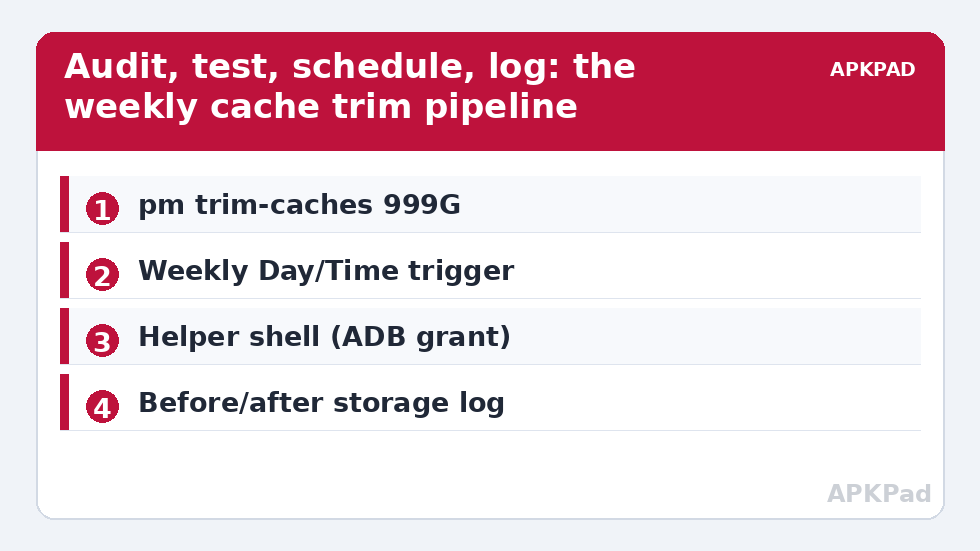
Android provides a system-level cache trim: pm trim-caches asks the package manager to shrink caches toward a target free-space figure. It is the same mechanism the OS uses when storage runs low, and it is selective in exactly the right way — it trims cache, never app data. Our schedule simply runs it deliberately, weekly, instead of waiting for a “storage almost full” crisis at the worst possible moment.
How to read this: the estimate adds a small always-on idle cost for MacroDroid itself (about 0.4% of battery per day) to a per-class daily cost for each trigger type you use, scaled slightly by how many macros you run. These are planning estimates from that transparent model — not measurements from your phone. Use them to compare setups before you build, then confirm against the real numbers under Android Settings → Battery.
Permissions: the Helper and the one-time ADB grant
Running a package-manager command from inside MacroDroid goes through the MacroDroid Helper’s shell, which needs the one-time WRITE_SECURE_SETTINGS grant described in the foundation guide to granting ADB Write Secure Settings to MacroDroid. Grant it to the Helper package as well as the main app. Honest caveat: shell privileges granted this way are narrower than a computer-connected ADB shell’s, and on a minority of OEM builds pm trim-caches answers “permission denied” from the on-device shell even with the grant. The test in the next section tells you within a minute which kind of phone you have, and the fallback design — the macro reminds and reports instead of executing — still delivers most of the value. As with everything in the System Tweaks category, Android version and OEM differences are facts to test, not obstacles to pretend away.
Step 1: audit before you automate
- Open Settings → Storage → Apps (the path varies slightly by skin) and sort by size.
- Write down your five largest cache holders and their cache figures — not total size, the cache line specifically. Social video apps, browsers, maps and music apps dominate most lists.
- Note the total free space figure too. You will compare against it after the first run, and the comparison is how you prove the routine works on your phone rather than in theory.
- Glance at what is not cache: a messaging app with 4 GB of “user data” holds your media history — leave it alone.
This audit pairs with the companion read on automated system log cleaning, which explains why log files are a red herring and app cache is where reclaimable storage truly lives. The APKPAD homepage calculator helps translate a cache figure into “how many photos is that” before you decide how aggressive to be.
Step 2: test the command once, manually
- From a computer, run
adb shell pm trim-caches 999G. The large figure means “trim caches as if this much free space were required”, which in practice instructs the system to clear caches broadly. - Re-open the storage screen and compare. A well-used phone typically reclaims several hundred megabytes to a few gigabytes. A nearly-new phone reclaims little — that is success too, it means there was little waste.
- Open your top five apps. Expect slightly slower first loads and some re-downloaded thumbnails. Nothing should be logged out, nothing should be missing.
- If the computer command worked, test the same command through a throwaway MacroDroid macro using the Helper shell action. If it fails there with a permission error, your build restricts it to the computer shell — adopt the reminder design in Step 4.
Step 3: build the weekly clearing macro
- Trigger: Day/Time — pick a quiet slot, for example Sunday at 03:30, when the phone is almost certainly idle, charging or not.
- Constraint: battery above 30 percent, or charging. Cache trimming is light work, but there is no prize for running maintenance on a dying battery.
- Action 1: read free storage into a variable if your MacroDroid version exposes it, so the report can state the “before” figure.
- Action 2: Helper shell command:
pm trim-caches 999G. - Action 3: wait 30 seconds — trimming is asynchronous, and an immediate measurement understates the result.
- Action 4: read free storage again and write a one-line log (date, before, after) to a text file in Documents, or show it in a dismissible notification the first few weeks.
- Name it plainly: “Sunday cache trim + log”. Plain names are what make a six-month-old automation auditable.
For per-app surgical strikes there is no equally clean on-device command without deeper privileges; the honest route is manual: Settings → Apps → that app → Storage → Clear cache. Let the weekly macro handle the broad trim. A sibling routine, automating screenshot and recording cleanup after 30 days, follows the same philosophy for the gallery: narrow scope, age threshold, nothing precious in range. And protect the routine itself via backing up your MacroDroid configuration automatically.
How much space should you expect? A realistic table
| Phone profile | First trim | Weekly trims after |
|---|---|---|
| Heavy social/video user, 128 GB, year old | 2–6 GB | 300 MB – 1.5 GB |
| Moderate user, 256 GB | 1–3 GB | 100–600 MB |
| Light user, mostly messaging and mail | 200–800 MB | Under 200 MB |
| Any phone, trim repeated next day | Almost nothing | — (the cache has not regrown yet) |
Shrinking returns are the signature of a healthy routine, not a failing one: cache regrows to your apps’ working set, and the weekly trim skims the drift above it.
What never to automate
- “Clear data” for any app — that is the login-and-everything reset. No schedule justifies it.
- Deleting shared-storage folders by pattern in an unattended macro, unless it is one narrow folder you created and have inspected.
- Daily trimming. Cache exists for a reason; daily clearing mostly buys re-downloads, extra data use, warmer first launches and more battery spent fetching the same thumbnails. Weekly captures nearly all the benefit.
- Third-party “booster” actions bundled into the routine. They add adware-grade behaviour to a job the OS already does cleanly.
Troubleshooting
- Permission denied from the Helper shell, works from PC: your build reserves the command for the computer’s shell user. Switch to the reminder design — macro fires Sunday, notifies you, and you run the one-liner next time the phone is plugged into the computer. Still worthwhile.
- The macro runs but free space barely moves: check the log trend, not one run. If even the first run reclaimed little, your usage produces little cache waste; go monthly.
- An app behaves oddly after a trim: it will be re-downloading assets. Give it a minute on Wi-Fi. A true cache clear cannot log you out; if you were logged out, something cleared app data — audit any other “cleaner” app installed.
- After an Android update, the command errors: command availability and shell policy do change between versions. Re-run the manual test, re-apply the grant if needed, and only then blame the macro.
Undo
Disable the macro. There is nothing else to undo: cache trimming changes no settings and deletes nothing permanent, so stopping the schedule returns the phone to entirely standard Android behaviour, with caches left to the OS’s own low-storage housekeeping.
Frequently Asked Questions
Will clearing cache log me out of apps or delete my data?
No. A genuine cache clear removes only temporary files the app can rebuild — thumbnails, preloaded feeds, ad media. Logins, messages, drafts and downloads live in app data, which pm trim-caches never touches. Logging out would mean something cleared app data instead.
How often should cache clearing run?
Weekly is the sweet spot for most phones. Daily clearing mostly forces apps to re-download the same content, costing data and battery. If your weekly log shows only tiny amounts reclaimed, monthly is enough for your usage pattern.
What does pm trim-caches 999G actually do?
It asks Android’s package manager to trim app caches as though 999 GB of free space were required, which in practice clears caches broadly. It is the same mechanism Android itself uses under storage pressure, and it cannot delete app data or your files.
The command fails from MacroDroid but works from my computer. Why?
The computer’s ADB shell runs as the shell user, while MacroDroid’s Helper holds only its granted privileges, and some OEM builds reserve this command for the shell user. On those builds, use the macro as a scheduled reminder and run the command occasionally from the computer.
Can I clear one app’s cache automatically instead of all apps?
There is no clean per-app cache command available to the on-device shell on most builds. Clear a single app manually in Settings → Apps → Storage → Clear cache, and let the weekly macro handle the broad system trim.