The macro runs, the System Log shows the Speak Text action completing, and the room stays silent. Or worse, the phone speaks — in a flat robotic voice, in the wrong language, at a moment when the media volume was supposedly up. To fix speak text tts not working macrodroid setups you have to remember that MacroDroid does not speak at all: it hands text to Android’s text-to-speech engine, which renders it through an audio stream, and a failure at any of those three handoffs produces the same silence.
Before touching MacroDroid, test the engine alone. Go to your accessibility or language settings, open the Text-to-speech output page, and play the sample sentence. If the sample is silent or wrong, your problem is the engine or its voice data and no macro edit will fix it. If the sample plays perfectly, the fault sits in the action’s settings or the audio route, and the steps below narrow it down. Note what is connected when it fails: many “silent” reports turn out to be speech delivered correctly — to a Bluetooth speaker in another room.
The Three Handoffs Where Speech Gets Lost
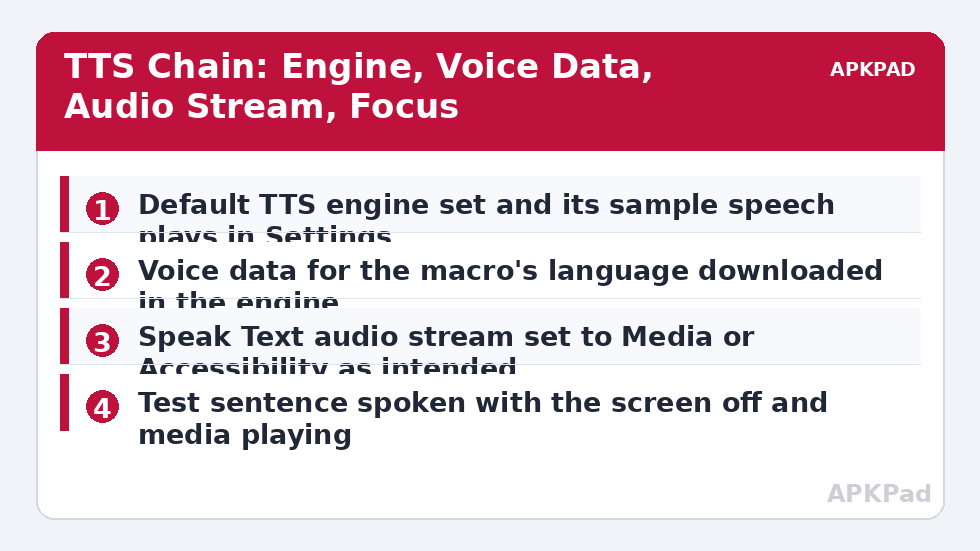
Read these in order. The engine layer fails most dramatically, the stream layer fails most often, and the focus layer explains the cases that only break while other audio is playing.
- Broken or missing voice data: the default engine has no downloaded voice for the action’s language, so it falls back, substitutes, or produces nothing.
- Wrong engine selected: after switching engines or a system update, the action points at a voice that the new engine does not provide.
- Muted or misrouted stream: the action speaks on the accessibility, alarm, or notification stream while you are listening to — and adjusting — media volume.
- Audio focus lost: a media app, call, or assistant holds focus and ducks or discards the speech, especially when the screen is off.
- Engine killed in the background: aggressive battery management on Xiaomi, Samsung, and Oppo builds kills the speech service, so the first sentence after idle is dropped while it restarts.
Fix Speak Text TTS Not Working, Layer by Layer
Fix one layer, then run the same spoken test sentence from a manually triggered macro. Changing the engine, the voice, and the stream in one pass leaves you not knowing which change mattered.
Step 1: Repair the Engine and Voice Data
Open Settings and search for Text-to-speech output. Confirm which engine is set as preferred — Google’s speech services, Samsung’s engine, and third-party engines behave differently and are updated separately. Open that engine’s own settings, download the voice for the language your macros speak, and play the sample until it sounds right here first. Then open the Speak Text action in MacroDroid and set the language and voice explicitly instead of leaving them on defaults inherited from an engine you may have replaced. If accessibility features are involved in your setup, the service behaviour described in the accessibility service turning off guide can also interrupt speech that relies on accessibility routing.
- Preferred TTS engine confirmed in Settings and its sample sentence plays.
- Voice data for your language downloaded inside that engine.
- Speak Text action: language and voice set explicitly, not left on inherited defaults.
- Test sentence spoken from a manual macro matches the sample’s voice.
How to read this: the estimate adds a small always-on idle cost for MacroDroid itself (about 0.4% of battery per day) to a per-class daily cost for each trigger type you use, scaled slightly by how many macros you run. These are planning estimates from that transparent model — not measurements from your phone. Use them to compare setups before you build, then confirm against the real numbers under Android Settings → Battery.
Step 2: Put the Speech on a Stream You Can Hear
Open the Speak Text action and look at its audio stream choice. Media is the stream most people expect, but it is also the one media apps compete for; accessibility routing suits announcement-style macros on many builds. Pick deliberately, then test at the volume you actually use: raise that stream’s volume while a test sentence plays, because the volume buttons adjust different streams depending on what the phone is doing at that moment. Check for silent routes too — a paired car kit, a smart speaker, or yesterday’s earbuds in a bag can all be holding the route your speech is using.
- Speak Text action: audio stream chosen deliberately and noted.
- That stream’s volume raised during a live test sentence.
- Bluetooth route checked — no distant device holding the audio.
- Test repeated with the screen off, the way the real macro runs.
Step 3: Protect the Speech Service From Battery Killing
If the first sentence after a long idle period is always the one that goes missing, the engine was asleep or dead when MacroDroid called it. Find the speech engine’s app in Settings and set its battery use to Unrestricted, applying the same per-brand logic as for MacroDroid itself — No restrictions with Autostart on MIUI and HyperOS, Never sleeping apps on Samsung, Allow background activity on ColorOS. Add a short Wait before the Speak Text action in critical macros so a cold engine has a moment to initialise, and expect the very first test after a reboot to be the slowest. The exemption logic is the same one that keeps MacroDroid itself alive in the background OEM killing guide, applied here to the engine app instead.
- Speech engine app battery set to Unrestricted / No restrictions per brand.
- Short Wait added before Speak Text in time-critical macros.
- Cold-start test passed after at least thirty minutes idle.
Verify the Fix: Silent Room, Locked Phone, Media Playing
Test under the conditions that broke it, not the conditions that flatter it. Run the macro three ways: with the phone locked and untouched for half an hour, while music or a podcast is playing, and with Do Not Disturb on if your real use involves it. Each time, the sentence should arrive complete, in the right voice, at an audible level. A half-spoken sentence that starts late points back at engine initialisation; a sentence that ducks politely under music and never returns points at focus behaviour you may need to accept or route around. More engine and permission checks are gathered on the APKPad homepage and in the Fixes & Errors index, and if your announcements double up once they work again, the sibling guide on macros running twice shows how to add a cooldown without breaking the trigger.
When This Fix Won’t Work
Some limits are real. A voice that was never downloaded cannot be conjured by settings, and some engines will not render certain languages at all — the honest answer there is a different engine, not another toggle. During an active phone call, speech behaviour is restricted by the telephony audio path and macros should wait for the call to end rather than fight it. Cars are their own world: a head unit that only accepts media audio over one Bluetooth profile will never play speech routed as a call or accessibility stream, no matter how correct the phone side is. Finally, if the sample sentence in system settings is also silent with every engine you try, suspect a wider audio fault on the device rather than a MacroDroid problem.
Frequently Asked Questions
Why does Speak Text work with headphones but stay silent on the speaker?
Because the action is likely speaking on a stream that is muted, routed elsewhere, or turned down — commonly the accessibility or notification stream rather than media. Check the stream chosen inside the Speak Text action, raise that stream’s volume while a test sentence plays, and check whether a Bluetooth device is silently holding the audio route.
Why does my macro speak in the wrong language or voice?
The Speak Text action uses the voice and language selected in the action or inherited from the default engine. If the engine’s voice data for your language was never downloaded, it falls back to whatever voice exists, which can sound like the wrong language entirely. Download the voice in the engine’s settings and set the language explicitly inside the action.
Speak Text stopped working after I changed my TTS engine. What happened?
Switching engines — for example from Google’s speech services to a Samsung or third-party engine — changes the available voices and can leave the action pointing at a voice that no longer exists. Open the action, reselect the voice under the new engine, and run a test sentence before relying on the macro again.
Can Speak Text read messages while Do Not Disturb is on?
It depends on the stream the action uses. Speech routed through a stream that Do Not Disturb suppresses can be silenced even though the action ran. Route important announcements through a stream your DND settings allow, and test with DND switched on rather than assuming the daytime test covers it.
Why is there a long delay before the speech starts?
The engine often needs to initialise on first use after a reboot or after being killed by battery management, and downloading a voice on demand adds more delay. Keep the engine’s app exempt from aggressive battery killing, prefer a downloaded local voice over a network voice, and add a short wait before the Speak Text action in time-critical macros.