If you want to automate screen orientation video apps macrodroid is the cleanest way to do it without root: YouTube opens sideways, VLC opens sideways, your gallery player opens sideways, and everything snaps back to portrait the moment you leave. No digging through quick settings, no relying on a flaky auto-rotate sensor reading while you are lying on a sofa at an angle the accelerometer was never designed for.
The underlying problem is inconsistent app behaviour. One player respects system auto-rotate, another locks itself to portrait until you tap its fullscreen button, and a third remembers whatever orientation you used last Tuesday. A macro removes that lottery by making orientation a property of the app you opened, not a property of how you happen to be holding the phone.
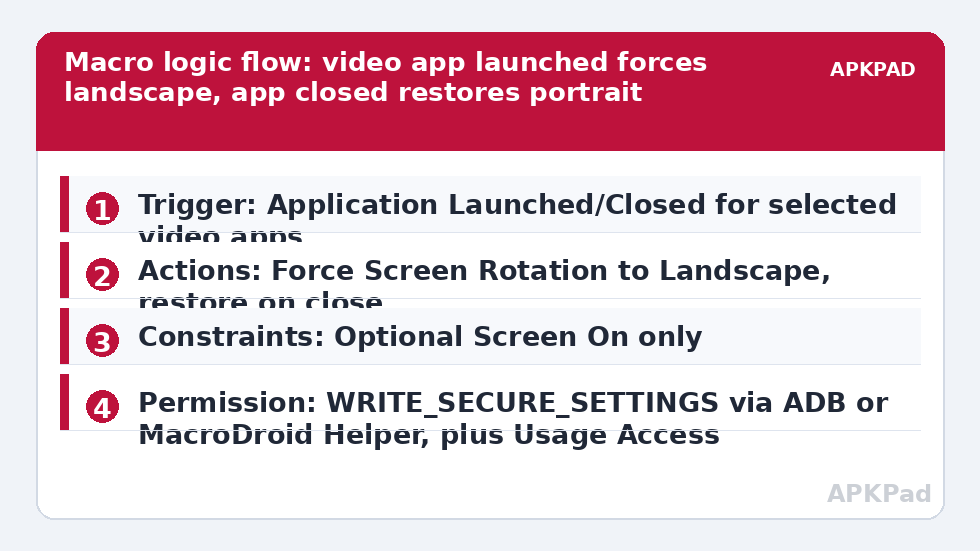
This build uses two paired macros rather than one clever one. The first forces landscape when a chosen video app launches. The second restores your normal setting when that app closes. Keeping the entry and exit rules separate makes faults obvious: if entering works and leaving does not, you know exactly which half to inspect.
Build the macro: automate screen orientation video apps macrodroid workflow in full
Start in MacroDroid and create a new macro called Video Landscape On. Add the trigger first, then the rotation action, then decide whether you need any constraints at all. For a first version, keep constraints empty. A simple macro that you have tested beats a clever macro with five conditions you half remember setting.
| Element | Setting in this build |
|---|---|
| Trigger | Application Launched/Closed > Application Launched, with YouTube, VLC and your gallery player selected |
| Actions | Force Screen Rotation > Landscape; optional Wait Before Next Action of 1 second before it on slow devices |
| Constraints | None required for the basic build; optional Screen On constraint so a background launch does not rotate a locked phone |
Then create the companion macro, Video Landscape Off. Its trigger is the same Application Launched/Closed trigger switched to the closed event for the identical app list. Its action is Force Screen Rotation set either to Portrait or back to your system default if you normally live with auto-rotate on. Match the two app lists exactly. The most common self-inflicted bug in this setup is adding a new video app to the entry macro in March and forgetting the exit macro until the phone is stuck sideways in June.
Step by step: the entry macro
- Open MacroDroid, tap Add Macro, and add a trigger: Application Launched/Closed. Choose the launched option and tick only the video apps you actually watch in landscape.
- Add the action Force Screen Rotation and select Landscape. On devices where MacroDroid warns that this action needs extra permission, stop here and do the permission step below before testing.
- Save the macro, back out to the home screen, and open one of the listed apps from a cold start. The display should turn within a moment of the app coming to the foreground.
- If the rotation happens before the video surface is ready and the player redraws awkwardly, insert a Wait Before Next Action of about a second between the trigger and the rotation action.
Be selective with the app list. Short-form and browsing-heavy apps are usually better in portrait even though they contain video, because comments, descriptions and channel pages are designed for a tall screen. Reserve forced landscape for long-form players where the picture is the whole point of opening the app.
Permission that this step needs, named at the step
Force Screen Rotation changes a system-level display setting, so expect a permission prompt on many devices. Where MacroDroid asks for it, grant WRITE_SECURE_SETTINGS through an ADB command from a computer, or install the MacroDroid Helper app and let it perform the action. That requirement applies at this exact step, not as an afterthought: without the grant, the macro fires, the log shows the action ran, and the screen simply stays where it was. MacroDroid also needs Usage Access so the Application Launched/Closed trigger can reliably detect which app has come to the foreground, and its Accessibility Service improves that detection on several OEM skins.
None of this needs root, and you should be suspicious of any guide that tells you to root a modern phone just to rotate a screen. If ADB is new to you, do the grant once, reboot, and test again before changing anything else in the macro. Changing the macro and the permission at the same time leaves you unsure which one fixed it.
How to read this: the estimate adds a small always-on idle cost for MacroDroid itself (about 0.4% of battery per day) to a per-class daily cost for each trigger type you use, scaled slightly by how many macros you run. These are planning estimates from that transparent model — not measurements from your phone. Use them to compare setups before you build, then confirm against the real numbers under Android Settings → Battery.
Making the exit as reliable as the entry
Detection of an app closing is inherently messier than detection of it opening. Android may keep a player in memory, you may swipe it away, or you may simply press Home and open something else. Test all three exit paths. Pressing Home is the case users forget: the video app has not closed, it has been backgrounded, so a strictly closed-based trigger may not fire until the system eventually reclaims it.
If Home exits leave you sideways, add a second restore route rather than complicating the first. A common companion is a macro triggered when your launcher or home app launches, restoring portrait. That way, arriving at the home screen always means portrait, regardless of whether the video app formally closed. Keep that launcher rule narrow so it does not fight other landscape apps such as games, which you can protect with an Application Running constraint or by excluding games you play in landscape.
Readers who enjoy this app-context approach usually extend it to sound as well. The pattern in automating media volume lowering for quiet apps uses the same launch detection, while automating a screen brightness boost for camera and gallery pairs a launch trigger with a restore on close in exactly the same two-macro structure. All of these live in our Macro Triggers category.
When rotation flickers or fights you
Flicker almost always means two rules disagree. Check for a system auto-rotate setting that the player is honouring at the same time as your forced value, a second macro from an earlier experiment that you never deleted, and any built-in game or video toolbox on Samsung, Xiaomi or OnePlus phones that applies its own orientation preference. Disable extras one at a time. The MacroDroid system log, filtered to these two macros, will show you the firing order and settle arguments about which rule ran last.
Also respect the physical sensor edge case: if you open a video app while the phone is flat on a table, a forced setting is actually your friend, because the accelerometer has no gravity direction to work with when the device is horizontal. That is one more reason a deterministic app-based rule beats sensor auto-rotate for video in the first place.
The failure that explains most reports
If both macros work all evening and are dead by morning, do not rebuild them. The likeliest culprit is the phone maker power manager terminating MacroDroid overnight, so no trigger is ever observed. That background killing is the single biggest cause of this automation failing in the real world. Fix it directly: set MacroDroid to Unrestricted in Android battery settings, exclude it from battery optimisation, and on Xiaomi, Oppo, Vivo and Samsung devices also enable its autostart or lock it in the recent apps list so the cleaner cannot sweep it away. Then reboot and test the next morning before declaring victory.
Small refinements worth adding later
- Add a constraint for headphones or Bluetooth audio if you only watch landscape video with earbuds in.
- Use a variable to remember your previous rotation mode instead of hard-coding the restore value.
- Exclude navigation and maps apps, which have their own sensible orientation logic while driving.
For a related entry-point idea, see how a headphone plug-in trigger launches a music player handles the same foreground detection problem from the audio side.
Frequently Asked Questions
Will forcing landscape break apps that already handle rotation themselves?
Some players manage rotation internally and will fight an external setting for a second before settling. Test each app individually, keep the macro scoped to the apps that actually need help, and remove any app that behaves worse with the force action than without it.
Do I need root to force screen rotation in MacroDroid?
No, root is not required for the basic build. On many phones the Force Screen Rotation action works after you grant WRITE_SECURE_SETTINGS through ADB or install the MacroDroid Helper app. A small number of heavily customised devices still restrict it, and those will show the action failing in the MacroDroid log.
Why does the screen stay in landscape after I leave the video app?
The restore macro is missing, disabled, or was killed before it could run. You need a second Application Launched/Closed trigger set to the closed event for the same apps, returning rotation to portrait or to system auto-rotate. Check that both macros are enabled and that MacroDroid is excluded from battery optimisation.
Can I force portrait instead for reading or chat apps?
Yes, the same pattern works in reverse. Clone the macro, change the Force Screen Rotation value to portrait, and scope it to your reading, chat or banking apps. Keep the app lists separate so a video rule and a portrait rule never target the same application.
What happens when two video apps are open in split screen?
Split screen is the awkward case because both apps share one display rotation. The most recently launched app usually wins, which can look like flickering if you keep switching focus. For split-screen use, drop the forced rotation for those sessions or add a constraint that pauses the macro while split screen is active.