Unplugging a cable in the dark is silent, and Android’s default charging tone tells you almost nothing about what actually changed. A charging stopped voice alert macrodroid setup fixes that gap by speaking a clear sentence the moment power is cut, so you hear “charging stopped, battery at eighty-four percent” from across the room instead of guessing whether the cable slipped out or the charge genuinely finished. This guide builds that macro properly, with a spoken confirmation for a full battery, a different warning for an accidental disconnect, and constraints that stop it talking at 2 a.m.
If you are exploring the wider category first, the Macro Triggers index collects every guide in this series. Two close relatives are worth opening alongside this one: the companion guide to automated low battery alert messages covers the opposite end of the battery cycle, and automate cloud photo backup while charging shows what else Power Connected can start.
What the charging stopped voice alert macrodroid macro actually does
At its core the macro listens for one electrical event and turns it into speech. MacroDroid already knows when the charger connects and disconnects because Android broadcasts that change to registered apps. Your job is not to detect power yourself. Your job is to decide which disconnects deserve a voice, what that voice should say, and when it should stay quiet. A cable knocked loose at forty percent is a problem worth announcing loudly. A deliberate unplug at one hundred percent deserves a short, calm confirmation. Treating those two cases as the same sound is why most people’s first attempt gets deleted within a week.
The build below uses two macros that share one idea. The main macro handles any disconnect below full charge and speaks the current level using MacroDroid’s magic text for battery percentage. A second, smaller macro handles the full-charge case so you get a distinct “battery full” message. You can start with just the first macro and add the second once the basic flow works on your handset.
Macro breakdown: trigger, actions and constraints
| Trigger | Power Disconnected (Battery / Power category). Optional second macro: Battery Level trigger set to Equals 100% while charging for the full-charge announcement. |
| Actions | Speak Text with magic text for battery level, e.g. “Charging stopped. Battery is at [battery%] percent.” Optional: Vibrate (short pattern) before speech, Wait 1 Second, Play Sound as a lead-in tone on the second macro. |
| Constraints | Battery Level constraint to separate partial disconnects from full charge, Time of Day constraint to suppress speech overnight, Screen State or Speakerphone / Headphones Connected constraint if you only want speech on loudspeaker, MacroDroid Mode constraint if you use modes. |
Read the table as a contract. The Trigger is non-negotiable: Power Disconnected is the real MacroDroid trigger name, found under Battery / Power when you add a trigger, and no other trigger gives you the same instant response. The Actions are where your personality goes, in the wording, the voice speed, and whether you add vibration for noisy rooms. The Constraints are where the macro earns its keep, because an unconstrained voice alert will eventually embarrass you in a meeting or wake a house guest, and then you will disable the whole thing instead of fixing one condition.
Step by step: building the disconnect announcement
-
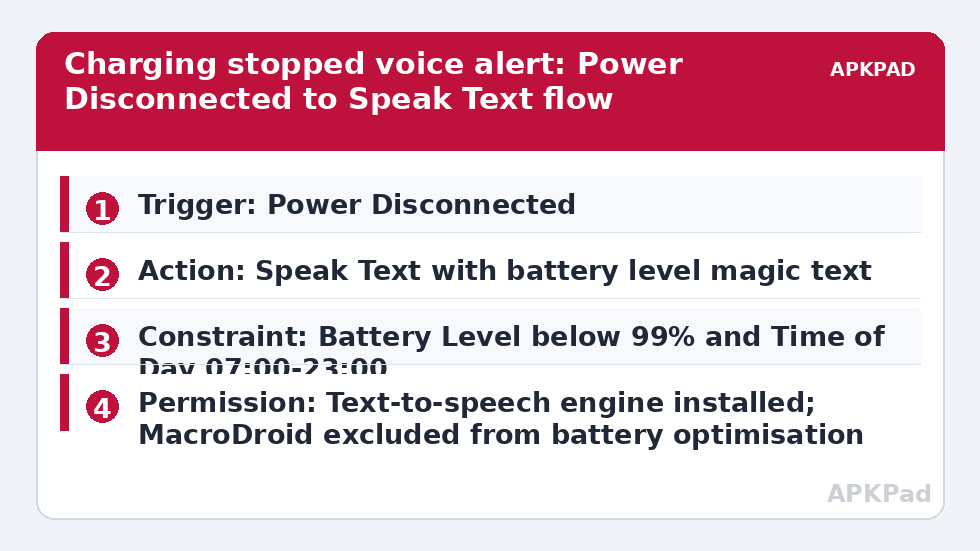
Open MacroDroid, tap Add Macro, and add the trigger Power Disconnected. If your phone is currently plugged in, leave it plugged in until the macro is saved, so you can test with a real unplug.
-
Add the action Speak Text, under the Voice Output / Text to Speech area in current MacroDroid builds. Type a sentence that includes the magic text variable for battery level. Tap the magic text button inside the action editor rather than typing brackets by hand, and pick Battery Level so the spoken value is always live.
-
Still inside Speak Text, choose your audio stream. Media is the sensible default for most people because it follows your media volume. Alarm stream is louder and bypasses some quiet profiles, which helps in a kitchen but is rude in an office. Pick one deliberately instead of leaving the default and hoping.
-
Add a Vibrate action before Speak Text if your disconnects usually happen with the phone in a bag or face down on a desk. A half-second pattern gets attention without adding a second spoken sentence.
-
Add your constraints. Tap Add Constraint and choose Battery Level, set to Less Than 99%, so this macro stays silent when the dedicated full-charge macro should speak instead. Add a Time of Day constraint, for example 07:00 to 23:00, if overnight silence matters.
-
Save, name the macro plainly, for example “Charging Stopped – Voice”, and test by unplugging. Listen for three things: that it speaks at all, that the percentage matches the status bar, and that it does not repeat. A single disconnect should produce a single announcement.
For the full-charge partner macro, use the Battery Level trigger at 100% with a Charging State constraint of Charging, then Speak Text with a fixed sentence such as “Battery full. You can unplug the charger.” Keep its wording short: people stop listening to voice alerts that ramble.
How to read this: the estimate adds a small always-on idle cost for MacroDroid itself (about 0.4% of battery per day) to a per-class daily cost for each trigger type you use, scaled slightly by how many macros you run. These are planning estimates from that transparent model — not measurements from your phone. Use them to compare setups before you build, then confirm against the real numbers under Android Settings → Battery.
Permissions this macro needs, stated at the step
Speak Text uses Android’s text-to-speech engine, so you need a working TTS voice installed, normally Google Speech Services or your OEM engine, with a language pack downloaded for offline use. Without the pack, speech can fail silently when you are in airplane mode or on a poor connection. MacroDroid itself needs to be allowed to run in the background, and on Android 13 and later it needs the Notifications permission so its persistent foreground notification can keep the service visible to the system. If you add the optional full-charge macro with a notification action later, Notification Access is only required if you read or react to other apps’ notifications, which this build does not, so do not grant it here just in case. No step in this guide needs the MacroDroid Helper app, no step needs an ADB grant of WRITE_SECURE_SETTINGS, and nothing here needs root or device admin. If a forum post tells you otherwise for a simple Speak Text macro, that post is solving a different problem.
Why it fails: the battery optimisation problem
The number one reason this macro fails is OEM battery management killing MacroDroid in the background. Samsung’s sleeping apps list, Xiaomi’s MIUI battery saver, Oppo and Vivo’s aggressive autostart controls, and similar systems from other brands all learn that MacroDroid is not a chat app and quietly freeze it. When the process is frozen, Power Disconnected fires at system level but nobody is awake to speak, so you get silence exactly when the cable falls out overnight. The fix is boring and essential: exclude MacroDroid from battery optimisation in Android Settings, Apps, Special Access, Battery Optimisation, and then also allow autostart and remove per-app battery restrictions inside your OEM’s own battery menu, because many phones have both layers. Lock MacroDroid in the Recents screen if your OEM offers that pin. Test the fix by leaving the phone charging, screen off, untouched for twenty minutes, then unplugging. A test done thirty seconds after setup proves nothing, because the process was still warm.
Tuning the voice so you keep the macro switched on
Two small settings decide whether this macro survives long term. The first is pitch and speed inside Speak Text. The default TTS voice at default speed sounds robotic reading numbers, so slow it slightly and test the exact sentence with a two-digit percentage, since “eighty-four percent” is where robotic voices stumble. The second is duplication control. Some phones report a brief disconnect and reconnect when a loose cable wobbles, which can produce two announcements seconds apart. Adding a Wait action alone does not solve that. Instead, enable the macro’s built-in option to prevent re-triggering for a few seconds if your MacroDroid version exposes it, or add a constraint based on a user variable that records the last announcement time. Start simple: if wobble repeats are not happening on your cable, do not build machinery for them.
Think also about where the phone charges. A bedside charger benefits from the Time of Day constraint and a modest media-stream volume. A workshop charger benefits from the alarm stream and vibration, because speech competes with tools and fans. Same trigger, same sentence, very different delivery, and constraints are how you express that difference. Users who charge in both places often clone the macro and change only the constraints and stream, which is cleaner than one macro stuffed with nested conditions. One caution: keep your overnight quiet hours here consistent with any Do Not Disturb schedule you run elsewhere, because mismatched quiet hours are a common reason people think the voice macro is broken when it is actually obeying a constraint they forgot they set.
Frequently Asked Questions
Why does the voice speak twice when I unplug the charger?
Most double announcements come from a loose cable or a charging pad that disconnects, reconnects, and disconnects again within seconds, firing Power Disconnected twice. Reseat the cable, try a different lead, and if the repeats continue, add a short re-trigger block in the macro settings or store the last spoken time in a variable and constrain on it.
Can the alert announce the battery percentage every time?
Yes. Insert the Battery Level magic text inside the Speak Text action using the magic text picker, and MacroDroid will read the live percentage at the moment of disconnect. Type the sentence around it naturally, for example “Charging stopped at [level] percent,” and test with a partial charge so you hear a two-digit number spoken.
Why is there no speech when the phone is on silent?
It depends on the audio stream you chose in Speak Text. The media stream follows media volume and can be inaudible on silent, while the alarm stream usually still plays. Check which stream the action uses, raise that specific volume slider, and confirm your Time of Day constraint is not suppressing the macro.
Does this macro need the MacroDroid Helper app or root?
No. Power Disconnected and Speak Text are standard MacroDroid features that work on a stock, unrooted phone. The Helper app, ADB grants, and root are needed for certain system-setting and shell actions on some devices, none of which this macro uses, so you can skip them entirely for this build.
Will the alert work with wireless charging pads?
Yes, in almost all cases, because Android reports wireless power through the same connected and disconnected broadcasts as wired charging. Lifting the phone off the pad fires Power Disconnected and the voice speaks. Very brief lifts to reposition the phone can also trigger it, which is another reason the overnight time constraint is worth setting.