Here is a setting many users have never seen: with Wi-Fi switched off, Android may still wake the Wi-Fi radio briefly to scan for nearby networks, purely to work out where you are. The same is true for Bluetooth beacons. Learning when to disable wifi bluetooth scanning battery macrodroid users can treat this as a genuine but modest saving — one that costs you indoor location accuracy — and this guide gives you the trade in plain terms so the decision is yours, made with numbers from your own phone.
What it means to disable wifi bluetooth scanning battery macrodroid settings control
Location on Android is a team effort. GPS is precise outdoors and expensive; cell towers are cheap and coarse; Wi-Fi scanning fills the gap indoors, where the list of visible networks is a fingerprint for a specific building. Bluetooth scanning listens for beacons in shops, airports and some homes. Apps and system services request location, the system decides which methods to use, and scanning is what lets it answer without firing up GPS every time. That is an important nuance: scanning often saves battery compared with the GPS alternative. Turning it off helps only when location requests are frequent and GPS would not have been used anyway, or when you simply do not need precise location at home at all. This is the same cost-versus-accuracy balance explored in cell tower versus GPS location triggers, applied to a system setting instead of a trigger choice.
So the honest framing is: scanning off trades accuracy for a small, device-dependent saving. On a phone whose apps rarely ask for location, the saving may be too small to measure. On a phone with several location-hungry apps, it can be worth having — as a typical estimate, think in terms of a percent or so a day at most, varying by device and app mix, never a transformation.
How to read this: the estimate adds a small always-on idle cost for MacroDroid itself (about 0.4% of battery per day) to a per-class daily cost for each trigger type you use, scaled slightly by how many macros you run. These are planning estimates from that transparent model — not measurements from your phone. Use them to compare setups before you build, then confirm against the real numbers under Android Settings → Battery.
Step by step: finding and changing the scanning settings
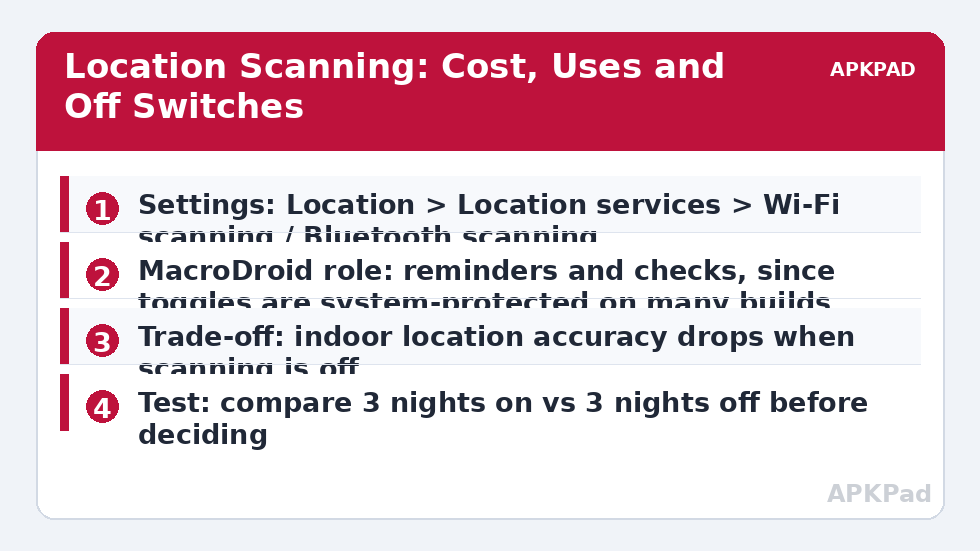
- Open Settings and search for scanning — on many builds the toggles live under Location, then Location services, labelled Wi-Fi scanning and Bluetooth scanning.
- Read the description on your own device carefully; OEM wording differs, and some builds combine the two under one switch.
- Before changing anything, note your current overnight drain for two or three nights as a baseline.
- Turn both scanning options off, live normally for three nights, and compare the same overnight figure.
- If location-dependent routines suffer — a home geofence firing late, a lost-phone check showing the wrong building — turn scanning back on and accept the smaller saving as the right answer for your life.
Where MacroDroid genuinely helps here
| Job | MacroDroid approach | Limit |
|---|---|---|
| Remind you to review scanning after a trip | Weekly or post-travel notification opening the location settings | You still flip the switch yourself on most builds |
| Gate your own location macros | Replace GPS-heavy checks with cell or Wi-Fi-connected triggers at home | Your macros only — system and app requests are unaffected |
| Detect a location-drain pattern | Log when location-heavy macros fire overnight | Shows your automations, not every app’s requests |
| Toggle scanning directly | System setting action where the build allows it | Often needs ADB secure settings or root; varies by OEM |
The most valuable MacroDroid contribution is usually upstream: making your own automations cheaper so the system scans less on your behalf. If your arrival-home routine uses a Wi-Fi-connected trigger instead of periodic GPS, you remove a stream of location requests entirely. That pattern connects directly with disabling GPS for non-navigation apps, and with the delayed-off logic in Bluetooth deactivation after disconnect — all three reduce how often radios wake for location-ish jobs. Find them together in the battery hacks collection on APKPad.
Who should not turn scanning off
Some users should leave scanning alone entirely. If you rely on precise indoor location — finding a phone or a person in a large building, accessibility features that depend on location, or geofences tight enough to distinguish your flat from the street — the accuracy is the point and the small battery cost is a fair price. Parents using location sharing for children, and anyone whose safety routines depend on a phone being findable at home, should treat scanning as a feature they are paying a little battery for, knowingly. Likewise, if your three-night test shows no measurable difference, turn it back on: a setting that costs a feature and saves nothing you can detect is not a hack, it is a superstition.
Permissions and OEM differences
Reading and changing scanning settings needs no MacroDroid permission — they are ordinary system settings. Automating them is the restricted part: on many Android versions these values sit behind secure settings, so a macro action may need WRITE_SECURE_SETTINGS via ADB or may simply not exist for your build. Menu paths also vary: Pixel, Samsung, Xiaomi and others place the toggles differently and occasionally rename them, and some carrier builds hide them. Search in Settings is the reliable route on every device.
Troubleshooting: location got worse and battery did not improve
My home automation triggers late now. Your geofence was leaning on Wi-Fi scanning for its indoor precision. Re-enable Wi-Fi scanning only, keep Bluetooth scanning off, and retest — the two toggles are independent bargains. No battery difference at all. Your apps were not requesting location often enough for scanning to matter; the honest result is to restore accuracy and look for drain elsewhere. The settings turned themselves back on. Some OEM setup wizards and location-permission prompts re-enable scanning when you grant an app high-accuracy location. Recheck after installing apps that ask for precise location.
Making the decision with your own three-night experiment
Because the saving is small and the accuracy cost is real, this setting deserves an experiment rather than an opinion. Run it as a fair test: three nights with scanning on, three nights with it off, same room, similar charge at bedtime, no other changes — the same discipline the benchmark guide applies to every claim in this category. Record one extra thing alongside drain: how your location-dependent life felt. Did the morning routine fire at the right place? Did a shared location look right at home? A 0.4% nightly difference with noticeably worse indoor location is a bad bargain; a 1.5% difference with no felt cost is a good one. Both results are wins, because both are yours.
Also revisit the decision when your app mix changes. Installing a fitness app that tracks routes, a family location service, or a smart-home system that leans on presence detection all change how often location is requested, and therefore what scanning costs and what it buys. Settings like this are not set-and-forget; they are set-and-revisit, ideally on the same rhythm as the other checks in this category. If your phone also carries a second line, the radio picture interacts with second SIM scheduling — review the two together rather than optimising each in isolation.
One final place to check: some phones expose a separate setting for Bluetooth scanning used by nearby-device features and fast pairing, distinct from location scanning. If your goal is the quietest possible radio picture, review those nearby-device options too — but change one switch at a time, or your three-night experiment will not be able to say which change earned which result.
Frequently Asked Questions
If Wi-Fi is off, how can Wi-Fi scanning still use battery?
Because location scanning is a separate permission for the radio to wake briefly and listen for nearby networks and beacons, even when Wi-Fi is off for connections. Each scan is small; the cost is in how often location requests trigger them.
What breaks if I turn scanning off?
Location accuracy indoors and in dense cities gets worse, because the phone loses the Wi-Fi and beacon clues it uses when GPS is weak. Navigation outdoors is mostly unaffected, but ‘find my phone at home’ and some geofences become less precise.
Can MacroDroid toggle scanning automatically?
On many builds these are protected system settings that MacroDroid cannot reliably switch without ADB-granted secure settings access or root, and behaviour varies by OEM. Treat any automation here as device-specific and test the single action first.
How much battery does scanning actually use?
Typically a small amount — often well under a few percent a day, and near zero on a phone whose apps rarely request location. The saving is real but modest as a typical estimate, so it should not come at the cost of location features you depend on.
Does turning scanning off stop apps tracking my location?
No. It removes one positioning method; apps with location permission can still use GPS and network location. For privacy, manage per-app location permissions — scanning settings are a battery and accuracy choice, not a privacy switch.