The button is still on your home screen. It still shows the right name. You tap it, and absolutely nothing happens — no error, no vibration, no run in the log. To fix widget shortcut macros not responding macrodroid entries you have to think in layers: the launcher owns the button, MacroDroid owns the macro, and the battery manager decides whether the tap is allowed to wake anything. A failure in any one layer produces the same dead tap, which is why randomly reinstalling things so rarely fixes it.
Isolate the macro first. Open MacroDroid, find the macro the widget should run, and run it manually from inside the app. If it fails there too, your problem is the macro, not the widget — stop and fix the macro. If it runs perfectly, note the exact macro name and leave the app through the Home button. Now tap the widget once and return to MacroDroid’s System Log. No entry at the tap time means the tap never arrived; an entry means the macro started and something inside it behaved differently from the home screen context. That single observation splits this guide in half.
Why Home-Screen Entry Points Go Dead
These causes are ordered by how often they explain a dead tap after the macro itself has passed its manual test.
- Stale widget or shortcut reference: the home-screen entry still points at the macro as it was before an edit, rename, or re-import, and the reference no longer resolves.
- Launcher state broken: a launcher update, a switch of default launcher, or cleared launcher data orphaned the widget while leaving its icon behind.
- Process killed before delivery: the OEM battery manager has MacroDroid asleep, and the tap’s start request is discarded or deferred until the app is next opened by hand.
- Macro disabled or its trigger changed: the macro was disabled during earlier troubleshooting, or the widget was bound to a trigger that no longer exists in the edited macro.
- Overlay and fullscreen interference: for floating buttons rather than launcher widgets, another app’s overlay or a fullscreen app can sit above the button and swallow the tap.
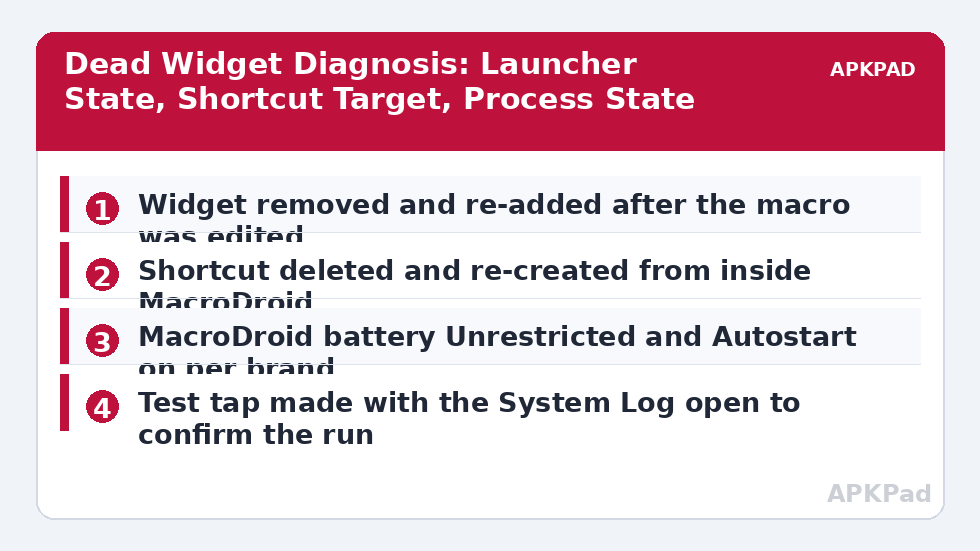
Fix Widget Shortcut Macros Not Responding, Layer by Layer
Rebuild the entry point before you touch system settings: it is faster, it is reversible, and in the majority of cases the stale reference is the whole fault.
Step 1: Re-Create the Widget or Shortcut From Scratch
Long-press the dead widget or shortcut and remove it from the home screen. Then create a brand-new one from inside MacroDroid — open the macro, use its add-shortcut or widget route if your version offers one, or add the MacroDroid widget from the launcher’s widget picker and select the macro when prompted. A fresh entry binds to the macro as it exists now, which cures every stale-reference case in one move. Test the new entry immediately, before re-adding anything else to that home screen. If the macro uses a floating button instead, check its behaviour against the floating button disappearing in fullscreen guide, because overlay entries fail for different reasons than launcher widgets.
- Dead widget or shortcut removed from the home screen.
- New entry created from inside MacroDroid or the widget picker.
- New entry tested immediately and confirmed in the System Log.
How to read this: the estimate adds a small always-on idle cost for MacroDroid itself (about 0.4% of battery per day) to a per-class daily cost for each trigger type you use, scaled slightly by how many macros you run. These are planning estimates from that transparent model — not measurements from your phone. Use them to compare setups before you build, then confirm against the real numbers under Android Settings → Battery.
Step 2: Make Sure the Tap Can Wake MacroDroid
If a fresh widget still only works shortly after you have opened MacroDroid, the battery manager is eating the tap. Apply the full exemption set for your brand: MacroDroid’s battery use set to Unrestricted on Pixel and stock builds; on Samsung, Battery set to Unrestricted plus MacroDroid added to Never sleeping apps; on Xiaomi’s MIUI and HyperOS, Autostart on and battery set to No restrictions; on Oppo and Realme’s ColorOS, Allow background activity and Allow auto launch. This is the same exemption set that stops MacroDroid being killed outright in the background OEM killing guide, just judged by a widget tap instead of a timed macro. Then wait — genuinely wait, an hour or more of the phone being idle — and tap the widget without opening MacroDroid first. That delayed test is the only one that proves this layer.
- MacroDroid battery exemption applied per brand, including the OEM’s second list where one exists.
- Autostart enabled on MIUI, HyperOS and ColorOS.
- Widget test passed after at least an hour of the phone sitting idle.
Step 3: Check the Launcher’s Own Permissions and State
The launcher is an app too, and on some builds it needs its own background freedom to deliver widget taps reliably, especially third-party launchers on aggressive OEM skins. Confirm your launcher is still set as the default Home app, check whether a recent launcher update reset its data, and if you use a third-party launcher on MIUI or ColorOS, give it autostart and background allowances as well. If widgets from several different apps are all dead, the launcher is the common factor and reinstalling or switching the launcher — after noting your layout — is a more honest fix than rebuilding every widget on the phone.
- Default Home app confirmed as the launcher you actually use.
- Third-party launcher given autostart and background allowance on MIUI and ColorOS.
- Cross-app check done: if all widgets are dead, the launcher is treated as the fault.
Verify the Fix: The Cold Tap Test
The verification that matters is a cold tap: phone idle for at least an hour, MacroDroid not opened in that time, screen showing the home page where the entry lives. Tap once. The macro should run within a couple of seconds, and the System Log should show the run with the widget or shortcut named as its source. Repeat the cold tap the following morning, because overnight is when battery managers do their deepest work and when a fix that passed at teatime quietly fails. If the entry runs a toggle-style macro, remember the lesson from the APKPad homepage guides and the Fixes & Errors index: a macro that fired twice looks identical to one that never fired, so check the log rather than the end state — and if the log shows doubles, the sibling article on macros running twice is your next stop.
When This Fix Won’t Work
A widget cannot outrun a launcher that is fundamentally broken or a device policy that forbids background starts: work-profile launchers and kiosk-style managed devices can block these entry points by design, and only the administrator can change that. Some ultra-aggressive battery builds will still delay a cold tap until the next natural wake, in which case a notification-based or Quick Settings entry point may prove more reliable on that specific phone than any home-screen widget. And if the macro itself needs a permission that was revoked — notification access, accessibility — the widget will faithfully start a macro whose key action then fails, which sends you back to the System Log and the permission guides rather than to the home screen again.
Frequently Asked Questions
Why did my widget stop working after I edited the macro?
Widgets and shortcuts hold a reference to the macro as it was when they were created. Significant edits — renaming, restructuring, or recreating the macro — can leave the home-screen entry pointing at a stale reference. Remove the widget or shortcut, confirm the edited macro runs from inside MacroDroid, then add a fresh widget so it binds to the current macro.
My shortcut works from inside MacroDroid but not from the home screen. Why?
Because the entry point is the broken layer, not the macro. The launcher may be holding a dead shortcut, the launcher itself may be restricted from starting MacroDroid in the background, or the OEM battery manager kills the process before the tap is delivered. Re-create the shortcut, then check battery and autostart settings for both MacroDroid and your launcher.
Do widgets die when the launcher updates or changes?
They can. A launcher update, a switch to a different launcher, or a launcher data reset can orphan widgets and shortcuts while the macros themselves remain intact inside MacroDroid. Re-adding the widget after any launcher change is normal maintenance, not a sign that your macros are lost.
Why does the widget respond only when MacroDroid was recently open?
That fingerprint points at background killing: once MacroDroid has been used recently it is warm and the tap lands; after hours idle the process is dead and the tap has nothing to wake it on your build. Set MacroDroid to Unrestricted battery use, enable Autostart on MIUI, HyperOS and ColorOS, and add it to Never sleeping apps on Samsung.
Can a floating button replace a broken widget?
Often yes, and it is a good diagnostic as well as a workaround. A MacroDroid floating button lives inside MacroDroid’s own overlay rather than the launcher’s widget system, so if the floating button runs the macro reliably while the widget does not, you have isolated the fault to the launcher layer.