Almost every serious MacroDroid automation that touches system behaviour eventually hits the same wall: the macro is built correctly, the trigger fires, and the action quietly does nothing. Nine times out of ten the missing piece is a single permission. When you grant ADB WRITE_SECURE_SETTINGS to MacroDroid, you unlock the class of actions that read and write Android’s secure settings store — private DNS, immersive mode, screen timeout values, UI tweaks — with no root required. This guide walks through the grant step by step, how to prove it worked, and how to take it back.
What WRITE_SECURE_SETTINGS actually allows
Android divides its settings database into three namespaces: system, secure, and global. The secure and global namespaces hold values the OS considers sensitive, so normal apps cannot write to them unless they hold the WRITE_SECURE_SETTINGS permission. That permission is never granted through a normal install prompt. It can only be handed out by the system itself, by root, or by an ADB shell — which is exactly the route used here.
With the grant in place, MacroDroid’s System Setting action can write values that otherwise fail silently. The MacroDroid Helper app needs the same treatment, because many actions are executed by the Helper rather than the main app. Grant it to both packages:
com.arlosoft.macrodroid— the main MacroDroid appcom.arlosoft.macrodroid.helper— the Helper companion app
Treat this permission with respect. An app holding it can change accessibility state, default applications, and dozens of behaviour switches. That is precisely why this guide frames the grant narrowly: give it to MacroDroid and its Helper, which you already trust with automation, and to nothing else unless you can state exactly why.
What you need before starting
| Requirement | Notes |
|---|---|
| A computer with ADB platform-tools | Download Google’s official platform-tools package for Windows, macOS, or Linux |
| USB cable, or Wi-Fi on the same network | Wireless debugging works on Android 11 and later |
| MacroDroid installed | Install the Helper app too if you plan to use shell or file actions |
| About ten minutes | The grant itself takes under a minute once ADB is talking to the phone |
Step 1: Enable Developer Options and USB debugging
- Open Settings → About phone and tap Build number seven times until you see the developer mode message.
- Go to Settings → System → Developer options.
- Enable USB debugging. On Xiaomi, Oppo, and Vivo phones, also look for a separate “USB debugging (Security settings)” toggle — without it, permission grants are rejected.
- Connect the phone to the computer and accept the “Allow USB debugging?” prompt on the phone, ticking “Always allow from this computer”.
Step 2: Confirm ADB can see the phone
Open a terminal in the folder where you extracted platform-tools and run:
adb devices
You should see your device serial followed by the word device. If it says unauthorized, unlock the phone and accept the debugging prompt. If nothing is listed, swap the cable or USB port before changing any software settings — bad cables cause most failures at this stage.
How to read this: the estimate adds a small always-on idle cost for MacroDroid itself (about 0.4% of battery per day) to a per-class daily cost for each trigger type you use, scaled slightly by how many macros you run. These are planning estimates from that transparent model — not measurements from your phone. Use them to compare setups before you build, then confirm against the real numbers under Android Settings → Battery.
Step 3: Run the ADB grant command for MacroDroid (no root)
With the connection confirmed, run the grant for the main app:
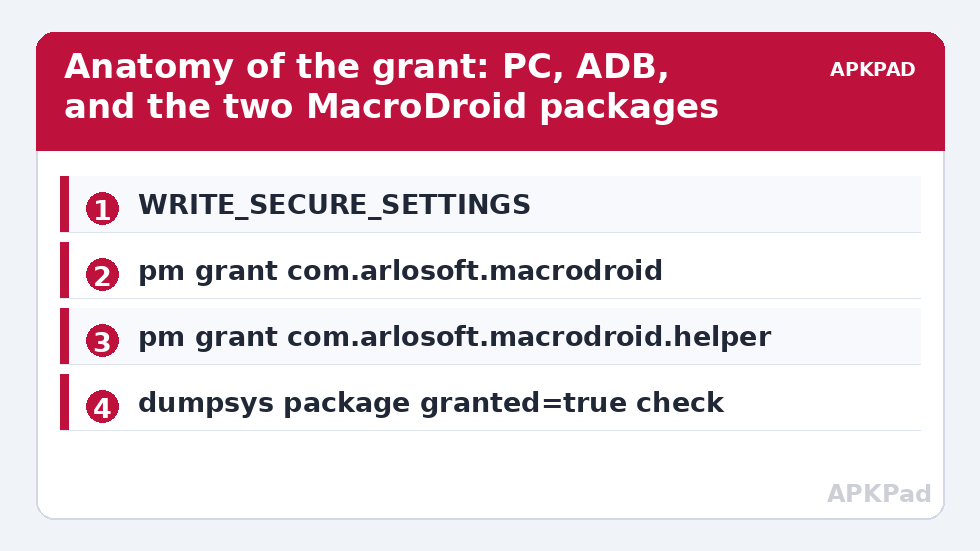
adb shell pm grant com.arlosoft.macrodroid android.permission.WRITE_SECURE_SETTINGS
Then the same command for the Helper:
adb shell pm grant com.arlosoft.macrodroid.helper android.permission.WRITE_SECURE_SETTINGS
A successful grant prints nothing at all — silence is the success message. An error such as “SecurityException” almost always means the OEM security toggle from Step 1 is off, or the package name was mistyped.
Step 4: Verify the grant actually stuck
Do not trust silence alone; verify. Run:
adb shell dumpsys package com.arlosoft.macrodroid | grep WRITE_SECURE_SETTINGS
The output should include the permission with granted=true. Then test inside MacroDroid itself: create a throwaway macro whose action writes a harmless secure value (the System Setting action will stop reporting that the permission is missing), or simply open an action that previously warned about ADB permissions and confirm the warning is gone. A fuller tour of what becomes possible afterwards lives in our power-user ADB commands cheat sheet.
Wireless alternative: no cable, Android 11+
On Android 11 and later you can do the whole job over Wi-Fi. Enable Wireless debugging in Developer options, tap “Pair device with pairing code”, then on the computer run adb pair 192.168.x.x:port using the address shown on the phone, enter the pairing code, then adb connect to the device’s main address and run the same grant commands. This is also the method to remember if grants ever need re-applying away from your desk.
Does the grant survive reboots and updates?
Yes — a permission granted this way persists across reboots, because it is recorded in the package manager’s grant state like any other permission. It can, however, be lost if you uninstall and reinstall MacroDroid, and some aggressive OEM builds have been known to reset grants after major OS updates. If a macro that used to work starts failing after an update, re-check with the dumpsys command above before rebuilding anything; our guide to ADB grants resetting after a reboot covers the stubborn cases.
How to undo the grant
Reversible-first is the rule for every system tweak on this site, and this one is fully reversible in seconds:
adb shell pm revoke com.arlosoft.macrodroid android.permission.WRITE_SECURE_SETTINGS
Run the matching revoke for the Helper package too. After revoking, MacroDroid actions that depend on secure settings writes will stop working — nothing else on the phone is affected, and you can re-grant at any time. You may also disable USB debugging afterwards; the grant remains valid because it no longer depends on the debugging connection.
Troubleshooting quick hits
- Command not found: you are not in the platform-tools folder, or ADB is not on your PATH. Use the full path to the adb binary.
- More than one device: add
-s SERIALafteradbto target one phone. - Grant works but actions still fail: the action may be executed by the Helper — confirm the Helper grant as well, then force-stop both apps and reopen them.
- MacroDroid still shows a banner: the banner sometimes refers to a different permission (such as DUMP or usage stats) listed in MacroDroid’s own ADB permissions screen under Settings. Grant exactly what that screen lists.
Once this foundation is in place, the rest of the system tweaks in this category — from automatic private DNS switching to immersive mode — become one-line setting writes instead of dead ends.
What changes inside MacroDroid once the grant lands
The moment the grant is active, a class of previously decorative actions starts working: System Setting writes to secure and global keys succeed, shell actions executed by the Helper gain their intended reach, and the warning banners inside MacroDroid’s ADB-dependent actions disappear. MacroDroid also maintains its own inventory under its Settings — an ADB permissions screen listing exactly which grants it wants and which it already holds. After finishing this guide, open that screen once and read it end to end: it is the authoritative checklist for your specific MacroDroid version, and re-checking it after major app updates is the fastest way to notice a newly introduced permission requirement before one of your macros fails in the wild.
Frequently Asked Questions
Is granting WRITE_SECURE_SETTINGS the same as rooting?
No. Root gives an app unrestricted control of the whole system. This grant only lets MacroDroid write to Android’s secure and global settings namespaces. It is narrower, survives independently of any root framework, and can be revoked with a single ADB command.
Is it safe to give MacroDroid this permission?
It is a powerful permission, so the honest answer is: only because MacroDroid is an established app you already trust with automation. The permission would let a malicious app change sensitive system behaviour, which is why you should never grant it to unknown apps, and why the revoke command is included in this guide.
Do I need to grant it to the Helper app as well?
Yes, if you use actions the Helper performs, such as shell script actions. Many users grant both packages at the same time to avoid chasing down which component executed a failing action.
Will the grant disappear after a reboot?
No. The grant is stored by the package manager and persists across reboots. It can be lost after uninstalling and reinstalling the app, and occasionally after a major OS update on some OEM builds — re-running the grant command restores it in under a minute.
Can I do this without a computer?
On Android 11 and later, wireless debugging lets another app on the phone act as the ADB client, but you still need a pairing step and a second app you trust. The computer route described here is simpler and leaves fewer moving parts.