Most notification sounds treat a delivery update and a message from your child’s school as equals. They are not. Setting up smart notification sound triggers priority contacts in MacroDroid means the phone stays quiet for routine alerts, but a call or message from the two or three people who genuinely matter gets a distinct, unmissable sound, even when the phone is on a soft profile. This is a filtering problem first, and a sound problem second.
Designing smart notification sound triggers priority contacts actually deserve
Start by writing your priority list on paper. If the list grows past five people, it stops being a priority list. Typical entries are a partner, a parent, a child’s caregiver, or an on-call manager during a defined work rotation. Everyone else keeps the normal notification sound, or silence. MacroDroid will use the Notification Received trigger, read which app and which contact or title produced the notification, and run Play Sound with a tone you choose only for those senders.
| Part | MacroDroid setting |
|---|---|
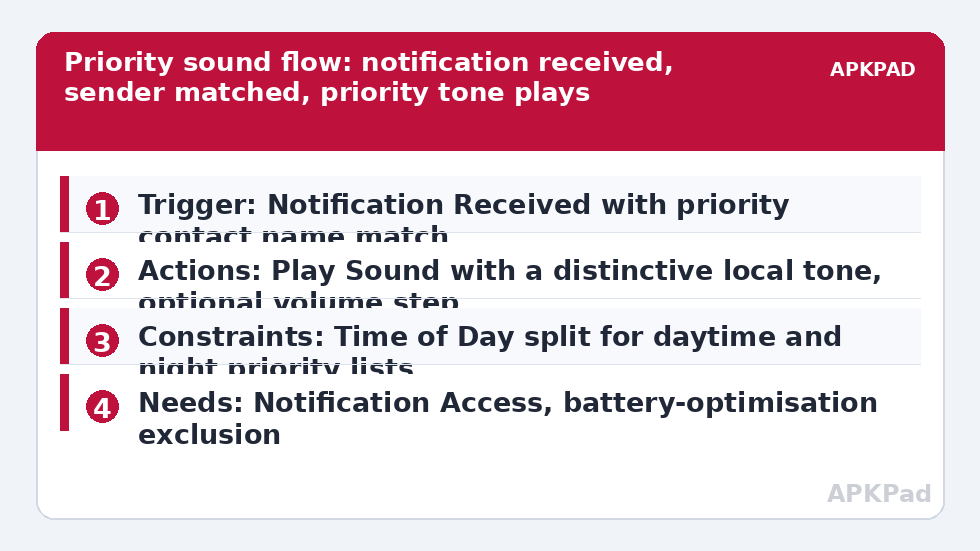
| Trigger | Notification Received from your messaging or dialer app, with text or title matching a priority contact name |
| Actions | Play Sound with your chosen priority tone, and optionally set Ringer or Notification Volume for that alert |
| Constraints | Time of Day or Do Not Disturb state constraints if priority rules change overnight, applied deliberately |
Use one macro per app at first, not one macro trying to parse every app on the phone. A WhatsApp priority macro and an SMS priority macro can play the same sound file while remaining easy to debug. If you merge them too early and matching fails, you will not know which app’s notification format caused it.
How to read this: the estimate adds a small always-on idle cost for MacroDroid itself (about 0.4% of battery per day) to a per-class daily cost for each trigger type you use, scaled slightly by how many macros you run. These are planning estimates from that transparent model — not measurements from your phone. Use them to compare setups before you build, then confirm against the real numbers under Android Settings → Battery.
Match the notification correctly
- Create the macro and add Notification Received. Select the app, for example WhatsApp, Messages, or your dialer-related notification source.
- Set the text match. MacroDroid can match notification title or content text. For most messaging apps the sender name appears in the notification title, so match Contains and enter the contact name exactly as it appears in a real notification. Send yourself a test message from that contact, or ask them to send one, and copy the spelling, spacing, and any emoji in their display name.
- Add the action Play Sound and pick a tone that is clearly different from your default. Choose a sound file stored on the phone, not a streaming source, so it plays instantly and offline.
- If you also raise volume, add the volume action before Play Sound, and think carefully about restoring it afterwards. A macro that raises notification volume for a priority alert and never lowers it will leave the phone loud all evening.
Exact matching is the fragile part. If a contact changes their display name, the match breaks. If two contacts share a first name, a Contains match on that first name alone will over-fire. Use the fullest name the notification shows, and test with a non-priority contact as well, proving the sound does not play for them. Negative tests matter as much as positive ones.
Permissions this setup needs
- Notification Access: essential. Without it MacroDroid cannot read Notification Received events. Grant it in Android Settings, Apps, Special app access, Notification access, MacroDroid.
- Storage or media access for a custom sound file if you use your own tone rather than a system sound, depending on Android version.
- Do Not Disturb access only if you add actions or constraints that change Do Not Disturb state. This macro alone, playing a sound, does not automatically override a silent or DND mode that blocks the audio channel it uses, so test in the mode you actually keep the phone in. If MacroDroid prompts for DND access for a step you add, grant it at that step.
No root, device admin, or Helper app is normally required for Notification Received plus Play Sound. If a volume or system-setting action on your specific handset prompts for the Helper app or an ADB grant, MacroDroid will say so at that action, and you should follow its guidance then rather than granting broad permissions in advance.
Making priority mean something at night
Priority rules at 2 p.m. and 2 a.m. are different decisions. Many people want priority contacts to break through during the day but only true emergencies at night. MacroDroid constraints let you split this into two macros: a daytime macro with the full priority list, and a night macro, constrained by Time of Day, with a shorter list and perhaps a more insistent sound repeated once. The guide to time-based Do Not Disturb routines pairs naturally with this, and the Macro Triggers overview shows how sound, time, and contact patterns combine.
Be honest about the social side. Telling someone they are a priority contact sets an expectation that you will respond. Keep the list short, review it when jobs or family circumstances change, and remove people without drama when a rotation ends. Also consider a different pattern for calls while the phone is face down, covered in the guide to flipping the phone face down to mute calls, which is the deliberate opposite of a priority alert.
The failure behind most silent priority alerts
The number one reason this macro fails is OEM battery management killing MacroDroid in the background, which also breaks its timely handling of notification events. The notification arrives, the default sound or silence happens, and the priority tone never plays because MacroDroid was asleep.
Exclude MacroDroid from battery optimisation in Android Settings, Apps, MacroDroid, Battery, by choosing Unrestricted. Then handle the manufacturer layer: on Samsung remove MacroDroid from Sleeping apps and Deep sleeping apps, on Xiaomi set battery to No restrictions and enable Autostart, and on other brands allow background activity in their app-launch controls. Restart once, then send a real priority test message with the phone locked and untouched for several minutes, because a phone you have just been using has not yet shown whether background handling works.
If the priority tone plays but also the app’s own default sound plays, that is not MacroDroid duplicating audio. To get only the priority sound, set that app’s normal notification sound to a quieter tone or silent for the relevant notification category in Android settings, and let MacroDroid supply the sound for priority senders, while understanding that non-priority messages from that app will then be quiet. That trade-off suits many people, but decide it consciously and test both a priority and a routine message afterwards.
Choosing a sound you will not learn to ignore
A priority tone fails in a second way: habituation. If it sounds like every other ping, your brain files it as routine within a week. Pick a longer, distinctive tone, different in rhythm from your default, and reserve it only for this macro. Do not reuse it for calendars, emails, or a favourite app. If you use a voice recording, keep it short and store it locally. Finally, revisit the volume question in real places: a tone that is clear in a quiet kitchen may vanish in a workshop, while a tone loud enough for a workshop is obnoxious in an office, which is why some users add a location or Wi-Fi-based constraint to choose between two priority sounds.
For escalation patterns beyond sound, the article on triggering an emergency alarm with a secret SMS covers the extreme end of the scale, which should stay separate from everyday priority contacts so the two signals never get confused.
Frequently Asked Questions
Why does the priority sound not play for a contact on my list?
Check the exact name in a real notification. Display names with different spelling, emoji, or a changed profile name will not match a Contains filter. Also confirm Notification Access is still granted to MacroDroid.
Can I have different sounds for different priority contacts?
Yes. Create a separate macro, or a separate Notification Received match, for each contact or small group, and assign each one its own Play Sound file. Keep the list short so the sounds stay memorable.
Will this override Do Not Disturb or silent mode?
Not automatically. Playing a sound uses the audio channel available in the current mode. Test in the mode you actually use, and if you add a step that changes Do Not Disturb, grant MacroDroid DND access when prompted for that step.
Why do I hear both the app sound and the priority sound?
The app plays its own notification sound independently of MacroDroid. To hear only the priority tone, quieten or silence that app’s notification category in Android settings and let MacroDroid supply the priority sound.
What is the most common reason the whole macro stops working?
OEM battery management killing MacroDroid in the background. Set MacroDroid battery use to Unrestricted, check your manufacturer’s sleeping apps or autostart list, and test with a real message after the phone has sat locked.