USB debugging is a door you open deliberately, for a specific job, at your own desk. The problem is how often it stays open afterwards: the cable comes out, the phone goes in a pocket, and a powerful debugging interface remains enabled indefinitely, waiting for the next computer it meets. On a lost, borrowed or briefly unattended phone, that is an unnecessary exposure. This guide does the security-positive thing — the opposite of leaving the door open — and shows how to auto disable usb debugging unplug macrodroid automations can manage: when the USB connection to a PC ends, debugging turns itself off, and turning it back on becomes a conscious, in-person act again.
Why auto disable usb debugging unplug macrodroid routines point the right way
Direction matters in security advice, so let us be explicit about this article’s stance. Some automation guides treat debugging as a convenience to keep permanently available. This one does not. USB debugging, while enabled, authorises a connected computer that you have approved to issue powerful commands: install apps, read logs, grant permissions of the kind this entire System Tweaks category depends on. The “always allow from this computer” authorisation narrows the risk to computers you have trusted, but a trusted work machine is not always a safe machine, authorisations accumulate over years, and a phone with debugging on is simply a softer target at a repair shop, a border desk, or in a thief’s hands paired with a previously authorised machine. The secure default on Android is debugging off. Automation should defend that default, automatically restoring it after each legitimate use — which is precisely the routine built here.
An honest scope note before building: MacroDroid cannot defend you against someone with unlocked physical access and time. What it can do is close a window you habitually forget to close yourself, within minutes instead of weeks. That is a real, if modest, security improvement — and modest, real improvements are the only kind worth automating.
How to read this: the estimate adds a small always-on idle cost for MacroDroid itself (about 0.4% of battery per day) to a per-class daily cost for each trigger type you use, scaled slightly by how many macros you run. These are planning estimates from that transparent model — not measurements from your phone. Use them to compare setups before you build, then confirm against the real numbers under Android Settings → Battery.
The technical reality: turning debugging off is itself a protected action
Here is the wrinkle this article will not hide. The debugging state is governed by a secure/global setting (historically adb_enabled), and toggling developer features is intentionally protected. Writing that key requires WRITE_SECURE_SETTINGS — the same one-time ADB grant from the guide to granting ADB Write Secure Settings to MacroDroid. There is a pleasing logic to it (you use debugging once, from your computer, to authorise the very automation that will later switch debugging off), but behaviour varies: some builds accept the write from a granted app, others restrict changes to the debugging state to the shell user or to the Settings UI, and some OEM skins add their own confirmations. The build below therefore has two tiers — automatic where your phone permits it, one-tap assisted where it does not — and the Tier 2 outcome (a prompt you act on) still beats forgetting for a month. Test which tier your device supports before trusting either.
Also plan for the self-reference problem: if your other automations need the ADB grant, disabling debugging does not revoke grants already made — the grant persists independently, exactly as the grant guide explains. Your macros keep working with debugging off. You only need debugging on again when granting something new or running fresh commands from a computer.
Build Tier 1: automatic off on unplug
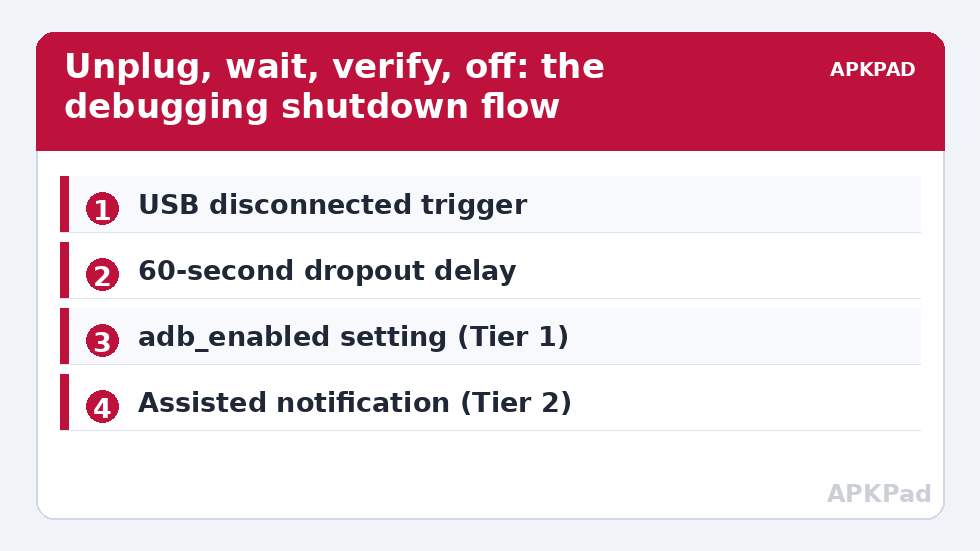
- Create a macro with a USB-related trigger. MacroDroid offers device-connection triggers; choose USB Connected/Disconnected style trigger if present on your build, set to the disconnected state. If your version lacks a direct USB trigger, the reliable substitute is a Power Connected trigger set to “power disconnected” combined with the constraint in step 2 — imperfect, since wall chargers share the event, but workable, because turning debugging off after a charge is harmless too.
- Add a delay of 60 seconds using Wait Before Next. Brief disconnects happen — cables wobble, hubs sleep — and you do not want debugging killed mid-session during a two-second dropout while you are actively granting something at your desk.
- Add a condition re-checking that USB is still disconnected (and, if your trigger was the power one, proceed regardless — see the note above).
- Add the action: System Setting (Global/Secure per your build’s test) writing the debugging key to 0, or the Helper shell equivalent your testing validated.
- Add a quiet confirmation: a brief notification “USB debugging turned off” for the first week, so you can verify the routine fires when it should and only then.
- Test the full loop now, deliberately: enable debugging, authorise your computer, run a trivial command, unplug, wait, and check Developer options shows debugging off.
Build Tier 2: the one-tap assisted version
If your build refuses the programmatic write, do not reach for root or exotic workarounds to force it — the assist version is good security UX:
- Same trigger and delay as Tier 1.
- Action: show a persistent-until-dismissed notification, “You unplugged from a PC — tap to turn off USB debugging”, whose tap opens Developer options (via an Open Settings Page style action where available, or simply opens Settings).
- You tap, toggle debugging off — five seconds, in person, with the phone in your hand. The automation supplies the memory; you supply the authority the OS insists on.
The boot-time routines in automated ADB command execution on device startup pair naturally with either tier: a boot check can log whether debugging was found on at startup (a state worth noticing) even on builds where it cannot be switched off automatically. You can explore the rest of this category’s toolkit from the APKPAD homepage as well.
Companion habits that multiply the benefit
| Habit | Where | Why it matters |
|---|---|---|
| Revoke old USB debugging authorisations | Developer options → “Revoke USB debugging authorizations” | Removes trust for computers you no longer own or use |
| Turn off “Always allow” for shared machines | The debugging prompt itself, per connection | A shared or work PC should be re-approved each session |
| Disable Developer options entirely when unused for months | Top toggle in Developer options | Removes the whole surface, not just debugging |
| Keep a screen lock you actually use | Security settings | Debugging prompts and grants require an unlocked phone — the lock is the real gate |
Notice that this routine composes with the other privacy work in this batch rather than duplicating it: the clipboard routine limits what a copied secret exposes, the guest mode limits what a borrower sees, and this one limits what a cable can do. Small closures, layered.
Troubleshooting
- The macro fires but debugging stays on: your build is in the Tier 2 camp. Confirm by trying the write from a test macro with the log open; then adopt the assisted notification design rather than escalating privileges.
- Debugging turns off while I am still working at my desk: lengthen the post-unplug delay, and check for a flaky cable or hub causing real disconnect events. The trigger reports the electrical truth; fix the cable, not just the macro.
- I turned debugging off and my other macros broke: they should not have — grants persist. If an action failed, look for a lost grant after an OS update and re-apply it (debugging on, grant, unplug, and watch this very routine close the door behind you).
- The Developer options menu vanished: some builds hide it when debugging and related toggles are off for long periods, or after an update. Re-enable by tapping Build number seven times in About phone; nothing was damaged.
- Behaviour changed after an Android upgrade: expected possibility. Debugging policy and settings keys are exactly the sort of thing platform releases adjust. Re-test Tier 1 after every major update before assuming it still protects you — a silent Tier 1 failure leaves you with Tier 0, which is “forgetting”, the thing this article exists to replace.
Undo
Disable the macro (and the boot check if you added one). Debugging then behaves entirely by hand, as stock. The routine changed no persistent state other than repeatedly setting a switch you can set yourself, so removal is instant and total.
Frequently Asked Questions
Is it actually risky to leave USB debugging on?
It raises the stakes of physical access. A connected, previously authorised computer can issue powerful commands to a phone with debugging enabled. The everyday risk is modest, but the cost of closing the window automatically is near zero, which makes the trade clearly worth it.
Will turning debugging off break my other MacroDroid automations?
No. Permissions granted via ADB, such as WRITE_SECURE_SETTINGS, persist after debugging is switched off. Your settings-writing and shell macros keep working. You only need debugging on again to make new grants or run new commands from a computer.
What if my phone refuses to let MacroDroid turn debugging off?
Some builds reserve that change for the Settings screen or the computer shell. Use the assisted design in this guide: the macro detects the unplug and reminds you with a notification that opens the right settings area, so the only manual step left is the final toggle.
Why add a 60-second delay before turning debugging off?
To survive brief disconnects. Cables wobble and hubs sleep; without a delay and a re-check, the macro could kill debugging in the middle of an active desk session. A short delay keeps the protection while ignoring dropouts.
Should I also revoke USB debugging authorisations?
Yes, periodically. In Developer options, the revoke authorisations action forgets every previously trusted computer. Combined with auto-disabling debugging, it means a new desk session starts from explicit trust rather than years of accumulated approvals.