Screenshots are the junk drawer of the gallery: a boarding pass, a message, an error — useful for a day, meaningless forever after — until the folder holds thousands of images cluttering every photo search. Recordings are worse; one forgotten recording can outweigh a month of photos. This guide builds careful screenshot and screen recording cleanup after 30 days with MacroDroid. Careful does real work here: this automation deletes files, so it is designed like it — narrow folder, strict age threshold, a report before it acts alone, and an archive stage you graduate from only when the reports earn your trust.
The safety design behind auto delete old screenshots macrodroid routines
Three rules govern everything below, and if your phone or your habits cannot meet them, do not build the fully automatic version — build the reminder version in the final section instead, which is a perfectly respectable outcome.
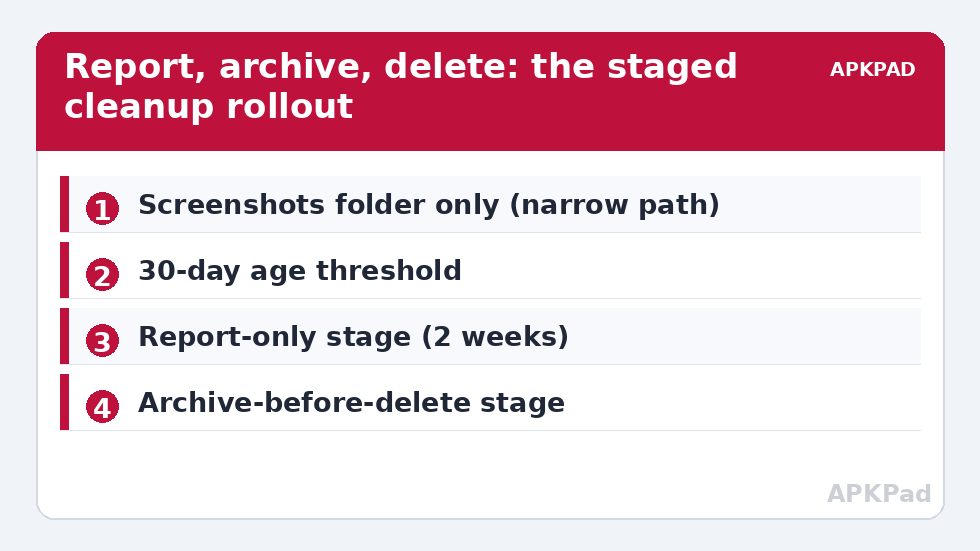
Rule one: only your own screenshots and recordings, only in their own folders. The macro targets the standard Screenshots folder (typically or Pictures/Screenshots) and the standard screen-recordings location (often Movies or a Screen recordings folder, brand-dependent). It must never point at the camera folder, the whole DCIM tree, Downloads, or any path with a wildcard broad enough to catch family photos. A deletion bug or a misunderstood path hurts exactly as much as the path is wide.
Rule two: age is the only deletion criterion, and the threshold is generous. Thirty days is the floor suggested in this guide, and 60 or 90 is wiser for recordings you might reference after a support call. Anything you still need after a month has had a month to be moved, shared or backed up deliberately.
Rule three: deletion is the last stage of a supervised rollout. Report-only first, then move-to-archive, then — weeks later, with clean logs — delete mode. Each stage proves the next; skipping stages is how automations become the story about losing a warranty receipt screenshot.
How to read this: the estimate adds a small always-on idle cost for MacroDroid itself (about 0.4% of battery per day) to a per-class daily cost for each trigger type you use, scaled slightly by how many macros you run. These are planning estimates from that transparent model — not measurements from your phone. Use them to compare setups before you build, then confirm against the real numbers under Android Settings → Battery.
Permissions: file access, and what MacroDroid can delete
File operations need storage access. On modern Android that means granting MacroDroid the file/media permissions it requests, and on some builds, “All files access” for operations outside media folders — a sensitive permission that you should grant only because MacroDroid is your established automation app, and revoke if you retire this routine. The Helper app performs many file actions, so permissions may live there. No ADB grant is required for ordinary file deletion in user storage — unlike the settings tweaks in granting ADB Write Secure Settings — which makes this build lighter than most of the System Tweaks category. But lighter permissions do not mean lighter consequences. Deletion from shared storage is generally permanent: most Android gallery trash/recycle features intercept deletions made through the gallery itself, not necessarily deletions made by a file action from another app. Assume macro-deleted files are gone, because on many builds they are. This is also why a cloud backup of your camera roll does not rescue screenshots: check whether your backup even includes the Screenshots folder before counting on it.
Step 0: recon — know your exact folders
- Open your file manager and locate the Screenshots folder. Note the exact path. Samsung, Pixel, Xiaomi differ.
- Take a screenshot and confirm it lands in that folder (some apps, and some OEM screenshot tools with custom paths, save elsewhere — if your screenshots scatter, this automation’s scope is only the main folder, accept that).
- Find where screen recordings land and note that path separately.
- Count the contents and sort by date. If other apps dump exports there, narrow the file pattern (for example
Screenshot_*) or clean those exceptions out manually first.
Stage 1: the report-only macro (run this for two weeks)
- Trigger: weekly, at a quiet time — pair it with the Sunday slot used by the scheduled cache clearing routine so maintenance arrives as one digest.
- Actions: enumerate files in the Screenshots folder older than 30 days (by the file’s modified/created date your MacroDroid file actions expose), count them, total their size if your version can, and write the summary — plus ideally the filenames — to a log file or notification.
- Do nothing else. Two weekly reports teach you your real screenshot volume and expose edge cases (that folder of work captures you actually reference monthly, say) while the cost of discovery is zero.
Apply the same audit habit recommended for cache and logs in automated system log cleaning: measure, name the real hogs, automate only what the measurement justifies. The APKPAD homepage collects the companion tools for a full Sunday-maintenance suite.
Stage 2: archive instead of delete
- Duplicate the report macro. Change its file action from “report” to Move File: qualifying files go to an
Archive/Screenshots-oldfolder you create, preserving names. - Keep the log — now it records what was moved, which is your undo manifest.
- Run this stage for at least a month. If you never dig in the archive, deletion would have cost you nothing. If you dig twice a week, your threshold is wrong: raise it to 90 days, or archive forever and clear it manually twice a year. The goal is a gallery you control, not deletion for its own sake.
Stage 3: delete, narrowly
- Only now, change the action to Delete File for the same folder, same pattern, same 30-day (or your proven) threshold.
- Add a cap: if the qualifying count exceeds an unusual number (say 200 files), abort and notify instead of deleting. Runaway protection is one condition, and worth it.
- Keep the log action, writing filename and age for every deletion. A deletion you cannot audit is a deletion you cannot trust.
- Schedule recordings as a separate macro with a longer threshold (60–90 days) and its own log, because recordings are larger, rarer, and more likely to be referenced later.
- Compose your maintenance set thoughtfully: this routine plus the privacy timing in automatic clipboard clearing gives you a phone that forgets small things on schedule, at both the seconds scale and the months scale.
Sizing expectations
| Item | Typical size | 1,000 items ≈ |
|---|---|---|
| Screenshot (PNG, busy screen) | 1–4 MB | 1–4 GB |
| Screenshot (JPG/WebP builds) | 300 KB – 1 MB | 0.3–1 GB |
| Screen recording, 1 minute | 15–60 MB | 30 recordings ≈ 0.5–2 GB |
| Chat-app image exports mistaken for screenshots | Varies | Check your folder recon before automating |
Troubleshooting
- Files newer than 30 days were deleted: stop the macro immediately — disable it before investigating. The usual causes are sorting by the wrong date field (some tools copy files and reset dates) or a path that includes a synced folder whose dates are download dates. Restore from your archive stage if you followed it, or from cloud trash if your backup covered the folder.
- Nothing qualifies even though the folder is huge: your screenshots may land elsewhere — re-run recon, take a test screenshot, and find where it appears on this build.
- The macro cannot see or move files: storage permission was revoked or re-scoped by an update. Re-grant MacroDroid/Helper file access.
- Recordings keep being missed: they live in a Movies or OEM “Screen Recorder” folder, not the path you set; give their own macro the verified path.
- I deleted something I needed: check gallery trash, then cloud backup trash, then the app that created the content. Then lengthen your threshold.
The reminder-only alternative
If any stage makes you uneasy, ship the report macro alone, forever. A weekly “47 screenshots older than 30 days, 210 MB — tap to review” notification, with you selecting in the gallery (where trash protection exists), captures most of the benefit at near-zero risk.
Undo
Disable the macros. Deleted files cannot be un-deleted — the point of the staged design — but archived files can be moved back wholesale using the logs as your manifest.
Frequently Asked Questions
Can deleted screenshots be recovered after the macro runs?
Often not. Deletions made by an app’s file action may bypass the gallery’s trash feature, so treat them as permanent. Check your gallery trash and cloud backup trash promptly if something important vanishes, and rely on the archive stage of this guide rather than on recovery.
Why start with report-only and archive stages instead of deleting straight away?
Because a deletion macro’s mistakes are irreversible, while its benefits are not urgent. Two weeks of reports reveal your real screenshot habits and any files in the folder that are not casual screenshots, and a month of archiving proves the age threshold is safe for you before anything is destroyed.
What age threshold should I use for screenshots and recordings?
Thirty days is a reasonable minimum for screenshots. Screen recordings deserve 60 to 90 days: they are more likely to document a support call, a transaction or a gameplay moment you will want later, and they are few enough that the extra weeks cost little storage.
How do I stop the macro touching photos that are not screenshots?
Keep the scope surgical: only the dedicated Screenshots folder, never the camera folder or the whole DCIM tree, and add the screenshot filename pattern your phone uses if other apps drop files there. Add a sanity cap that aborts the run if an unusually large number of files qualify.
Does MacroDroid need special permission to delete files?
It needs the storage and media permissions Android requires for file operations, granted to MacroDroid and its Helper. On some builds, all-files access is requested for folders outside the standard media store. Grant it only for apps you trust, and revoke it if you retire the routine.