A vibration motor is a real motor: every notification buzz, keyboard tap and touch confirmation spins it up from rest, hundreds of times a day. Choosing to disable vibration haptics low battery macrodroid rules create is not about saving battery on a healthy afternoon — haptics are a small cost then. It is about the last fifth of the charge, when you are rationing, and a chatty group chat can buzz its way through percent after percent while the screen stays dark. This rule retires the optional vibrations at your threshold and brings them back when the danger passes.
When to disable vibration haptics low battery macrodroid thresholds should trigger
Pick a threshold that matches how you already treat low battery. If your phone’s own saver starts at 20%, align the haptics rule with it so the phone enters one coherent low-power personality instead of collecting restrictions at five different levels. If you run the staged approach from our extreme saver guide, haptics belong in the earlier, gentler stage — they are a comfort feature, and comfort features are exactly what a first stage should cut. As a typical estimate, expect the saving itself to be modest — often under a couple of percent across the low-battery stretch, varying by device, motor strength and notification volume. The rule earns its place because the cost of the cut is near zero when you are trying not to touch the phone anyway.
Separate your vibrations into three honest groups before building. Group one, safety and reachability: incoming call vibration if you rely on it, alarms, and any medical or caregiving alerts. Group two, communication: message and mail vibration. Group three, pure feedback: keyboard presses, touch and navigation haptics, charging confirmation buzzes. The rule should cut group three completely, cut group two if your threshold is an emergency, and leave group one alone. A rule that saves 1% and loses a call from the school is a bad trade dressed as efficiency.
How to read this: the estimate adds a small always-on idle cost for MacroDroid itself (about 0.4% of battery per day) to a per-class daily cost for each trigger type you use, scaled slightly by how many macros you run. These are planning estimates from that transparent model — not measurements from your phone. Use them to compare setups before you build, then confirm against the real numbers under Android Settings → Battery.
Step by step: the low-battery haptics macro
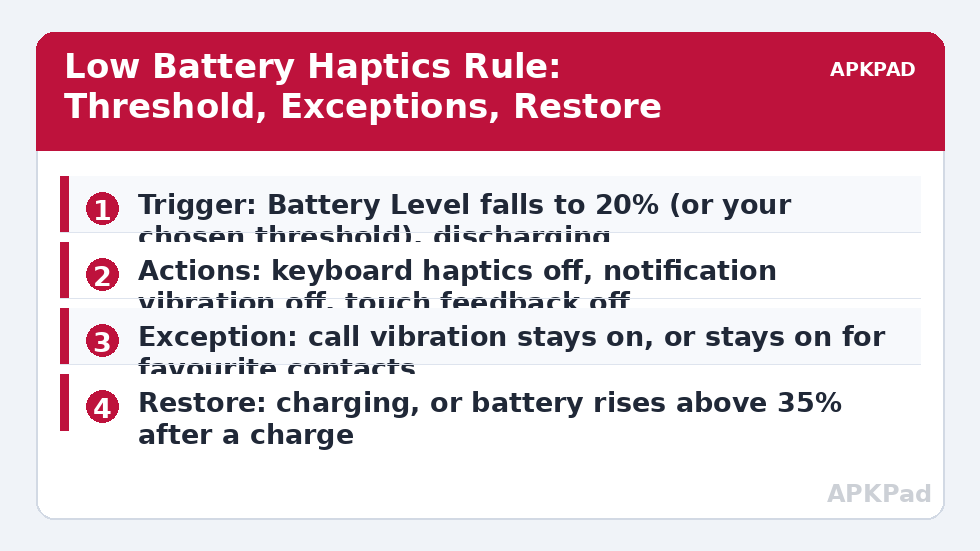
- Create a macro named Haptics Off Low Battery with a Battery Level trigger set to your threshold, in its decreasing or equals form where offered.
- Add a constraint: power not connected. There is no reason to ration motor runs while the phone is refilling.
- Add the actions your device actually supports: set vibration intensity or haptic feedback off for touch and keyboard first; add notification vibration only if you accept quieter alerts in this state.
- Record the previous state in a variable if your build allows reading it, so the restore can be faithful rather than assuming defaults.
- Create the partner macro, Haptics Restore, triggered by power connected or by battery rising above a higher level such as 35%, and re-apply normal haptic settings there.
- Test both directions once with the screen on: lower the test threshold temporarily to your current level, watch the setting change, then restore.
| Vibration type | At threshold | Reason |
|---|---|---|
| Keyboard and touch haptics | Off | Pure feedback; hundreds of runs a day; nothing is communicated |
| App notification vibration | Off or reduced, your choice | The group-chat-at-3% problem lives here |
| Incoming call vibration | On | Reachability outranks a fractional saving |
| Alarms and urgent alerts | On — verify in your alarm app | A missed alarm costs more than any battery figure |
This threshold logic also composes well with system-level controls covered in controlling vibration per app elsewhere on this site: use per-app settings for your permanent preferences, and reserve the macro for the temporary low-battery state. More state-based rules like this live in the battery hacks collection on APKPad, including the closely related haptics rule discussion in our index — start from the collection if you are building a full low-battery personality.
Permissions and the secure-settings reality
Haptic controls are fragmented. Some are ordinary settings MacroDroid can write freely; others are secure settings that need WRITE_SECURE_SETTINGS granted via ADB, and a few — notably per-keyboard vibration — live inside the keyboard app and answer only to its own settings screen. OEM skins add another layer: Samsung, Xiaomi and others expose intensity sliders with different underlying keys, so an action that works on one phone may be a no-op on another. The professional habit is to test each action in isolation from the macro editor and keep only the verified ones. A shorter macro that does three real things beats a long one that does one real thing and four imaginary ones.
Making the quiet state noticeable but not alarming
When haptics vanish, users often think the phone has broken. Prevent that misreading with a single, calm notification at the moment the rule fires: Battery low — haptics off until you charge. One notification, no repetition, cleared by the restore macro. Do not add a spoken announcement by default; a phone that announces its power saving in a quiet office teaches its owner to disable the rule. The same restraint applies to restoring: no fanfare, just haptics back and the notification gone. Automation that respects social context survives; automation that performs itself gets deleted.
Troubleshooting: haptics that will not die, or will not return
Keyboard still buzzes after the rule fires. Your keyboard keeps its own haptic setting. Open the keyboard’s preferences and look for its vibration toggle; if MacroDroid cannot reach it, accept keyboard haptics as out of scope and keep the system-level wins. Haptics never came back after charging. The restore trigger probably requires the level to cross upward through its value; if you charged from a powered-off state, the crossing never registered. Add power-connected as a second restore trigger so both paths exist. Call vibration disappeared too. Your build ties call vibration to the global value you changed. Raise the threshold’s scope: use the narrower touch-haptics setting only, and verify with a test call from another phone before trusting the rule.
Pairing haptics with the rest of your low-battery personality
Haptics make most sense as one voice in a choir. At your chosen threshold, the same moment that retires keyboard buzz can also be the moment the display steps down — the approach in dropping refresh rate at low battery — and the moment screen timeout shortens, as smart screen timeout routines arrange. Kept together under one threshold and one restore macro, these small cuts add up to a coherent state your phone enters and leaves cleanly, instead of five unrelated rules firing at five different levels and restoring in five different orders. Coherence matters more than any single cut: when the phone feels deliberately different at 20% — quieter, calmer, slightly dimmer — you understand its state without checking a settings screen, and you trust the restore because it has never once left the phone half-quiet at 80%.
If you also use time-based quiet hours, let the two systems share the restore path used by voice assistant time rules: one morning restore that returns sound, haptics and listening together is easier to verify than three separate restorations you have to check one by one.
Finally, tell the people who share your space that the phone goes quiet at low battery by design. A partner who knows the silence is a setting will not read a missed buzz as a missed message, and shared understanding is part of why the rule survives.
Frequently Asked Questions
How much battery do vibration and haptics really use?
Each vibration is brief, but a heavy day of notifications, typing and touch feedback adds up to a small saving — typically well under a few percent of a charge, as a rough estimate that varies a lot by device and how strong its motor is set. The bigger benefit at low battery is cutting hundreds of tiny motor runs when every percent counts.
Will I miss calls if vibration turns off?
Only if you also remove call vibration and rely on buzz in silent environments. The recommended build keeps call vibration on — or keeps the phone’s ring behaviour unchanged — so haptics savings come from keyboards, touches and app notifications instead.
Can MacroDroid control keyboard haptics separately?
It depends on the keyboard and the build. Some haptic settings are global system values MacroDroid can write, sometimes needing secure settings access; others live inside the keyboard app’s own settings. Test each action individually and keep only the ones that actually change behaviour on your phone.
Why restore at 35% and not as soon as I plug in?
Both work. Restoring on charging is simplest; the 35% restore covers the case where you unplug early after a short top-up and still want normal haptics back without manually checking the setting.
Does this affect alarm vibrations?
Alarms should be treated as protected. Check your alarm app after building the rule: if its vibration follows the global setting you changed, exempt alarms by choosing a narrower haptic setting or restore haptics overnight when alarms matter most.