Roaming combines the two most annoying drains in mobile life: your phone works harder on an unfamiliar network, and every background megabyte can cost real money. Setting up macrodroid data saver roaming battery rules gives you a single, automatic response — the moment the phone reports it is roaming, heavy apps lose their background data privileges, essential apps keep working, and everything restores itself when you are home again. No airport fumbling with settings while a queue moves behind you.
Building macrodroid data saver roaming battery rules before you travel
The time to build and test these rules is the week before the trip, at home, where mistakes are free. The design has three parts: a detection you trust, a restraint list you have chosen deliberately, and a restore you have watched happen. Android’s built-in Data Saver does the heavy lifting — MacroDroid’s job is to switch it on and off at the right moments and to hold your per-app choices. That division of labour mirrors the approach in our guide to smart sync routines: let the system own the mechanism, let the macro own the timing.
Decide your app tiers on paper first. Tier one, never restricted: messaging, your primary mail, banking and airline apps, and anything that delivers login or boarding codes. Tier two, foreground only: social apps, news, shopping — usable when you open them, silent in the background. Tier three, fully restrained while roaming: cloud photo backup, video apps set to auto-download, game updaters and podcast auto-fetch. Tier three is also where the battery win lives, because those are the apps that wake the modem for large transfers.
How to read this: the estimate adds a small always-on idle cost for MacroDroid itself (about 0.4% of battery per day) to a per-class daily cost for each trigger type you use, scaled slightly by how many macros you run. These are planning estimates from that transparent model — not measurements from your phone. Use them to compare setups before you build, then confirm against the real numbers under Android Settings → Battery.
Step by step: detection and entry
- At home, open Settings and find Data Saver; turn it on once and set your tier-one apps to unrestricted, so the choices exist before the macro needs them.
- In MacroDroid, create Roaming Rules On with a roaming or connectivity trigger — if your build offers a roaming state trigger, use it; otherwise use a constraint-checked check when the mobile network changes.
- Add a wait of two minutes and re-check the roaming constraint, so a brief border-network blip does not trigger the full rule set.
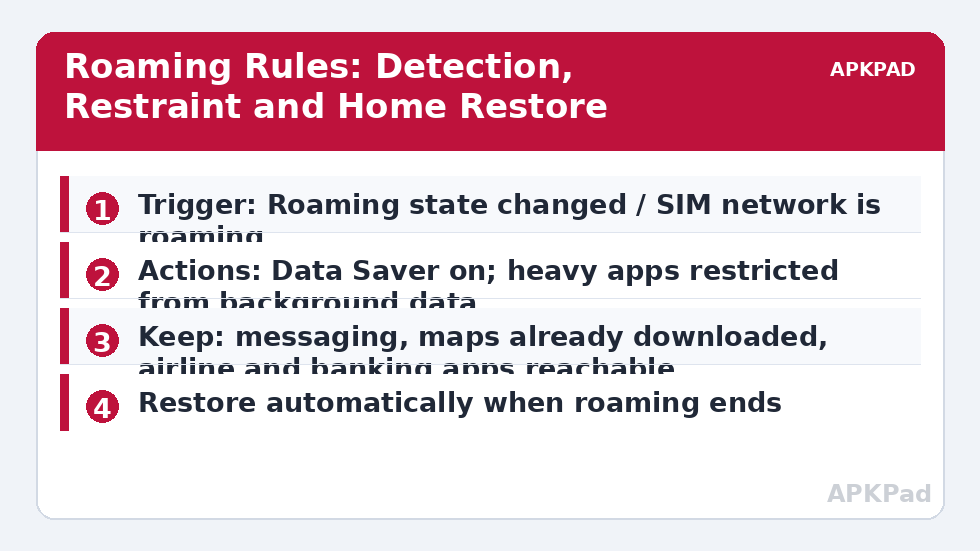
- Actions: turn Data Saver on, turn auto sync off for the trip pattern, and post a notification telling you the roaming rules are active — silent automation abroad is how people miss the one message that mattered.
- Set a variable roaming_rules = on so the exit macro and your other routines can see the state.
The exit macro and the border problem
| Scenario | Behaviour |
|---|---|
| Roaming ends and stays ended for 10 minutes | Data Saver off, sync restored, variable cleared, confirmation notification |
| Border region flapping between home and roaming | Cooldown variable blocks re-entry for 1 hour; rules stay in their last stable state |
| You connect to trusted hotel or home Wi-Fi | Heavy sync may run on Wi-Fi only — see the note below |
| Trip ends, phone in airplane mode overnight | Nothing changes; exit waits for a real home-network registration |
The Wi-Fi exception deserves care. Many travellers are happy for photo backup to run on hotel Wi-Fi but not on roaming data. MacroDroid can express that as a constraint — network type is Wi-Fi — on a separate catch-up macro. Keep that macro distinct from the roaming rules themselves, and consider pairing it with pausing cloud photo sync on mobile data, which handles the same problem in everyday life at home. The full set of related routines is gathered in the battery hacks collection on APKPad.
What these rules can and cannot do
Honesty about limits matters more abroad than anywhere. Data Saver restrains background data for apps that respect it; some apps with their own download engines ignore hints, and foreground use is always allowed — a video you deliberately stream while roaming will still bill you. Per-app data controls differ by OEM and Android version, and a few carrier-bundled apps cannot be restricted at all. MacroDroid also cannot change your roaming tariff, enable a travel eSIM, or fix a phone that has data roaming switched off at the system level — check that toggle yourself before departure. Finally, note the safety boundary: never restrict maps you have not pre-downloaded, translation you may need, or the app your bank uses to approve transactions. A rule that saves money but strands you has the priorities backwards.
Permissions and testing checklist
Toggling Data Saver and sync may need the MacroDroid Helper app or WRITE_SECURE_SETTINGS via ADB on some builds; roaming detection itself is a read, not a write, and needs no special grant. Test in this order at home: run the entry macro manually and confirm Data Saver engages and a tier-three app stops background activity; run the exit macro and confirm restoration; then simulate a message arriving to a tier-one app with Data Saver on. Ten minutes of testing at home replaces an hour of confusion in a foreign arrivals hall.
Troubleshooting: rules that fire at home or never fire abroad
The entry macro fired while I was still home. Some networks report roaming on partner networks domestically, especially near borders or on certain MVNOs. Add a location or known-network guard if that is your situation, or accept the notification as your cue to toggle manually. Nothing happened when I landed. Check that data roaming is enabled in system settings and that MacroDroid was not put to sleep by battery optimisation during the flight. A restricted app still used data. It was probably foreground use, a system-exempt app, or an OEM variant that labels the setting differently — verify in Android’s per-app data screen, which is the ground truth.
A pre-departure drill worth doing once
A week before a real trip, run a one-evening simulation at home. Trigger the roaming entry macro manually after dinner, then live with the phone until bedtime: send messages, open your banking app, request a login code by email, check a map. Every friction you feel in that evening is a tier mistake you can fix for free at your kitchen table instead of expensively at a foreign airport. Pay special attention to the apps you forgot existed — the airline app that only wakes up when travelling, the authenticator companion, the parking or transit app for your destination. Note, too, how the restraint interacts with the phone’s other travel states: a phone in a low-battery stage should not have its restrictions stacked twice, and the exit design from screen-off data rules shows how to keep one clear owner per radio decision. Finish the drill by running the exit macro and confirming that sync, data and notifications all return to normal. If the drill bores you, that is the point: boring at home means calm abroad, and calm abroad is when the battery and the money both survive the trip.
One more preparation pays for itself: screenshot your tier lists and your macro names into a note you can read offline. If anything misbehaves in a place with no signal to spare, you will not be searching forums on roaming data to remember your own design — you will be reading your own decisions, made calmly, at home.
When you return home, do one last thing while the trip is fresh: note which tier choices annoyed you and which you never noticed. Two lines in the macro description turn the next trip’s setup from a rebuild into a thirty-second review.
Frequently Asked Questions
Does Android Data Saver break my messaging apps?
It can delay background data for restricted apps, but apps you mark as unrestricted keep working normally. Put your messaging, mail and any app you rely on for travel codes on the unrestricted list before you travel, not after you land.
How does MacroDroid know I am roaming?
Android exposes the roaming state of the mobile connection, and MacroDroid can use connectivity or roaming-related triggers and constraints on many builds. The exact trigger name varies by version, so test the detection at home by toggling the rule manually before a trip.
Will these rules save battery as well as data?
Yes, modestly, as a typical estimate: fewer background transfers mean fewer modem wake-ups, and roaming networks can be less efficient for your phone. The saving varies by device and network, and the money saving is usually the larger prize.
Should I restrict maps while roaming?
Restrict background data, not the app itself, and download offline maps for your destination before you go. A map that cannot load tiles at a foreign street corner is a safety problem, not a saving.
What happens when I cross back to my home network mid-trip?
The restore macro should fire when roaming ends, lifting the restrictions. Add a manual off switch as well — border regions can flap between networks, and a cooldown stops the rules toggling repeatedly.