
Photos are the heaviest thing most phones sync, and they sync at the worst moment: right after you have taken them, often on mobile data, often in the weak signal of the place you went to photograph. Learning to pause cloud photo sync mobile data macrodroid rules can enforce is really two savings in one gesture — the modem stops sustaining long uploads on an expensive, power-hungry connection, and the upload happens later on Wi-Fi, ideally while charging, where energy is cheap and plentiful. The rule must be built carefully, though: a pause that never resumes is not a battery hack, it is a backup failure waiting for a lost phone to reveal it.
How to pause cloud photo sync mobile data macrodroid rules safely
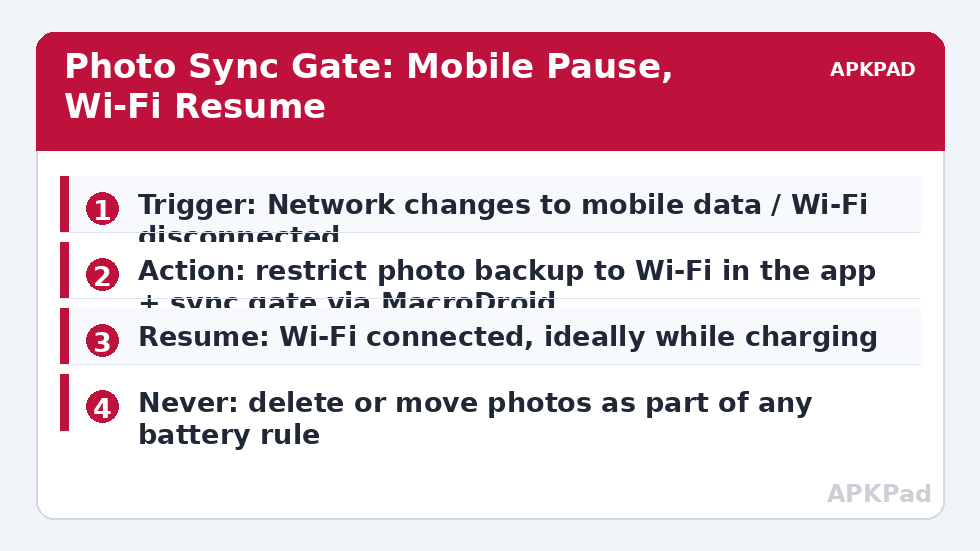
Safety here has a precise meaning: local photos are never touched. The rule changes when copies leave the phone, never whether they exist. Any tutorial that suggests deleting, moving or compressing your only local copies to save battery should be closed immediately. With that boundary fixed, the design is a gate with two doors. On mobile data, the gate is shut — backup waits. On Wi-Fi, the gate opens; on Wi-Fi plus charging, it opens widest, because that is also when other deferred work should run, as our guide to deferring heavy tasks until charging argues for backups, updates and library scans alike.
Start inside the photo app itself. Most backup services — Google Photos and its rivals — offer a setting to back up over Wi-Fi only, and a separate, stricter choice for videos. If your app offers it, turn it on and let it be the foundation. MacroDroid then becomes the supervisor rather than the mechanism: it watches network state, reminds you about backlogs, and applies your charging preferences. That supervisor pattern is the same one used in smart sync routines, where the system owns the toggle and the macro owns the timing.
How to read this: the estimate adds a small always-on idle cost for MacroDroid itself (about 0.4% of battery per day) to a per-class daily cost for each trigger type you use, scaled slightly by how many macros you run. These are planning estimates from that transparent model — not measurements from your phone. Use them to compare setups before you build, then confirm against the real numbers under Android Settings → Battery.
Step by step: the pause and resume pair
- In your photo app, set backup to Wi-Fi only, and decide about videos deliberately — they are the largest files and the strongest case for Wi-Fi plus charging only.
- In MacroDroid, create Photo Gate Closed: trigger on Wi-Fi disconnected or network type changing to mobile. Action: set a variable photo_gate = mobile and, if your sync is account-based and your build supports it, turn auto sync off for the photo account path you use.
- Create Photo Gate Open: trigger on Wi-Fi connected. Action: clear the variable, restore sync, and — if the phone is also charging — do nothing else; the backup will run in its cheapest possible conditions.
- Create the backlog guard: a once-a-day check that if photo_gate has been set to mobile for more than, say, 48 hours, posts a notification reminding you that photos have not backed up recently.
- Test the pair by toggling Wi-Fi off and on with a new test photo, watching the photo app’s backup status change from waiting to uploading.
| Connection | Photos | Videos | Notes |
|---|---|---|---|
| Mobile data, good signal | Paused | Paused | The pause is the rule; urgency is the rare manual exception |
| Mobile data, weak signal | Paused | Paused | Where the biggest battery saving hides — long, retried uploads |
| Wi-Fi, on battery | Upload | Your choice | Wi-Fi uploads are far cheaper per megabyte |
| Wi-Fi, charging | Upload | Upload | The ideal window; schedule your habits around it |
That backlog guard in step four is the difference between a professional setup and a hopeful one. Travellers can spend a week on mobile data and hotel networks they choose not to trust; a quiet 48-hour reminder converts a potential month-old gap into a two-day one. You will find the companion roaming version of this thinking in data saver rules while roaming, and the whole family in the battery hacks collection on APKPad.
What the saving really looks like
Be suspicious of dramatic figures here. If you take twenty photos a day on strong city signal, pausing mobile uploads saves very little — the uploads were short and cheap anyway. The saving concentrates in the bad cases: a day trip with two hundred photos and several videos, uploaded over rural signal from a moving car. There, as a typical estimate, shifting the upload to evening Wi-Fi can save several percent of battery and a noticeable slice of data allowance, varying by device, signal strength and how much video you shot. The rule is best understood as insurance against the bad case, priced at zero inconvenience in the normal case — the same logic that makes the charging-first backup in cloud photo backup while charging worth setting up once and forgetting.
Permissions, limits and app differences
MacroDroid needs no special permission to watch network type, but controlling another app’s internal backup switch is generally not possible — that is why the design leans on the photo app’s own Wi-Fi-only setting and uses MacroDroid for state, reminders and sync gating. Auto-sync toggles, where used, may need the Helper app or ADB-granted secure settings on some builds. Photo apps also differ in vocabulary: some say backup, some say sync, some hide the mobile-data choice under a data-saver submenu. Spend the two minutes finding your app’s exact wording rather than assuming a menu path copied from another service.
Troubleshooting: a backlog that never clears
Photos show ‘waiting for Wi-Fi’ at home. Your home network may be set as metered, and many photo apps treat metered Wi-Fi like mobile data. Check the network’s metered status in Wi-Fi settings. Uploads resume on mobile data anyway. A second backup path is active — a device-folder upload, a partner sharing auto-upload, or a second cloud app. Audit every app with a backup feature, not just the obvious one. The reminder fires even though everything uploaded. Your gate variable was set by a brief Wi-Fi drop and never cleared because the resume trigger missed it; add a daily reset check that clears the variable whenever backup status is current, or shorten the reminder to verify Wi-Fi state before notifying.
Sharing, family libraries and other second upload paths
The most common reason this rule appears to fail is that the obvious backup was only one of several uploaders. Shared albums contribute their own uploads when a family member’s settings allow additions over mobile data. Messaging apps back up their own media stores on their own schedules. A second cloud drive may be syncing the camera folder because it offered to during setup, months ago, and was forgotten. Spend one settings session listing every app on the phone that can move a photo off the device, and bring each under the same policy: Wi-Fi by default, charging preferred, mobile data only as a deliberate manual choice. The audit pairs well with the per-network thinking in sync rules inside power profiles, where the schedule — not the individual app — decides when bulk transfer is welcome. Once every path follows one policy, the battery graph stops showing mysterious afternoon upload humps, and your data allowance stops leaking through a door you did not know was open.
Revisit the policy after a few months of normal life. A new camera, a child starting school, a job that involves photographing documents — each changes how much media the phone produces and how painful a mobile-data upload storm would be. Policies written for last year’s photo habits quietly misfit this year’s, and a two-minute review keeps the gate honest.
Frequently Asked Questions
Will pausing sync on mobile data lose my photos?
No, provided the rule only pauses uploading. Your photos stay on the phone and upload when Wi-Fi returns. Never build a battery rule that deletes local copies — pausing is safe, deleting to save battery is not part of this guide.
My photo app already has a ‘Wi-Fi only’ setting. Do I need MacroDroid?
If that setting does exactly what you want, use it — it is simpler and more reliable. MacroDroid adds value when you want extra conditions, such as resuming only while charging, or a reminder when a large backlog has waited too long.
Why do photo uploads drain so much battery on mobile data?
Large uploads keep the modem transmitting for a long time, and in weak signal the phone raises transmit power and retries failed chunks. As a typical estimate, a big upload session on poor mobile signal can cost several percent, varying by device, signal and file sizes.
What about screenshots and videos from messaging apps?
Those live in their own apps with their own backup and auto-download settings. Audit them separately; the photo-sync rule governs your camera backup, not every media folder on the phone.
How do I know the backlog eventually uploaded?
Check the photo app’s backup status after a night on home Wi-Fi and charging. If you added the backlog reminder macro, it will warn you when items have waited beyond the limit you set.