Cheap NFC stickers become genuinely useful when you use nfc tag triggers macrodroid macros instead of novelty shortcuts: tap your phone on the tag by the front door to start your leaving-home routine, tap the tag in the car to start driving mode, and tap the bedside tag to begin your night routine. No menus, no voice commands overheard by the whole house, just a deliberate physical tap that runs a whole chain.
You need three things: a phone with NFC, which most modern Android phones have, a pack of writable NFC tags, which cost very little, and MacroDroid’s NFC trigger. The tags themselves hold no personal data in this setup; they simply carry an identifier that MacroDroid recognises. Your routines live safely inside your macros, not on a sticker anyone could rewrite.
Planning nfc tag triggers macrodroid routines for home and car
Start with two tags, not ten. The front-door tag and the car tag teach you everything: placement, tap reliability, and which actions you actually want. People who buy twenty tags on day one end up with a hallway of half-finished ideas. People who perfect two tags add a third a month later and still use all of them a year on.
| Tag | MacroDroid routine it starts |
|---|---|
| Front door | Leaving mode: media paused, a leaving checklist notification, optional lights or heating request via your home app |
| Car dashboard | Driving mode: launch navigation or music, set driving volume, optional auto-text if you combine it with other triggers |
| Bedside | Night mode: Do Not Disturb priority only, low brightness, morning alarm confirmed |
Write each tag inside MacroDroid as you create its macro, following the prompt to present the tag to the back of the phone. Keep a paper list of which tag lives where until the system settles, because identical white stickers are impossible to tell apart by looking at them.
How to read this: the estimate adds a small always-on idle cost for MacroDroid itself (about 0.4% of battery per day) to a per-class daily cost for each trigger type you use, scaled slightly by how many macros you run. These are planning estimates from that transparent model — not measurements from your phone. Use them to compare setups before you build, then confirm against the real numbers under Android Settings → Battery.
Build the front-door leaving routine step by step
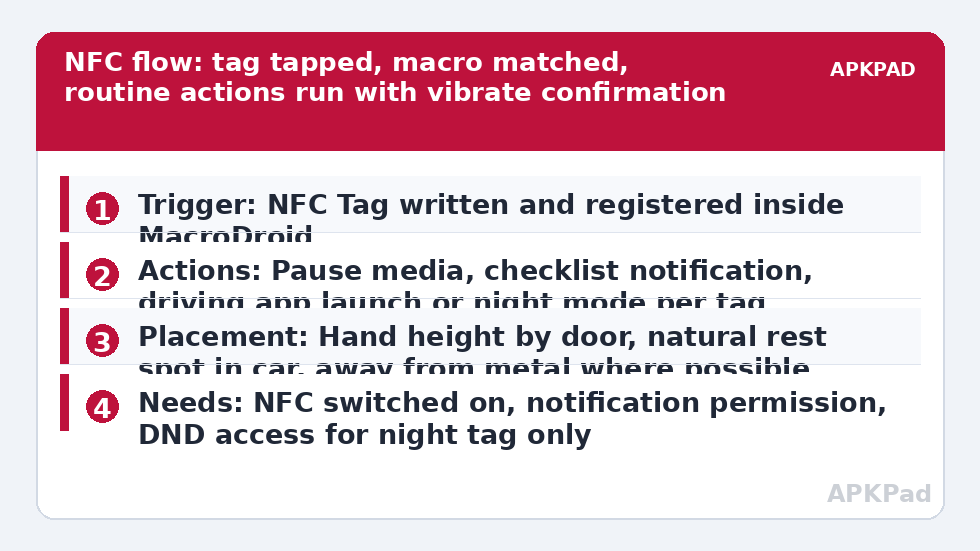
- Create a macro and choose the NFC Tag trigger. When prompted, hold a blank writable tag against the back of your phone, usually near the camera area, and let MacroDroid write and register it.
- Add actions in the order you would do them by hand: pause media playback, show a Notification with your leaving checklist, such as windows, hob and back door, and set any volumes or modes you always change on the way out.
- If your smart home system accepts it, add an HTTP request or plugin action for an away scene. Our geofenced location triggers for smart home guide covers those connection methods, and an NFC tap is simply a manual, more certain alternative to the geofence for the same scene.
- Add a Vibrate or brief sound confirmation so you know the tap registered without looking at the screen while you are holding keys and a bag.
- Save, stick the tag at hand height beside the door, and test it ten times across two days before trusting it. Move it a few centimetres if taps are inconsistent, because phone cases and metal door frames affect readability.
For the car tag, clone the pattern rather than the actions. A car tap should launch your navigation or music app, set a tested driving media volume, and optionally enable the Bluetooth routine described in automating a Bluetooth car connection that opens Spotify. Place the car tag where the phone naturally rests, not where you must reach across the cabin, and never tap tags while the vehicle is moving; the whole point is a routine started while parked, before you set off.
Making taps reliable in real houses
NFC range is only a few centimetres, which is a feature for deliberate triggers and a nuisance when placement is poor. Keep tags away from large metal surfaces where possible, or use the on-metal tag type sold for that purpose. Thick or metal-lined phone cases weaken the read; if a tag works with the case off and fails with it on, the case is your answer, not MacroDroid. Most phones need the screen awake or at least recently active for NFC reading depending on Android and OEM settings, so a natural unlock-then-tap habit, similar to the flow in auto-launching apps right after you unlock, gives the most consistent results.
Label finished tags with a pen or a small printed icon. Six months later, nobody remembers whether the hallway tag starts leaving mode or arriving mode, and a guest tapping a mystery sticker should get a harmless confirmation notification, not a cascade of settings changes. Deliberate, reversible actions are the right scope for shared spaces.
Permissions and safety notes
- NFC must be switched on in Android settings. MacroDroid cannot read tags while the radio is off.
- Notification permission: needed if your routines post checklist or confirmation notifications.
- Location permission: only needed if you add location-based actions or constraints to a tag routine; a plain NFC tap does not need it.
- Do Not Disturb access: needed only if a tag routine changes DND mode, such as the bedside night routine.
Keep safety actions out of tag routines. A sticker by the door should never unlock doors, disable alarms or silence smoke or security alerts. Anyone can tap a sticker, including a child or a visitor, so design every tag as if a stranger will eventually tap it out of curiosity: the worst outcome should be a paused podcast and a checklist notification. That principle runs through the whole Macro Triggers collection on the APKPad homepage.
Why a tag stops responding, and the fix that matters most
When a previously good tag stops working, check NFC is still enabled first, because system updates and quick-settings accidents turn it off quietly. Then test the tag against a bare phone back and check the MacroDroid log to see whether the trigger fired at all. If the trigger fires in a test but routines fail in daily use, suspect the familiar culprit: OEM battery management killing MacroDroid in the background, so chained actions after the tap never complete.
Set MacroDroid battery use to Unrestricted in Android Settings, Apps, MacroDroid, Battery, and clear the manufacturer layer as well: remove MacroDroid from Sleeping apps on Samsung, set No restrictions and enable Autostart on Xiaomi, or allow background launch in your brand’s manager. Restart and retest each tag in its real location, with your real case on, at the time of day you actually use it. If one tag alone still fails while others work, replace that tag; individual stickers do occasionally die, and they cost pennies compared with an evening of debugging a good macro.
Frequently Asked Questions
Do NFC tags need a battery or an internet connection?
No. The tags in this guide are passive stickers powered briefly by the phone’s NFC field during the tap. They store only a small identifier. Your phone needs NFC switched on, and any online actions inside the routine, such as a smart-home request, need their own connection at that moment.
Can anyone rewrite my NFC tags and change my routines?
The routines live in your MacroDroid macros on your phone, not on the sticker, so rewriting a sticker does not change what your macros do. A rewritten tag would simply stop matching your trigger. Keep actions triggered by tags safe and reversible, because anyone can physically tap a tag placed in a shared space.
Why does my tag only work with the phone case removed?
Thick cases, and especially cases with metal plates for magnetic mounts, weaken the NFC field. Move the tag to a spot where the phone’s NFC area sits closer, use a thinner case if practical, or place tags where a natural tap presses the phone firmly against the sticker. Test with the exact case you use daily.
Where is the NFC reader on my phone?
Usually on the back, often near the camera module or the upper middle of the phone, but it varies by model. Slide the tag slowly around the back while MacroDroid is waiting to read it and note where it registers fastest, then place your stickers so that natural taps land in that zone.
What should I check if all my tag routines stop at once?
Check that NFC is still switched on, then check OEM battery management. Set MacroDroid battery use to Unrestricted, review your manufacturer’s sleeping apps or autostart list, restart the phone, and test one tag while watching the MacroDroid log.