To fix bluetooth tethering automation failure cases, start with a distinction most guides skip: Bluetooth switching on is not the same as Bluetooth tethering switching on. If you try to fix bluetooth tethering automation failure by only checking the Bluetooth radio in MacroDroid, you will miss the carrier, hotspot, and permission layers that actually gate the shared connection. A macro can toggle Bluetooth perfectly and still share nothing.
Reproduce it manually first. Turn Bluetooth tethering on by hand in Settings and connect the second device. If manual tethering fails, your macro is innocent — fix the phone, plan, or pairing first, and only automate a process you have watched succeed.
Diagnose the Chain: Radio, Pairing, Tethering, Client
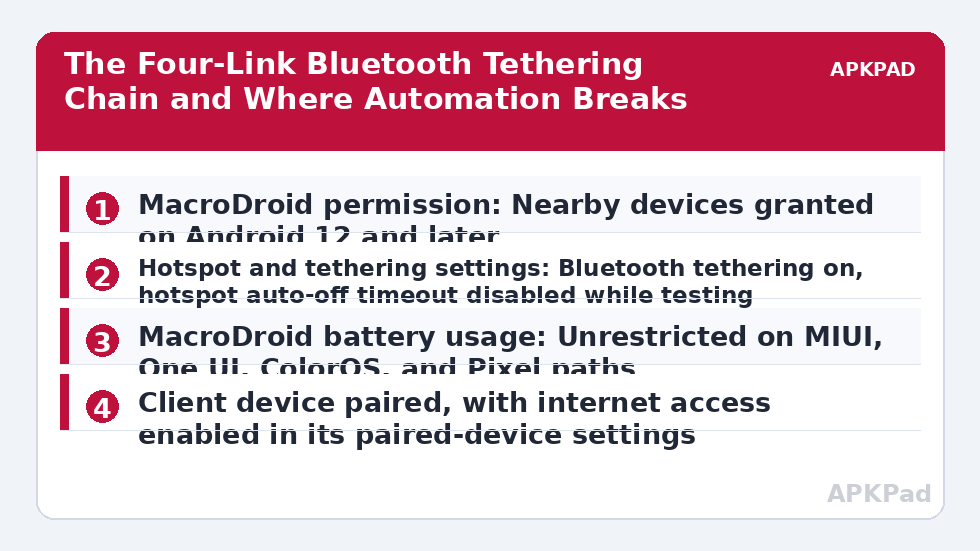
Tethering is a four-link chain. Test each link in isolation and write down where yours breaks:
- Radio: Bluetooth turns on and stays on.
- Pairing: The client device is paired and within range, with Bluetooth tethering / Internet access enabled in that device’s paired-device settings on the client side where required.
- Tethering service: The phone offers the Bluetooth network-sharing service. This depends on hotspot and tethering settings, and on whether your carrier plan includes tethering.
- Client join: The laptop, tablet, or car system actually requests and accepts the shared connection.
| Failure point | Typical sign in MacroDroid |
|---|---|
| Bluetooth action itself fails | System Log error on the Bluetooth action, radio stays off |
| Radio on, tethering off | Macro completes with no error, second device sees no shared network |
| Tethering on, client does not join | Phone shows tethering active, client shows paired but no internet |
| Works plugged in, fails on battery | Overnight or idle failures only — doze or OEM kill of the tethering service |
| Worked before a system update | Permission or hotspot setting reset by the update |
Fix Bluetooth Tethering Automation Failure Causes in Safest Order
- Permission revoked. Android 12 and later require Nearby devices permission for Bluetooth control. Without it, Bluetooth actions fail or silently do nothing.
- OEM battery kill and doze. The tethering service can be suspended when the phone idles, dropping clients mid-session even though the toggle still shows on.
- Hotspot settings conflict. A hotspot timeout set to turn off when no device is connected, or Wi-Fi hotspot and Bluetooth tethering fighting over sharing state, breaks automation that worked in manual tests.
- Android-version behaviour change. Direct programmatic control of tethering has been restricted for normal apps for years. On many modern phones MacroDroid can toggle Bluetooth itself but must use a UI Interaction, Intent, or helper route for the tethering switch, and some builds block even that.
- MacroDroid setting. Wrong action choice — Bluetooth toggle instead of a tethering-specific action — plus constraints that turn tethering off again, are common self-inflicted causes.
Step 1: Grant Nearby Devices and Check Bluetooth Control
Go to Settings > Apps > MacroDroid > Permissions and grant Nearby devices (called Bluetooth or Nearby devices depending on version). Test with a macro containing only the Bluetooth On action and a two-second Wait, then Bluetooth Off. If that simple macro is unreliable, fix radio control before tethering. If Bluetooth actions fail only on Xiaomi or Oppo builds, compare the behaviour described in volume control actions failing on MIUI and ColorOS — the same OEM permission style often applies to system toggles.
Step 2: Set the Tethering Layer by Hand, Then Automate That State
Open Settings > Network and internet (or Connections) > Hotspot and tethering, and set Bluetooth tethering up manually. Turn off any “Turn off hotspot automatically” timeout while testing. On Samsung: Settings > Connections > Mobile Hotspot and Tethering > Bluetooth tethering. On Pixel: Settings > Network and internet > Hotspot and tethering > Bluetooth tethering. On Xiaomi: Settings > Connection and sharing > Portable hotspot, then check the Bluetooth sharing option in the same area. On Oppo / OnePlus: Settings > Wi-Fi or Connection and sharing > Personal hotspot / Tethering. Names vary slightly by version, which is exactly why you should reach the working manual state first and note the exact screen on your phone.
Now build the macro to reproduce that state. Where a direct tethering action is unavailable or returns an error on your build, the honest alternatives inside MacroDroid are: an Intent action targeting the tethering settings screen plus a UI Interaction sequence to tap the switch, or using the hotspot action if your goal is actually any shared connection rather than Bluetooth specifically. A UI Interaction route needs Accessibility access and fails on some secure screens — the limits in UI interaction failure on the lock screen apply, so keep the phone unlocked in your test.
Step 3: Keep the Service Alive During a Session
Set MacroDroid to Unrestricted battery use so the macro that monitors the session is not killed:
- MIUI / HyperOS: Settings > Apps > Manage apps > MacroDroid > Battery saver > No restrictions, and enable Autostart.
- One UI: Settings > Apps > MacroDroid > Battery > Unrestricted, and add MacroDroid to Never auto sleeping apps.
- ColorOS: Settings > Apps > App management > MacroDroid > Battery usage > Allow background activity and Allow auto launch.
- Pixel: Settings > Apps > MacroDroid > App battery usage > Unrestricted.
Also turn off Bluetooth’s own power quirks in your macro design: add a constraint or a check that the client device is connected before enabling tethering, and a Wait plus re-check rather than a single fire-and-forget toggle. If sessions drop only after long idle periods, suspect deep sleep and doze — the same maintenance-window behaviour that delays other triggers also delays the Bluetooth event that is supposed to restart tethering.
How to read this: the estimate adds a small always-on idle cost for MacroDroid itself (about 0.4% of battery per day) to a per-class daily cost for each trigger type you use, scaled slightly by how many macros you run. These are planning estimates from that transparent model — not measurements from your phone. Use them to compare setups before you build, then confirm against the real numbers under Android Settings → Battery.
Verification: Prove a Client Actually Gets Internet
- Start from a clean state: Bluetooth off, tethering off, client device nearby but not connected.
- Fire your real trigger — not Test Action — for example the Bluetooth device connected trigger, a time trigger, or a widget.
- On the client, confirm it joins the Bluetooth shared network and load a web page. A phone-side toggle alone is not proof.
- Open MacroDroid > System Log and match the timestamps: trigger fired, Bluetooth action succeeded, no error on the tethering step.
- Leave both devices idle for 15 minutes and load another page on the client to prove the session survives doze.
When This Fix Will Not Work
Some limits are not settings problems. If your carrier plan does not include tethering, the phone can show the switch while the network refuses shared traffic, and no macro changes a plan entitlement. Some carrier-locked and enterprise-managed builds remove or grey out Bluetooth tethering entirely. On certain Android builds, no normal app can toggle tethering directly, and the UI Interaction workaround breaks whenever the settings layout changes in an update — expect to re-record those taps. If Bluetooth tethering stays unreliable on your hardware, Wi-Fi hotspot automation is usually the more robust route to the same goal. Further toggle and connectivity repairs are in the Fixes & Errors category, including the related Wi-Fi toggle actions blocked since Android 10.
Frequently Asked Questions
Why does Bluetooth turn on but tethering never starts?
Because they are two separate controls. The Bluetooth action only switches the radio; tethering is a network-sharing service gated by hotspot settings and, on many modern builds, not directly toggleable by normal apps. Set tethering up manually first, then automate that exact state, using an Intent plus UI Interaction route if no direct tethering action works on your phone.
What permission does MacroDroid need for Bluetooth actions?
On Android 12 and later it needs the Nearby devices permission, granted in Settings > Apps > MacroDroid > Permissions. Without it, Bluetooth actions can fail silently. Grant it, then test a macro with only Bluetooth On, a short Wait, and Bluetooth Off before debugging tethering itself.
Why does tethering drop after the phone sits idle?
Doze and OEM battery systems can suspend the sharing service or kill the MacroDroid process that maintains it, even while the toggle still appears on. Set MacroDroid battery usage to Unrestricted on your OEM’s path, disable any hotspot auto-off timeout while testing, and verify by leaving the client idle for 15 minutes and loading a page.
Can MacroDroid toggle Bluetooth tethering directly on Android 14 and 15?
Often not directly. Tethering control has been restricted for normal apps for several Android versions, and many Android 14 and 15 builds reject a direct toggle. The workable alternatives are opening the tethering settings screen with an Intent and tapping the switch with UI Interaction, or automating Wi-Fi hotspot instead if your goal is simply a shared connection.
Why does manual tethering fail even before I use a macro?
Then the fault is outside MacroDroid: the devices are not properly paired, the client’s paired-device setting for internet access is off, or your carrier plan does not include tethering. Fix pairing and confirm manual tethering works end to end first. Automating a process that fails manually will only reproduce the failure automatically.