A macro that sets media volume to 40 percent before your commute does nothing on your Xiaomi or Oppo phone, while the same macro works on a Pixel. To fix volume control actions failing miui coloros devices you have to deal with two manufacturer layers that other Android phones do not add: separate, protected volume channels and sound assistants that override app-set levels, plus strict Do Not Disturb enforcement.
MacroDroid is alive, the trigger fires, and yet the slider does not move, moves and snaps back, or moves for one stream and not another. Each behaviour has a different cause, so record which one you have before opening any menu.
Identify Which Volume Failure You Actually Have
| Behaviour | Likely cause | Go to |
|---|---|---|
| Slider never moves, log shows action ran | Do Not Disturb access missing, so ring and notification changes are silently refused | DND access step |
| Slider moves, then returns within seconds | OEM sound assistant or separate app volume control overriding the change | Sound assistant step |
| Media volume changes, ringtone does not | Streams unlinked or protected separately on MIUI or ColorOS | Per-stream test |
| Works with screen on, fails with screen off | Battery kill or accessibility loss in the background | Background settings step |
Build a test macro with a button or time trigger and one action only: Set Volume, media stream, a distinctive level such as 30 percent. Run it while watching Settings > Sound or the volume panel. Repeat for ringtone. Two single-action tests tell you more in a minute than an hour of editing the real commute macro, which may contain a condition or a constraint that is the true blocker. If the single-action test works, the fault is in your original macro, and you should compare its constraints with the related complete troubleshooting guide for MacroDroid triggers.
Fix Volume Control Actions Failing MIUI ColorOS Systems Need
Grant Do Not Disturb access first
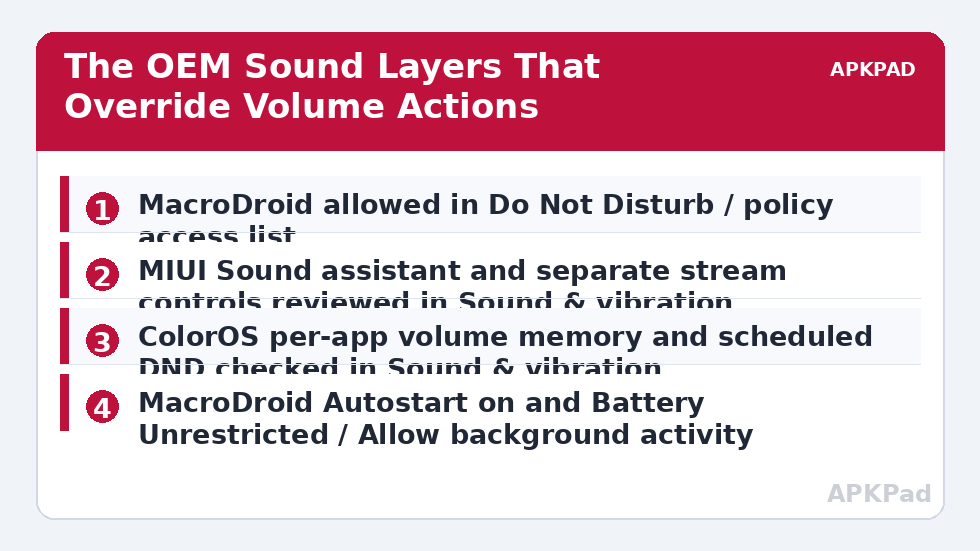
Changing ring or notification volume while Do Not Disturb rules are in force requires MacroDroid to hold DND, or policy, access. Without it Android can refuse the change without an obvious error. Open Settings and search for Do Not Disturb access or Policy access, find MacroDroid in the list of apps requesting it, and allow it. On MIUI and HyperOS this is typically under Settings > Privacy protection or Sound & vibration > Do Not Disturb, with app access managed through Settings > Apps > MacroDroid > Permissions or the special-access list your version shows. On ColorOS look under Settings > Sound & vibration > Do Not Disturb and under Settings > Privacy or Apps for the special app access entry. Then re-run the ringtone test with DND switched on, because that is the condition under which the refusal happens.
MIUI and HyperOS: check the sound assistant and separate controls
- Open Settings > Sound & vibration > Sound assistant, if your build shows it, and review the options for adjusting media volume while other audio plays and for multiple sound sources. An option that gives each app or source its own remembered level can make a system-wide media change appear to snap back when playback switches source.
- Look in the same Sound & vibration area for separate controls for ringtone, alarm and media, and test each stream individually. MIUI does not always link these the way stock Android does.
- Confirm MacroDroid can run when the change is scheduled: Settings > Apps > Manage apps > MacroDroid > Autostart on, Battery saver > No restrictions. A volume action scheduled overnight or at boot is subject to the same background rules as any other action.
- If a hearing-protection prompt appears when raising headphone volume, note it: that system safety step cannot be automated away, so keep automated levels below that threshold.
ColorOS: check per-app volume and DND behaviour
- Open Settings > Sound & vibration and review any per-app or multi-source volume feature your ColorOS version provides, including in the Sound & vibration advanced or More settings area. If the phone remembers a level per app, your macro’s system change and the playback app’s remembered level will fight, and the playback app usually wins when it next starts.
- Open Settings > Apps > App management > MacroDroid > Battery usage > Allow background activity and Allow auto launch, so a scheduled change is not deferred until you wake the phone.
- Test with the phone’s own DND schedule both on and off. ColorOS scheduled DND can restore its own ring level at its start and end times, overwriting a macro change made minutes earlier, which looks like a snap-back but is actually a second, legitimate change.
How to read this: the estimate adds a small always-on idle cost for MacroDroid itself (about 0.4% of battery per day) to a per-class daily cost for each trigger type you use, scaled slightly by how many macros you run. These are planning estimates from that transparent model — not measurements from your phone. Use them to compare setups before you build, then confirm against the real numbers under Android Settings → Battery.
If the Action Needs an Elevated Permission
A small number of volume-adjacent system changes on newer Android versions sit behind settings that a normal app cannot write without an ADB-granted permission such as WRITE_SECURE_SETTINGS. If your System Log shows a permission or secure-settings denial for the specific action, that is a different fault from the OEM sound layers above. Follow the permission route in the guide to ADB grant permissions resetting after a reboot before concluding the OEM layer is at fault, and check the system setting modification denied error if the log wording matches a denied setting. Do not grant permissions speculatively for a plain media-volume action, which normally needs no ADB grant at all; granting extra access because a fix might help is poor practice.
Also inspect the macro itself: a following playback action in an app with its own volume memory can overwrite the level you just set. Insert a Wait and a System Log entry between the two in a test copy and read the log order. Broader routes are on the Fixes & Errors index.
Verify Each Stream Separately, Screen Off
Verification for this fault must be per-stream and unattended. Run three scheduled test macros two minutes apart with the phone locked: media at 30 percent, ringtone at a clearly different level, and media back up to 70 percent. After the third time passes, unlock the phone, open the volume panel and check each slider against its target, then open MacroDroid > System Log and confirm three completions with the right timestamps and no denial entries. Passing with the screen on proves only that the action can run; passing locked proves the background, DND and OEM layers are all letting it run when it matters.
If media passes and ringtone fails only while DND is active, revisit that single grant rather than reinstalling anything. If both tests pass but the real macro fails, the difference is in its trigger, constraints or later actions.
When This Fix Won’t Work
Some overrides are working as designed. A manufacturer’s scheduled DND, a Bedtime or Focus routine, or a hearing-protection limit on headphone volume will legitimately change or cap levels after your macro runs, and the correct response is to coordinate the schedules, not to fight them with a loop that re-sets the volume every minute. Employer-managed phones can lock sound policy as well. And if a specific music app restores its own level on launch, that is outside MacroDroid’s control; set the volume after that app has started, as the last action.
Frequently Asked Questions
Why does my volume macro work on other phones but not on MIUI or ColorOS?
MIUI, HyperOS and ColorOS add their own sound layers on top of Android: sound assistants, per-app or per-source remembered levels, separate stream controls and their own Do Not Disturb scheduling. Any of those can override or refuse an app-set volume change that stock Android would accept. Work through the DND access, sound assistant and per-stream tests in that order.
Why does the volume slider move and then snap back?
Something changed it again after MacroDroid did. The usual candidates are a per-app volume memory when a playback app starts, a ColorOS or MIUI sound assistant applying a remembered level, or a scheduled Do Not Disturb or routine restoring its own level. Test with a single Set Volume action and nothing else, check the System Log order, then look for a second change from those sources.
Does MacroDroid need Do Not Disturb access to change volume?
For ringtone and notification volume changes while Do Not Disturb is active, yes, MacroDroid needs DND or policy access, and without it the change can be refused silently. Plain media volume changes do not normally need it. Grant the access through the Do Not Disturb access list in Settings and re-test the ringtone stream with DND switched on.
Why does media volume change but ringtone volume does not?
On MIUI and ColorOS the streams are often controlled and protected separately, and the ringtone stream is the one guarded by Do Not Disturb rules. Test each stream with its own single-action macro. If media works and ringtone does not, focus on DND access and any scheduled DND or routine, rather than on MacroDroid’s general permissions.
Can a macro bypass the headphone volume safety warning?
No, and it should not try to. The high-volume warning for headphone output is a system safety step on many builds, and automated routines cannot dismiss it as a normal action. Design automated volume changes to stay below that threshold, and raise the level manually when you genuinely want to go above it.