There is a specific modern irritation: your phone buzzes identically for a delivery promo and for your kid’s school, so every vibration demands a look. Android already contains most of the machinery to fix this — it is just split between notification channels, system vibration switches, and MacroDroid. This guide untangles how to control system vibration states for specific app notifications, using each layer for what it genuinely does, and is honest about the one thing no app can do alone.
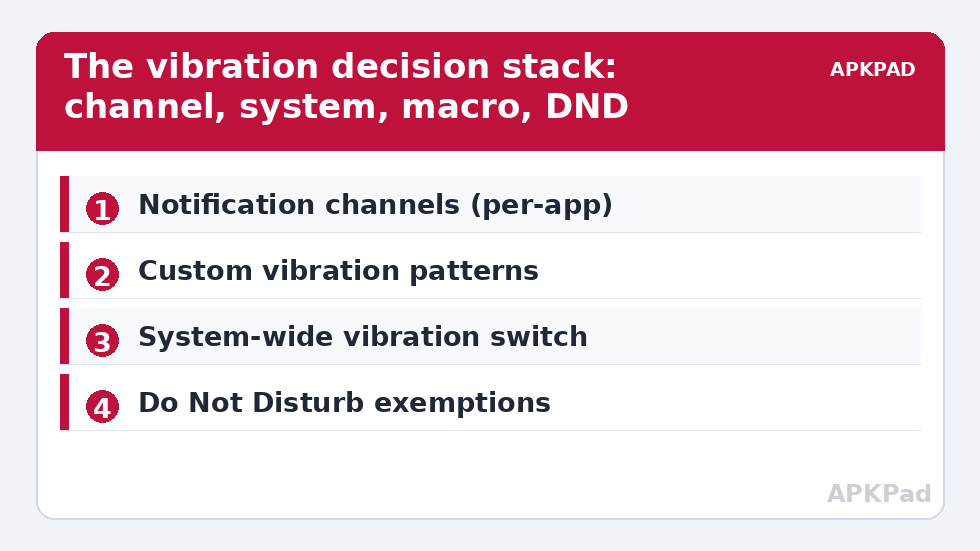
First, understand the three layers
| Layer | What it controls | Scope |
|---|---|---|
| Notification channels (Android settings) | Whether a given category of an app’s notifications vibrates, and on some phones the pattern | Per app, per channel — the real control |
| System vibration switches | Master toggles: ring vibration, notification vibration, touch haptics | Whole phone, all apps at once |
| MacroDroid | Can add its own vibration when a notification arrives, toggle system states on a schedule, and apply context | Reaction and scheduling, not interception |
The misconception to drop early: MacroDroid cannot reach into another app’s notification and rewrite its vibration. No normal app can — the notification’s behaviour belongs to the posting app’s channel settings. What you can do is set those channels correctly (layer one), and then use MacroDroid to layer context and custom patterns on top (layer three). Used together, the result feels like full control.
Control system vibration for app notifications, step 1: channels
- Long-press any notification from the offending app → tap the gear, or go to Settings → Apps → the app → Notifications.
- Open each channel (chat apps separate messages, calls, and promotions into different channels — that granularity is the point).
- For low-value channels, turn Vibrate off. For important channels, leave it on and, on Pixel and Samsung builds that offer it, choose a distinct pattern.
- Repeat per app. Ten minutes here removes most of the noise permanently, with no automation running at all.
How to read this: the estimate adds a small always-on idle cost for MacroDroid itself (about 0.4% of battery per day) to a per-class daily cost for each trigger type you use, scaled slightly by how many macros you run. These are planning estimates from that transparent model — not measurements from your phone. Use them to compare setups before you build, then confirm against the real numbers under Android Settings → Battery.
Step 2: Add MacroDroid patterns for the apps that matter
For priority senders, you often want the opposite: a vibration you cannot mistake. MacroDroid can add its own buzz when a chosen notification arrives:
- Trigger: Notification Received → select the app, optionally filter by text content (a contact name, a keyword like “urgent”).
- Action: Vibrate — MacroDroid’s vibrate action accepts a pattern value; short-short-long is hard to confuse with a default single buzz.
- Constraint: limit it to when the screen is off, so you are not double-buzzed while actively reading the conversation.
Key detail: for this to be a clean signal rather than double noise, turn OFF vibration in that app’s channel (Step 1) so the only buzz is MacroDroid’s custom pattern. The notification still appears silently; your macro supplies the haptics. Notification access permission is required for the trigger — grant it when MacroDroid asks, and remember it is a sensitive permission: it lets MacroDroid read notification content, which is why the keyword filters you set stay on your device.
Step 3: System-level states for contexts
The coarse switches still earn their place as scheduled states. Relevant keys, all writable via MacroDroid’s System Setting action (some need the ADB grant described in the WRITE_SECURE_SETTINGS guide):
secure haptic_feedback_enabled— touch haptics for taps and gestures (1/0).- Sound mode / vibrate mode — better driven with MacroDroid’s dedicated Sound Mode action than raw keys, because OEMs differ.
- Per-context example: a “Meetings” macro (calendar event trigger) that sets the phone to vibrate-only but enables the MacroDroid priority pattern for two named contacts; a “Night” macro that silences everything except alarms and repeat callers.
For the meetings case you will want the restore branch just as much: when the calendar event ends, write the original values back. As with every tweak in this system tweaks series, note originals before you change them — for sound modes, “original” usually means your normal profile macro, which is the cleanest undo of all.
What cannot be done (so you stop looking)
- Different vibration per contact inside WhatsApp/SMS by app settings alone: channels are per category, not per person. The MacroDroid notification-content filter is the working approximation.
- Silencing one app’s vibration only during one hour: channels have no schedule. MacroDroid can toggle the system-level states on a timer, which is global, or add its own pattern selectively — a blend is the practical answer.
- Changing iOS-style per-app haptic intensity: Android exposes on/off and, on some devices, intensity sliders for call/notification vibration in Sound settings — system-wide, not per app.
A worked example: the two-tier phone
Here is the finished configuration this article builds toward, stated concretely so you can copy its shape. Tier one — three apps may buzz: Phone (calls channel keeps its stock vibration), Messages (channel vibration off; a MacroDroid macro fires a long-short-long pattern when the notification text contains any of five family names, screen-off only), and your calendar (channel vibration on, because a missed reminder costs more than an interruption). Tier two — everything else is visual: every other app’s channels have Vibrate off. They light the screen, they badge, they wait. Email, news, shopping, social: none of them may touch the motor.
The result people report after a week is not merely quiet — it is comprehension. A buzz now carries information (“family or a call”) instead of a demand (“something, somewhere, wants attention”). The whole build takes about fifteen minutes: ten in channel settings, five on one macro. Notice what it did not require: root, a haptics app, or any per-app vibration product from the Play Store. It required knowing which layer does what, which is the entire content of this article.
Intensity, and the users for whom vibration is not a detail
Many devices expose vibration intensity sliders (Settings → Sound & vibration → Vibration intensity, with separate sliders for calls, notifications, and touch on Samsung and Pixel builds). These are system-wide, but they compose with the channel work above: set notification intensity low as the global default, and the few channels you leave enabled inherit the gentler buzz, while MacroDroid’s custom pattern for family can use a stronger, longer pattern that cuts through. Treat intensity as the volume knob on the system this article builds.
One perspective deserves stating plainly: for deaf and hard-of-hearing users, vibration is not an ambience setting, it is the notification channel. Per-app and per-person vibration control is an accessibility feature for exactly the users who can least afford the one-buzz-for-everything default. If you are configuring a phone for a family member in that position, invert this article’s defaults: more patterns, more distinction, MacroDroid patterns for every important sender, and the phone worn or placed where the motor can be felt. The same three layers serve both philosophies — minimal interruption and maximal information — which is the sign of a well-understood mechanism.
How Do Not Disturb fits in
DND sits above everything described here: while it is active, it suppresses vibration along with sound for everything except its own exemption list (starred contacts, repeat callers, alarms, per your configuration). Coordinate the two systems rather than letting them fight. The clean division of labour: channels and MacroDroid patterns define your normal day; DND defines your exceptions (sleep, meetings, focus), and its contact exemptions should mirror the priority list in your MacroDroid pattern macro — one definition of “important people”, expressed in both places, updated in both places when it changes. The same profile thinking drives automating system UI settings more broadly, and a meetings profile like this one makes an excellent custom Quick Settings tile for one-tap switching.
Frequently Asked Questions
Can MacroDroid stop a specific app from vibrating?
Not directly. Vibration for an app’s notifications is decided by that app’s notification channel settings. Turn Vibrate off in the channel (Settings → Apps → app → Notifications → channel). MacroDroid’s role is adding custom patterns and context, not overriding channels.
How do I get a unique buzz for one person’s messages?
Disable vibration in the messaging app’s message channel, then create a MacroDroid macro: Notification Received trigger filtered to that contact’s name, Vibrate action with a distinctive pattern, constrained to screen-off. The only vibration you feel for that person is now the custom one.
Does the Notification Received trigger need special permission?
Yes — Notification Access, granted in Android’s special app access settings. MacroDroid will direct you there. It is a sensitive permission because notification content is visible to the app; MacroDroid processes your filters locally on the device.
Why do I get two vibrations for one message?
Both the app’s channel vibration and your MacroDroid vibrate action are firing. Turn the channel’s vibration off for that app so only the macro’s pattern remains.
How do I undo all of this?
Re-enable Vibrate in any channels you changed, disable or delete the MacroDroid macros, and run your normal sound profile. No setting in this article is permanent.