Sleep, deep work and family dinner all fail in the same modern way: not because of an emergency, but because a delivery app, a group chat and a news alert each decided your evening was theirs. Setting up time based dnd routines android macrodroid turns that around. Do Not Disturb stops being a toggle you forget and becomes a timetable your phone follows whether you remember it or not.
Unlike a one-off silent mode, a routine has a start, an end and an exception list. The start and end are the easy parts. The exception list is where the value lives: alarms always, calls from family always, repeat callers always, and everything else waits until morning. Build those exceptions in Android’s own Do Not Disturb settings first, then let MacroDroid handle the clock.
This guide sets up a weekday night routine and a matching morning release, then shows how to vary it for work hours and weekends without creating a tangle of overlapping schedules.
Design first: time based dnd routines android macrodroid schedules that do not overlap
Write your routines on paper before touching the app. For most people two windows cover the week: nights, say 22:30 to 07:00 on weekdays, and focused work, say 09:00 to 12:00 if your job allows it. Every window needs a paired entry and exit macro. If you cannot point at the macro that turns a routine off, do not turn it on yet.
| Element | Setting in this build |
|---|---|
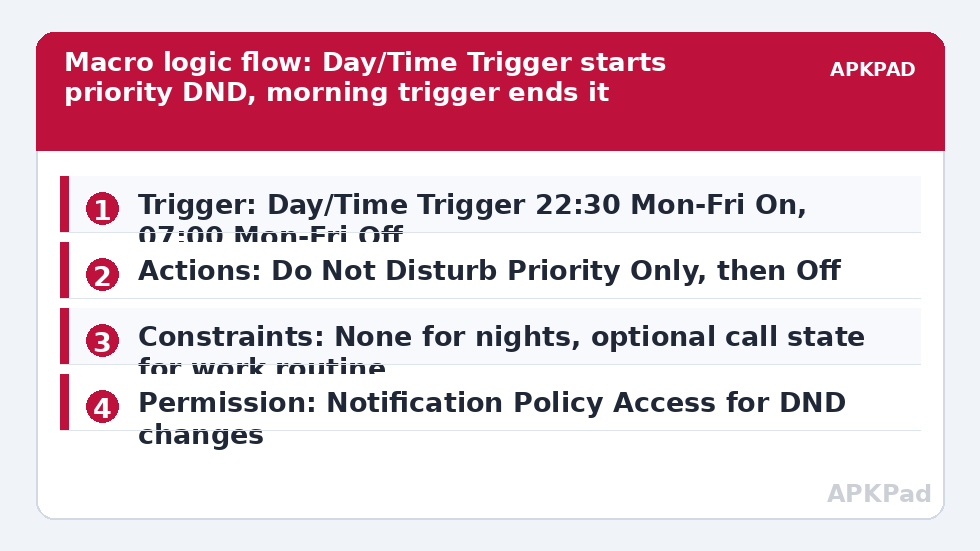
| Trigger | Day/Time Trigger at 22:30, Monday to Friday for the On macro; Day/Time Trigger at 07:00, Monday to Friday for the Off macro |
| Actions | Do Not Disturb set to Priority Only (On macro); Do Not Disturb set to Off / All Notifications (Off macro); optional Volume action to lower Media Volume at night |
| Constraints | None for the night routine; optional constraint on the work routine so it only runs when not already on a call |
Note the action name carefully. In MacroDroid the Do Not Disturb action sits among the volume and audio actions, and it offers modes that mirror Android’s own: allow all, priority only, alarms only, and total silence in effect. Pick priority only for nights so your pre-configured starred contacts and alarms still reach you. Total silence is a trap for anyone who relies on a morning alarm from the same phone.
Configure Android’s priority list before the macros
- Open Android Settings, go to Sound and then Do Not Disturb, and open the People or Calls section.
- Allow calls from starred or favourite contacts, and enable the repeat caller option so a second call within fifteen minutes rings.
- Allow alarms and media sounds according to your preference, and explicitly allow any reminder or calendar app you depend on.
- Leave Android’s own built-in DND schedule switched off for these hours, so two schedulers do not fight over the same setting.
That last step matters more than it looks. Android has its own schedule feature and MacroDroid will happily change the same state. If both are active, the phone can enter DND from one and exit from the other at odd minutes, producing behaviour that looks random until you remember the second scheduler exists. Pick MacroDroid as the single owner of the timetable, especially if you later add location or calendar conditions that Android’s scheduler cannot express.
Build the On and Off macros
Create MacroDroid macro DND Night On. Add a Day/Time Trigger, set 22:30, and tick Monday through Friday. Add the Do Not Disturb action and choose your priority mode. Save it, then immediately create DND Night Off with a Day/Time Trigger at 07:00 on the same days and the Do Not Disturb action returning the phone to normal. Test both by temporarily changing the trigger times to two minutes from now, watching the status bar icon appear and disappear, then set the real times back.
At this exact step MacroDroid needs Notification Policy Access, the Android permission that authorises an app to change Do Not Disturb state. If you have not granted it, Android will deny the change and the macro appears to do nothing. Grant it under Settings, Apps, Special app access, Do Not Disturb access, and enable MacroDroid. No root and no Helper app are required for this action on typical devices, but that one access grant is non-negotiable.
How to read this: the estimate adds a small always-on idle cost for MacroDroid itself (about 0.4% of battery per day) to a per-class daily cost for each trigger type you use, scaled slightly by how many macros you run. These are planning estimates from that transparent model — not measurements from your phone. Use them to compare setups before you build, then confirm against the real numbers under Android Settings → Battery.
Extending the idea: work hours and meetings
A daytime focus window follows the same shape with a shorter span. The difference is social, not technical: during work you may want priority to include a manager or a school office number that you would exclude at night. Android only keeps one main priority list, so handle daytime differences with constraints instead, or accept one well-chosen list for both windows rather than maintaining two fragile ones.
For meetings that move around the calendar, a pure clock is the wrong tool. Pair this routine with the approach in auto-rejecting calls during calendar meetings for event-driven silence, and with smart notification sound triggers for priority contacts if you want audible exceptions handled more granularly. Our wider Macro Triggers collection covers both patterns in depth.
Weekends, holidays and the lie-in problem
Duplicate both night macros, restrict the copies to Saturday and Sunday, and shift the morning trigger later. Name them unambiguously. The classic failure here is a weekday Off macro still running on Saturday at 07:00 because its day selection was copied without being edited, cheerfully ending your weekend lie-in silence two hours early. After duplicating any Day/Time Trigger, re-open it and read the day ticks aloud before saving.
Holidays expose the limit of a weekday clock: a public holiday on a Tuesday still follows the Tuesday rule. If that bothers you, add a manual override. A simple MacroDroid widget or a Quick Settings style toggle macro that disables the DND macros for twenty four hours gives you an escape hatch without dismantling the schedule. Keep the override manual and deliberate; automatic holiday detection adds calendar complexity that most people do not need.
Why a schedule silently stops working
When a previously reliable routine misses its start time, suspect power management before you suspect your logic. Aggressive OEM battery handling that kills MacroDroid in the background is the number one reason time triggers are missed, because a Day/Time Trigger cannot fire from an app the system has frozen. The remedy is to exclude MacroDroid from battery optimisation, set it to Unrestricted where Android offers that choice, and enable autostart or app locking in the battery settings of Samsung, Xiaomi, Oppo and similar skins. A routine that depends on the clock deserves that exemption more than almost any other macro in this series, alongside safety builds like automated low battery alert messages, which fail in the same silent way when the app is frozen.
Checks to run monthly
- Confirm the DND icon appears at the night start time at least once a week by glancing at the status bar.
- Review the priority contact list after changing phones, SIMs or contact apps.
- After any Android update, re-check Notification Policy Access, which updates occasionally reset.
Frequently Asked Questions
Can MacroDroid turn Do Not Disturb back off automatically?
Yes, and you should always build the off step at the same time as the on step. Use a second Day/Time Trigger for your wake or end time with the Do Not Disturb action set to off or to your normal priority mode. Never leave a schedule with only an entry rule.
What is the difference between alarms only, priority only and total silence?
Alarms only lets alarms through and blocks almost everything else. Priority only lets alarms plus the people, apps and reminders you mark as priority in Android settings. Total silence blocks everything including alarms, so use it only when you are certain no alarm needs to sound.
Why did DND not change even though the macro fired?
The usual cause is missing Notification Policy Access. MacroDroid needs that Android permission to change Do Not Disturb state. Grant it in Settings under special app access, then test again. Also check the MacroDroid log to confirm the Day/Time Trigger actually fired at the expected minute.
Will a time-based DND schedule survive a reboot?
Yes, once MacroDroid is running again. Day/Time Triggers are recalculated after boot, but an aggressive battery manager can delay MacroDroid restarting. Exclude MacroDroid from battery optimisation and allow autostart on OEM skins so the schedule resumes promptly after a restart.
Can I have different DND rules for weekends?
Yes. Duplicate the weekday macros and change the Day/Time Trigger day selection to Saturday and Sunday with their own start and end times. Keep the macro names explicit, such as DND Weekend On, so you can tell at a glance which rule fired in the log.