Coming home to a dark house and unlocking the door with your hands full of shopping is a small, daily friction that automation handles well. With geofenced location triggers smart home macrodroid setups, your phone notices it has crossed an invisible boundary around your home and asks your lights to turn on before you reach the door — and, just as usefully, notices you have left in the morning and turns off the lights you forgot. This guide builds the arrival version in detail, covers the departure version briefly, and is honest about the two real costs of geofencing: battery use from location polling, and the permissions Android rightly makes you grant.
A realistic expectation helps before you build anything. Geofencing is not doorstep-precise. Your phone estimates position from GPS, Wi-Fi, and mobile signals, and in a built-up area that estimate can wobble by tens of metres. Set a sensible radius around your home and your lights will usually come on somewhere between the end of your street and your front gate, which is exactly what you want for lighting. Do not try to shrink the radius until the lights fire as your key turns; that precision does not exist, and chasing it produces a flaky macro you will delete within a week.
How geofenced location triggers smart home macrodroid control actually works
The chain has three links, and troubleshooting is just finding which link broke. First, MacroDroid’s Geofence Trigger detects entry to or exit from the area you draw on its map. Second, the macro runs an action that talks to your lights. Third, your lights’ own system obeys. That second link varies by brand: MacroDroid can use an HTTP GET action to call a webhook or local hub address, a Plugin action for smart-home apps that expose a MacroDroid or Tasker-compatible plugin, or an action that opens or controls the lights’ own app, depending on what your lights support. Check what your specific lights or hub offer — a webhook URL from the lights’ own service or app, or a plugin — and use that, rather than assuming MacroDroid talks to bulbs directly, because in almost all setups it does not.
| Component | MacroDroid setting |
|---|---|
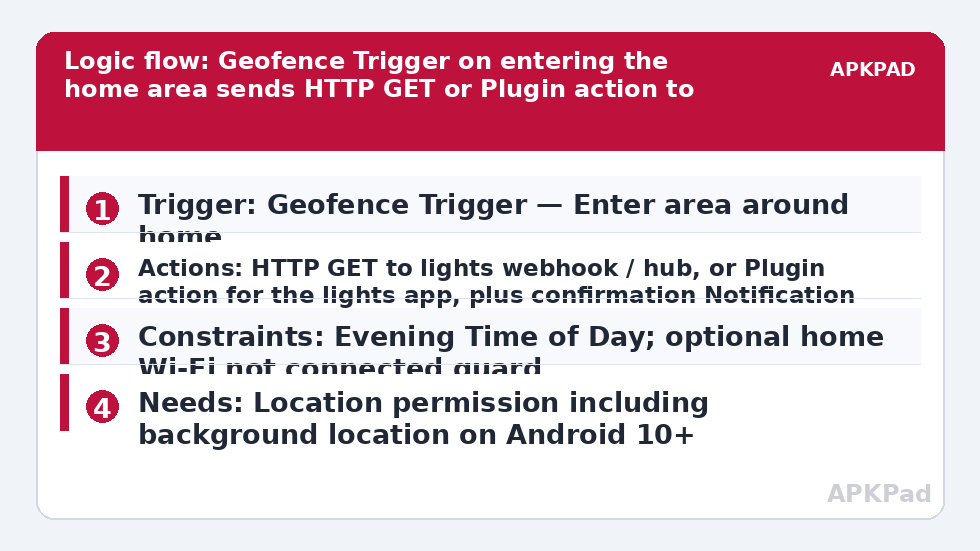
| Trigger | Geofence Trigger — Enter area, radius you set around home; companion macro uses Exit area for lights-off |
| Actions | HTTP GET to the lights’ webhook / hub URL, or Plugin action for the lights’ app, or launch/control action in the lights’ own app; optional Notification to confirm |
| Constraints | Time of Day after sunset hours or evening only; Wi-Fi SSID not connected to home network as an anti-repeat guard; Day of Week if needed |
The confirmation notification in the actions list earns its place during your first week. A silent automation that sometimes fails teaches you nothing. A notification that says lights triggered tells you the geofence fired, so if the house is still dark you know to investigate the lights’ side of the chain rather than rebuilding the geofence.
How to read this: the estimate adds a small always-on idle cost for MacroDroid itself (about 0.4% of battery per day) to a per-class daily cost for each trigger type you use, scaled slightly by how many macros you run. These are planning estimates from that transparent model — not measurements from your phone. Use them to compare setups before you build, then confirm against the real numbers under Android Settings → Battery.
Location permission: the part you must grant properly
Say it plainly: MacroDroid’s Geofence trigger needs Location permission, including background location on Android 10 and later. A geofence that only works while MacroDroid is open on screen is useless, because your phone is in your pocket when you arrive home. When Android asks, choose the option that allows location all the time for MacroDroid, and understand why you are granting it: so the app you chose can watch one boundary you drew. Battery optimization also interacts here. The number one reason geofence macros fail — and the number one reason MacroDroid macros fail generally — is OEM battery management killing MacroDroid in the background. Exclude MacroDroid from battery optimization, set it to Unrestricted, enable OEM autostart on brands that offer it, and accept that a phone in an aggressive battery-saver mode may still delay location updates.
On battery cost, be informed rather than anxious. GPS polling costs battery, and a geofence makes the system check your position periodically, with the cost rising if you set a tiny radius, move around the boundary often, or live somewhere with poor signal where the phone works harder for a fix. Cell-based and Wi-Fi-based positioning are cheaper but less precise, and Android’s fused location system balances them automatically. In everyday use, one home geofence is a modest cost that most users do not notice against screen and radio use. If battery is genuinely tight on an older phone, a cheaper alternative for the arrival case is a trigger based on connecting to your home Wi-Fi SSID — it fires later, when you are basically at the door, but costs almost nothing, similar in spirit to cell and Wi-Fi based automation.
Setting up the arrival macro
- Add a macro and choose the Geofence Trigger. Define a new geofence on the map, centred on your home, with a generous radius to start — a couple of hundred metres is a reasonable first attempt for most streets — and select the Enter trigger.
- Grant Location permission including background location when Android prompts, as described above.
- Add your lights action: HTTP GET with the webhook URL provided by your lights’ own app or service, or the Plugin action for your lights’ plugin, following that service’s instructions for its exact URL and any key it gives you. Keep any private webhook key out of screenshots or shared macro exports, because it can control your lights.
- Add a Notification action so the first week of arrivals is visible to you.
- Add a Time of Day constraint so arrivals at midday do not switch lights on pointlessly; sunset-to-late-evening is the useful window for most homes, and if you prefer a light-level logic, compare sunset-based automation without root.
- Save the macro, then test by actually leaving the area and coming back. Geofences cannot be meaningfully tested from your sofa.
When you test, walk or drive well beyond the radius, stay out for a few minutes so the exit registers cleanly, then return. Note where the trigger fires on your street; if it fires too late, enlarge the radius rather than hunting for a different centre point. Repeat triggers while you are at home — lights re-firing while you sit in the living room — usually mean your position estimate is drifting across a boundary that is too small, which a larger radius also fixes.
The departure macro and anti-nuisance rules
The exit version uses the same geofence with an Exit trigger and the opposite lights action, turning everything off when the last person leaves. That last-person caveat is the catch: if your partner is still at home, your departure should not plunge them into darkness. Geofencing per phone cannot know who else is home unless everyone in the household runs a similar setup and your lights’ system supports presence logic. In a single-occupant home the exit macro is straightforward and genuinely saves energy. In a shared home, be conservative — perhaps turn off only specific lights you personally use, such as a study or porch light, rather than the whole house. The full set of location ideas in the Macro Triggers category and companion builds like automatic car Bluetooth actions show the same pattern: location and connectivity triggers work best when their actions are narrow and easy to undo.
Security and privacy notes worth taking seriously
Your geofence reveals where home is to any app with your location data, so grant background location to apps you trust and review those grants occasionally in Android settings. Webhook URLs for lights are effectively keys to a part of your home; treat them like passwords, never post them in forums when asking for help, and regenerate them in the lights’ app if you ever shared one. Finally, keep the physical switches and the lights’ own app working as a manual override, and disable the macro first when troubleshooting rather than fighting it.
Frequently Asked Questions
Why does my geofence trigger fire late or not at all?
Usually because MacroDroid was killed by OEM battery management or because background location was not granted. Exclude MacroDroid from battery optimization, enable OEM autostart, confirm Location is allowed all the time, and enlarge the geofence radius, since a small radius combined with position drift causes missed entries.
How much battery does a geofence use?
GPS polling costs battery, and checking a geofence adds a modest, ongoing location cost that rises with poor signal and constant boundary crossings. Most users do not notice one home geofence against normal screen and radio use. If battery is critical, use home Wi-Fi connection as a cheaper, later-firing alternative trigger.
Can MacroDroid control my smart lights directly?
Generally it controls them through something else: an HTTP GET to a webhook or hub address from the lights’ own service, a Plugin action for a compatible smart-home app, or the lights’ own app. Check which method your lights or hub support and use that link in the chain.
What radius should I set around my home?
Start generous, around a couple of hundred metres for a typical street, then adjust from real arrivals. Too small a radius causes late or missed triggers because phone position estimates wobble, while a larger radius gives the lights time to turn on before you reach the door.
Should departure turn off all the lights in a shared home?
Be careful. Your phone leaving does not mean the house is empty. In shared homes, limit the exit macro to lights only you use, or use your lights system’s own presence features. Full whole-house switch-off on exit suits single-occupant homes best.